


The Metadata Dictionary can standardize metadata across your system, using approved synonym mapping, to drive core functionalities such as permissions by allowing admin to define a list of approved keywords and their synonyms. This also prevents teams from having to manage individual pieces of content.
Customers who are interested in this feature should contact their CSM to enable.
Jump to:
Metadata Dictionary Management
- Admins with the Manage Site permissions will be able to upload, download and delete the Metadata Dictionary CSV file.
- Admins will be able to trigger reprocessing their metadata and will receive an email when processing has completed. All existing items in the environment will have the new metadata dictionary metadata values applied to them.
Adding a Metadata Dictionary
1. Create a spreadsheet where you will create your desired metadata dictionary terms
2. Create the following columns & enter desired keywords & synonyms:
- Metadata Field - The field that the Metadata Value will be added to.
- Metadata Value - The value that will be added to the Metadata Field.
-
Dictionary Values - A list of values to search for in the content sources.
Note: Multiple values for a metadata field should be entered as a comma-separated list in a single cell, not as multiple rows

3. Save as a CSV file
4. Log into Mediafly Airship
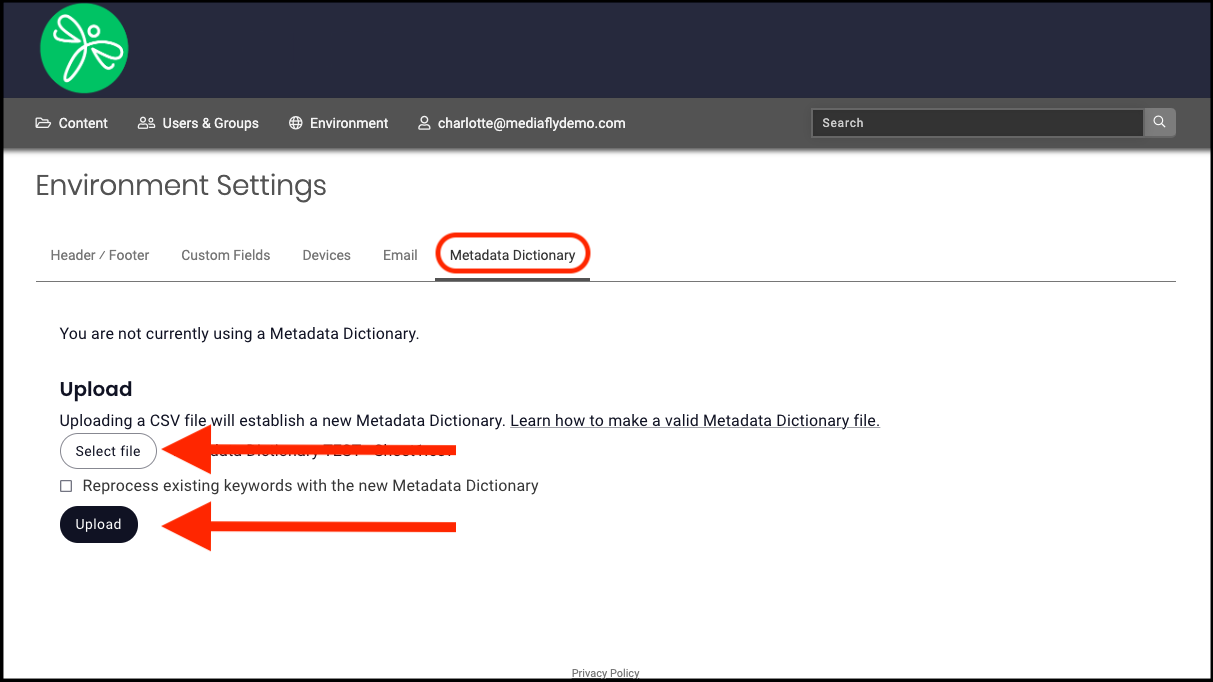
5. Go to Environment Settings > Metadata Dictionary
6. Click Select File and select the CSV
7. Optional: Check "Reprocess existing keywords with the new Metadata Dictionary" to enable reprocessing, Admin will receive an email once the reprocess is complete.
8. Click Upload
Editing a Metadata Dictionary
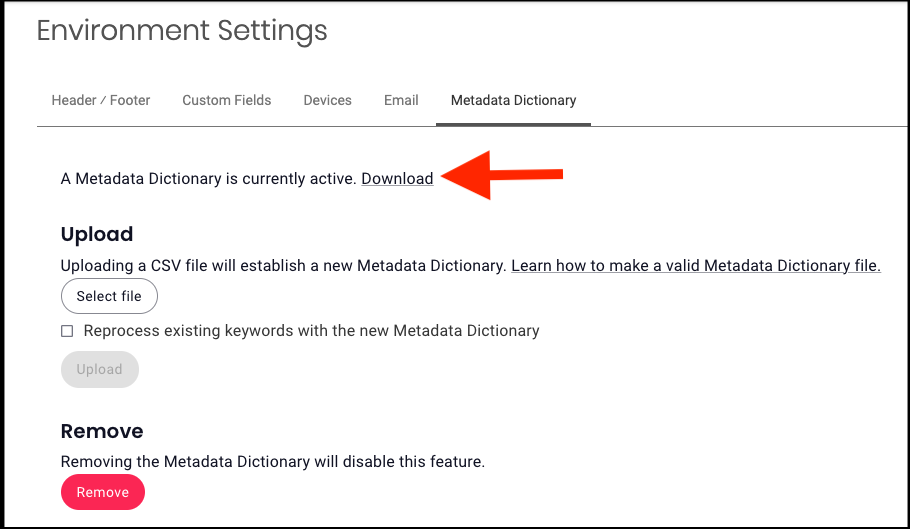
1. Go to Environment Settings > Metadata Dictionary
2. Click Download to download the existing Metadata Dictionary csv
Note: Downloading another csv will replace the existing Metadata Dictionary, you do not have to remove the current version first, and can only have one Metadata Dictionary at a time.
3. Make and save changes to the csv file
4. Add the csv, the new version will replace the previous and become the active Metadata Dictionary
Removing a Metadata Dictionary
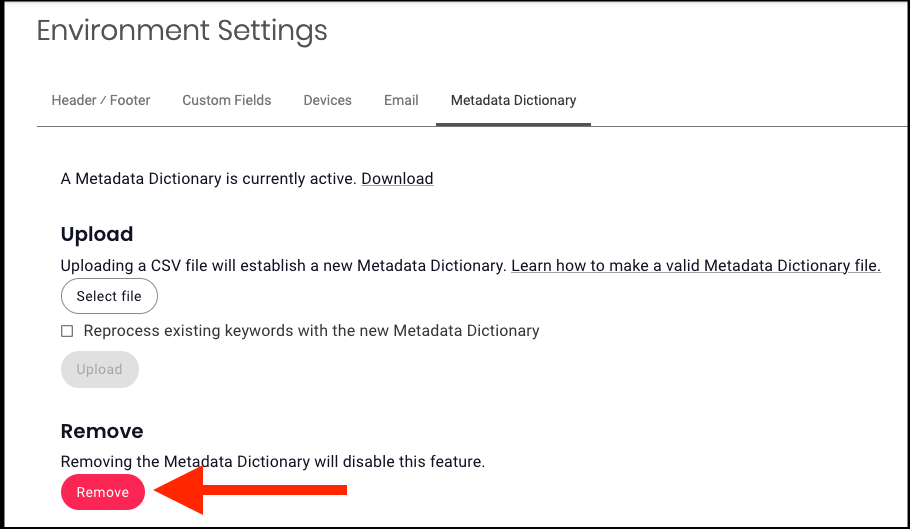
1. Go to Environment Settings > Metadata Dictionary
2. Click Remove
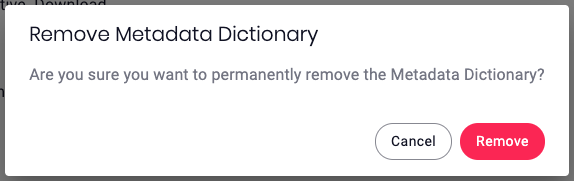
3. A confirmation window will appear that says "Are you sure you want to permanently remove the Metadata Dictionary? Click Remove or cancel to abandon the removal
Metadata Mapping
-
-
When a document is uploaded or updated we will use the following content sources:
- Document Text (.PDF, .PPTX, .DOCX)
- Video / Audio Transcription (.MP4, .AVI)
- Image Text Recognition (OCR)
- Image Object Labelling (Google Vision Label Detection)
- Item Title
-
If any keywords or their synonyms match definitions in the Metadata Dictionary, they will be added in addition to any existing metadata.
- If the metadata field only supports a single value, the existing value would be replaced.
- Manually added metadata will not use the Metadata Dictionary.
- Manually removed metadata could be automatically re-added as part of a future document update.
- Dictionary values will be matched using word boundaries so partial matches will not return a match. This means “The car has” will be matched for car but “Incar Entertainment” will not be matched.
- Dictionary values will be matched case insensitive so Car, CAR and car will all match.
- The matches will only run on items, not folders or URLs.
-
When a document is uploaded or updated we will use the following content sources:
Replies have been locked on this page!