


You can add comments to folders or items for continued collaboration with your team or add notes to a folder or item that are just for you. This feature keeps your communication and thoughts on specific content organized and easily accessible.
To access Comments & Notes:
-
In Viewer:
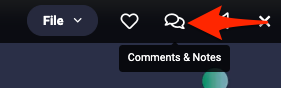
- When an individual item is open, hover at the top of the screen to produce the menu and click on the Speech Bubble Icon
-
- When the item or folder is present in your assets, contents, or workspaces, click the three dot icon and select Comments & Notes
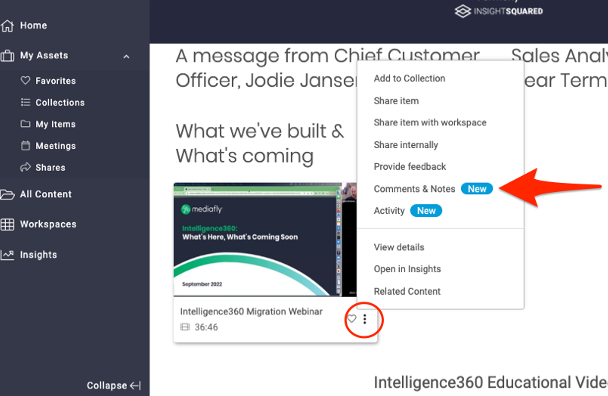
- A right drawer will appear in both views with the option to view Comments or Notes
In Airship:
-
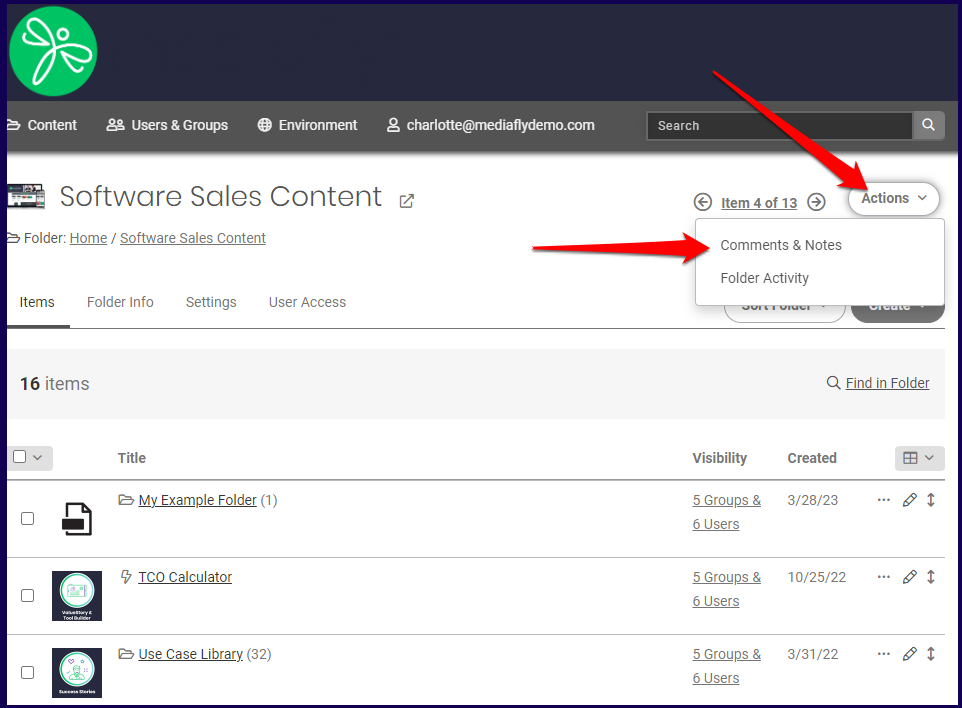
- Access the folder in the Content Management page (airship) that you want to add a comment or note. At the upper right corner of the screen is the Actions button.
Jump to:
Comments
Comments are public discussions you can use to collaborate with your team on a selected item or folder. This feature allows users to have continued communication related to specific content, complete with notifications, the ability to tag team members, link page numbers or specific timings in video content. This organized and ongoing collaboration will improve communication and workflow within your organization.
Viewing Comments
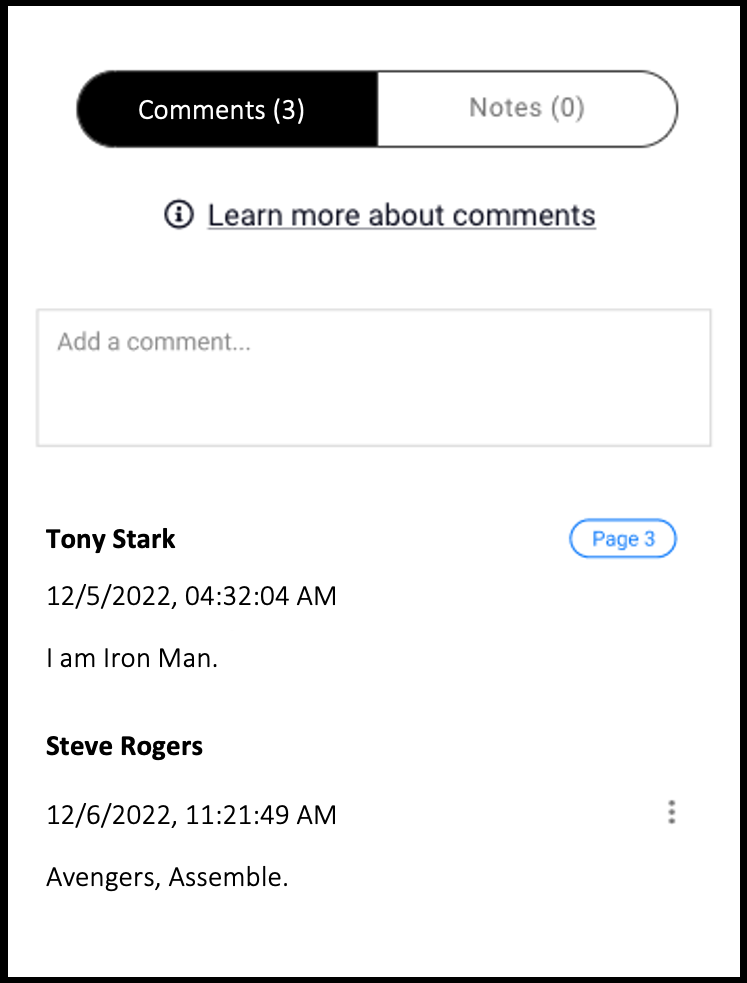
1. Click on the Comments tab to display:
- The option to Add a comment
-
All comments made on this item or folder
- Commenter Name
- Comment Timestamp
- Next to your own comments, you can click on the three dot menu to edit or delete a comment.
Adding Comments
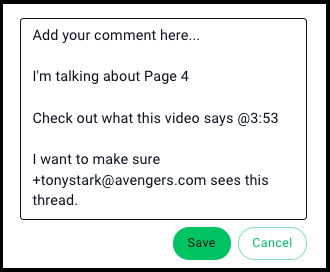
Click in the "Add a comment..." window and start typing! When you're ready to post, simply click Save.
What can comments do?
- Notifications: When someone makes a new comment, the item/folder creator and users that have previously commented will receive an email notification. If you would like a specific user to receive an email you can "callout" users by typing a "+" followed by their email address in the comment.
- Tagging document page numbers: When commenting on documents, you can link to another page by typing “page”, “pg” or “p” followed by the page number. (Ex: “pg 4”, “page 10”, “p3”)
- Tagging video time stamps: When commenting on videos, you can link to a specific time by typing an “@” symbol followed by the time. (Ex: “@2:30”, “@0:13”, “@1:12:34”)
Notes
Notes offer you a place to make your own, private notes about the selected item or folder. This is a great way to keep your thoughts organized and be able to come back to a piece of content and pick up where you left off. Only you can see the notes you add to a piece of content.
Viewing Notes
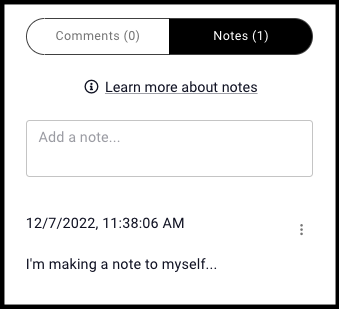
Click on the Notes tab to display:
- The option to Add a note
-
All notes made on this item or folder
- Note Timestamp
- Next to each note, you can click on the three dot menu to edit or delete a note.
Adding Notes
Click in the "Add a note..." window and start typing! When you're ready to post, simply click Save.
- Document page numbers: Notes are automatically applied to a specific page when made on documents, the note will be applied to the page you were viewing when you made the note.
- Tagging document page numbers: When commenting on documents, you can link to another page by typing “page”, “pg” or “p” followed by the page number. (Ex: “pg 4”, “page 10”, “p3”)
- Tagging video time stamps: When commenting on videos, you can link to a specific time by typing an “@” symbol followed by the time. (Ex: “@2:30”, “@0:13”, “@1:12:34”)
Replies have been locked on this page!