


The Draft and Publish feature allows users to create draft versions of items before publishing them. It offers a controlled workflow where users can make changes, preview content, and collaborate before publishing. Drafts can be saved, discarded, or published, ensuring content quality and preventing accidental publishing of incomplete material. The ability to work in drafts simplifies content creation, enhances collaboration, and enables efficient content management.
Contact your CSM to enable Draft capabilities.
Jump to:
Creating New Content Draft
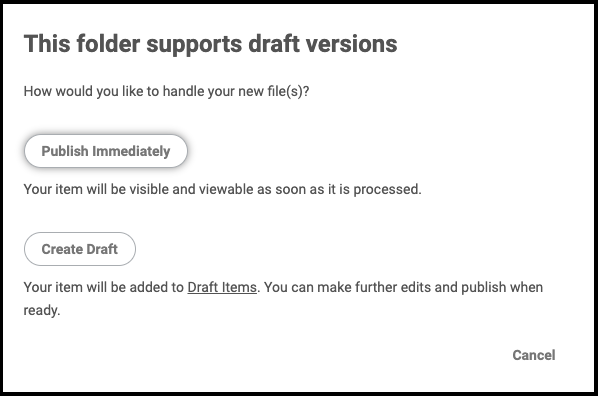
When you upload a new item, you'll see the pop up below where you can choose to:
- Publish Immediately: Your item will be visible and viewable as soon as it is processed, OR
- Create Draft: Your item will be added to Draft Items. You can make further edits and publish when ready.
Updating Existing Content
First, open the content you want to update in Airship
- In the File info tab, click Update.
- Select your update method to upload, import, or edit a new version.
- Select Create Draft to save the new version as a draft OR select Publish Changes to publish the new version.
- If you elected to save a draft version, there will be a Draft tab in the content editor, you can edit the draft version here.
- You can Preview Draft in Viewer to see what the published version will look like.
- Scroll down the draft editor page, here you can elect to:
▪Discard Draft - the draft will be deleted and the original version will remain published.
▪Publish Changes - the draft will be published and replace the original version.
▪Save - the draft will be saved as a draft so you can continue working on the draft before publishing. (The original published version will remain published until you Publish Changes.)
Accessing Drafts
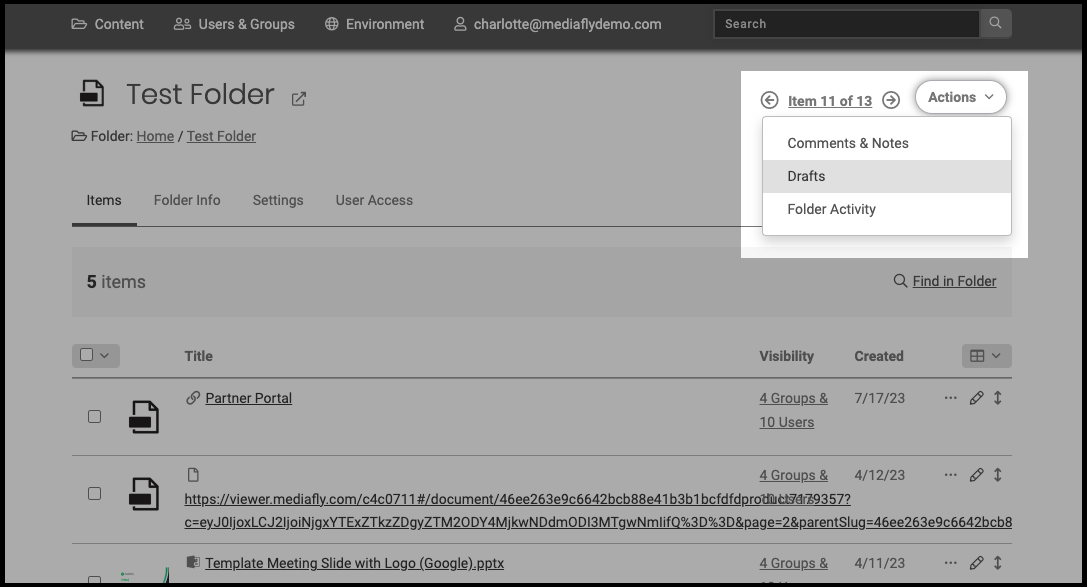
In addition to opening a piece of content and selecting the Draft tab, you can search for drafts within a folder:
- Open Content Management and select the folder you want to search for drafts
Note: If you search for drafts from Home, the results will not populate drafts within folders
- Click Actions, then select Drafts
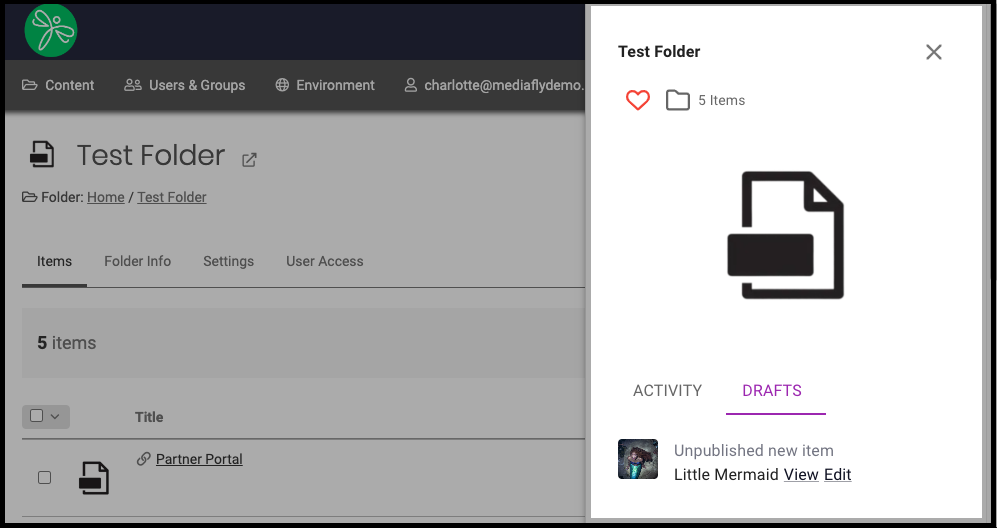
- A list of content that is in draft or has a draft version will be populated in a right drawer window, you can select and open a draft from here
A few things to know:
- Drafts will not appear on iOS, Android, AppleTV, or other client environments
- Drafts are not supported on “additional files”/variants
- Mirror item cannot be drafted. However, mirrors will be updated if the source is drafted & published.
Replies have been locked on this page!