


Hidden Assets allow you to hide certain items that you do not want visible to workspace viewers; eg., design assets, ancillary assets you don't yet want visible, etc. This allows you to keep your items organized and grouped in their appropriate space without adding clutter or unnecessary items to the end viewer. Additionally, hidden items will not show in search results or insights, preventing confusion for end users so they don't come across an asset not intended for their consumption.
Hiding Items
Notes: If you have edit access to an item and do not see the Hidden from Search/Insights/Meetings option, contact your CSM to enable this feature.
From Airship:
- Click Content Management > Click desired folder > Click to open desired item
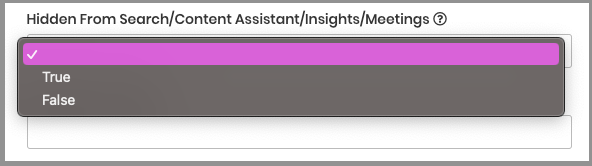
- In the File Info tab, scroll down until you see the option for Hidden From Search/Content Assistant/Insights/Meetings
- Click to open the dropdown and select True to hide item or False to keep item visible.
Note: If no selection is made, the item will default to the parent folder settings
From Viewer:
-
Open an item in Viewer
- Click File > View Details
- Scroll down until you see the option for Hidden From Search/Content Assistant/Insights/Meetings
- Click to open the dropdown and select True to hide item or False to keep item visible.
Note: If no selection is made, the item will default to the parent folder settings
Replies have been locked on this page!