


Mediafly allows content managers and admins to assign permissions to the folders in the environment to control, limit, and and set access levels to all users.
Jump to:
🔐Admin Only 🔐
Assigning Folder Permissions
Assigning folder permissions may be done on every level so that each subfolder inside the parent folder may have permissions of its own.
To assign permissions:
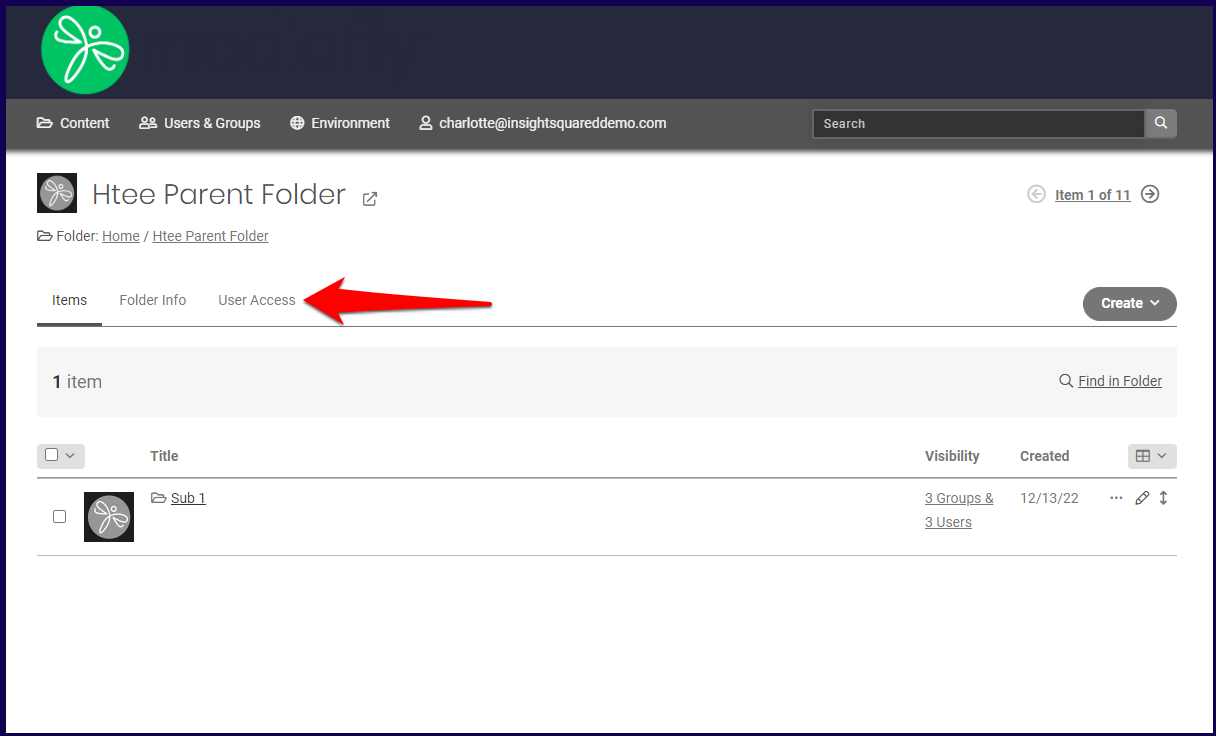
1. Access the folder that you want to add specific permissions and access levels. Click on the User Access info tab.
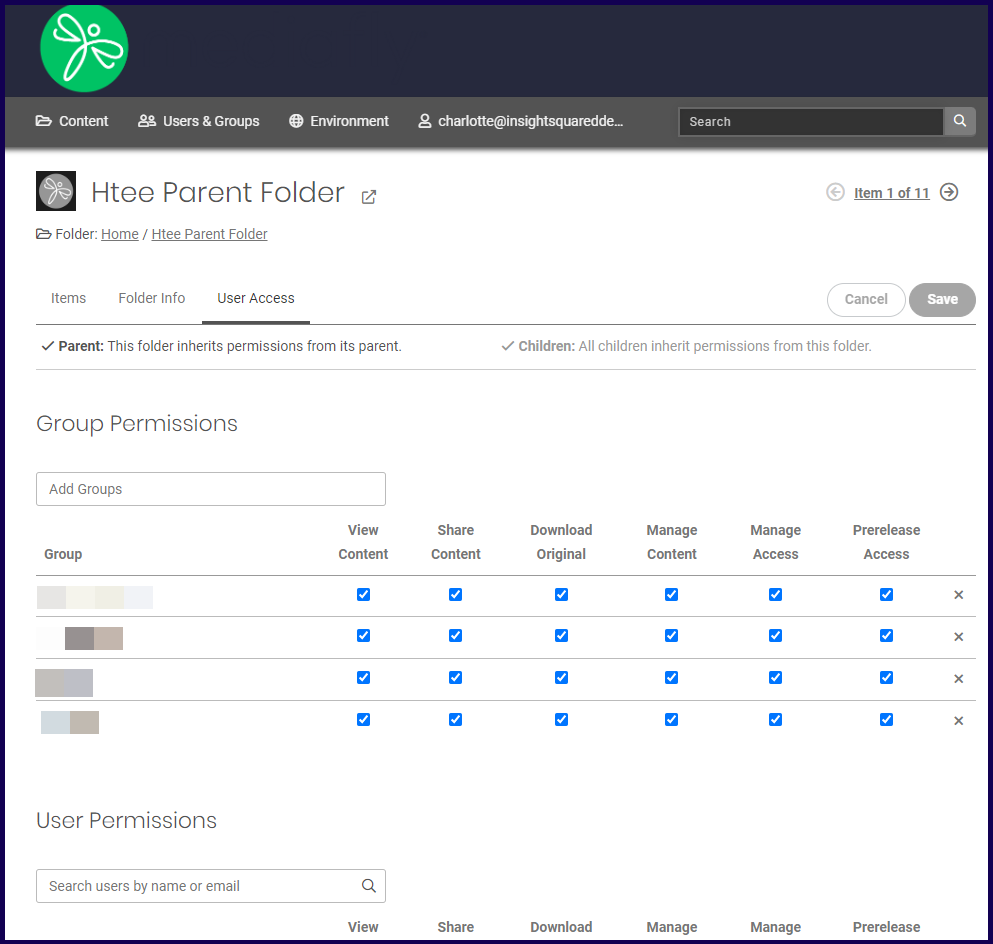
2. The User access page displays Group Permissions and User Permissions. In this page, you can alter the permissions that each group, or specific users have in the specific folder. For more information information about permissions, see Creating user groups and assigning permissions.
Folder Permission Hierarchy
Admins and content managers can further customize the permissions of each subfolder to further control and manage the groups and users so that the information available in your environment can only be accessed by those who are approved or authorized.
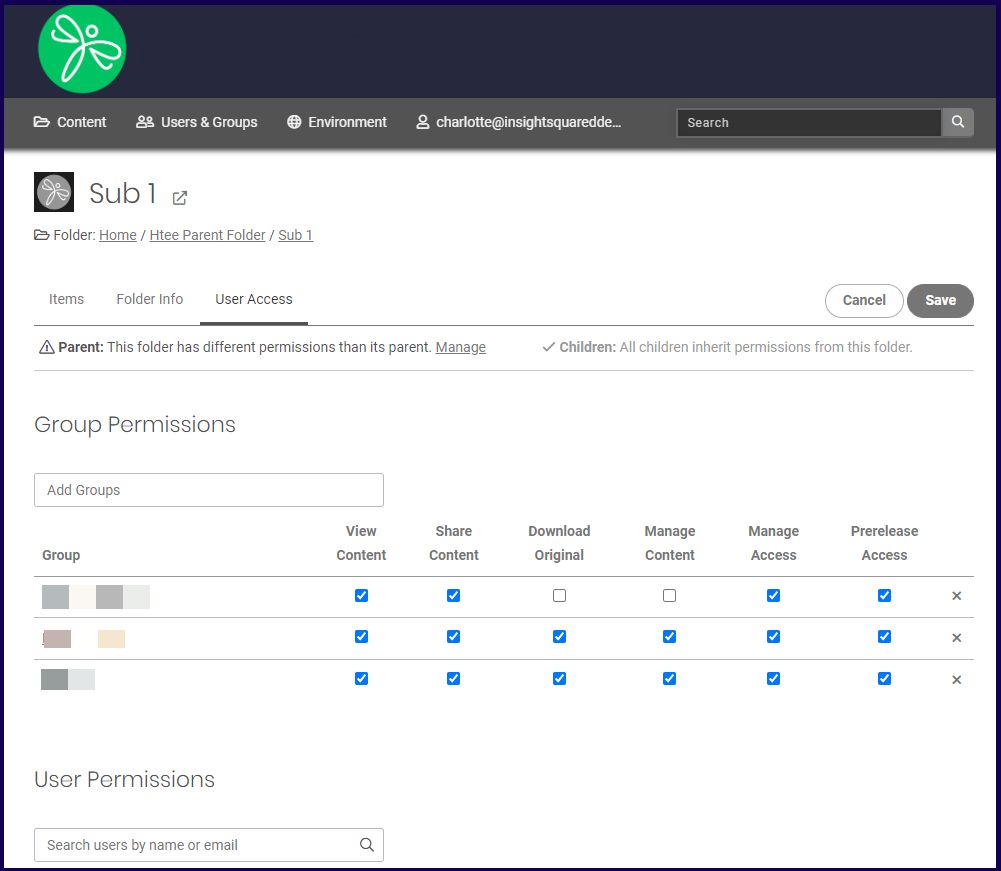
In this example, the subfolder (Sub 1) has different permissions compared to the parent folder (Htee Parent Folder) as the first group has less permissions inside the sub-folder compared to its parent.
In such case, the following rules are applied to all child folders with modified permissions:
- Permissions inherit down the hierarchy.
- If you assign different permissions at the child folders or at lower levels, inheritance breaks, and everything below the current level will no longer get the same permissions as the parent folder.
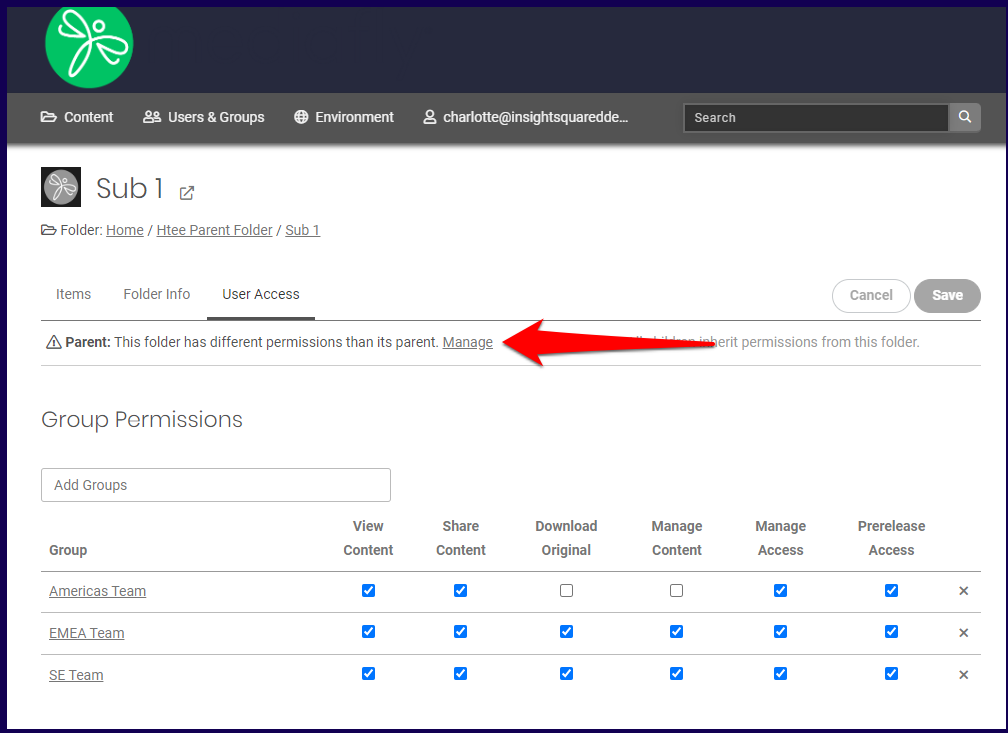
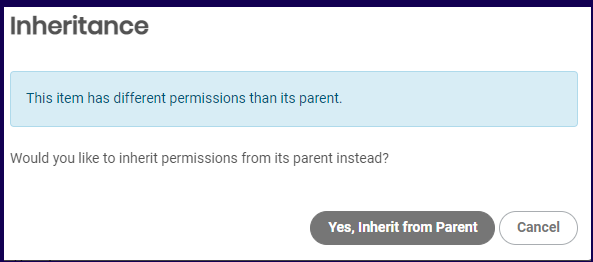
- Clicking on the Manage button gives the users the option to inherit the permissions of it's parent folder.
Replies have been locked on this page!