


A Collection is a personal playlist of content you can create that includes different files from different locations in the app. You can create multiple collections, save for offline viewing and share with prospects or customers. Collections ensure your presentations are engaging and dynamic.
With Collections, you can...
- Select specific pages to hide or show within documents
- Reorder pages with a document
- Use the new Content Library to explore content to add to your collection
Keys to success
- Create a Collection to prepare for an upcoming meeting
- Collections can include multiple file types
- Your Collections will sync across all your devices
- Use Collections to share multiple files
Creating a Collection
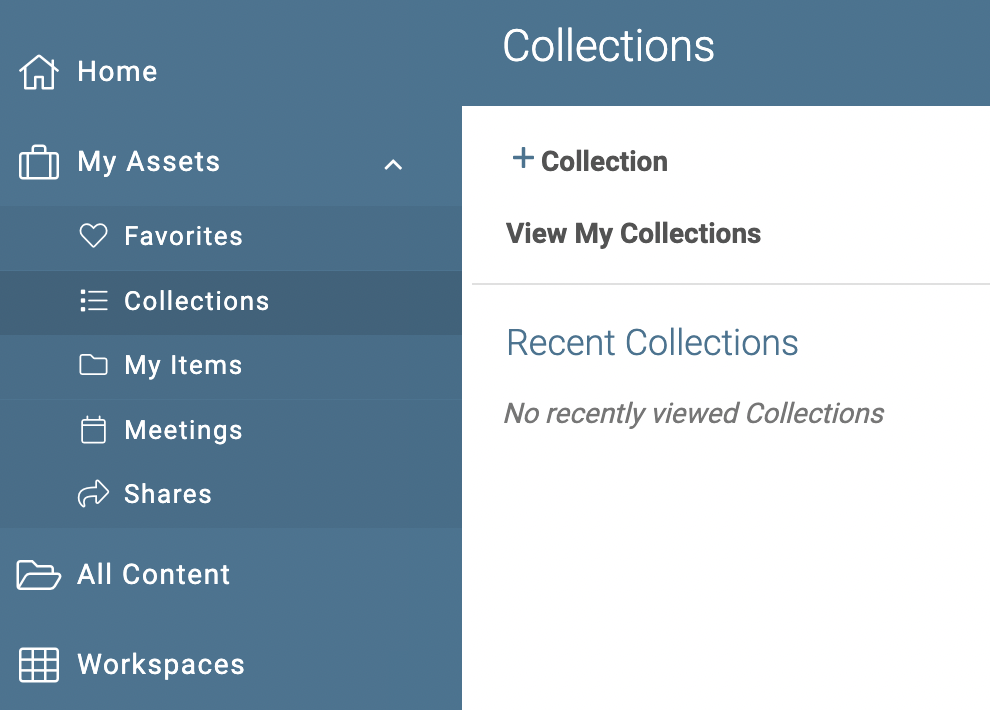
Navigate to the side bar menu
Select Collections then + Collection
Enter a title for your Collection
Add content to a Collection
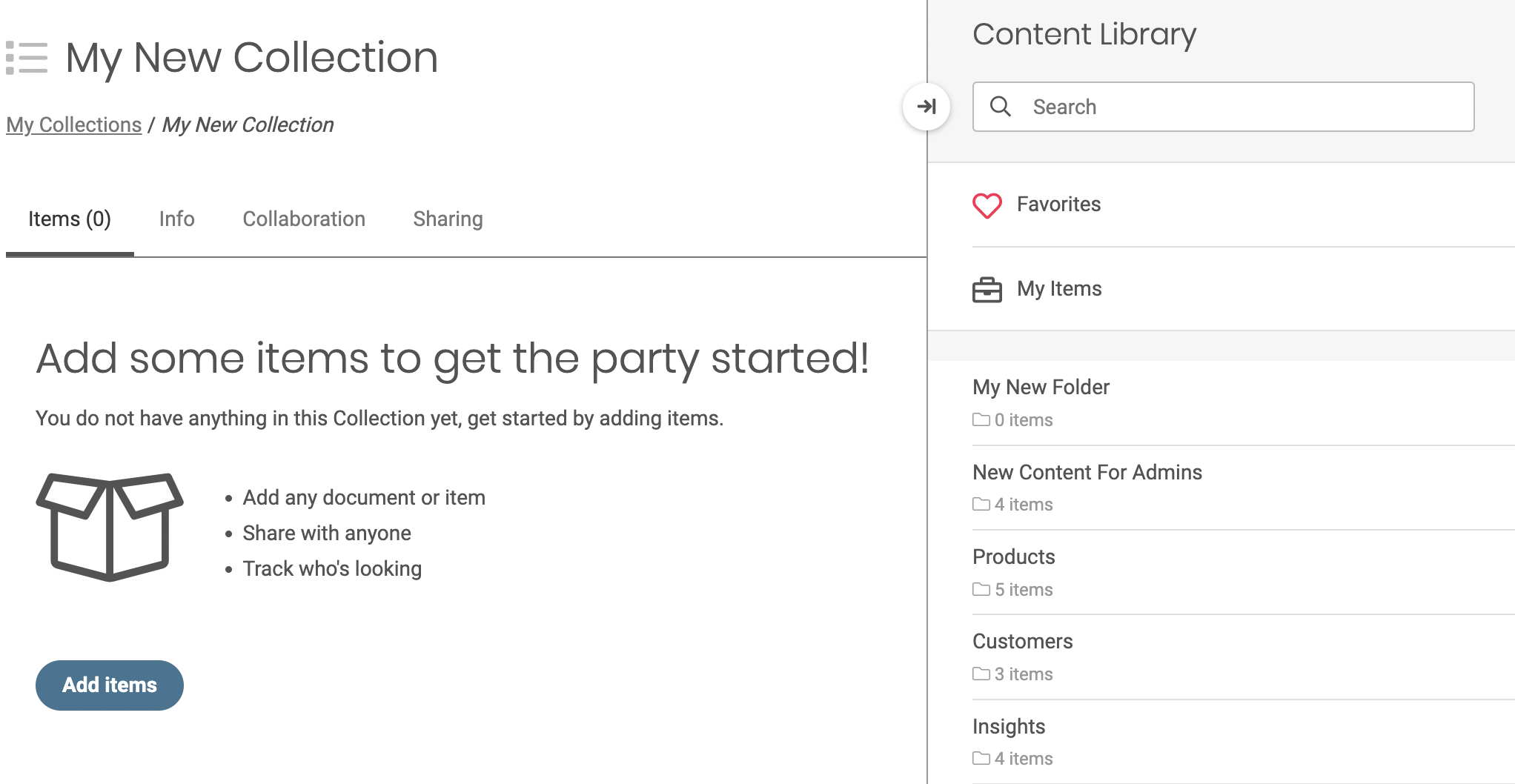
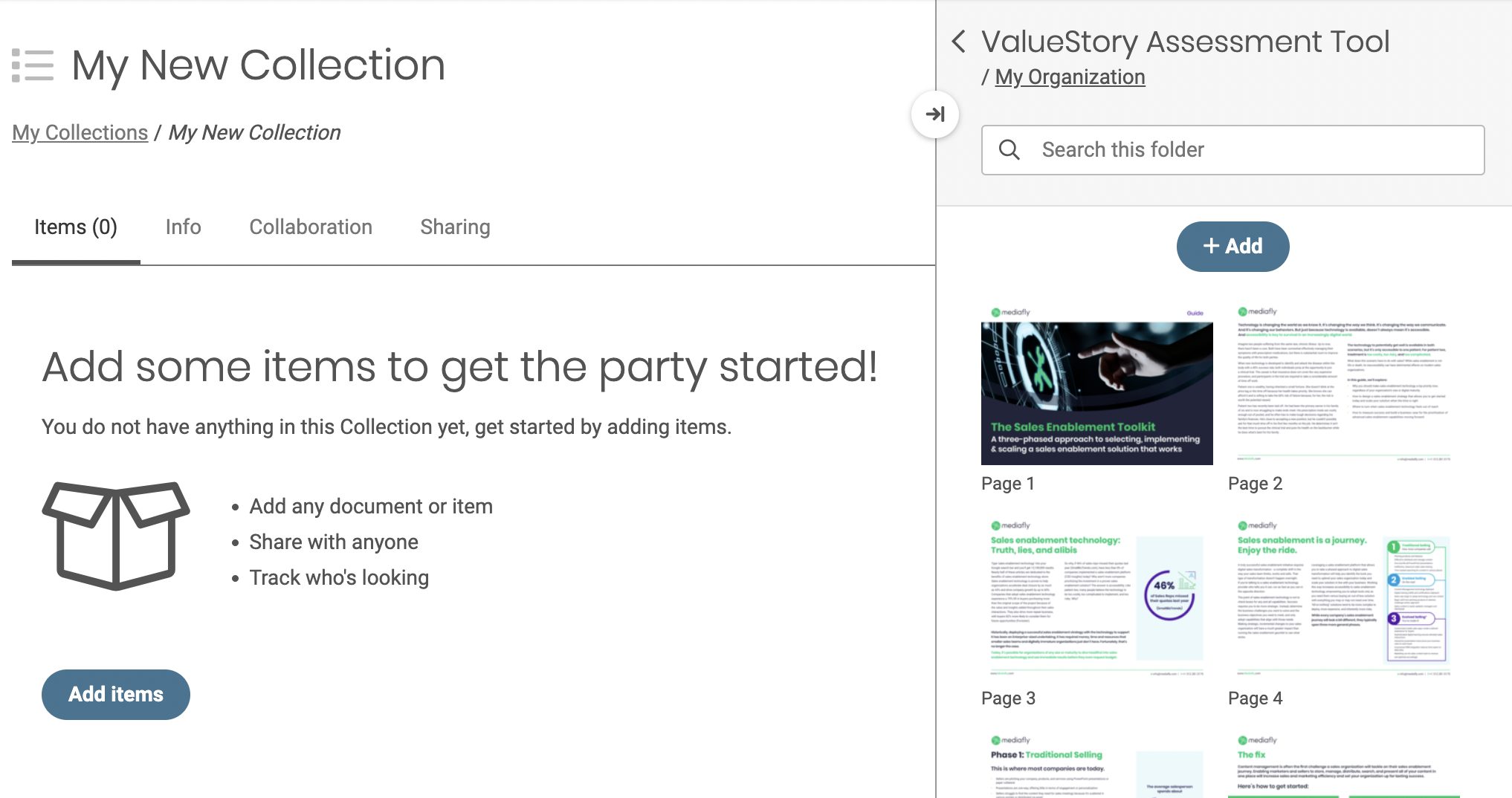
In the Collection window, use the Content Library menu on the right to explore and add content to your Collection
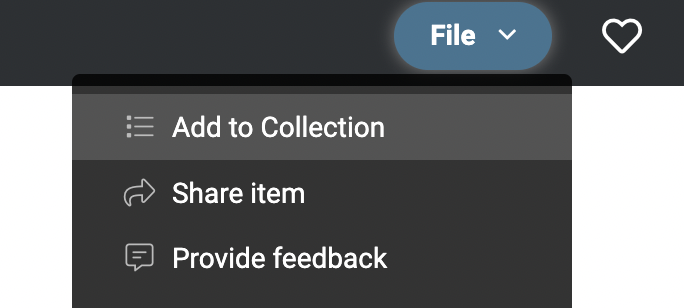
In addition, when navigating throughout the app, you can open to file menu and select Add to Collection
Organizing content inside a Collection
Within a Collection, you can hide or show specific pages and reorder pages using the menu options on the item thumbnail.
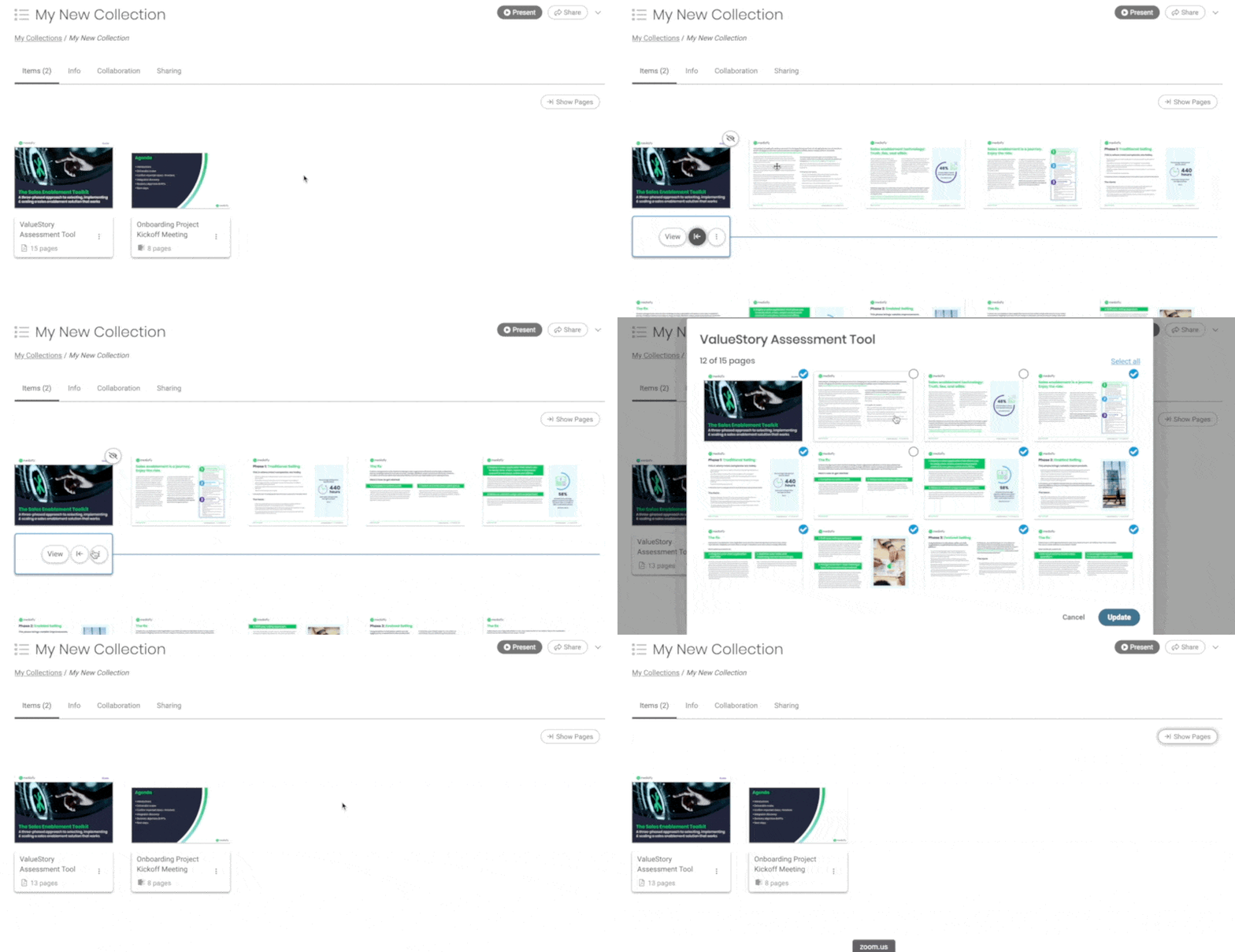
Note: Users with edit permissions may also opt to enable fix page order to limit viewers from editing and reordering the pages in a collection.
Presenting and managing a Collection
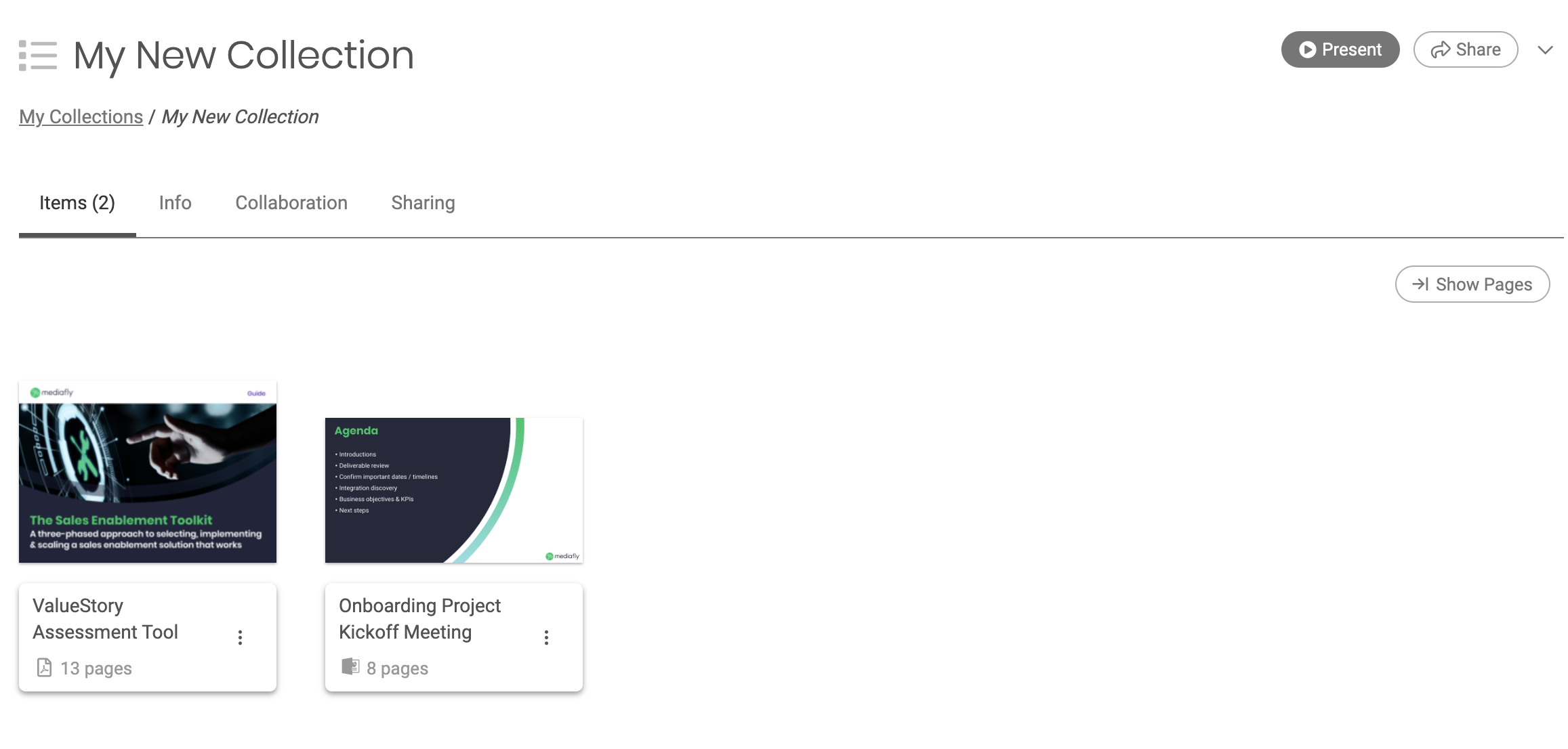
Use the Present button the top right to start presentation mode.
Manage and share your Collection using the Info, Collaboration and Sharing tabs.
Add Collection Thumbnail
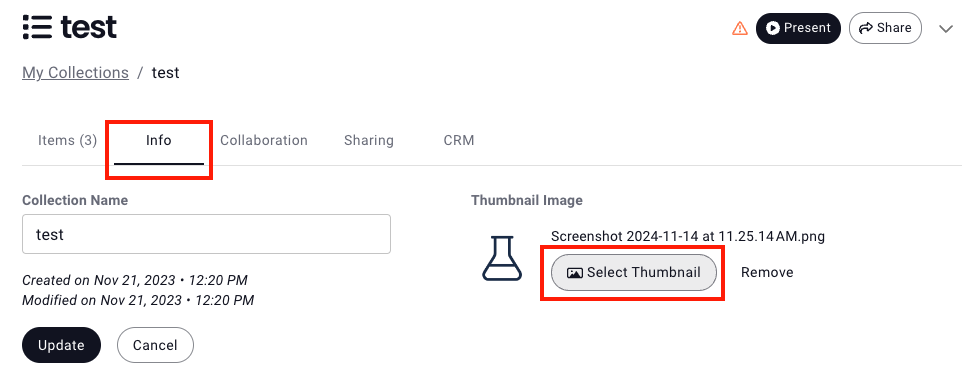
To add a thumbnail that represents a collection, making it easier to identify in the Collections list
- Click on the Info tab
- Under Thumbnail Image, click Select Thumbnail
- Select Upload New Image or choose a thumbnail from your Media Library or Browse Folder Content
- Click Update to save collection thumbnail
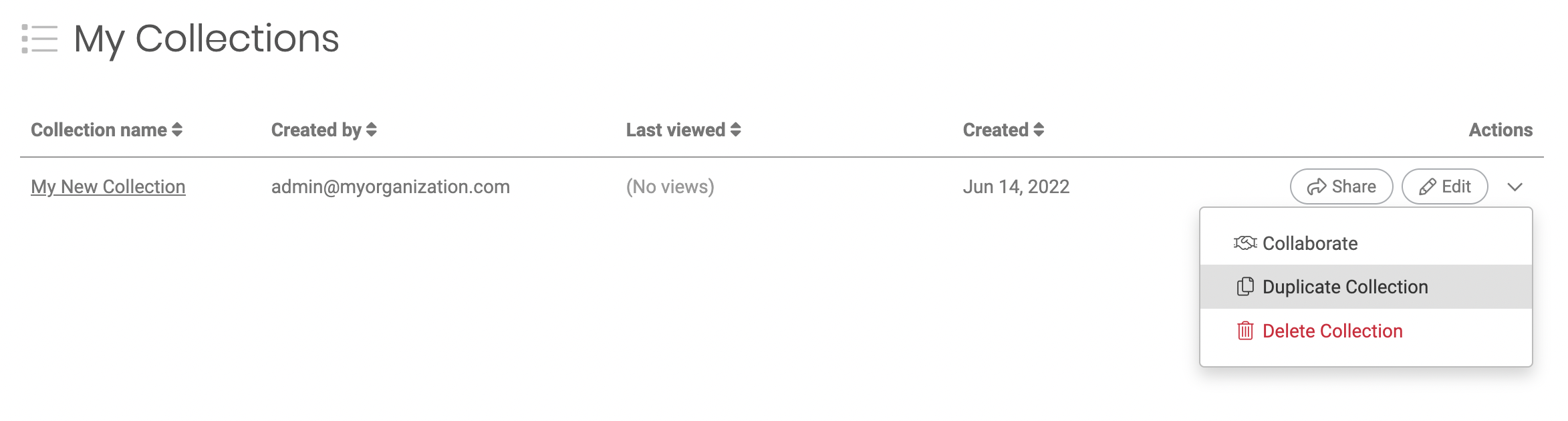
Duplicate a Collection from the Collection list view menu options
Replies have been locked on this page!