


Mediafly allows users to send feedback on all shared items so that the content managers can update and improve their content based on the feedbacks of those who viewed the item.
Providing Feedback
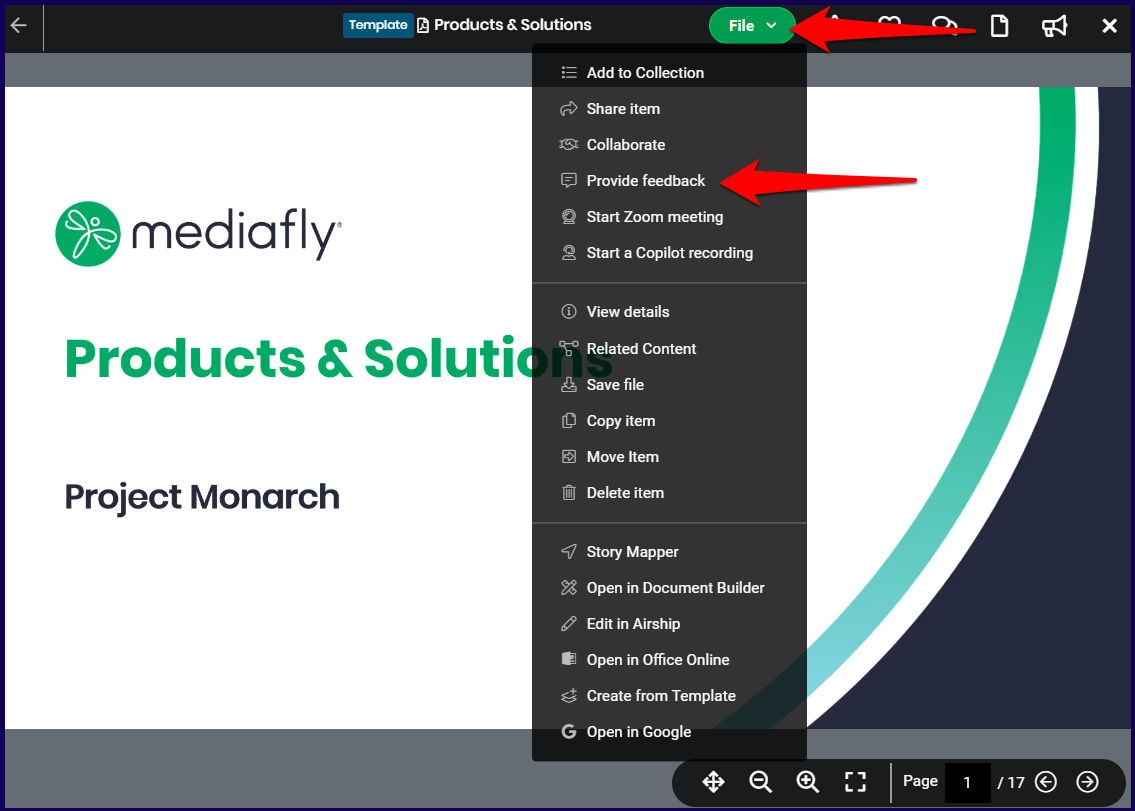
Users may provide feedback on the content by clicking on the File dropdown button and selecting Provide Feedback.
Once selected, the Provide feedback window is displayed. Viewers can put in their feedback and leave a rating to send.
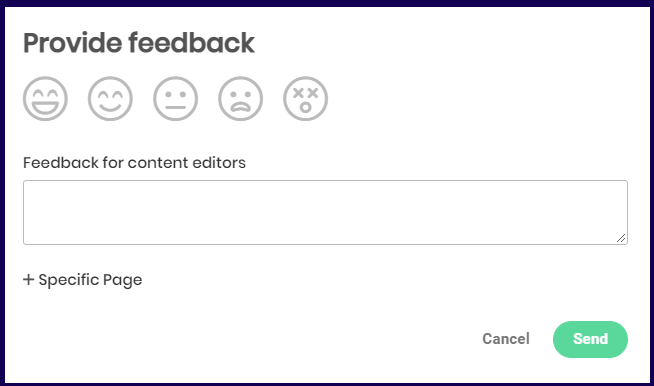
Note: By default, feedback that is sent will go to all Content managers for this item.
Setting Feedback Email Recipients
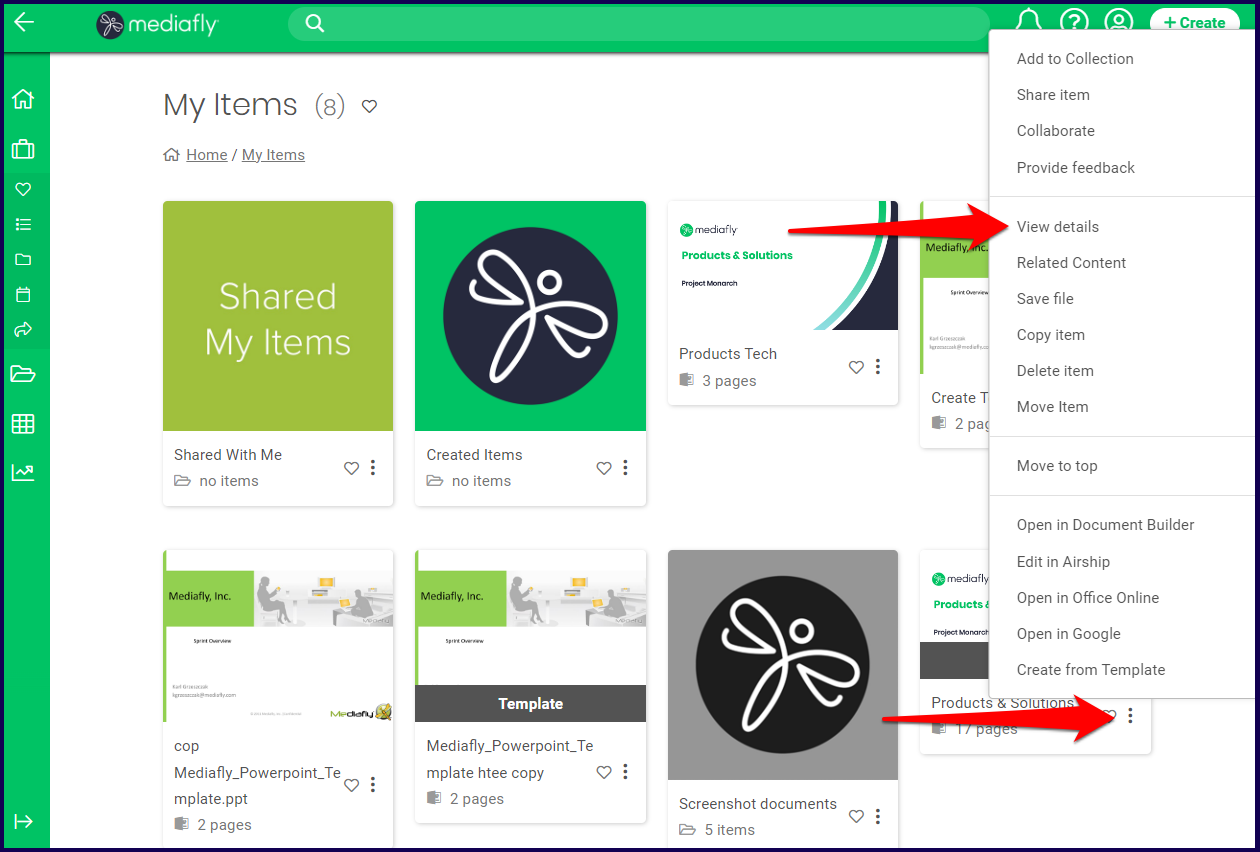
Access the item that you want to set the feedback email recipients. View the details of the item by navigating to the item, clicking on the three dots, and selecting View Details.
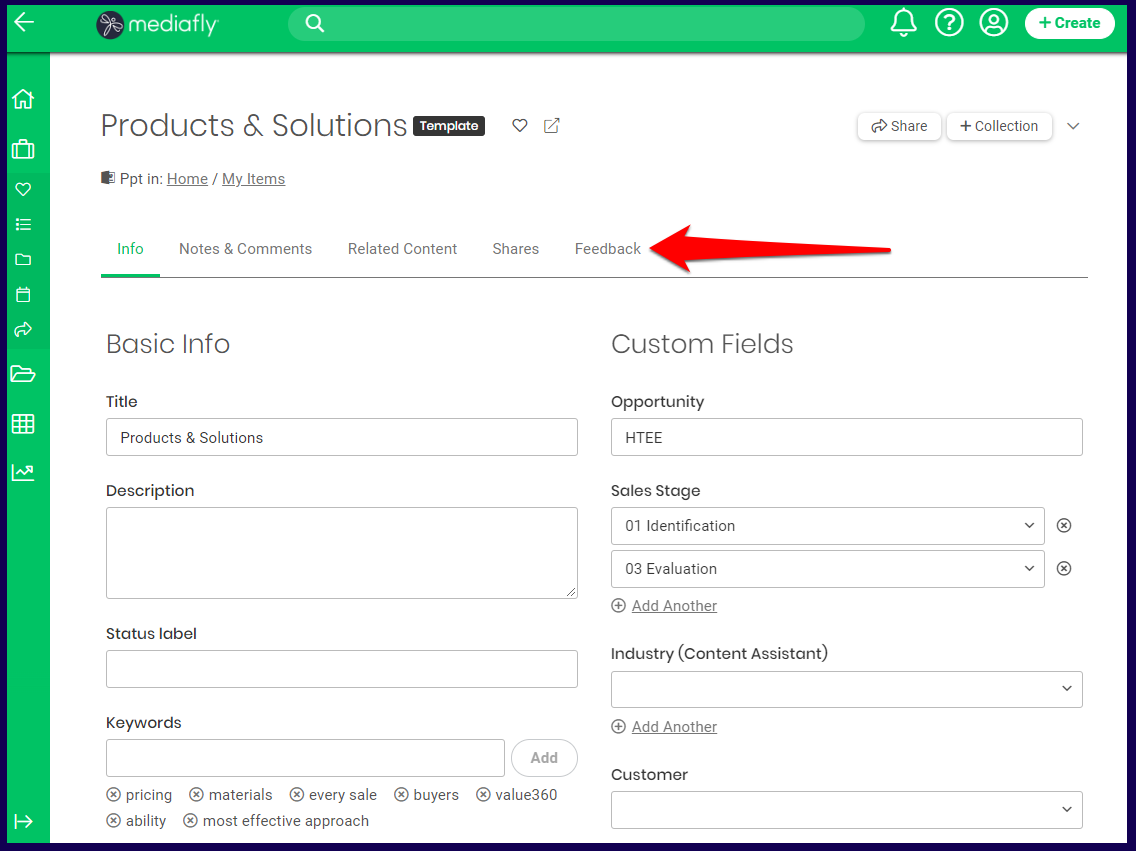
In the View Details window, click on the Feedback button to open the Feedback tab.
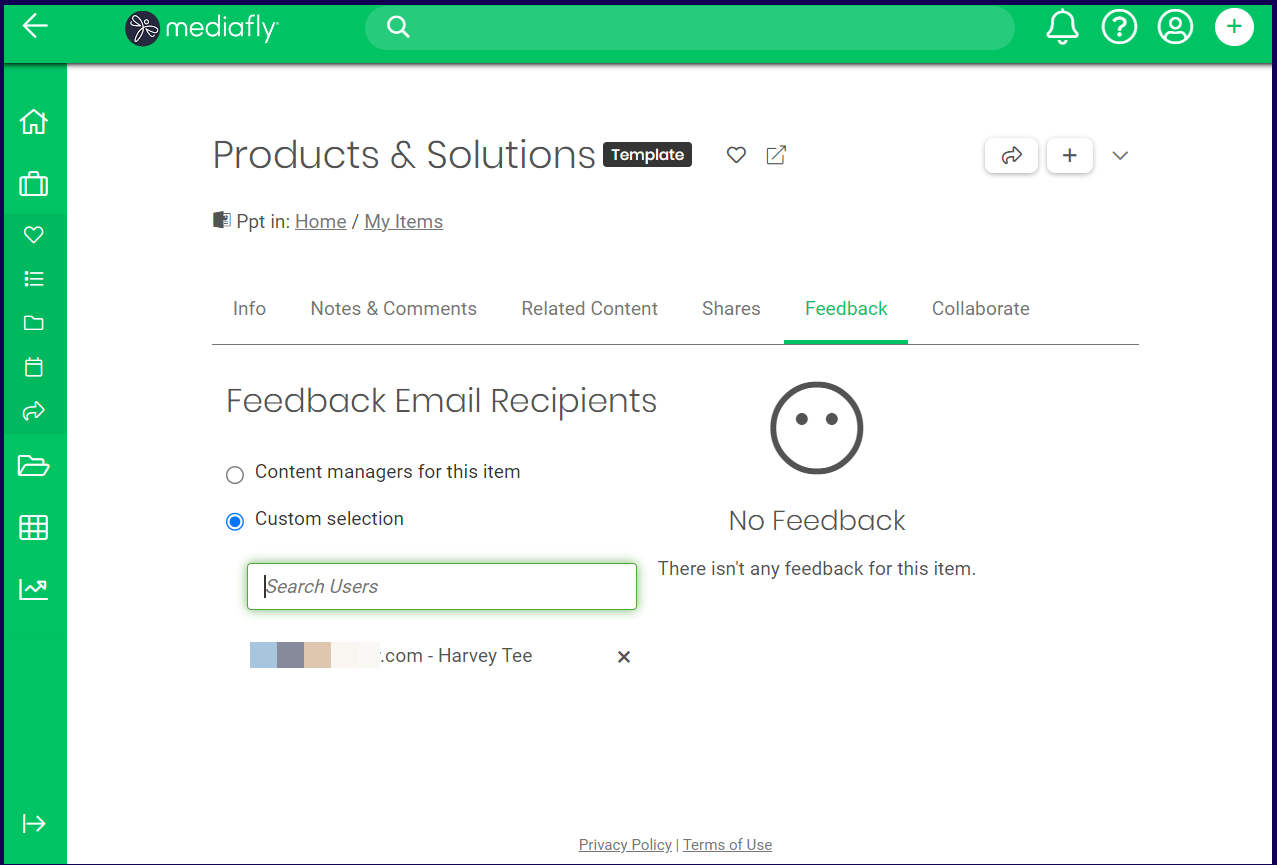
In the Feedback tab, specify which recipient will receive the email of the feedback. Chose between the two options:
- Content managers for this item
Sends an email to the creator, collaborator, and other managers of the item - Custom Selection
Selecting this will display the Search User field. Specify the user name or email address of the user. Selecting the name will add the user to the list below. In this example, I selected Harvey as one of the recipients.
Replies have been locked on this page!