


Environment Settings in Airship allow administrators to manage environments wide configuration including important footer websites, device preload settings custom fields and environment level custom signature.
If you do not have access to Environment Settings, please contact support to enable.
Accessing Environment Settings
- Log in to Airship
- Select Environment then Environment Settings from the menu
Header / Footer
Updating footer: To customize your organizations Privacy Policy, Terms of Use and Support URL, select the Header / Footer tab and update the URL before saving. These URLs will show on the footer of app login pages and throughout the app.
Custom Fields
Custom fields are created by your Mediafly support team. Once added, administrators can update within Airship. Custom fields can be used for a variety of purposes like extensions, integrations, faceted search, and more.
- To update, click on the Custom Fields tab
- Select the desired field from the dropdown
- Update the list of options
- Select Save
Updating device preload settings
Mediafly provides the ability to determine what types of content automatically downloads on specific platforms. This is helpful when you want to assist users with preparing for using content offline. Users can override these settings on their personal device. To reduce utilizing a large amount of storage, we recommend limiting the amount of content set for pre download.
- To update preload settings, select the Devices tab
- Update the preload content types by device before saving
Email Signature
Admin can set an environment-level customer signature for your environment that will be applied to all emails sent from that environment (eg., composed shares).
Simply select email and enter a rich-text signature and click Save. You can adjust the font, layout and even include links!
Metadata Dictionary
Learn more about the Metadata Dictionary and enabling this feature here.
AI Features
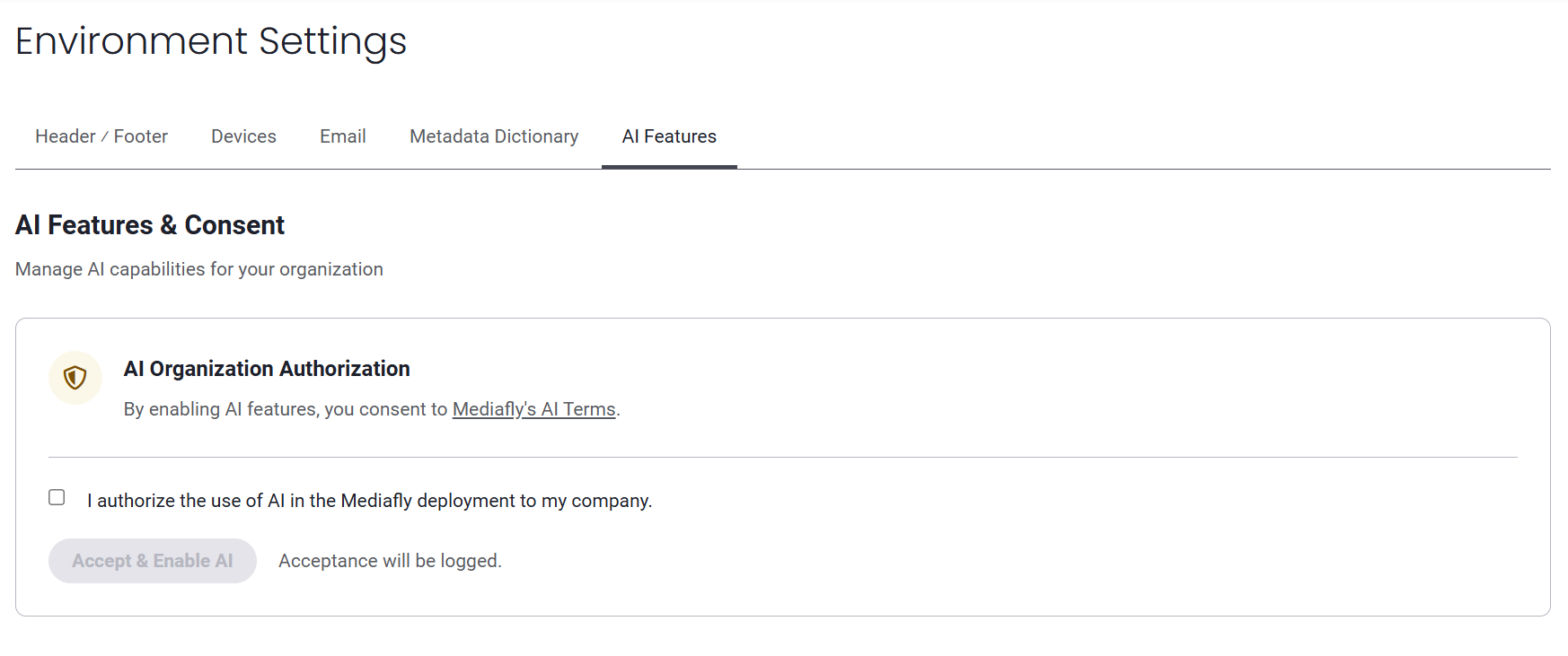
Due to the recency of AI releases, some contracts might not include our AI terms. If your organization requires consent to turn on features you will see the 'AI Features' tab. Note, any updates apply for your entire organization.
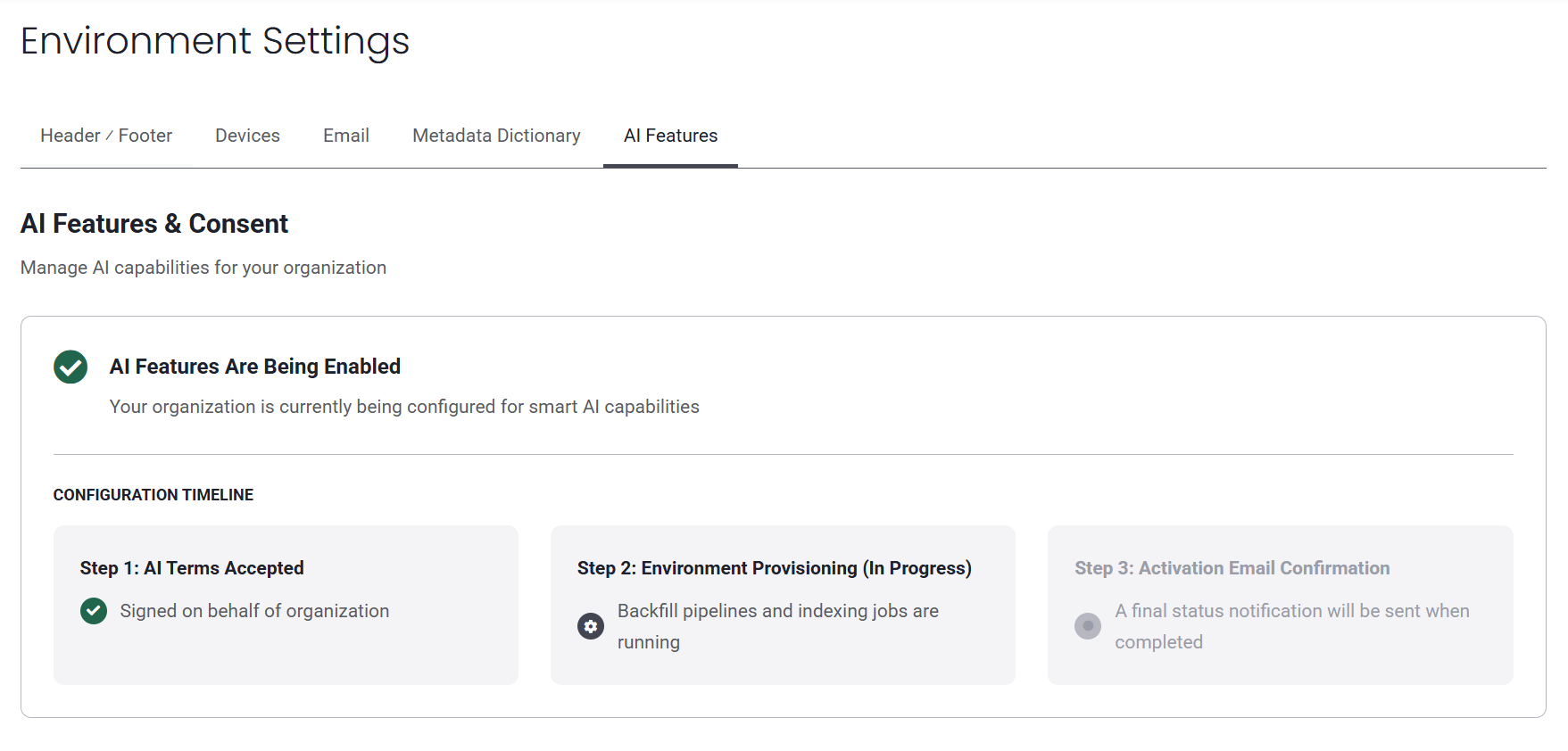
The status information on the tab updates as your AI permissions are activated by the Mediafly team. You will be informed when these are fully activated and ready to use.
You can learn more about Mediafly's AI offerings here.
Localized System Emails Feature
The localized emails feature enables user and environment-level language configuration for all system-generated emails sent from Mediafly. This allows users and their contacts to receive emails in their preferred language.
- Localization applies to all system-generated emails, including Digital Sales Room notifications, and user invitations and management emails.
- The default environment-level setting is configured by the Mediafly team - please submit a ticket if you want to change your organization's default language.
- Individual users can still select a language preference in their 'User Preferences' configuration.
- The email language defaults to English if not configured at either the user or environment level.
- The following 17 languages are currently supported - Czech, German, Greek, English, Spanish, French, French (Canada), Croatian, Italian, Japanese, Korean, Dutch, Polish, Portuguese (Brazil), Russian, Swedish, Chinese (Simplified).
- If you need support for an additional language, please contact our team.
Top Tip - Set an Annual Reminder!
It's common to include the year (or other dated information) in the footer of websites, environments, and emails, this is your friendly reminder to update that information annually!
- If you include the date in the footer of your Mediafly environment, update it the Header/Footer Settings as instructed above
- If the date is included in the environment level signature, edit your Mediafly Environment Level Email Signature as instructed above
- If you use our Outlook Add On, you can also update email templates
- If the date is in the footer of your email, edit the settings through you email provider
Replies have been locked on this page!