


Once you upload content, you can organize content in Airship, our content management system. In Airship, you can upload and manage many types of files.
Re-ordering files within a Folder
1. Log in to Airship
2. Navigate to the file location
3. Re-order content by dragging, sorting, or moving to top or bottom
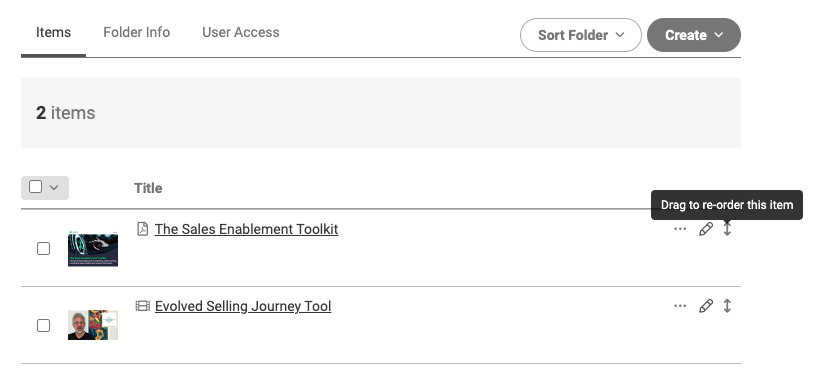
Drag to re-order of files by clicking and holding the up-down arrow icon
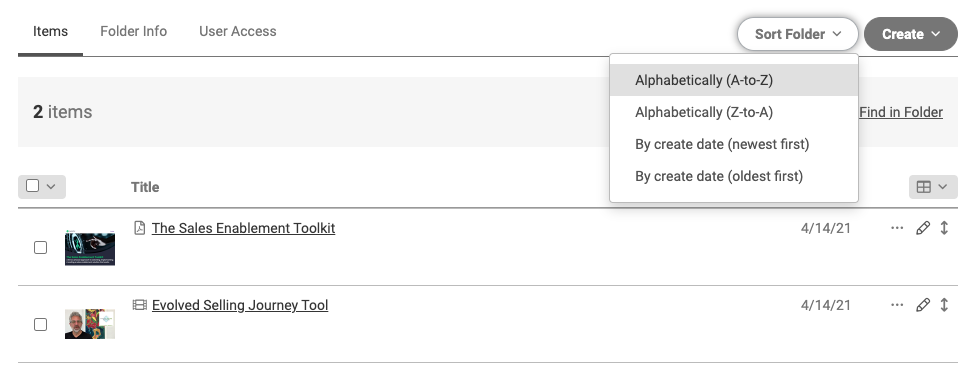
Sort an entire folder of files using the Sort Folder button
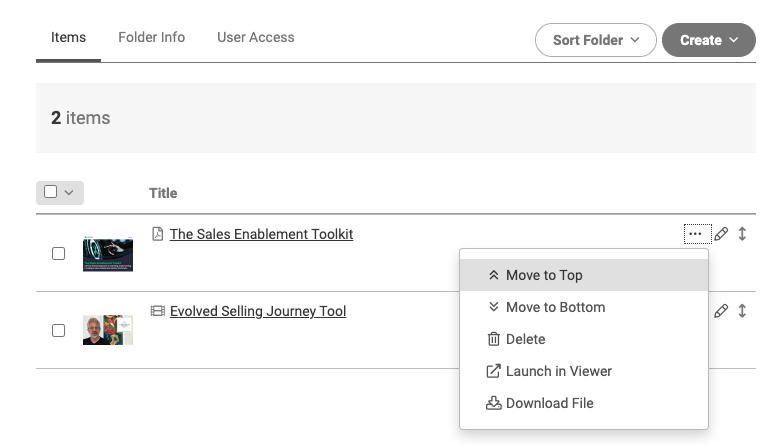
You can quickly move a file to the top or bottom of a list by selecting Move to Top or Move to Bottom from the file action menu
Organize files in multiple locations
1. Log in to Airship
2. Navigate to the file location
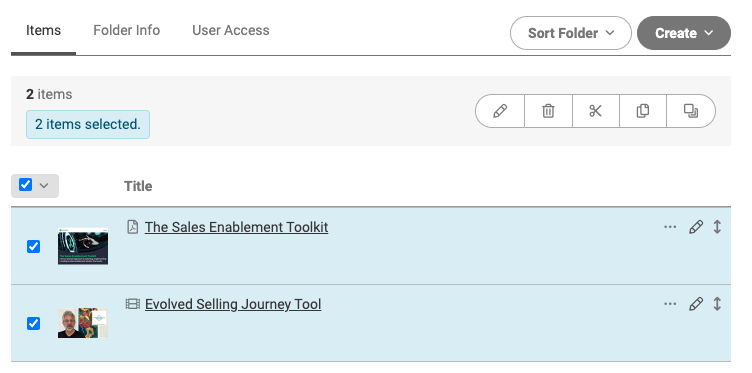
3. Select the desired file(s) using the checkbox next to the title
4. Once files are selected, an action toolbar will appear with multiple options
- Edit: Bulk update file info
- Delete: Move file to trashcan
- Cut: Remove file from current location and navigate to new location to paste
- Copy: Copy file from current location and navigate to new location to paste copy
-
Mirror: Replicate the primary file to a new location without creating a copy. Mirrors allow you to manage a single file but utilize it in many locations. Content managers can mirror folders or files to any folder they have access to manage. The permissions and details (title, description, etc) on mirrored folder or files can be modified by the content manager to differ from the original item.
- Note: You cannot mirror an already mirrored item
- Note: Mirrors will take the source item's metadata (including title) up until the point where you change any metadata on the mirror itself. Once you have done that, no changes to the metadata in the source item will be reflected in the mirror because you've now modified this. (Click here for an example.)
Example of when mirror changes are reflected across items:
Let's say you have item 1 which you mirror to another item - the mirror will be called item 1.
If you do nothing to the mirror and change the title of item 1 to item 2, the mirror will be called item 2 as well. However, if you go in and modify the mirror to be called mirror 1, then when you change the original item 2 to be item 3, it will not reflect on mirror 1.
This includes any other properties, description, custom fields, can share, can download, archive date etc.
Replies have been locked on this page!