


🔐 Admin Only 🔐
Admins can bulk-update metadata on their content by exporting all content metadata into a spreadsheet, making changes, and then importing them back into Engagement - making many changes more quickly.
Jump to:
Note: The 'Feedback Owner' field (shown as 'contentOwner' in the csv) is not supported in bulk edit.
Bulk Editing Metadata
First, you'll need to access the Bulk Edit Item Info page, and this step will differ depending on if you're working out of Airship or Viewer.
-
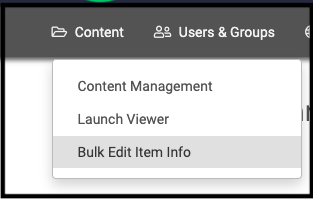
From Airship: click on the Content tab and select Bulk Edit Item Info
-
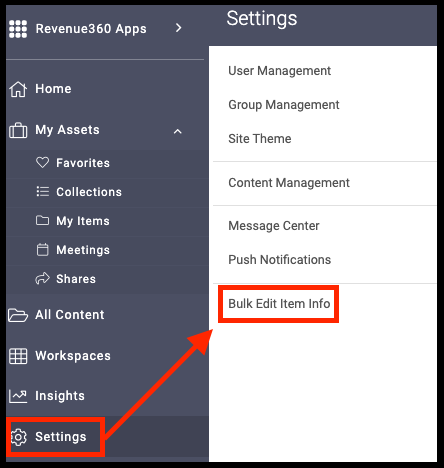
From Viewer: click on Settings and select Bulk Edit Item Info
From here the process will be the same, and this page will walk you right through it!
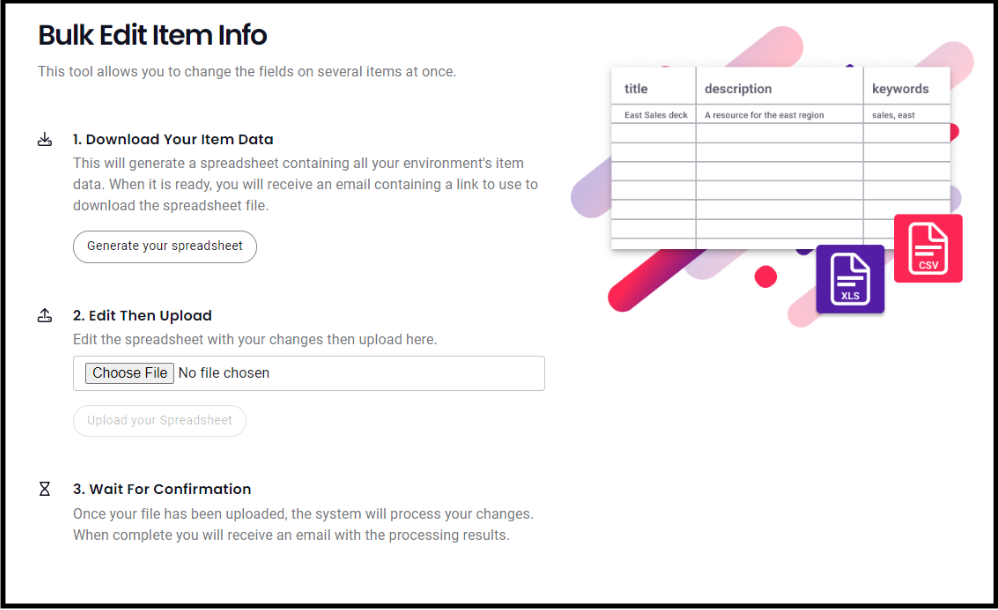
- Download Your Item Data: click on Generate your spreadsheet, you'll then receive a message that says "Your file is being generated and will be emailed to you."
-
Edit Then Upload: once you receive the spreadsheet via email, download & edit the spreadsheet with your changes (check out our File Format Requirements), then return to the Bulk Edit Item Info page and click Choose File, select the updated spreadsheet and click Upload your Spreadsheet.
🚨 Note: Blank values will remove existing values on the content. 🚨 - Wait For Confirmation: once your file has been uploaded, the system will process your changes. When complete, you will receive an email with the processing results.
File Format Requirements
-
File format: CSV or Excel (.xlsx)
Note: CSV is the recommended best practice over .xlsx as Microsoft Excel can reformat some of your fields, causing values to change unexpectedly. -
File size limits:
- 500 rows (excluding header row)
- 25 columns
- 1MB
- Data types: The data type for each metadata field should match the expected data type for that field.
- Header Row: The file must include a header row that defines the columns for the metadata fields being updated. The header row should include one column for the file or folder ID, and one column for each metadata field being updated. You do not need to include all columns.
-
Data Types: The data type must match the configured data type of the attributes, it's important to know how to input the following data types:
- DateTime (Must be stored in ISO-8601 format)
- Blank
🚨 Note: Blank values will remove existing values on the content. 🚨
Data rows
The file should include one row for each file or folder that is being updated. Each row should include the ID of the file or folder in the first column, followed by the updated metadata values in the corresponding columns.
🚨 Note: It is recommended to only include the rows and columns that you actually want to update in your file to reduce the chances of accidentally updating a value you didn’t intend. 🚨
Custom file/folder attribute column headers
Mediafly supports custom attributes for files and folders. Custom attributes must exist in the system ahead of time, or else the import will fail. For bulk edits, the column name for custom attributes is fieldName of the attribute, not the fieldLabel
- fieldName: region
- fieldLabel: The Region
Array Data Values (Multi-Select)
Array values will be encoded using a comma between the values. For example value1,value2. If your value contains a comma in its value, you can wrap the value in two sets of double quotes to skip the value being split on the comma. For example, If you want two values, one saying value1a,value1b and a value value2 in an array, it would be encoded as """value1a,value1b"",""test2""". If you need quotes to be supported in your encoded value, you can use a set of 4 double quotes like """".
Example
| Id | Title | Region | Industry | CanDownload |
| 2489ac53fkj44f0d98b4vsd5f0e42b9fproduct6843608 | Product Sales Sheet | Midwest | IT | True |
| 2489ac53fkj44f0d98b4vsd5f0e42b9fproduct6283612 | Product Presentation | South, East | False |
Replies have been locked on this page!