


Value Audit Logs & Analysis History empower users to maintain governance and ensure the integrity of templates by providing a detailed record of changes. With these logs, users can identify modifications, track the individuals responsible for changes, and revert to previous states when necessary, enabling efficient troubleshooting, improved governance, and streamlined adjustments for future deals.
There are two types of audit logs:
- Item Audit Log: shows modifications to a specific item and allows users to revert to previous states
- Analysis History: provides a full record of all changes made to an analysis via CSV
Item Audit Log
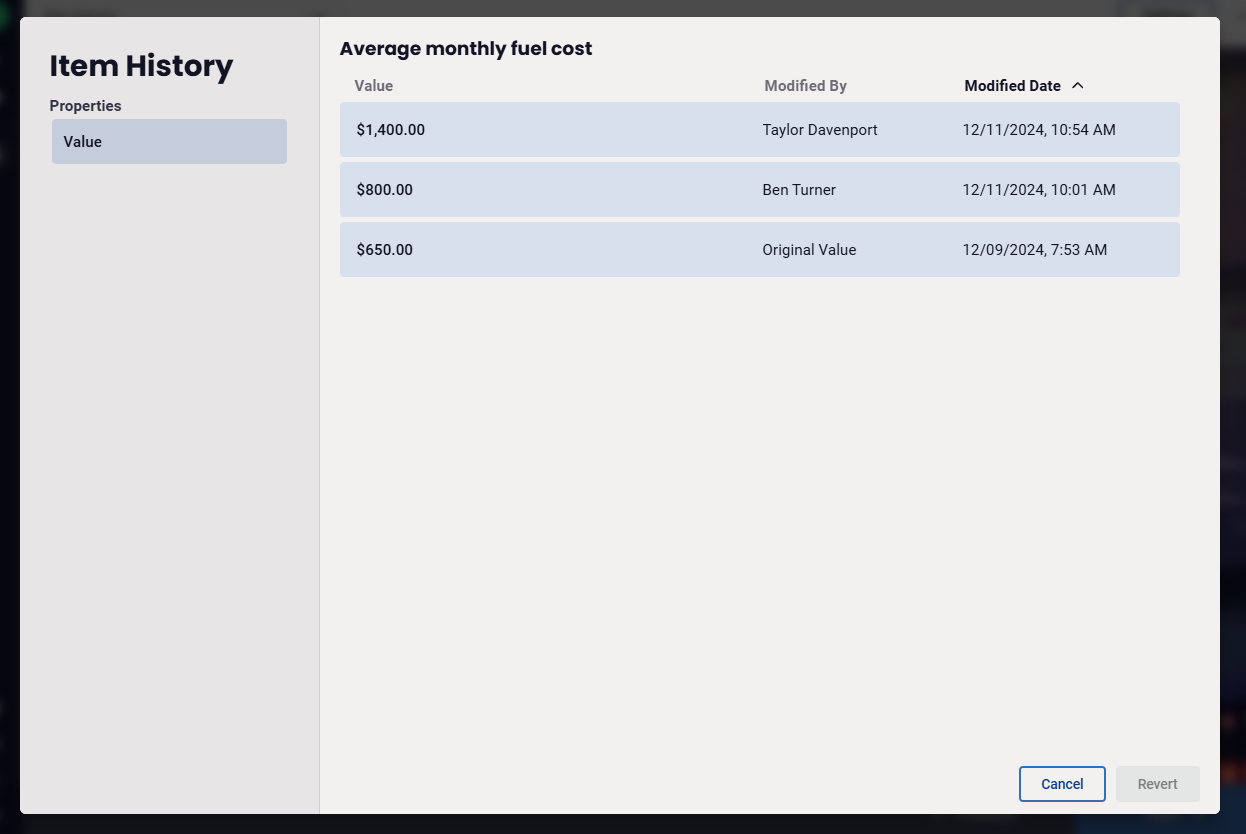
The item audit log shows changes to an individual item with descriptions, user names, and timestamps, identifies if a field’s default value was altered and allows users to revert the item to restore them to previous states with ease.
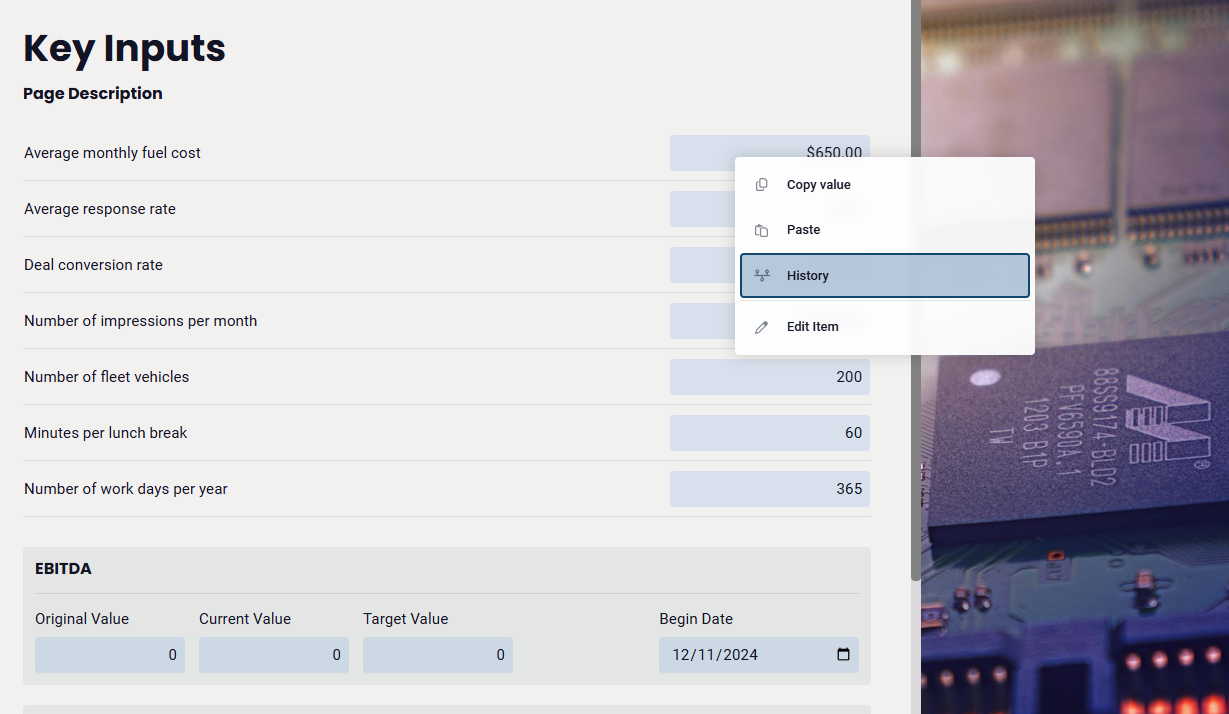
- Right-Click on an Item: Supported items include Global Variables, Checkboxes, Benefits, Challenges, Investments, KPIs, Selects, and Text Inputs.
-
Select "View/Revert History": Access the history from the context menu.
-
Review and Revert: View details or revert to an earlier version as needed.
Analysis History
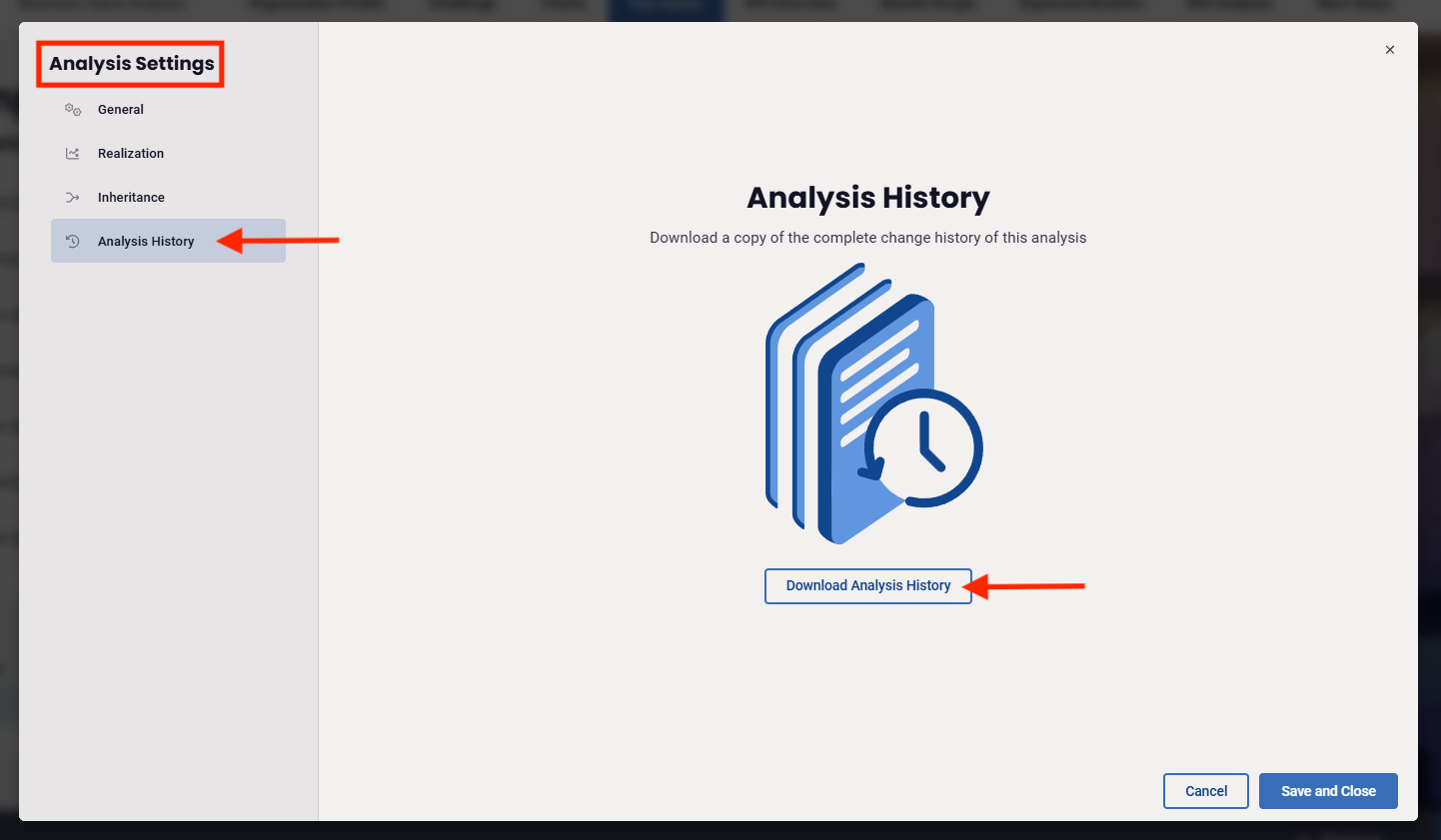
An analysis history provides a full record of all changes made to an analysis via CSV and is available to users with permissions to edit the analysis.
- Open desired Analysis
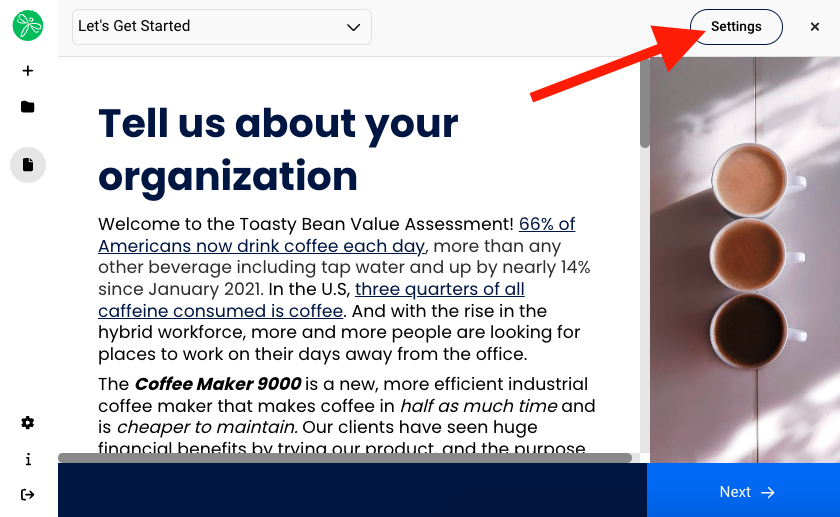
- Click Settings
- Select Analysis History > Download Analysis History
- A CSV will download a history of all changes made to the Analysis, including columns showing:
▪ Item Name
▪ Property
▪ Value
▪ Modified By
▪ Modified Date
Replies have been locked on this page!