


This article covers Global Variables and their use cases. Global Variables are configurable fields that users can interact with in a number of ways. They can be placed on pages to display dynamic values, used as data capture tools, and linked to benefits to impact your analysis calculations (see article on Benefits).
Global Variables are unique in that they act globally across the entire tool, and can be used in benefits to calculate value based on a users input. When editing a benefit, if you link a calculator row as a global, it will immediately become available in the Items library.
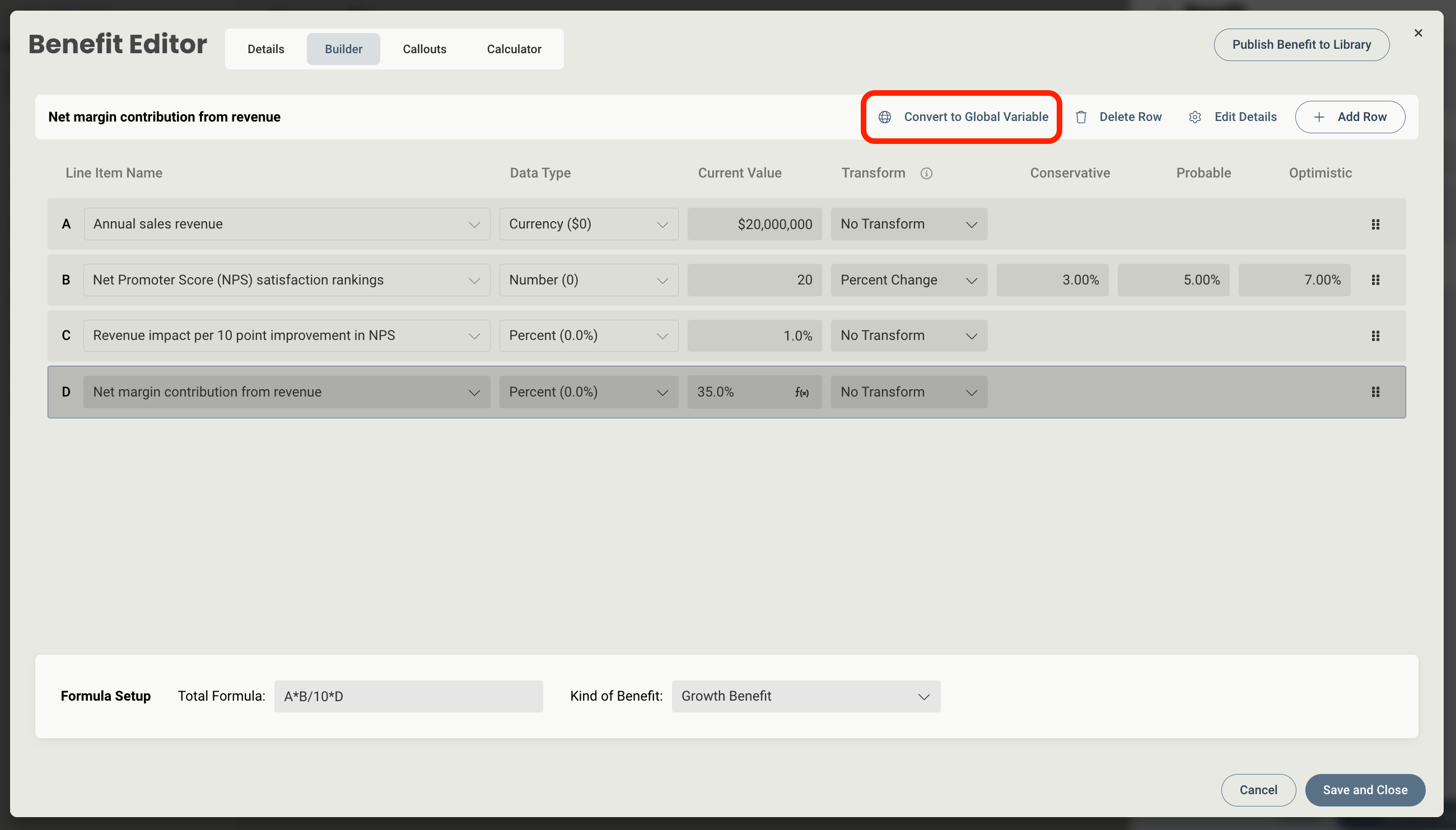
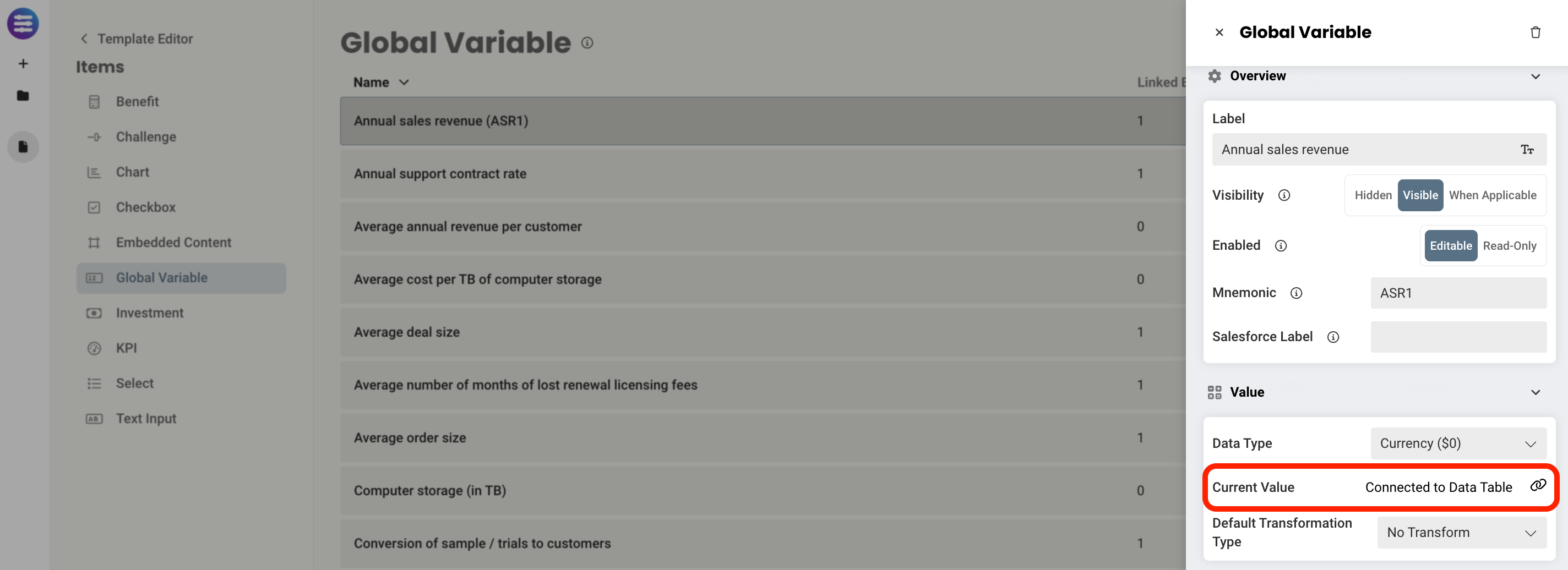
Global Variables can be tied to a data table using the link icon on the Current Value field in the Global Variable editor tray. This connection will then drive the value of that Global Variable based on what a user has selected in the connected dropdown (Select). Learn more about how this works in the Data Tables article.
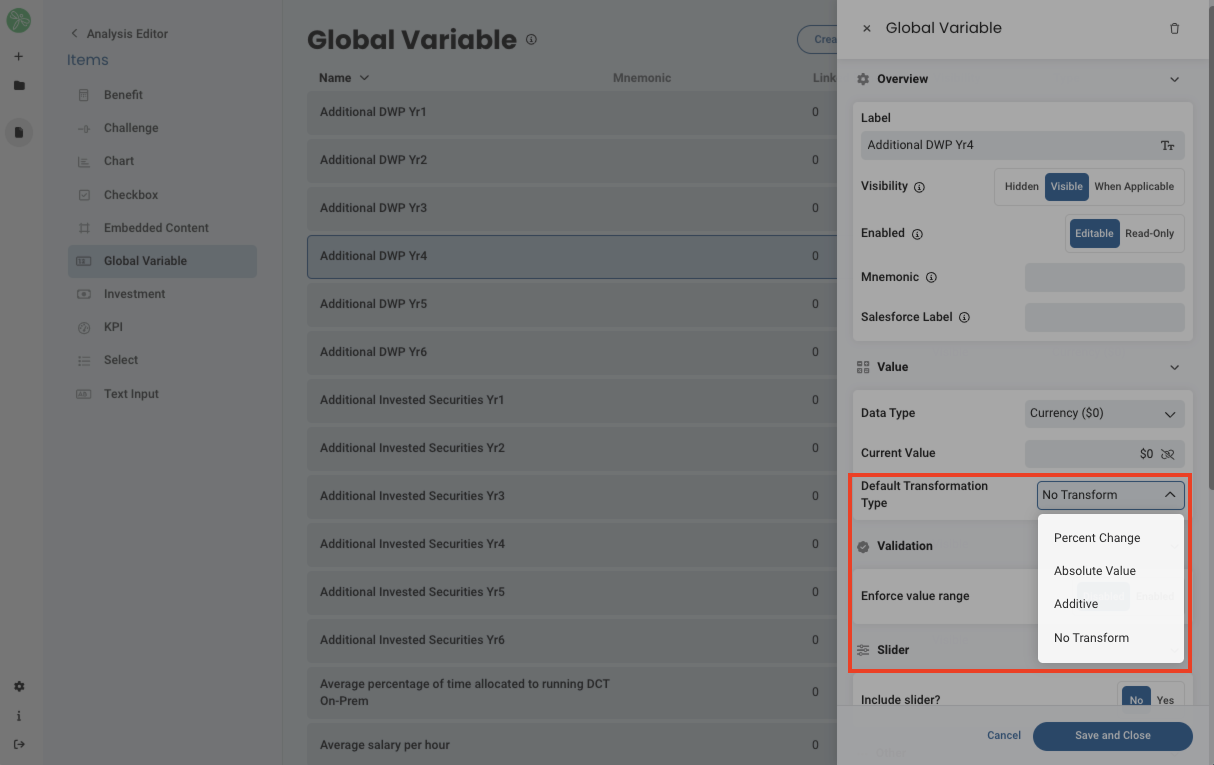
Default Transformation Type let's you define how your Current Value will be adjusted for each of your views (Conservative, Probable, Optimistic) when the end user switches to a different view. Learn more about projections in the Template Settings Configuration article under the Benefit Realization section.
-
- If Absolute Value is chosen, the three views field can be filled with a scalar value
- If Percent Change is chosen, enter a percentage by which the Current Value is impacted
- If Additive is chosen, the impact will instead be added to the current or proposed value
- If No Transform is chosen, the Views fields will disappear and no change occurs
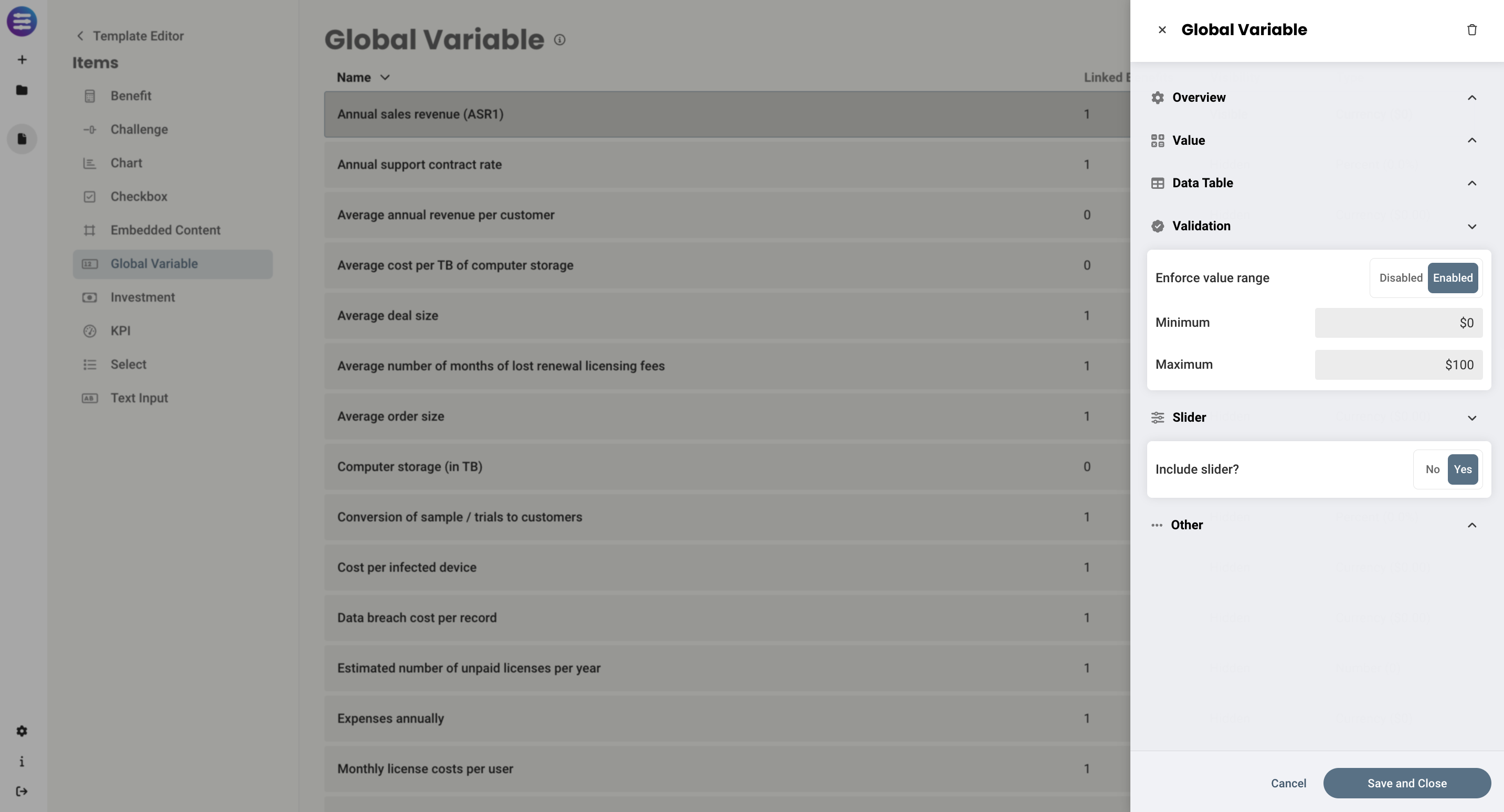
Lastly, you also have the ability to add a minimum and maximum range on the variable, and include a slider element so a user can drag the slider to choose the desired value. This can be done by enabling the enforced value range, adding a range, and including a slider via the Validation section.
Here are some ways you can display Global Variables on a page:
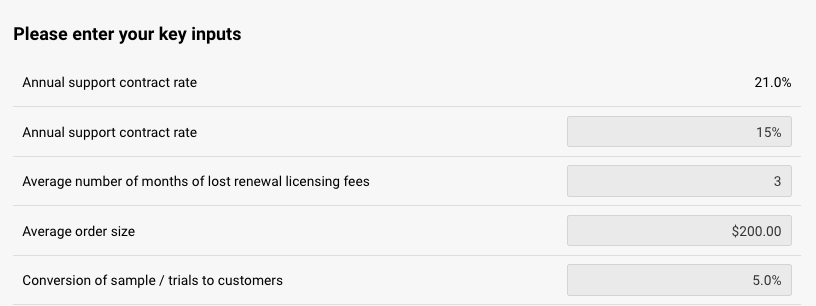
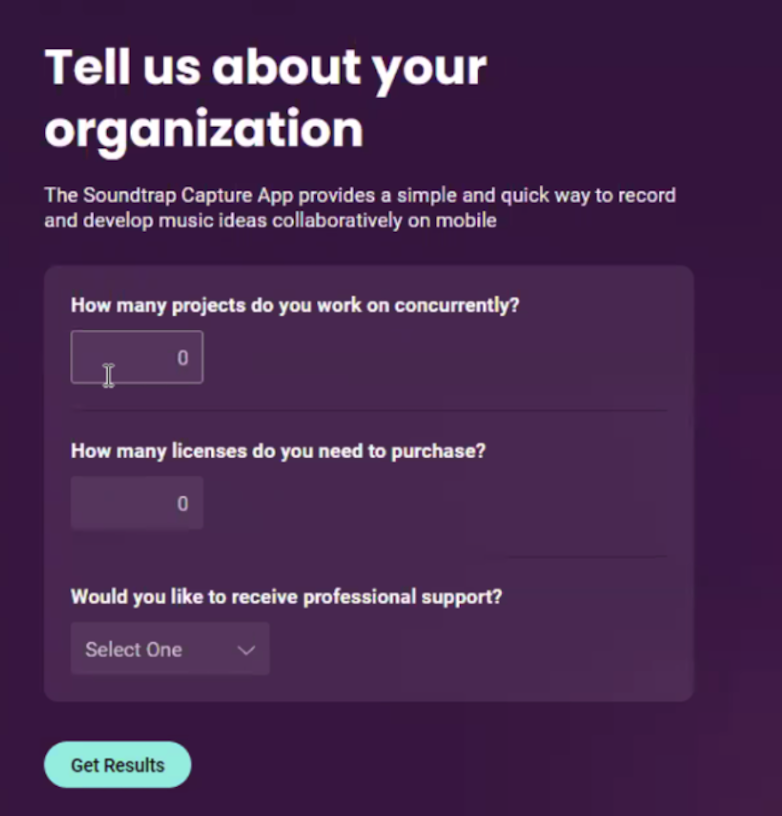
When editing a global variable, you will have access to the following properties:
Design properties
- Size
- Grid - sets the size of the element based on the number of columns you want it to span across the page. A standard page is made up of 12 columns. So for example, two equal elements placed on a page would each span 6 columns.
- Fixed - set the exact size of the element using pixels or a percentage
- Fit content - makes it so the element expands to fit the content that it contains
- Fill space/available - expands the element to the size of the section it is contained within
- General - allows you to show or hide the label on the page
- or a checkbox
- Background color - lets you set the background of the element to be a color
- Margins - allows you to space elements out on a page by adjusting the px size of margins. Margins define the bounds outside of an element (pushes content away from it).
- Conditional Visibility - allows you to define what devices each element will be visible on. For example, you may want to hide certain large elements on a mobile device because they take up too much space, or are not as relevant.
Item properties
- Label - give the item a name
- Visibility - set the item to visible, hidden, or when applicable. If when applicable is chosen, it will only be visible when it's being used by Benefits that are set to Included.
- Enabled - set the item to Editable or Read-only
- Mnemonic - give the checkbox a mnemonic that can be used in rules and for report tags
- Salesforce label - provide a label that can be used to tie the value to a field in Salesforce (this value will be inherited by the CRM once an Analysis is created from the CRM)
- Data type - set the value to a number, currency, or percentage
-
Current value - this will show whatever the current value is for the variable and allow a user to change it. You can also link the value to a data table, which would drive the value based on changed made to a dropdown tied to that table instead.
- Year-Based Variable Values (Limitation): Currently, global variables are designed to hold a single static value, and cannot be configured to hold different values for Year 1, Year 2, Year 3, etc. This means that while you can apply growth rates or transformation types to modify values across views , you cannot directly set a unique value for each year of a multi-year benefit scenario.
- Default Transformation - discussed above.
- Enforce validation range - discussed above. This can be enabled or disabled
- Include slider - this can be set to yes or no.
- Tooltip text - allows you to enter a tooltip that will be available by hovering your cursor over it
NOTE
-
If you remove a global variable, and that global variable is linked to a benefit, you will be asked what you would like to do with the variable:
- Unlink Variables: this will unlink the variable from the variable in the benefit. So, if I were to return to the benefit from which this global variable were previously linked, I would see that it is no longer marked as a global variable
- Remove from Benefit: this will take you back to the Benefit Editor and require you to set a new Line Item Name in what used to be the row in that benefit
- Cancel
Replies have been locked on this page!