


This article covers Embedded Content and it's use cases. Articulating value is about more than just numbers, so the ability to embed content directly into Value allows you to provide more context during client conversations and enhance your storytelling to show the full picture.
Prerequisite
Admins can check to see if your environment is enabled to embed content by going to Administration > Integrations > Engagement, then check to see if there is an access key entered as you see in the image below. If not, contact your CSM to retrieve this access key from Peach and add it. Once added, your users will have the ability to embed content.
NOTE: If you are embedding a URL here, please contact Mediafly support to add your URL to the whitelist to work with this functionality.
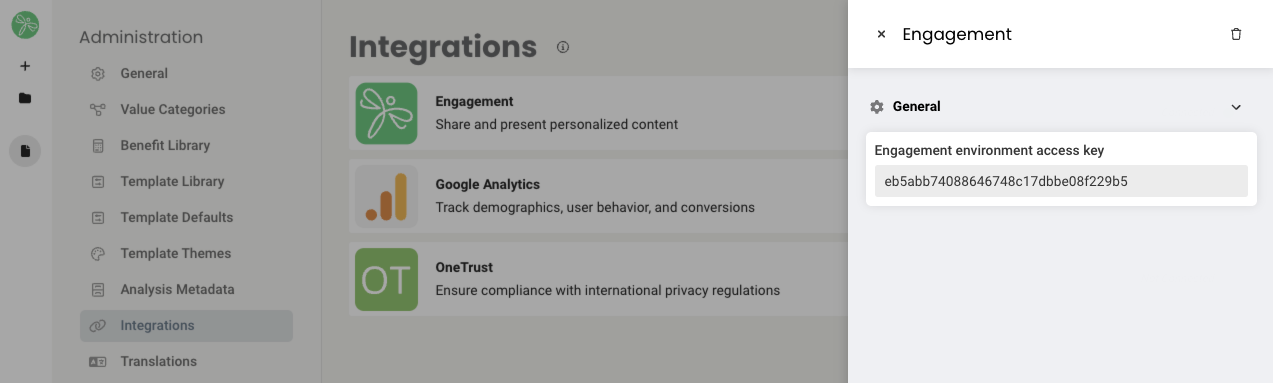
You will also need to ensure a gateway ID is added to your environment. If your content is not loading properly, please reach out to your account team to get to configured for you.
How it works
The Embedded Content element allows you to embed files from your environment, such as images, PPT decks, and videos, or URLs. Supported file types include:
- MP4
- WEBM
- MOV
- JPG
- PNG
- GIF
- DOC(x)
- CSV
- PPT(x)
- TXT
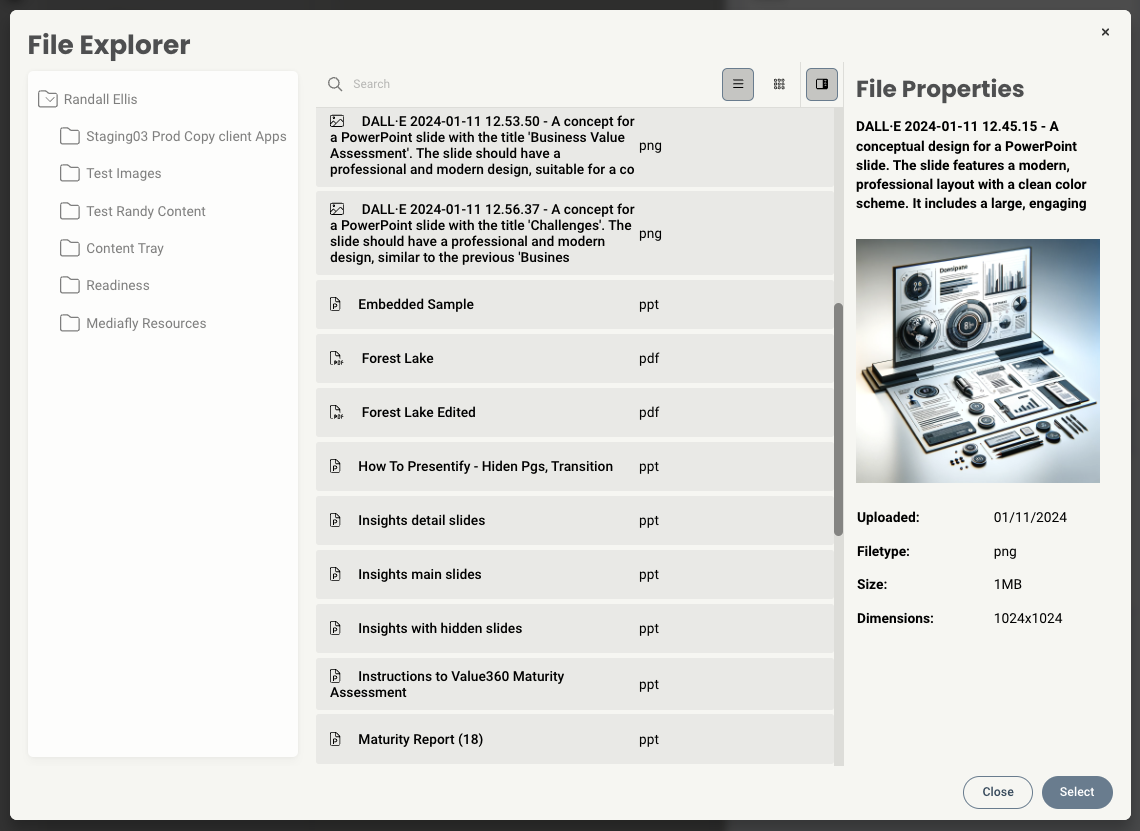
Some things to note:
- You cannot embed items from your "My Items" folder as you'd be the only one that could see the item. Files must be stored in another public folder.
- You cannot embed Excel files. A suggested workaround is to use a URL directing to a Google Sheets file instead
- You can select list, icon, or property views when you're in the file window, allowing you to see more details about each item
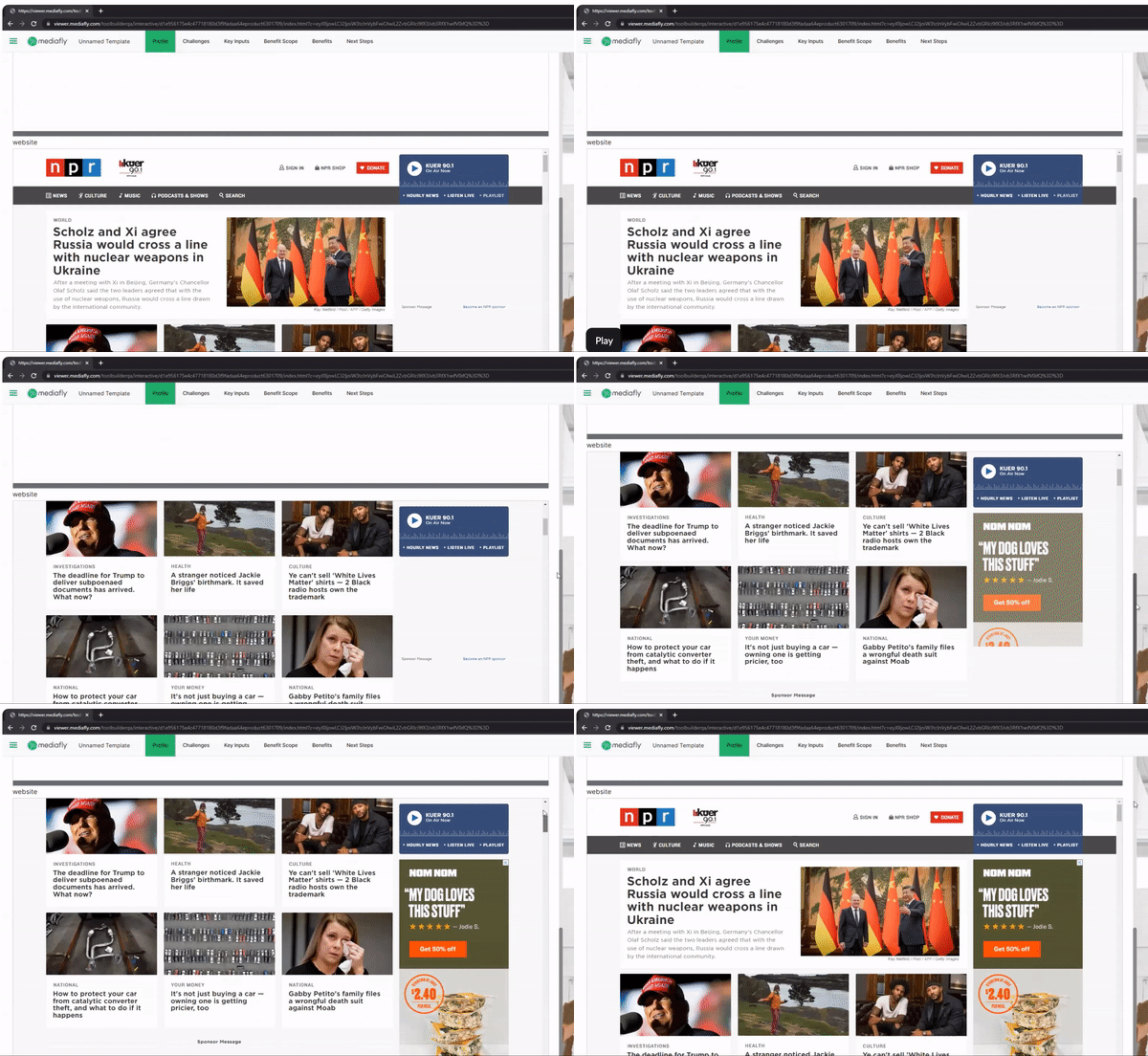
If you've embedded a URL, it's important to go to the page and ensure the content is displaying as expected as some websites are set up to block themselves from being iframed. If it's the case that a site has blocked iframing and your embedded content was not successful, there's nothing you can do to change that setting and will not be able to embed that we website. Unfortunately, there's no way to tell in advance if a website has iframing blocked.
Here's an example of the NPR website embedded on a page:
Note - you can also embed content using the Image element or by adding an image as the background of a section. These allow you to add content from your device, so you are not limited to content in your Mediafly environment. However, these are limited to PNG, JPG, and GIF file formats only.
When editing Embedded Content, you will have access to the following properties:
Design properties
- Size
- Grid - sets the size of the element based on the number of columns you want it to span across the page. A standard page is made up of 12 columns. So for example, two equal elements placed on a page would each span 6 columns.
- Fixed - set the exact size of the element using pixels or a percentage
- Fit content - makes it so the element expands to fit the content that it contains
- Fill space/available - expands the element to the size of the section it is contained within
- Margins - space elements out on a page by adjusting the px size of margins. Margins define the bounds outside of an element (pushes content away from it).
- Conditional Visibility - define what devices each element will be visible on. For example, you may want to hide certain large elements on a mobile device because they take up too much space, or are not as relevant.
Item properties
- Label - give the item a name
- Visibility - set the item to visible or hidden
- Content type - file or URL
- File selector - choose the file which you want to embed (or add the URL if this was chosen instead)
Replies have been locked on this page!