


Downloading content allows you to access when offline. Use downloaded content when you need to view content but may not have internet connection.
Choose your platform
Set your download setting at first log in (iOS app)
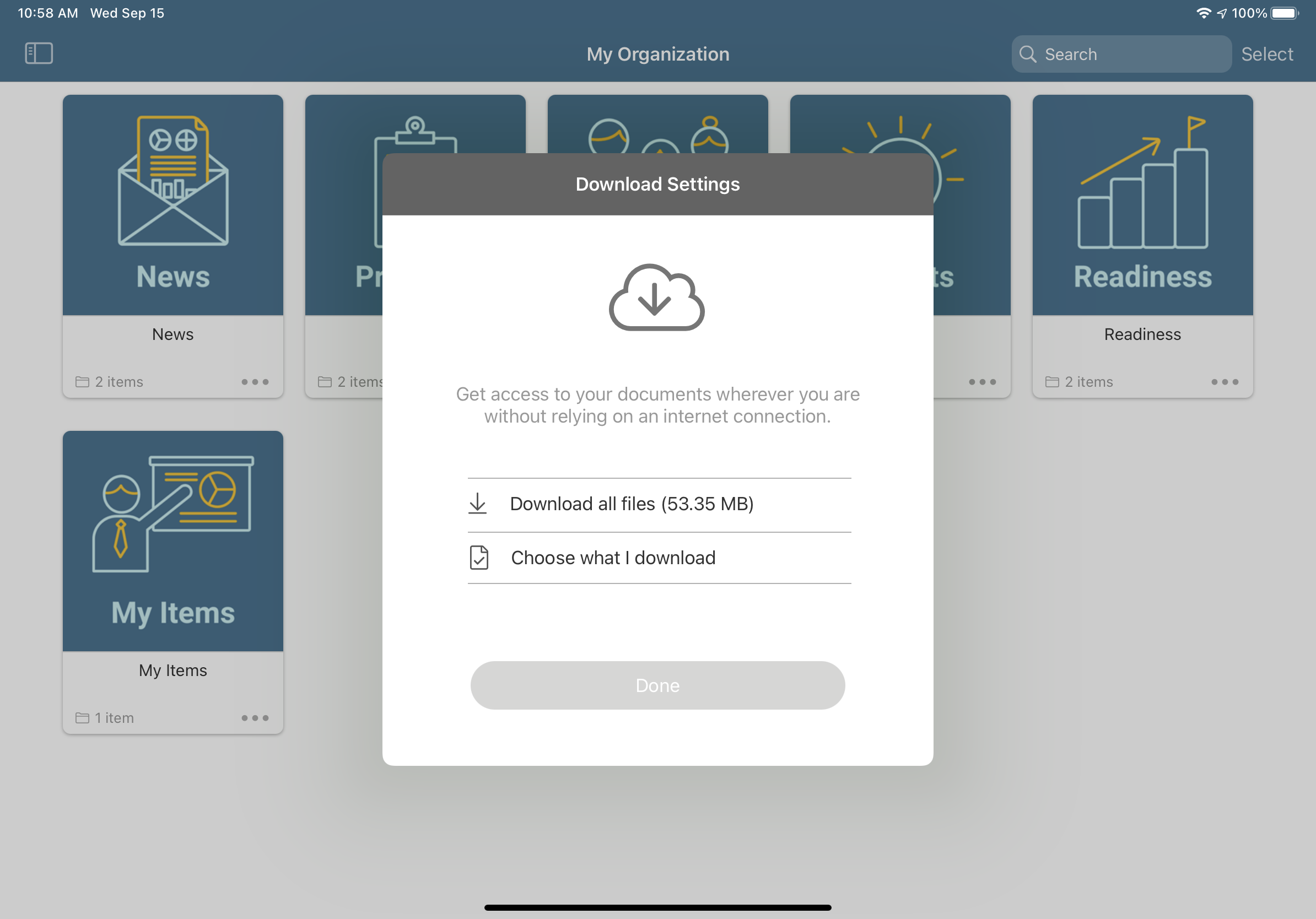
Upon first log in, you will have the option to select Download Settings
- Download all files
- Choose what I download
We suggest selecting Choose what I download in the case the total amount of storage required is not available on your device. You will have the flexibility to manage downloads as needed.
Downloading files or folders (iOS app)
1. Navigate to the desired folder or file to download for offline use
2. Click on the 
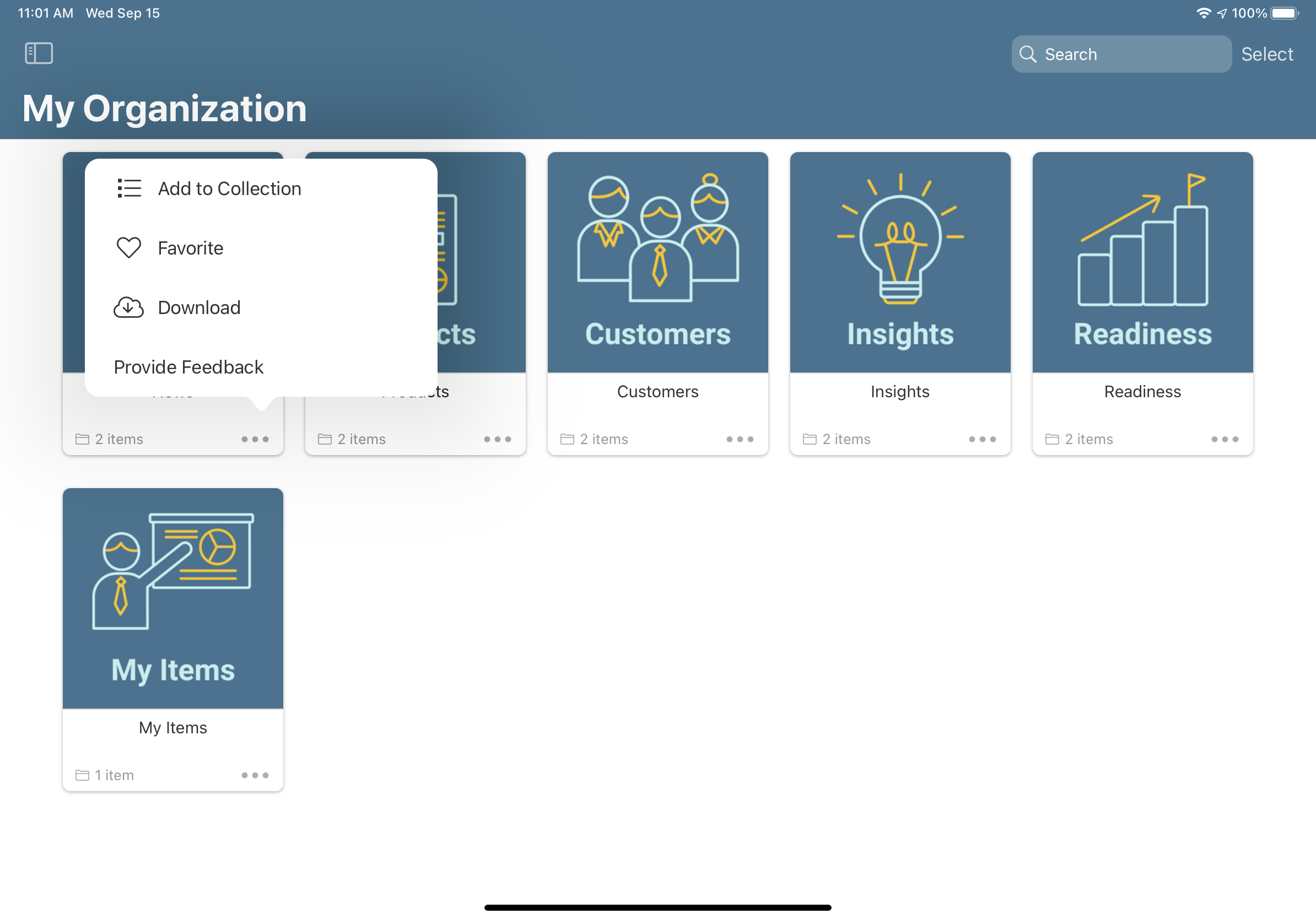
3. The folder or files will begin to download
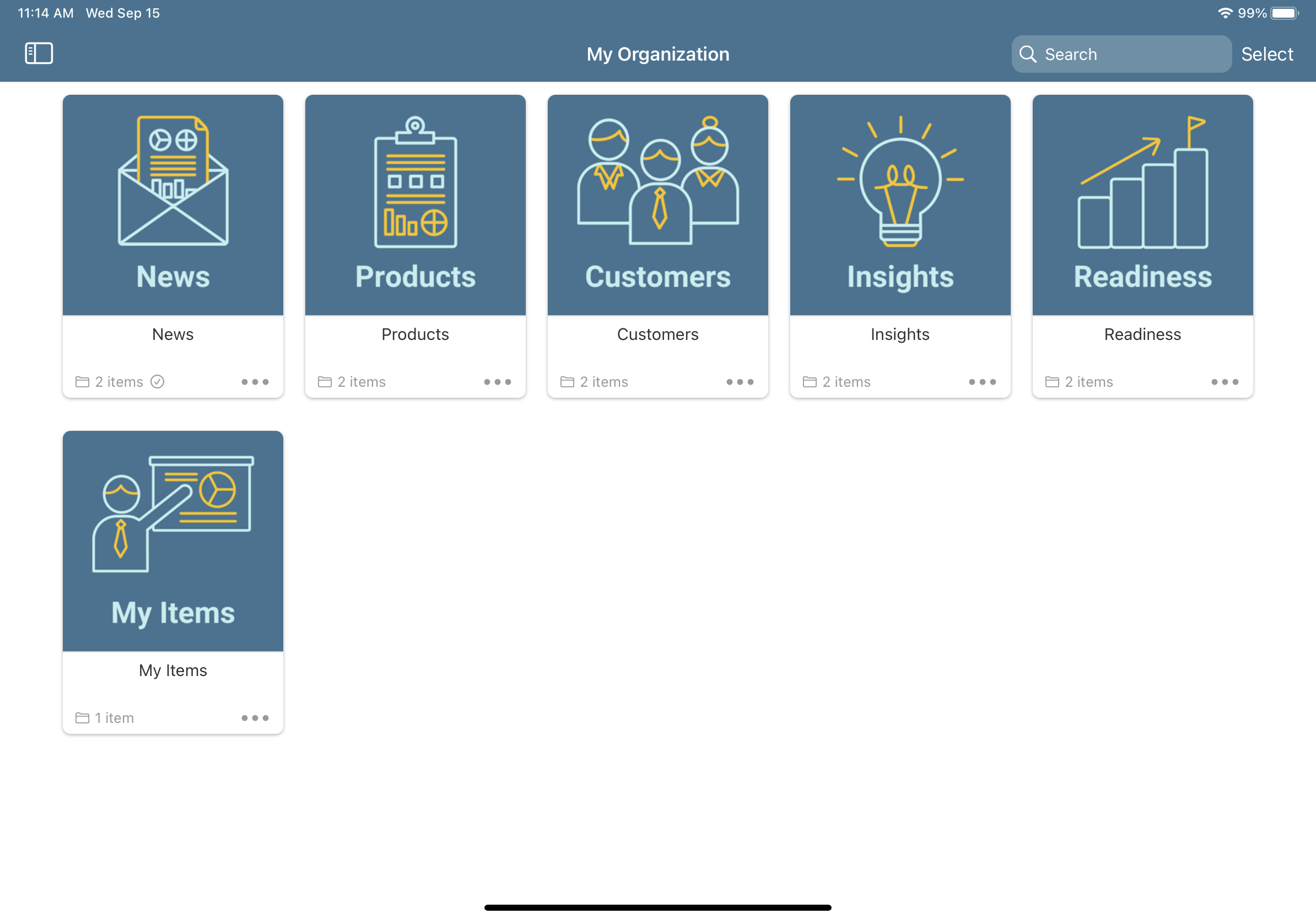
4. Upon successful download, 
Bulk download folders and files (iOS app)
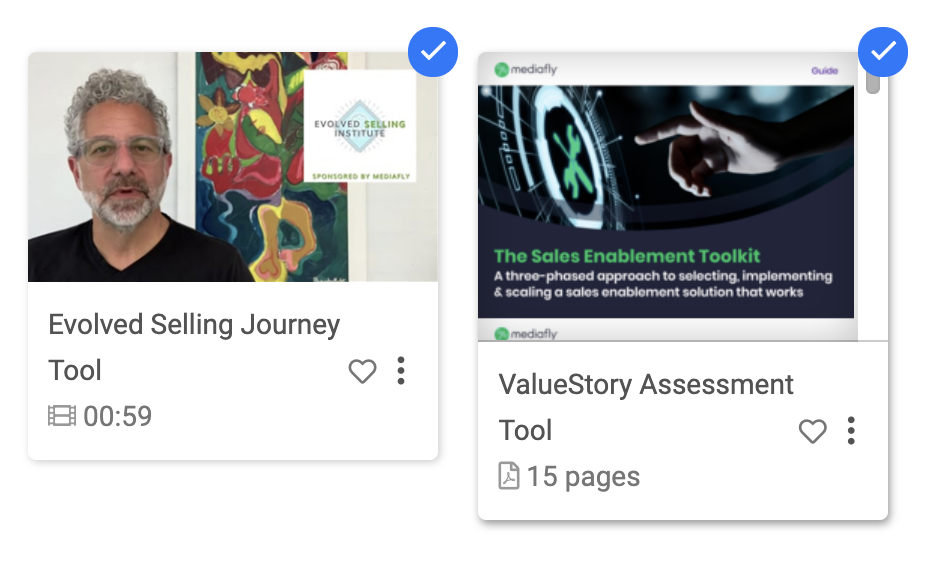
1. Navigate to the desired folders or files
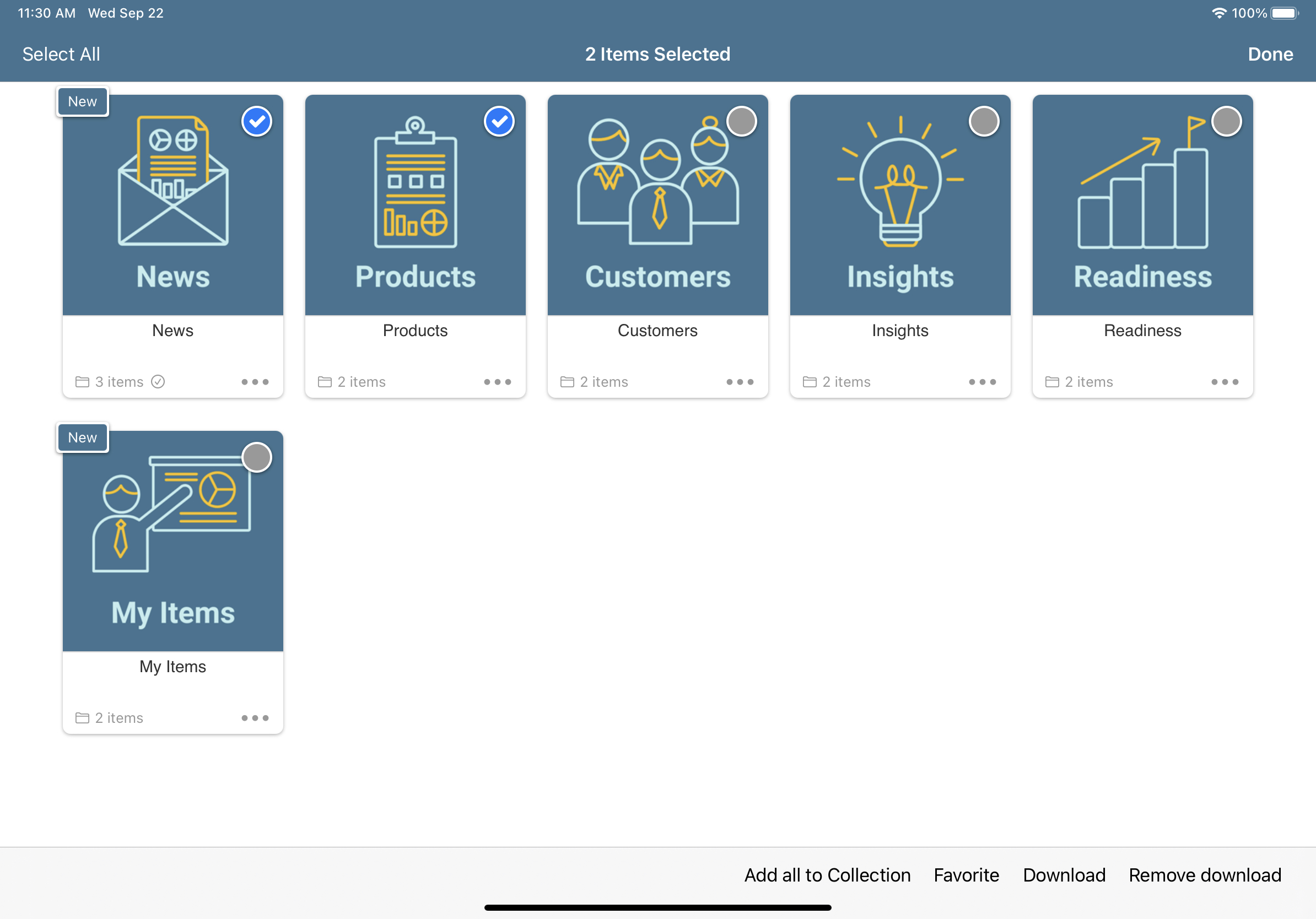
2. Click Select on the top right
3. Tap to select the folders or files
4. Select Download from the action menu
5. The folder or files will begin to download
6. Upon successful download,
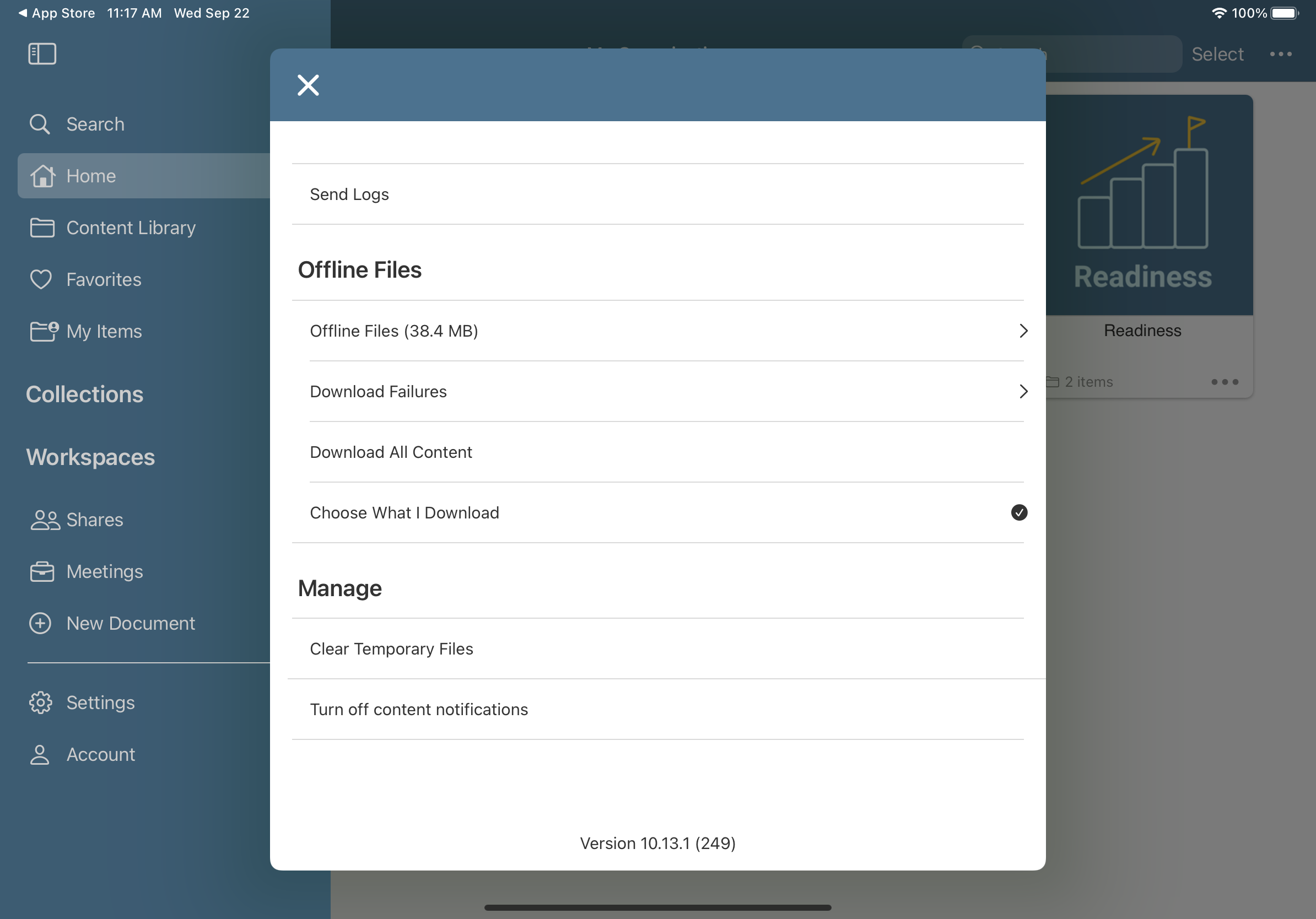
Managing download settings
1. Open the app menu
2. Click Settings
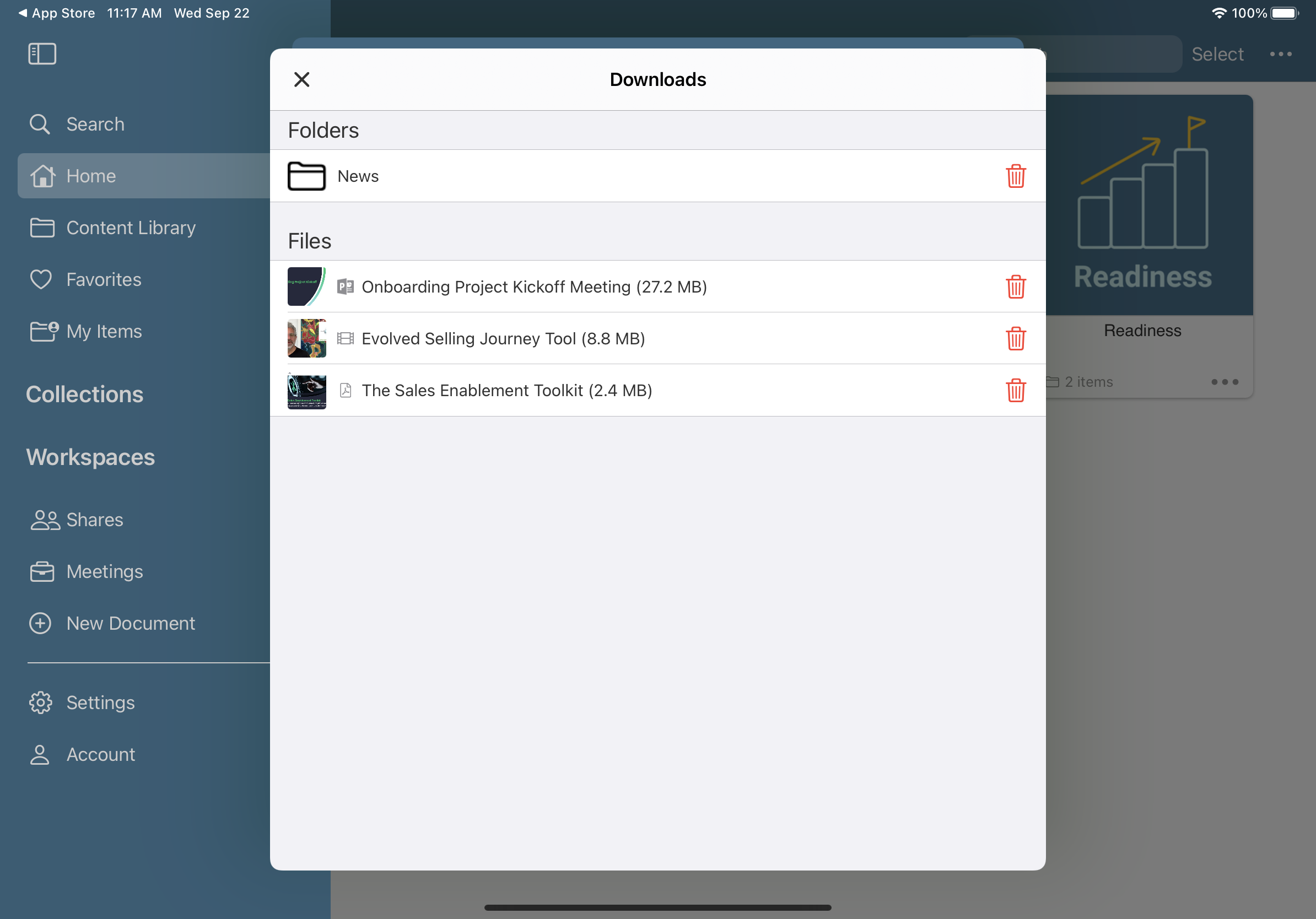
3. In the Offline Files section, you can change your download settings, manage Offline Files and review Download Failures. Note: Only manually downloaded content will not appear in the download manager. Automatically downloaded content will not show in this list.
Downloading files or folders (Windows/Mac)
1. Navigate to the desired folder or file to download for offline use
2. Click on the 
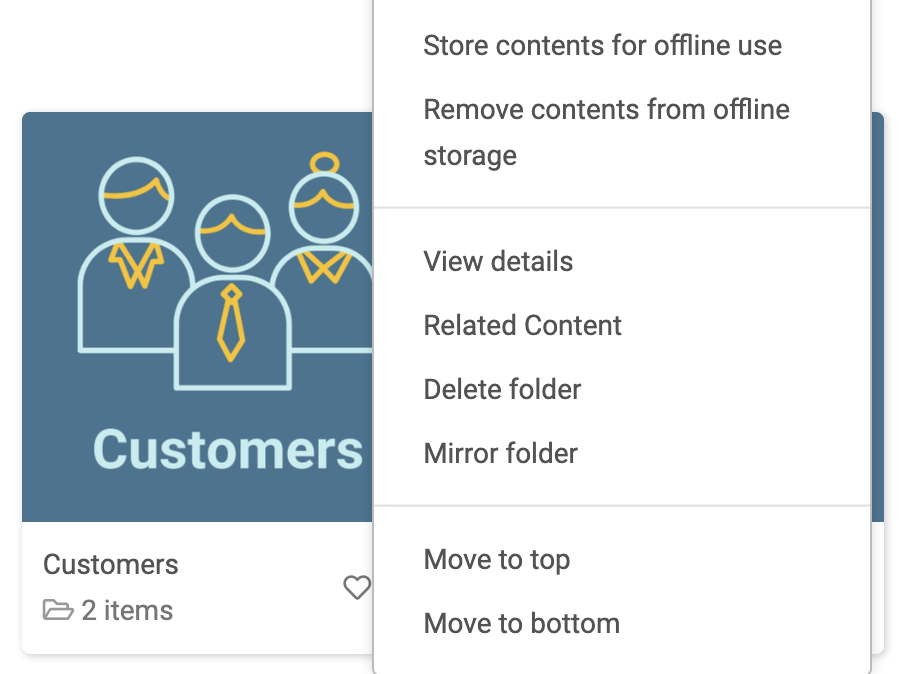
3. The folder or files will begin to download
4. Upon successful download, 
Managing your download settings (Windows/Mac)
1. On the Mediafly app top menu, select Downloads
2. Use the Preload feature if you would like to automatically download content for offline use. Select Preload Documents, Images and/or Media depending on your desired preload download settings.
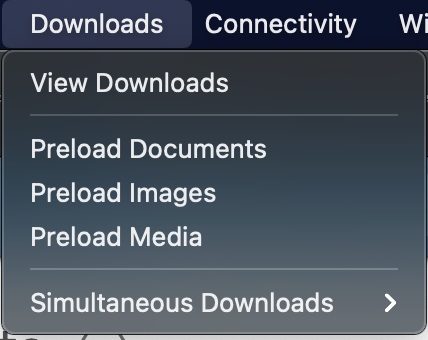
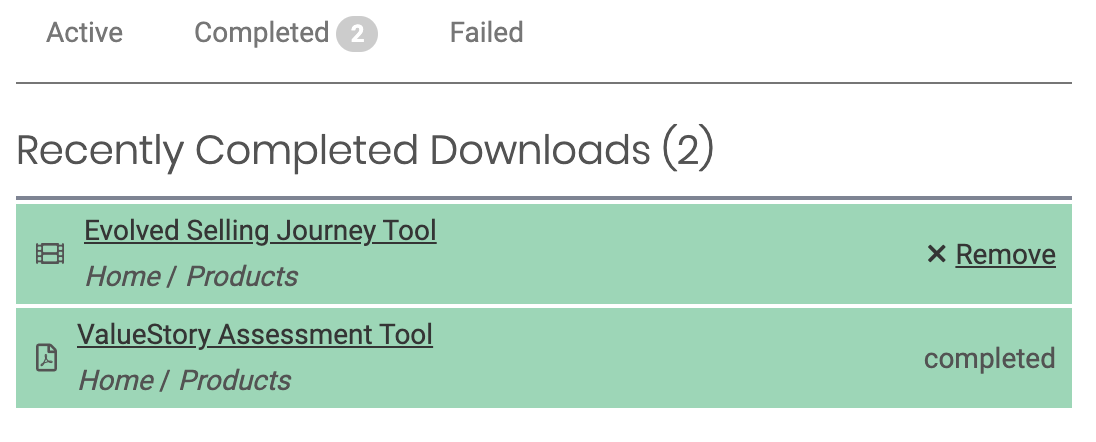
3. Select View Downloads to access active, completed and failed download activity.
4. Remove specific items from offline storage by selecting Remove on the Completed tab
Replies have been locked on this page!