


Mediafly offers a quick and convenient way to create shares that can be sent to one, or several, email addresses. The email can be created directly within the Mediafly environment to share content via email with a customized subject and body.
Creating a Custom Email for Shares
- From Airship, Open the item you want to share and click on the Shares tab. In the Shares page, click Create a Share.
From Viewer, you can either click the three dot menu next to an item and click Share or, if the item is open, in the top navigation click Share > Share item.
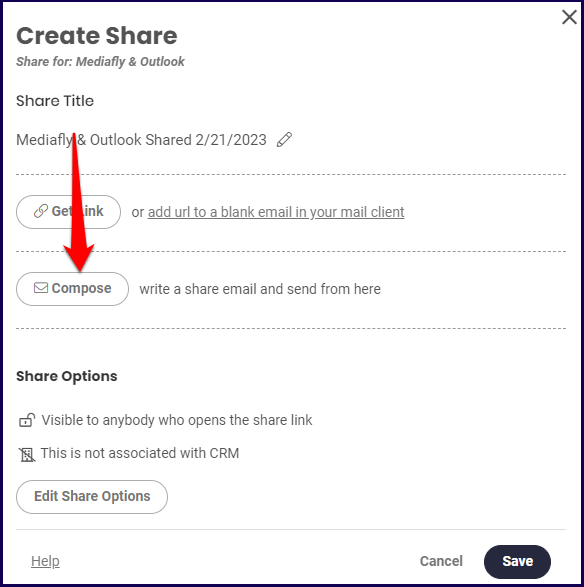
- The Create Share window is displayed. Click on Compose to write a customized Share email.
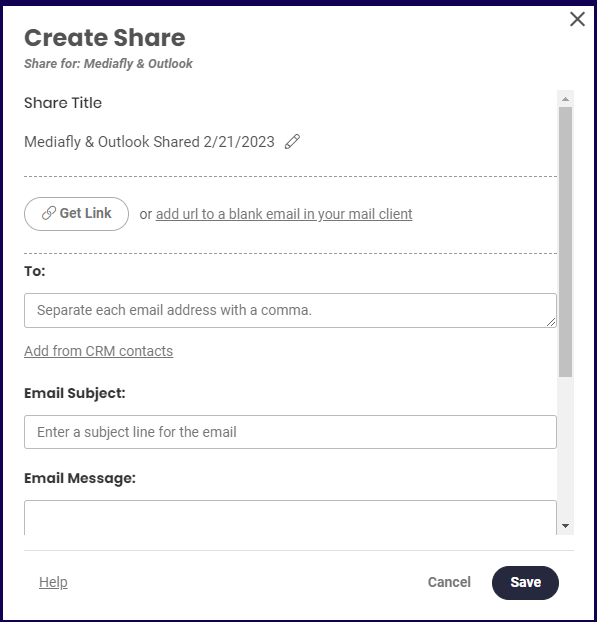
- In Compose, you can set the recipient, the email subject and the email message.
💡 Pro tip: You can have the following custom default subject lines and/or messages created for your environment:
▪ Default Subject Lines for Item Shares
▪ Default Messages for Item Shares
▪ Default Subject Lines for Collection & Workspace Shares
▪ Default Messages for Collection & Workspace Shares
Contact your CSM to configure.
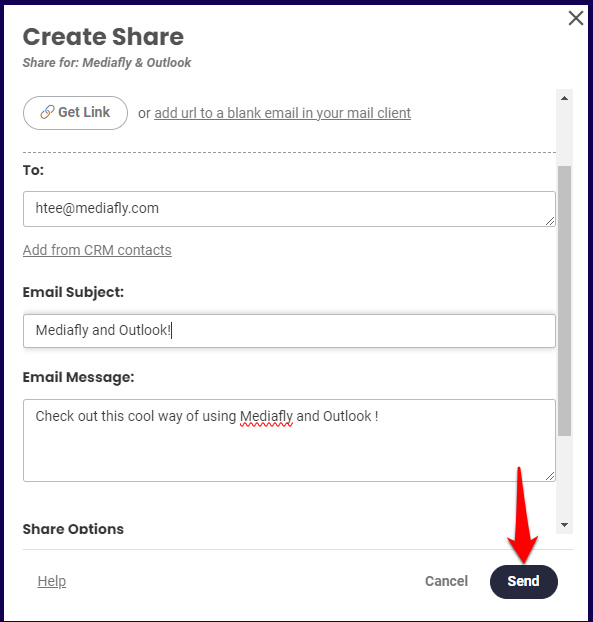
- Complete the form. Once completed, the Save button becomes Send. Click Send to send the email. Additional share settings may be set to improve the email content, check out our Advanced Sharing Options documentation for more information.
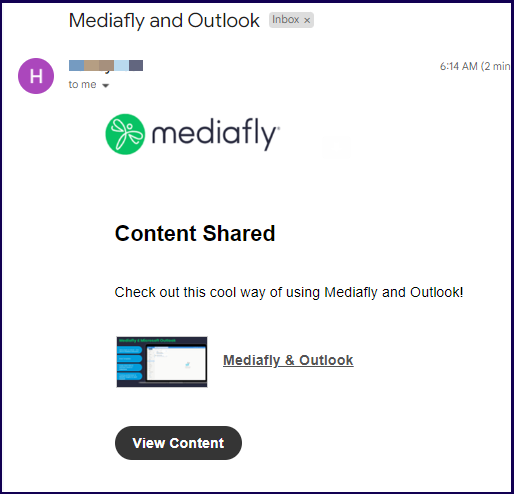
Using the above settings, the resulting email will look like this:
Replies have been locked on this page!