


Document Builder allows users to combine and organize existing content in Mediafly to create a new file. Use Document Builder when you need to combine or reorganize files.
Keys to success
- Items created using Document Builder can be used like any other items in Collections, Workspaces or Sharing
- We suggest placing new files in your My Items folder to keep them personal to you
- When combining different file types, Mediafly will create the new output file in PDF format (Example: File A is PPTX and File B is PDF, when combined using Document Builder, the output File C will be PDF format)
Creating a new file using Document Builder
1. Log in to Mediafly
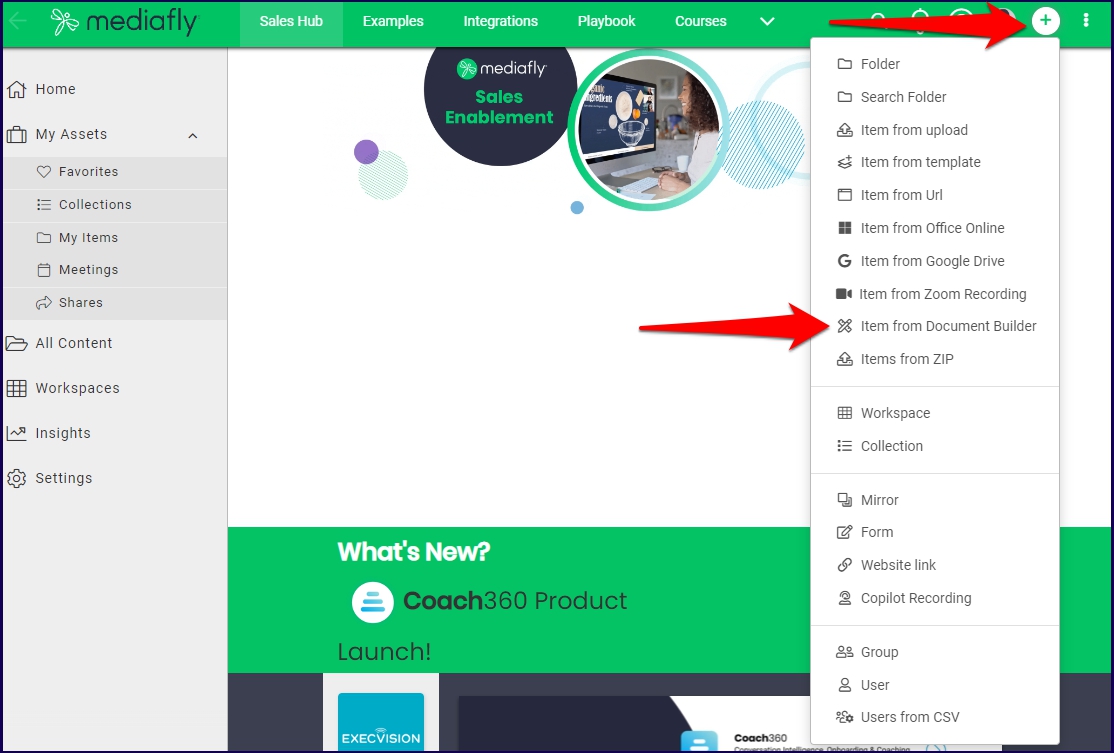
2. Click Create then select Item from Document Builder
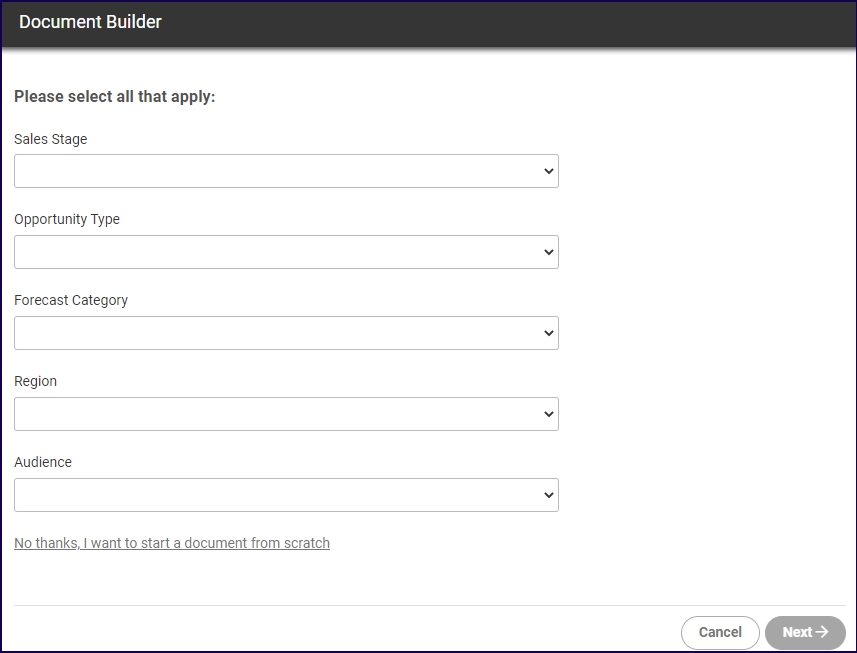
3. The Document Builder allows you to pool all resources by the categories defined in the environment so that you can gather all relevant documents and other contents available for quick access. Select the categories relevant to your document and click on Next.
You may also choose to start a document with Document Builder pooling all relevant documents and display all contents in the environment. Select 'No thanks. I want to start a document from scratch'.
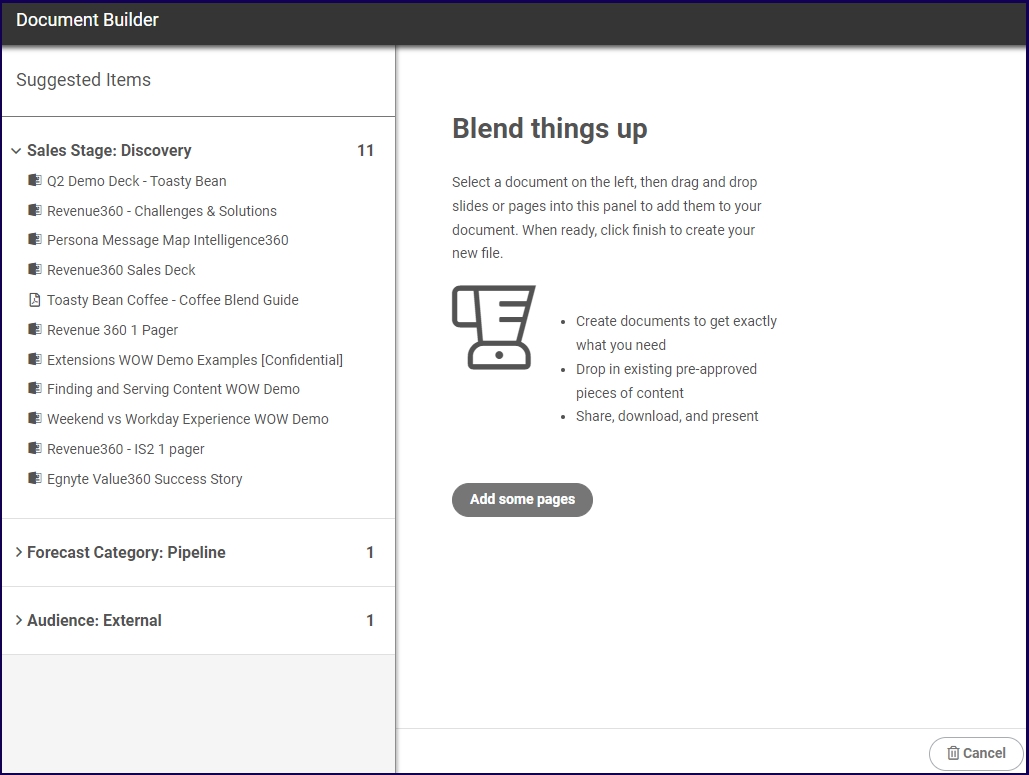
4. All files tagged on the specified categories are displayed. Locate file(s) you want and click the item to add it to the builder area.
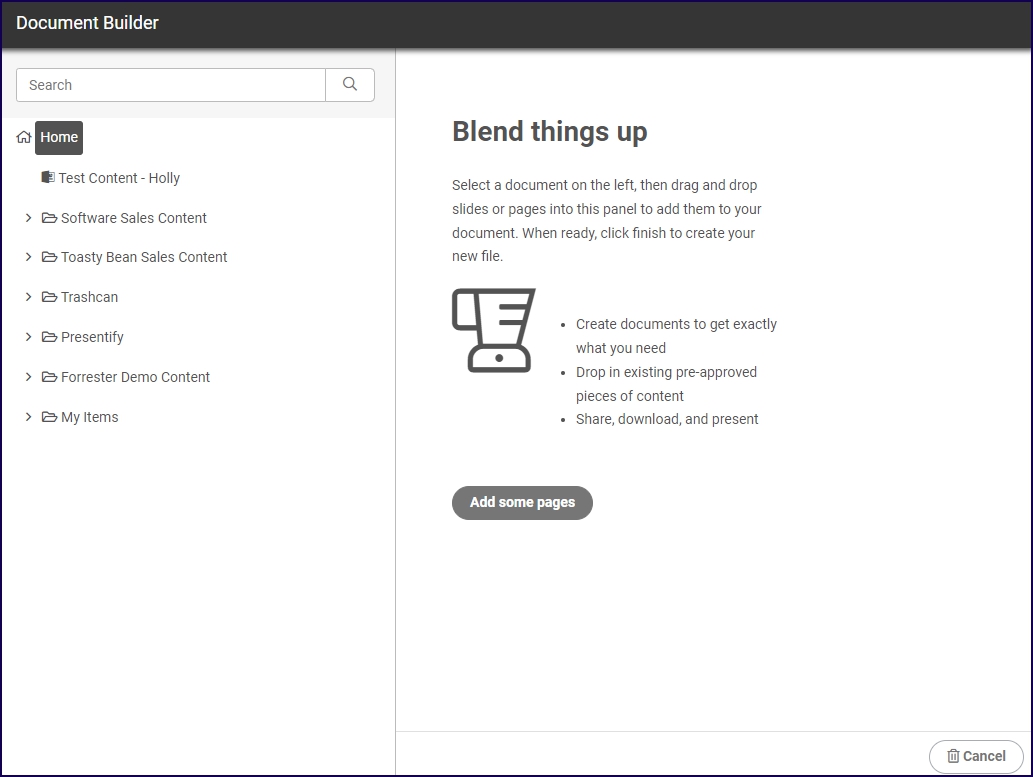
Note: If you opted to to create a document from scratch, all items in your environment will be displayed in their corresponding folders.
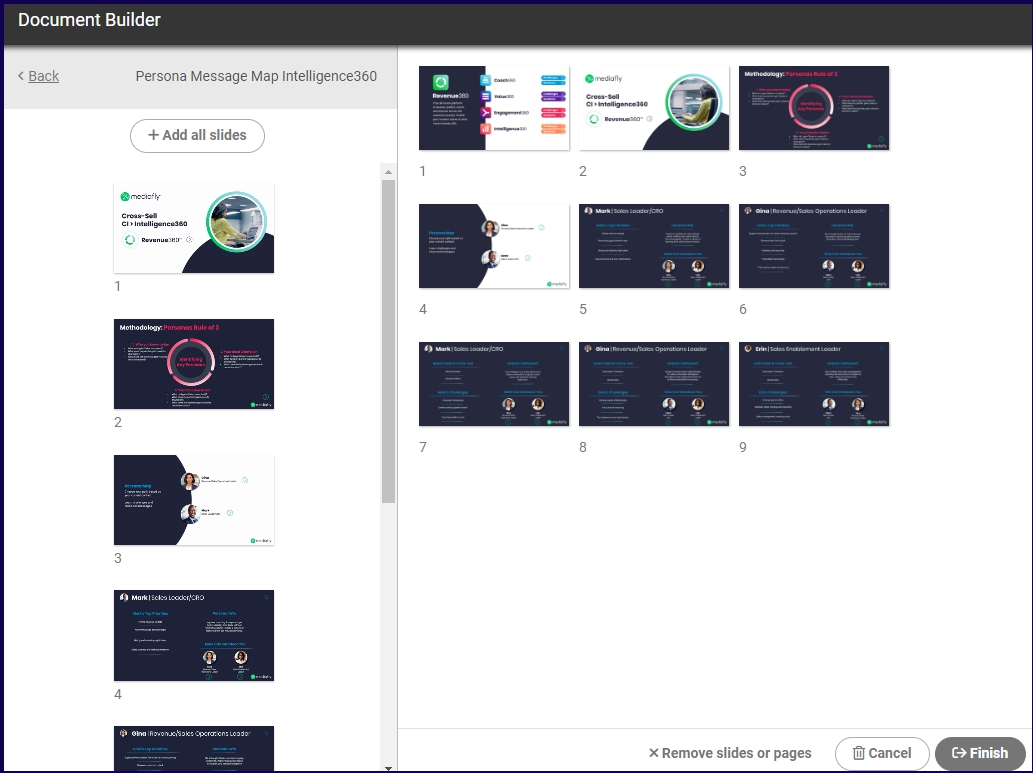
5. Reorder pages or remove pages.
6. Select Finish.
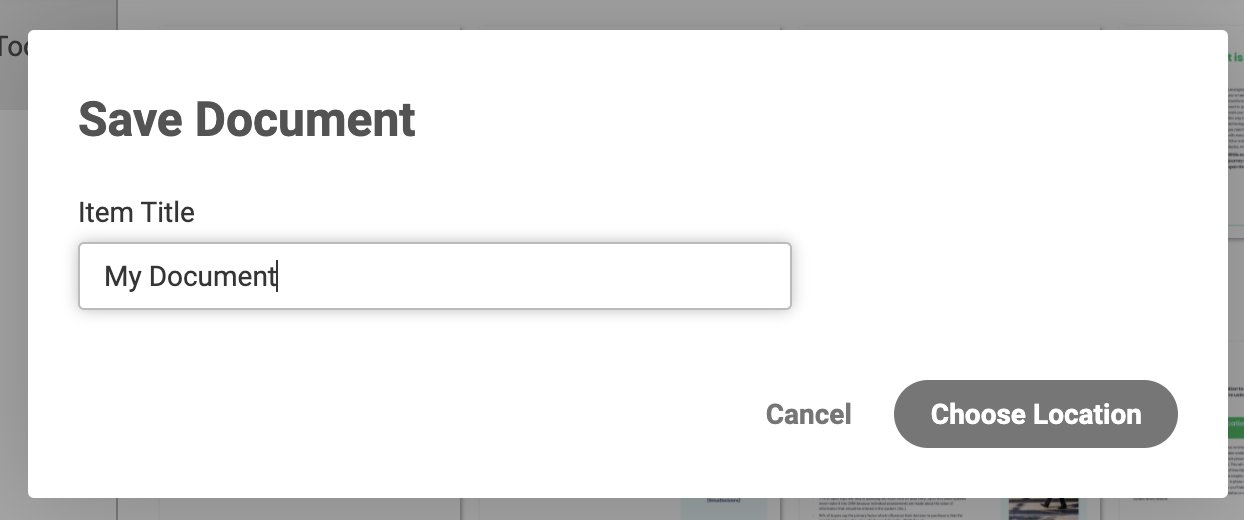
7. Give the new item a title.
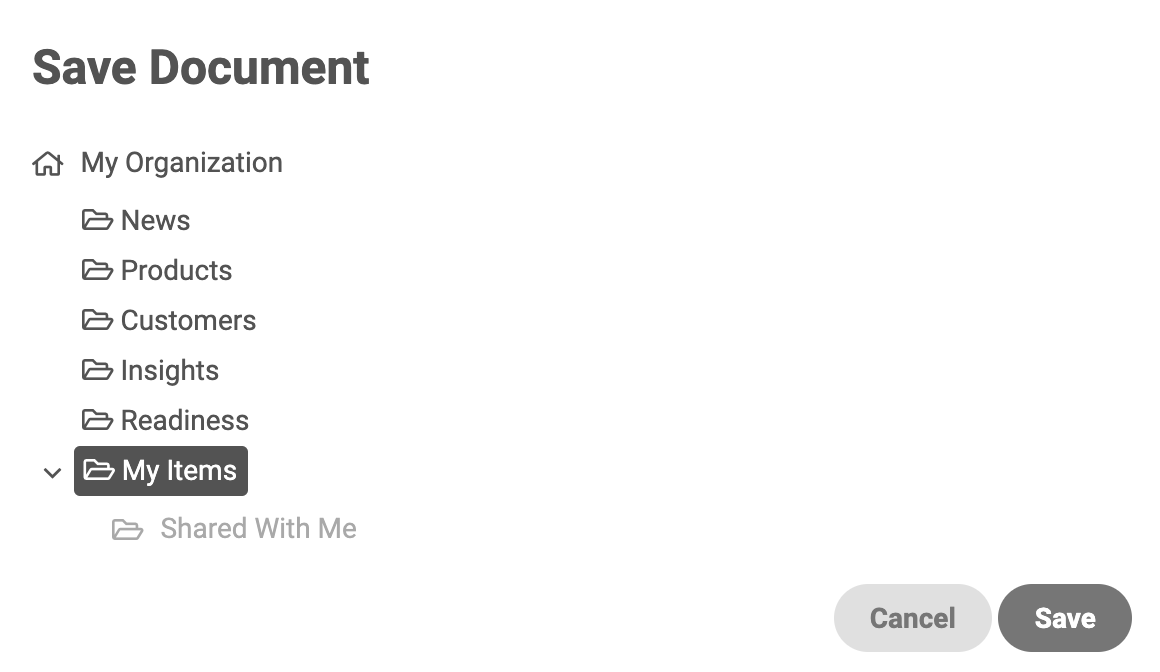
8. Choose a location and select Save.
9. Locate your new item in the selected location.
Advanced Options
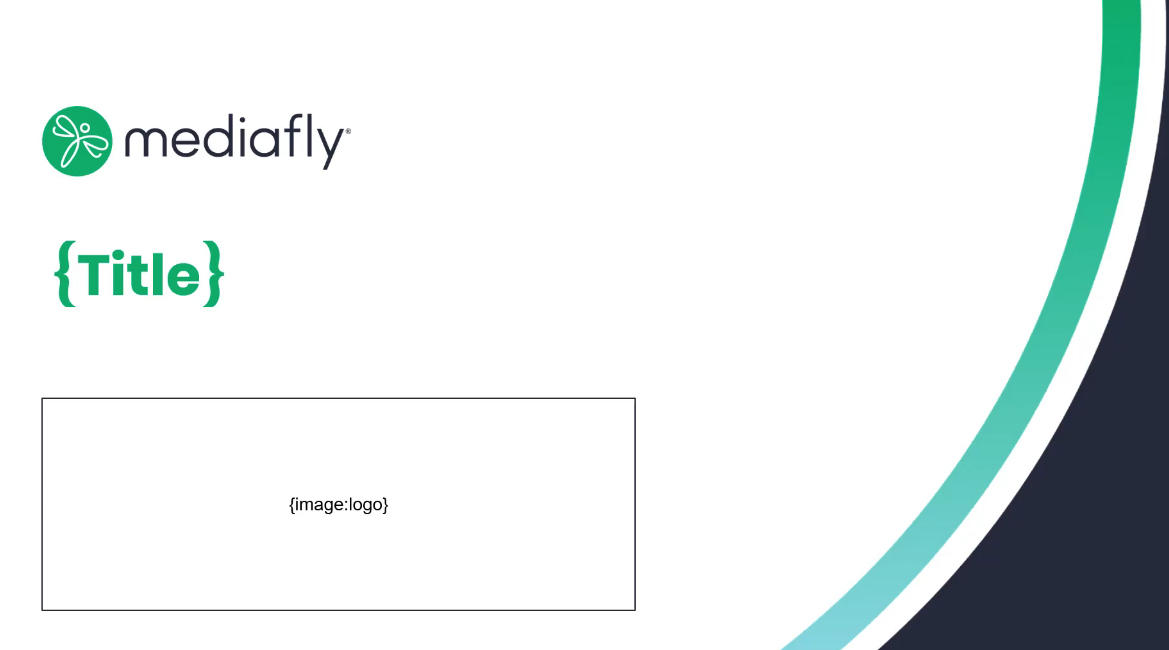
Include placeholders in your Document Builder templates to allow users to customize specific text and images. Before uploading your presentation, add {text} placeholders using brackets to designate customizable areas. To add placeholders for images, add a shape to your presentation with {image:text} placeholders inside that shape.
Replies have been locked on this page!