


Many users center their work around Outlook making it crucial to simplify the management of collections and the creation of shareable links for these collections right from within Outlook.
With Mediafly's Outlook Add-In, users can experience the core functionalities of Mediafly directly within Outlook, enhancing their productivity and user experience.
Note: Deploying Mediafly's Outlook Add-in is a custom add on, please contact your CSM to proceed.
Requirements to add Mediafly's Outlook Add-In
- Adding Mediafly's Outlook Add-in works with Outlook for Windows, Outlook for Mac, and Outlook Online.
- Users must be subscribed to Office 365 Business Premium (or better). This version allows add-ins to be installed into Outlook.
-
Supported versions for Outlook add-in:
- Microsoft 365 ver. >= 16.0.13530.20424
- Windows 8.1, 10 or 11; or, non-subscription Office 2021 or later
- Windows 10 or 11 (source).
Note: Outlook 2013 and Outlook 2016 are not supported.
Deploying Mediafly's Outlook Add-In
Mediafly for Outlook can be deployed through the Exchange Admin Center.
Note: You will need Mediafly intervention to complete this deployment, instructions below.
- Navigate to Exchange Admin Center > Organization > Add-ins*
- Tap on + and select Add from URL. Mediafly will create the custom manifest. Contact your CSM to acquire the URL and paste it in this field.
- Choose your deployment model. We recommend choosing Mandatory, always enabled. Users can't disable this add-in., to encourage adoption and use.
*Note: Microsoft will soon transition to the New Exchange Admin Center. The navigation in the New Admin Exchange Center is: Office 365 Admin Center > Settings > Services and add-ins area
Using Mediafly's Outlook Add-in
With the Outlook Add-in deployed, users are able to use the add-in in the following ways:
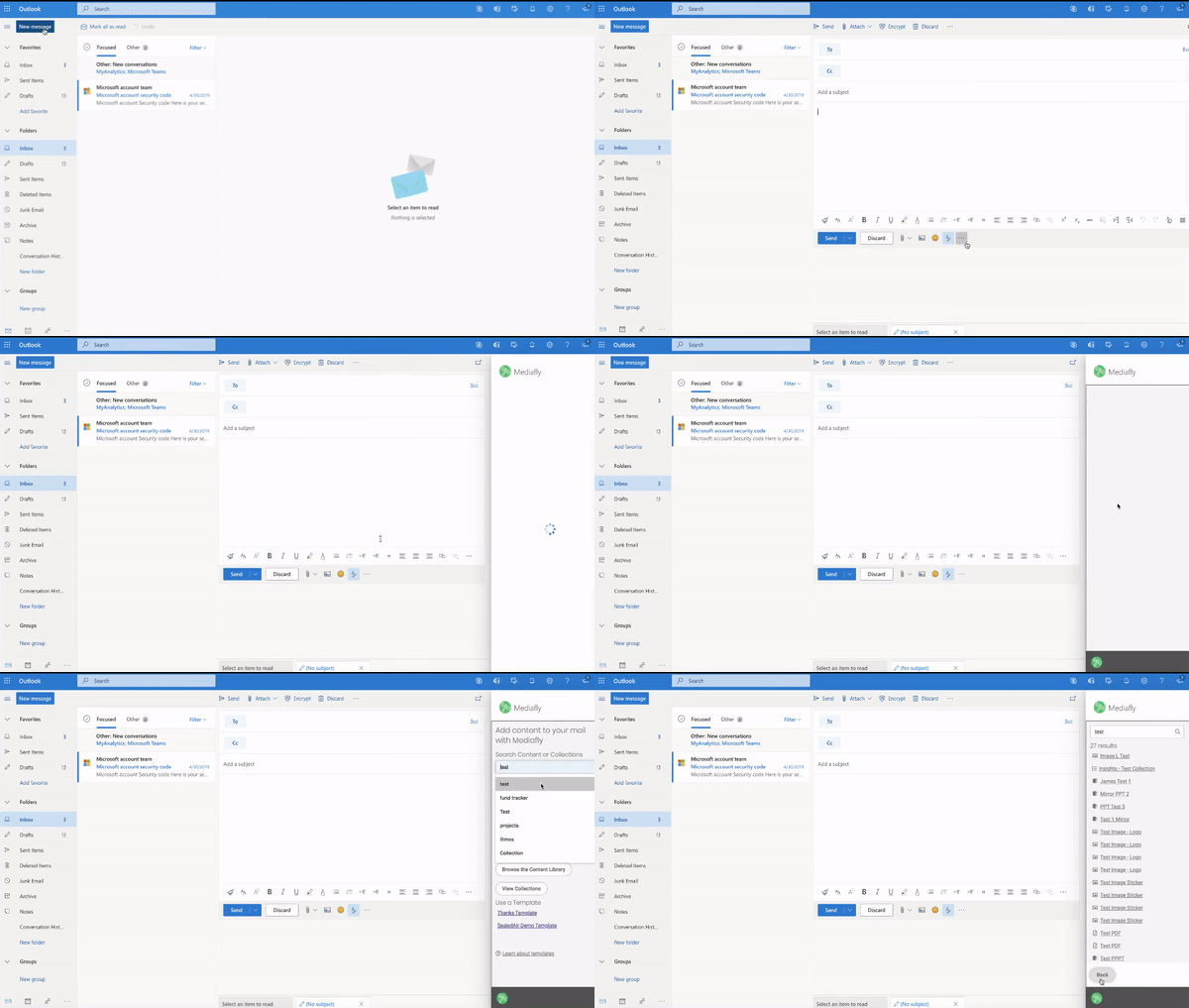
- When writing an email, the user can select from a pre-existing email template, to quickly send out a personalized email with commonly used shares/text.
- Users may turn the email into a template, so that it can be re-used with the same shares/text in a future email.
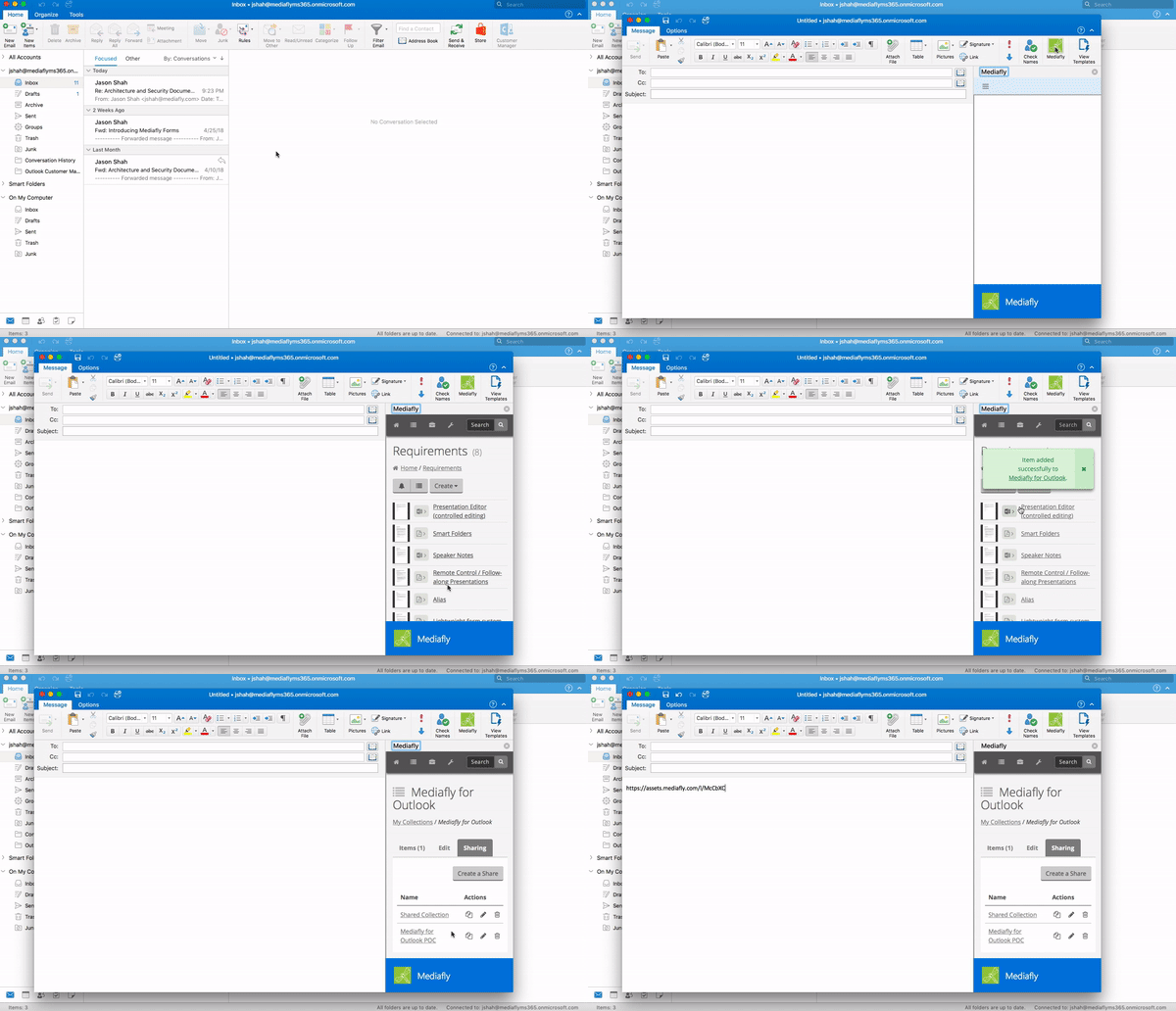
- Users may search for an item/collection in the Outlook Add in to search for a specific item/collection in the environment and insert the share link of the item/collection into the email.
- Users can configure an item/collection share so that it contains an expiration or password to further secure the content shared.
Replies have been locked on this page!