


Sharing content in Mediafly can be done in numerous ways.
Users may create an email or create a link that can be easily accessed. For more information on creating shares, read the Sharing content and track engagement with Mediafly.
The shares created can have specific settings that can be used to enhance, improve, or manage the viewing of the share.
Creating a Share with Advanced Options
To access the advance sharing options, click on the Edit Share options under the Share options section.
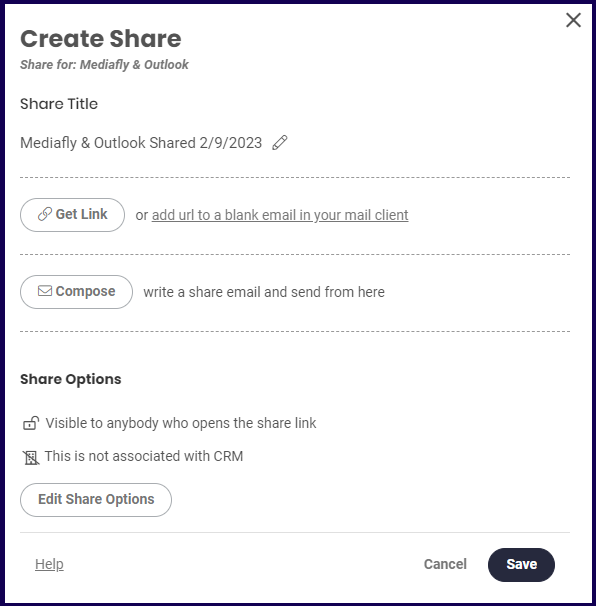
Select the Share Option(s) that you want to apply by clicking on the arrow to expand the section.
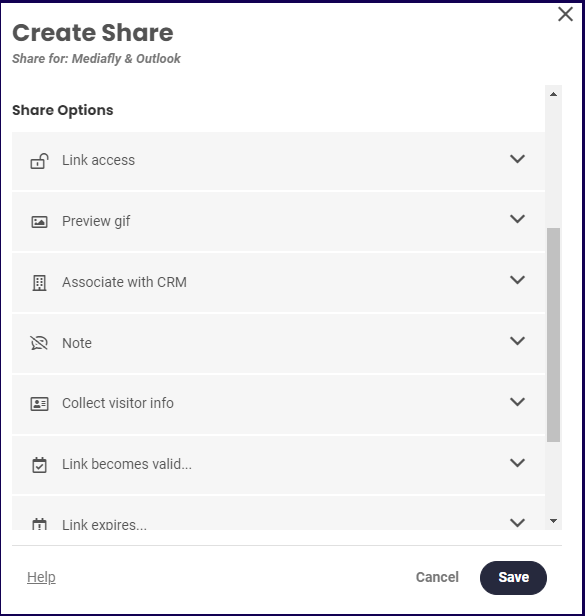
Share Options
The following share options are available to the user:
- Link access
- Preview GIF
- Associate with CRM
- Note
- Collect Visitor Info
- Link becomes valid
- Link expires
- Limit number of visits
- Start from a specific page
Link access
This is used to set how the shared item may be accessed. Three options are provided for the user:
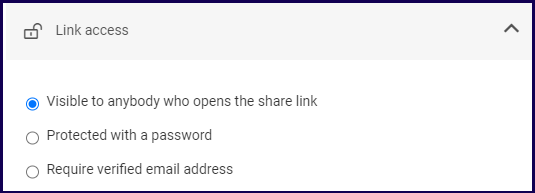
1. Visible to anybody who opens the share link
This option allows any users to access it as long as they have the shared link.
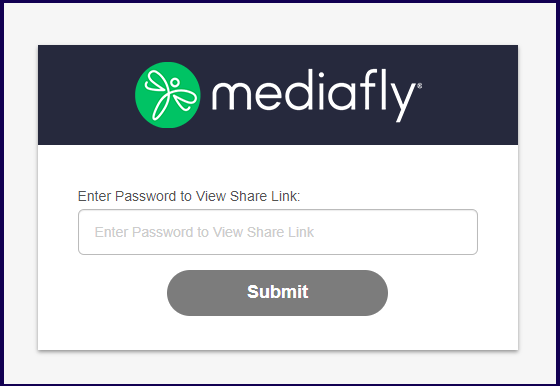
2. Protected with a password
This option requires users with the link to key in a password before they can access the content. This option provides more security and allows moderators to limit who can access the shared content.
3. Require verified email address
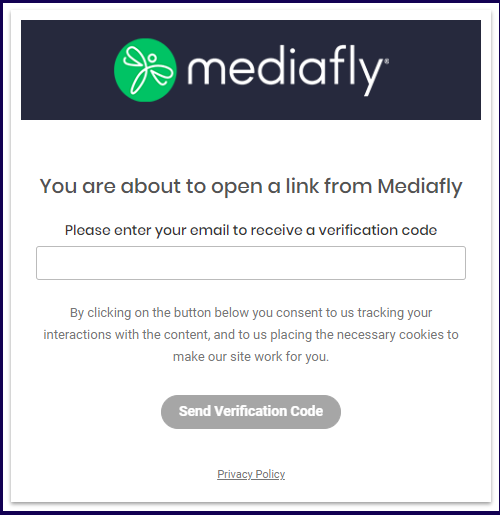
This option requires users to key in an email address so that a verification code will be sent to the user. Using this not only helps moderate who can access it, but allows content managers to track users and potential new customers.
Preview GIF
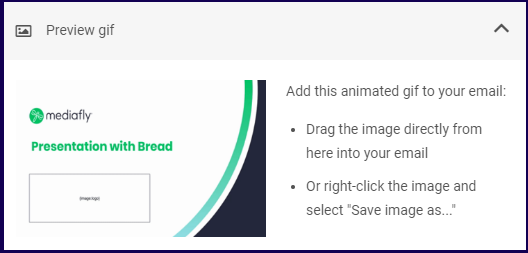
Depending on the file type of the content to be shared, a preview GIF section may appear. This is used to easily create an animated gif of the presentation which could be added on the presentation.
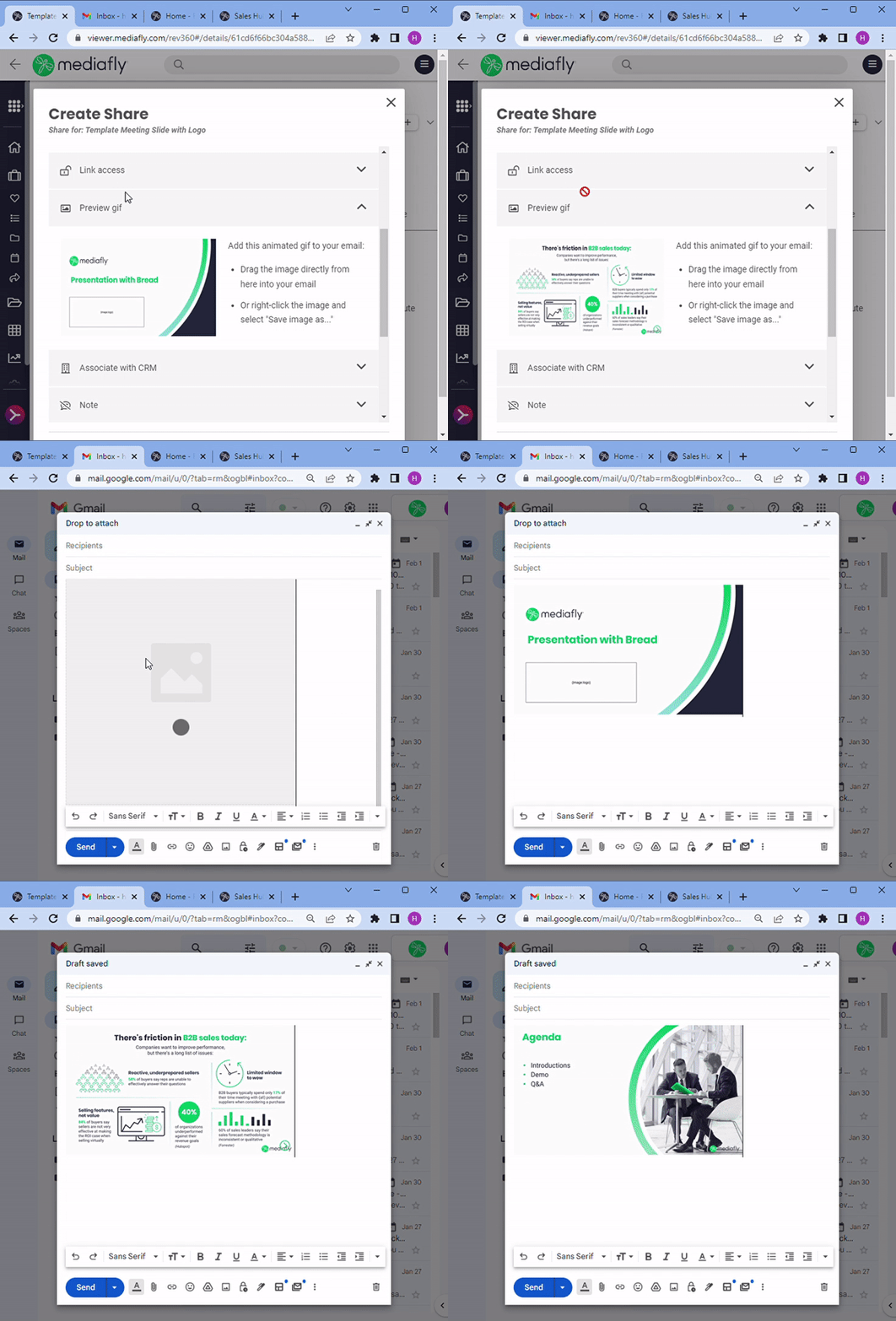
You may drag and drop the gif generated in the Preview gif section or save the file. In the example below, the GIF is directly dragged and drop into the email body.
Associate with CRM
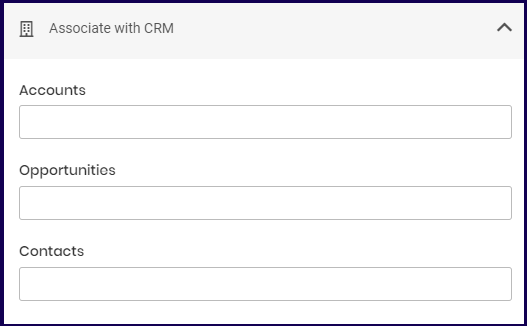
If a CRM integration is configured, users may connect the share link with CRM fields. The CRM fields are custom fields created by the Mediafly support team. Read the Managing Environment Settings discussion to learn more about custom fields. Open a ticket enable CRM integration and to create these fields.
Note
Use this to create a note that will be visible to the recipient once the the share link is opened.
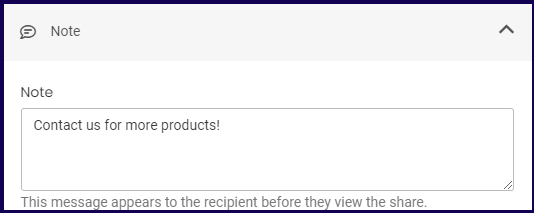
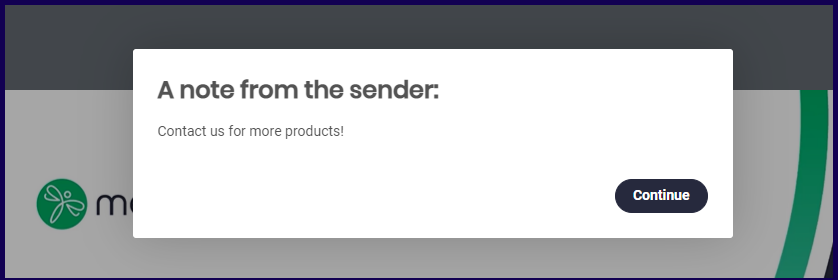
Once defined, users accessing the shared link will instantly see a note over the accessed content.
Collect Visitor Info
Enabling Collect visitor info allows the sender to easily collect powerful analytics on share link activity. If disabled, Mediafly cannot gather data about the specific share link user. If this is set to optional and the recipient does not enter information, the view activity is tracked as "unknown". By default, we always collect estimated location data based on IP address.
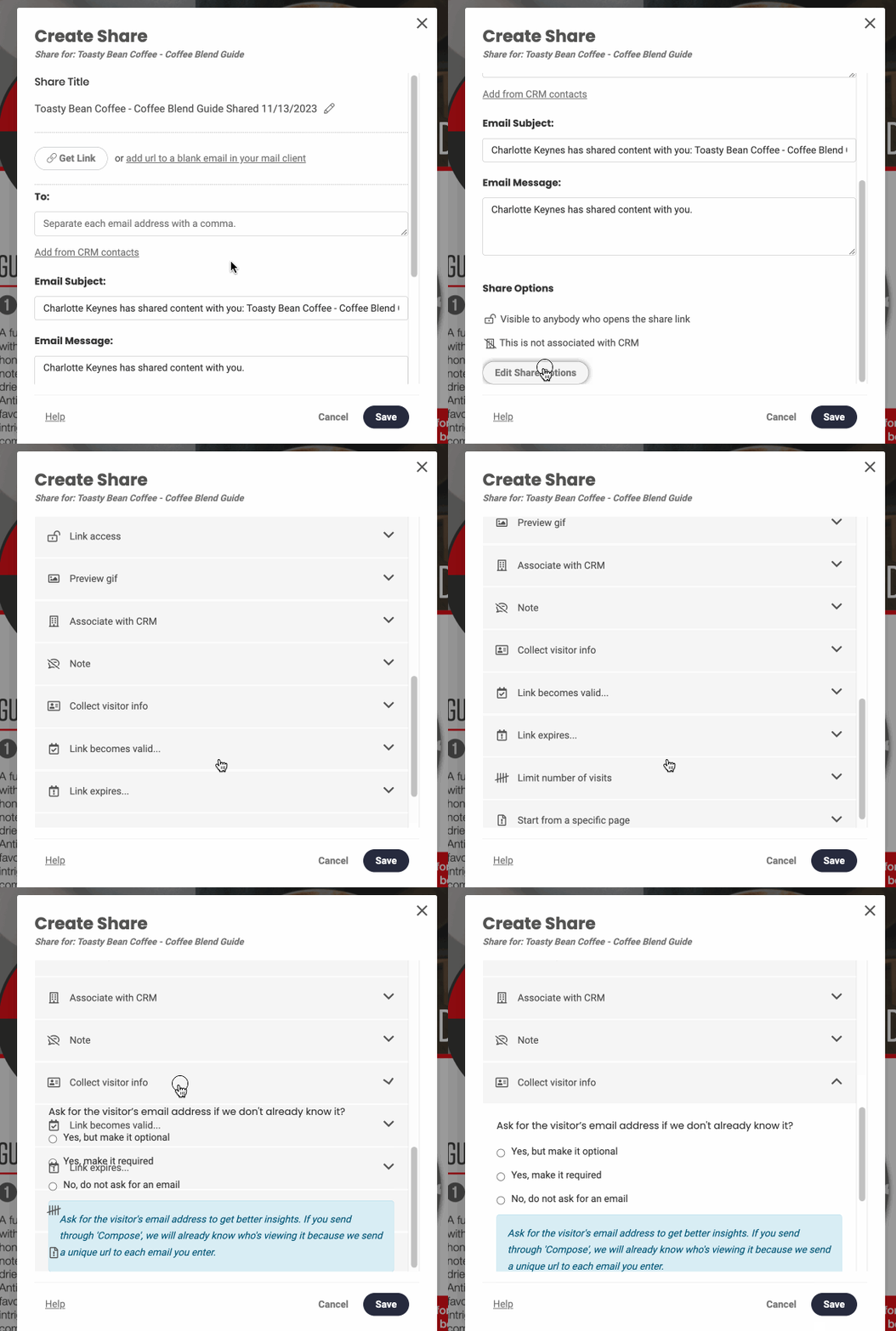
- Yes, but make it optional: The lead capture interface will be displayed to users whether they arrive via a Compose link or a public share link. However, users have the choice to skip it.
- Yes, make it required: The lead capture interface will be shown to recipients regardless of their arrival method, but they will now be required to enter an email address to access the share. They can input any email address.
- No, do not ask for an email: The lead capture will show for shares that use the Compose method, but users can still choose to skip it. Public shares with this option will not display the lead capture.
Link becomes valid
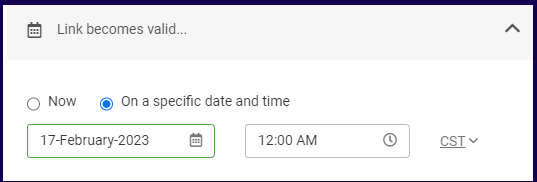
This allows you to set when the link is becomes valid and accessible. This can be used so that the created link can be promoted or advertised and to build anticipation, especially for events, promotions, and other scheduled events.
Select On a specified date and time to set the date and time when the link becomes valid.
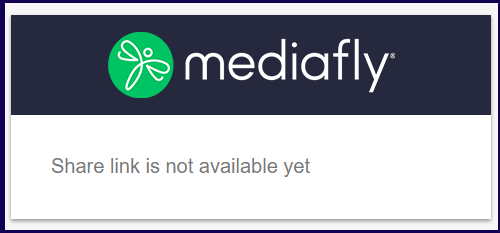
If the content is accessed before the date when the item becomes valid, the following prompt is displayed.
Link expires
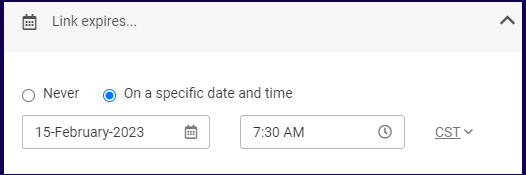
This allows you to set when the link expires and becomes inaccessible to users. This is used so that the contents shared that are time sensitive. Select On a specified date and time to set the date and time that the link will expire.
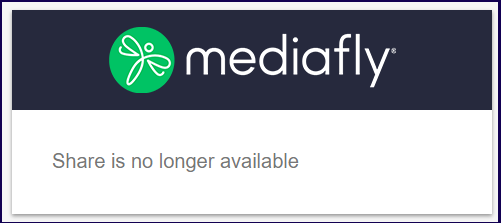
If the link has already passed its expiration date, those who access the link will see a message informing that the page is no longer available.
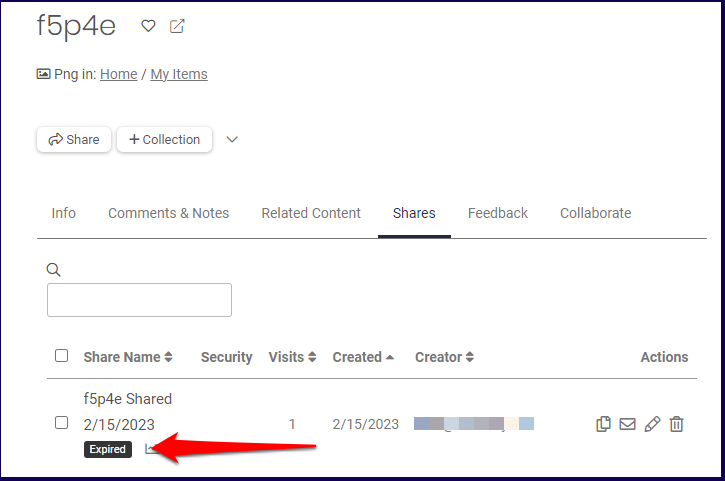
If the link has expired, an icon is displayed below the share details in the shares tab.
Limit number of visits
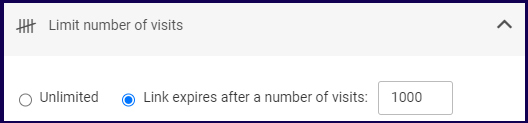
Use this to set limitation to the number of visits the shared link would have
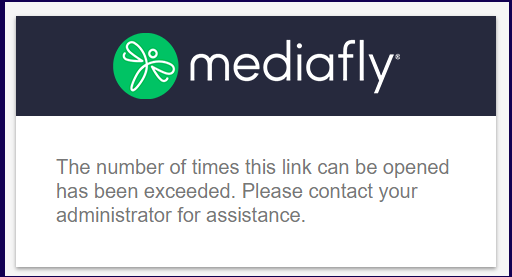
If the number of visits have been exceeded, the following is displayed by new visitors.
Start from a specific page
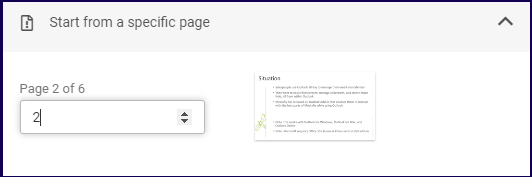
For slideshow files, start from a specific page allows users to set what page the shared link will route to. Setting the page number will display a preview of what the page is for the slideshow.
Replies have been locked on this page!