


The Lead Engagement Dashboard has been created and configured for you right out of the box, so your Marketers, First Line Managers, and Reps have a built-in dashboard based on best practices, utilizing your data.
🚨 IMPORTANT 🚨
Before using this dashboard, please verify that lead activities are enabled.
About the Lead Engagement Dashboard
What data is included? Lead
Who should use it? Marketers, First Line Managers (SDR, AE), Reps
When to use it? Weekly to ensure good Lead engagement
Why use it?
-
Provides a way to quickly review whether any given rep or team is doing a good job engaging with their Leads, and if they are getting enough meetings and engagement from key Leads.
-
Ensures that Reps are building good relationships.
-
Visualizes the level of engagement within a set of Leads.
Deployment Considerations & Best Practices
-
Know if the customer uses a sales engagement or marketing automation system, what data does that system create? (I.e. “Outreach Sequence Status, or “Marketo Last Interesting Moment”... these can be excellent filters for engagement
-
If there are SLA’s, consider adding SLA cards for new Leads or time to first touch
Usage by Persona
For First Line Managers and Reps
When: Daily/Weekly
How: During a 1:1, manager to filter this Dashboard for the specific Rep using the Hierarchy selector
What would you do: Review Lead engagement and meetings, if there are significant declines week over week, talk to the rep about strategies to keep on top of their territory.
For Marketers
When: Daily
How: Filter to a top campaign or territory/manager
What would you do: Stay on top of whether sales teams are engaging with Leads being produced by your top campaigns or business segments. If there are declines or increases week over week, follow up with sales management.
Pre-req Training
Copying and Editing Cards
You may decide you want additional cards similar to what's provided, check out this article on copying and editing cards to learn how you can copy and adjust a current card instead of starting from scratch!
The Lead Engagement Dashboard (Monthly Focused Version )
Row 1: How many leads are we in touch with?
-
Leads Touched Yesterday (Headline)
-
Leads Touched This Week (Headline)
-
Leads Touched Last Week (Headline)
-
Leads Touched Last 30 days (Headline)

Row 2: How many leads are in touch with us?
-
Leads Responded Yesterday (Headline)
-
Leads Responded This Week (Headline)
-
New Leads Today (Headline)

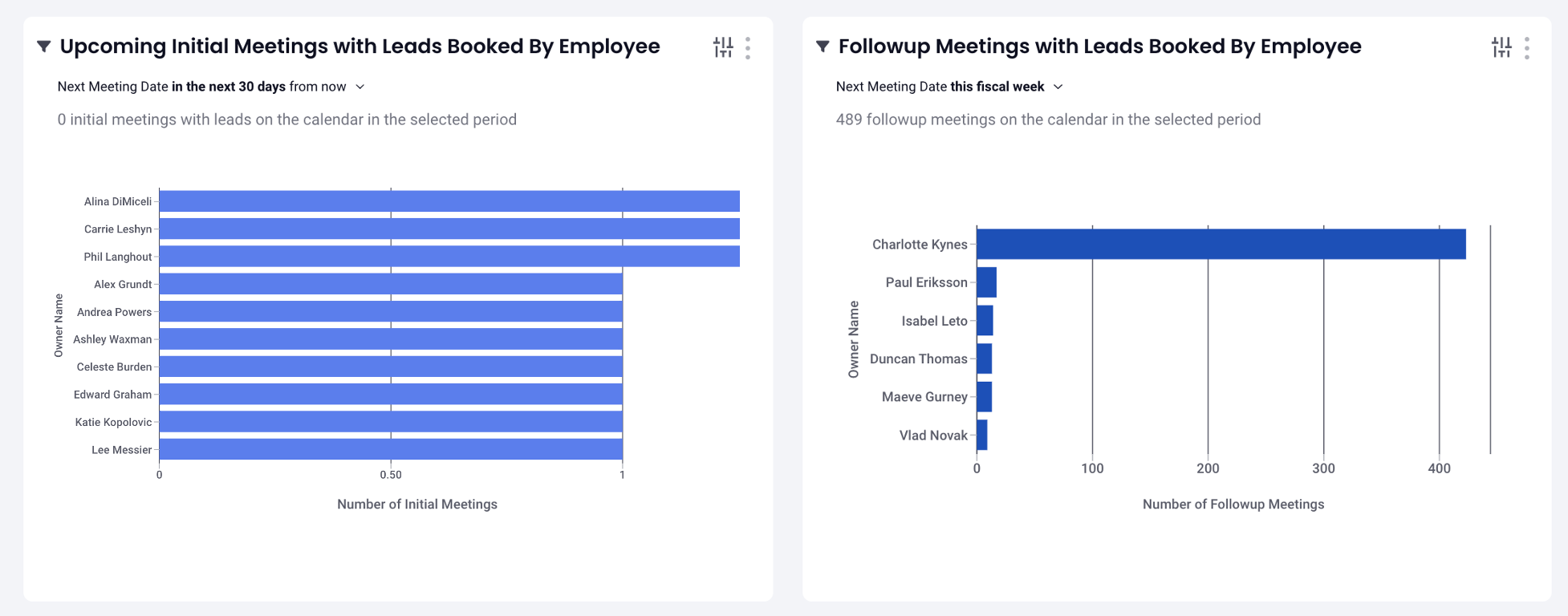
Row 3: How is our meeting schedule with Leads overall?
- Upcoming Initial Meetings with Leads Booked by Employee (Bar Chart)
- Followup Meetings with Leads Booked by Employee (Bar Chart)
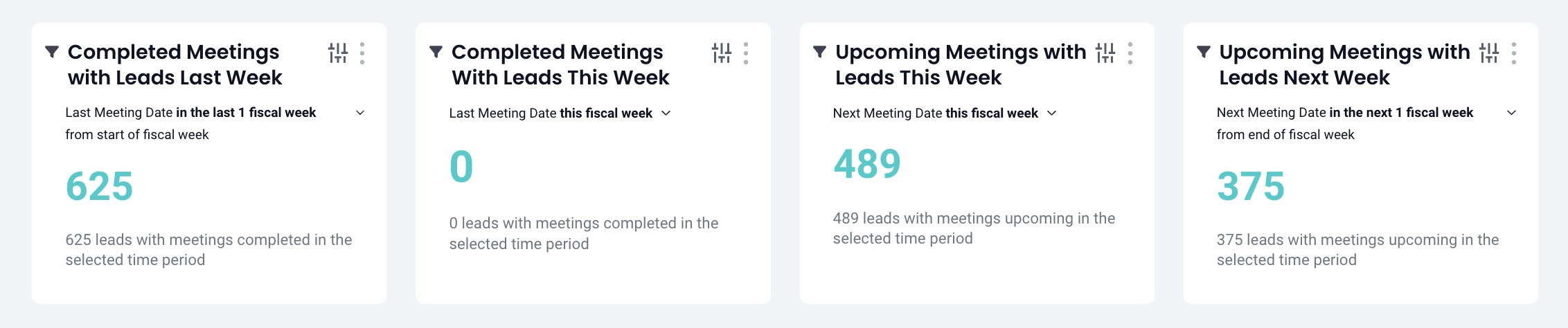
Row 4: Week over week, how many meetings are we having?
- Completed Meetings with Leads Last Week (Headline)
- Completed Meetings With Leads This Week (Headline)
- Upcoming Meetings with Leads This Week (Headline)
- Upcoming Meetings with Leads Next Week (Headline)
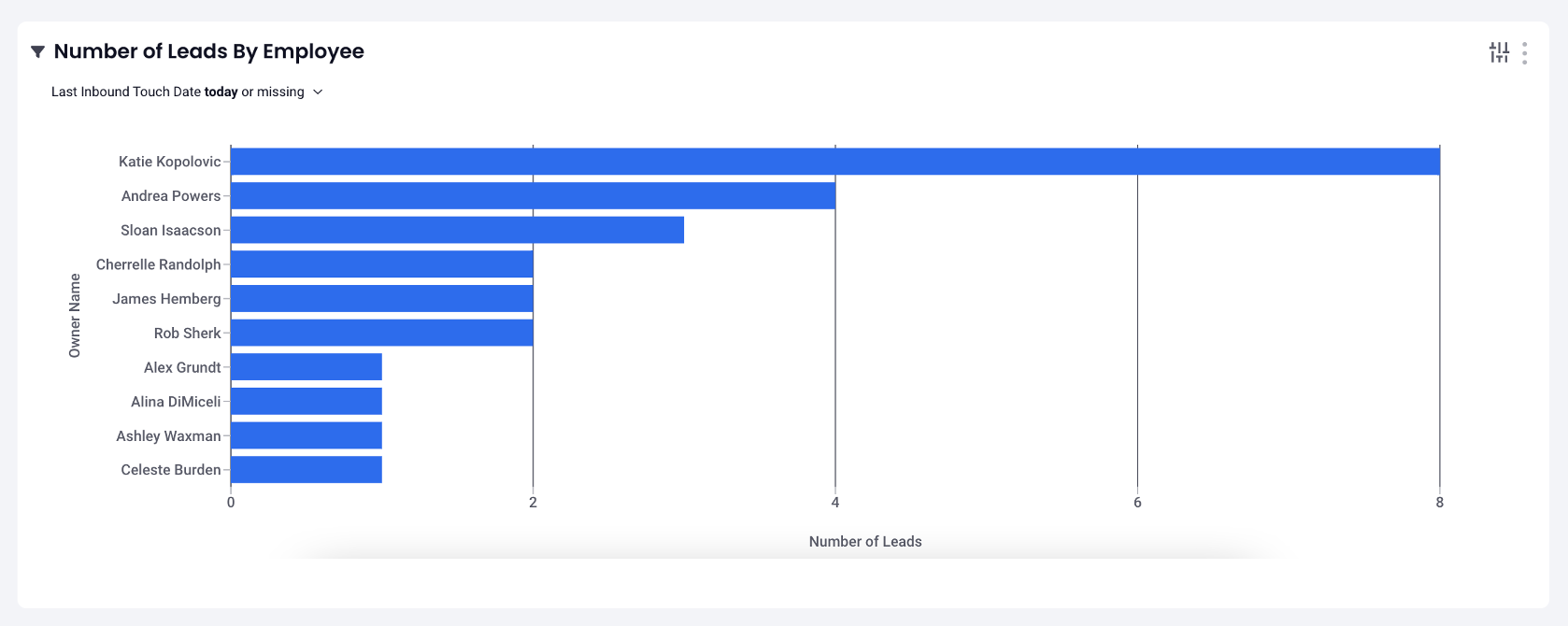
Row 5: Which reps have the most Leads?
-
Number of Leads by by Employee (Bar Chart)
How did we build this dashboard template for you?
The Lead Engagement Dashboard has been created for you out of the box using the configurations listed below. We love being able to provide this Dashboard out of the box and ready to use, but it's always good to know what data you're working with when you hit the ground running.
Dashboard Configuration
-
Base Template - Generic Lead Insights Board
-
Content Type - Lead
-
Filters - Owner Name and Campaign Name
Default Filters on Report Drills
Filters on Report Drills
Clicking on a card will produce an inspection report so you can drill down on a card's specific data. Each report comes with our recommended best practice filter sets (report columns) that can be customized to best fit your process. Read Interactive Filters to learn more!
Replies have been locked on this page!