


Mediafly can use Azure AD for user authentication. If your organization manages user accounts and application in AD, connecting Mediafly to Azure is a quick process.
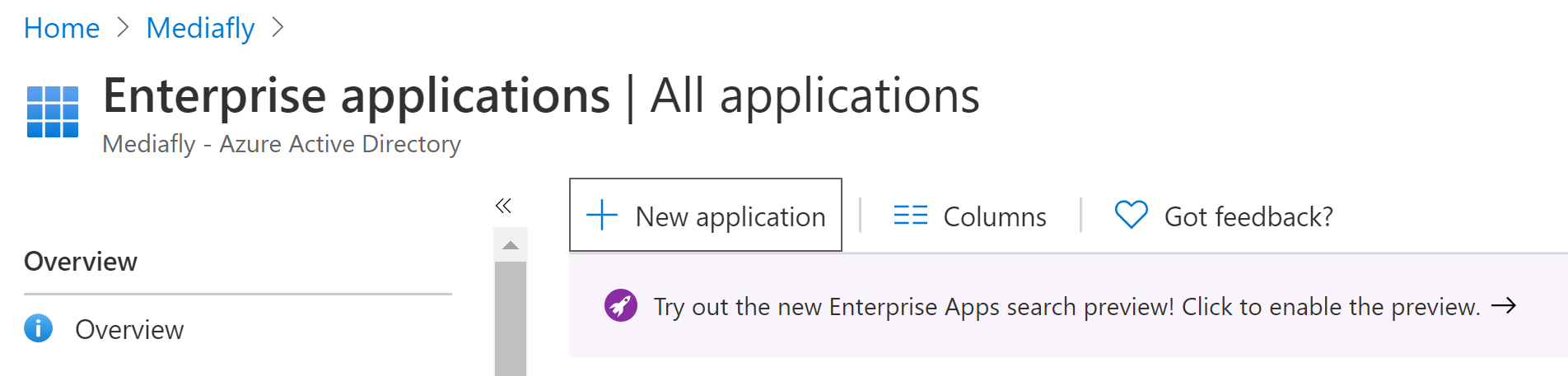
First, start with creating an enterprise application:
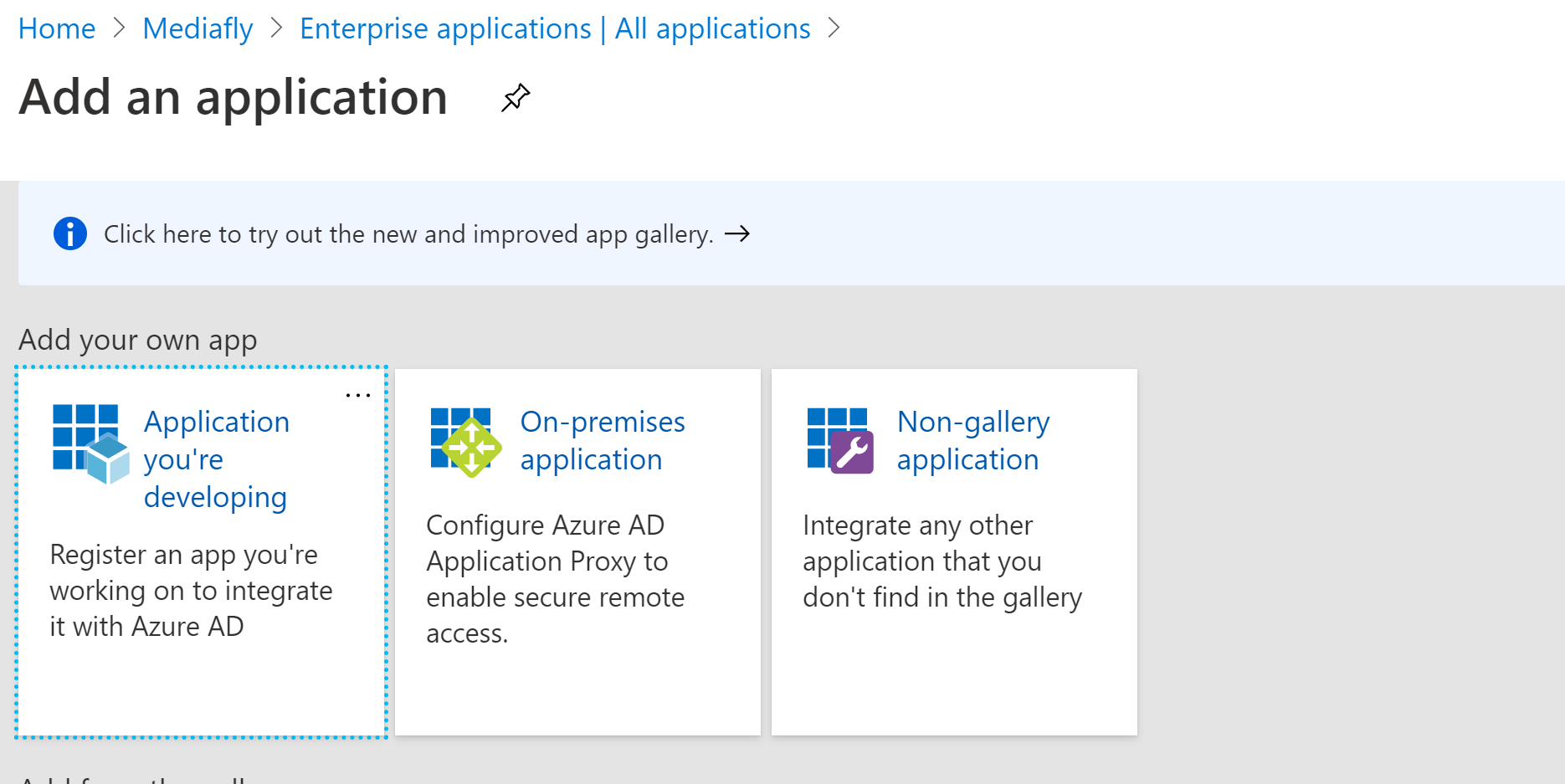
Choose "Non-gallery application" option:
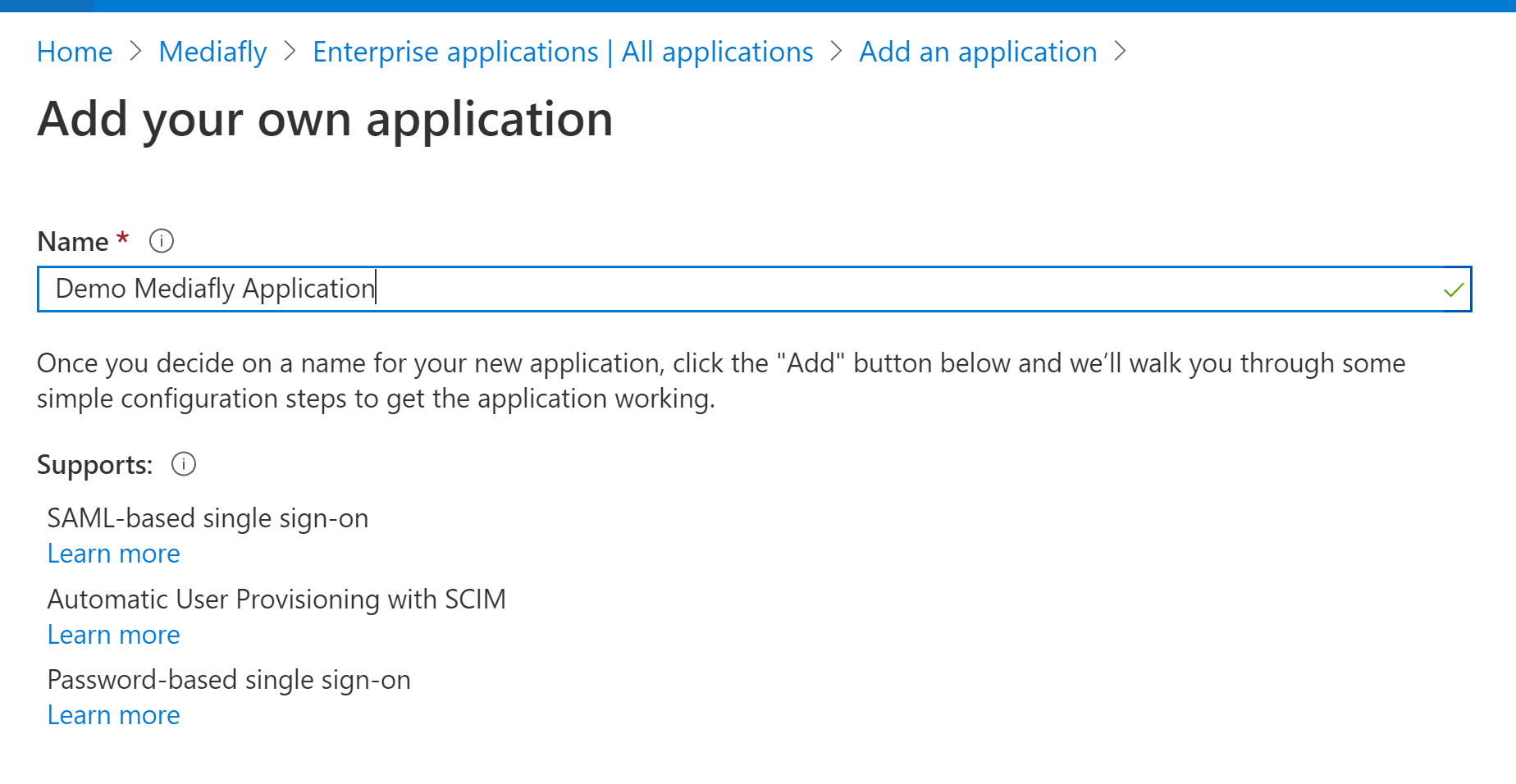
Choose a name:
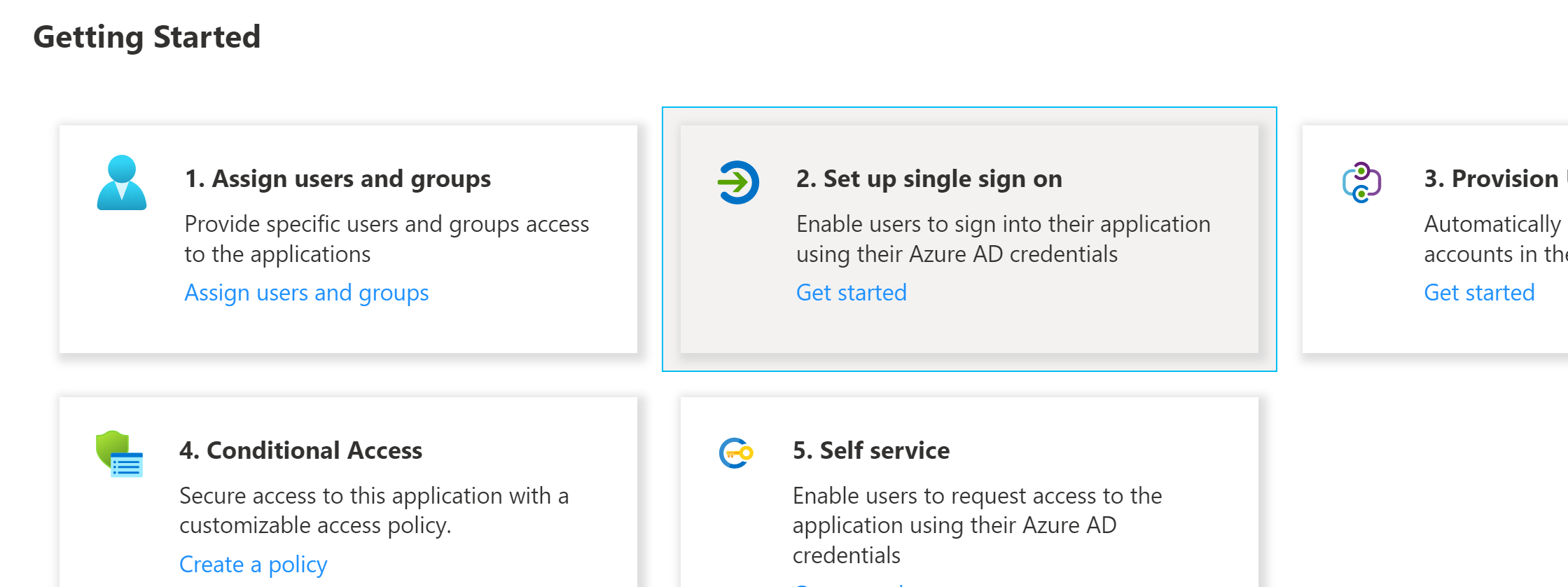
In the getting started section, choose "Set up single sign on":
Choose SAML
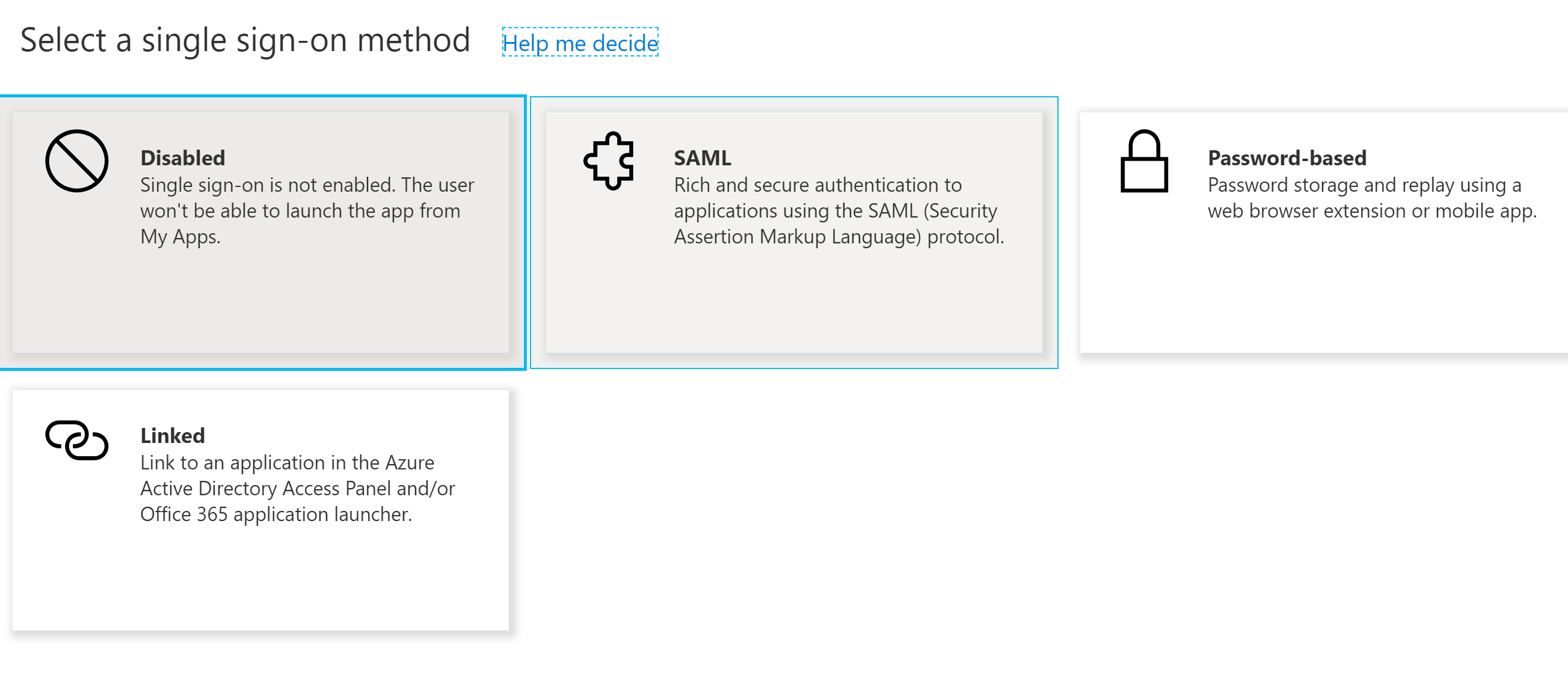
Under Basic SAML configuration, fill out the following:
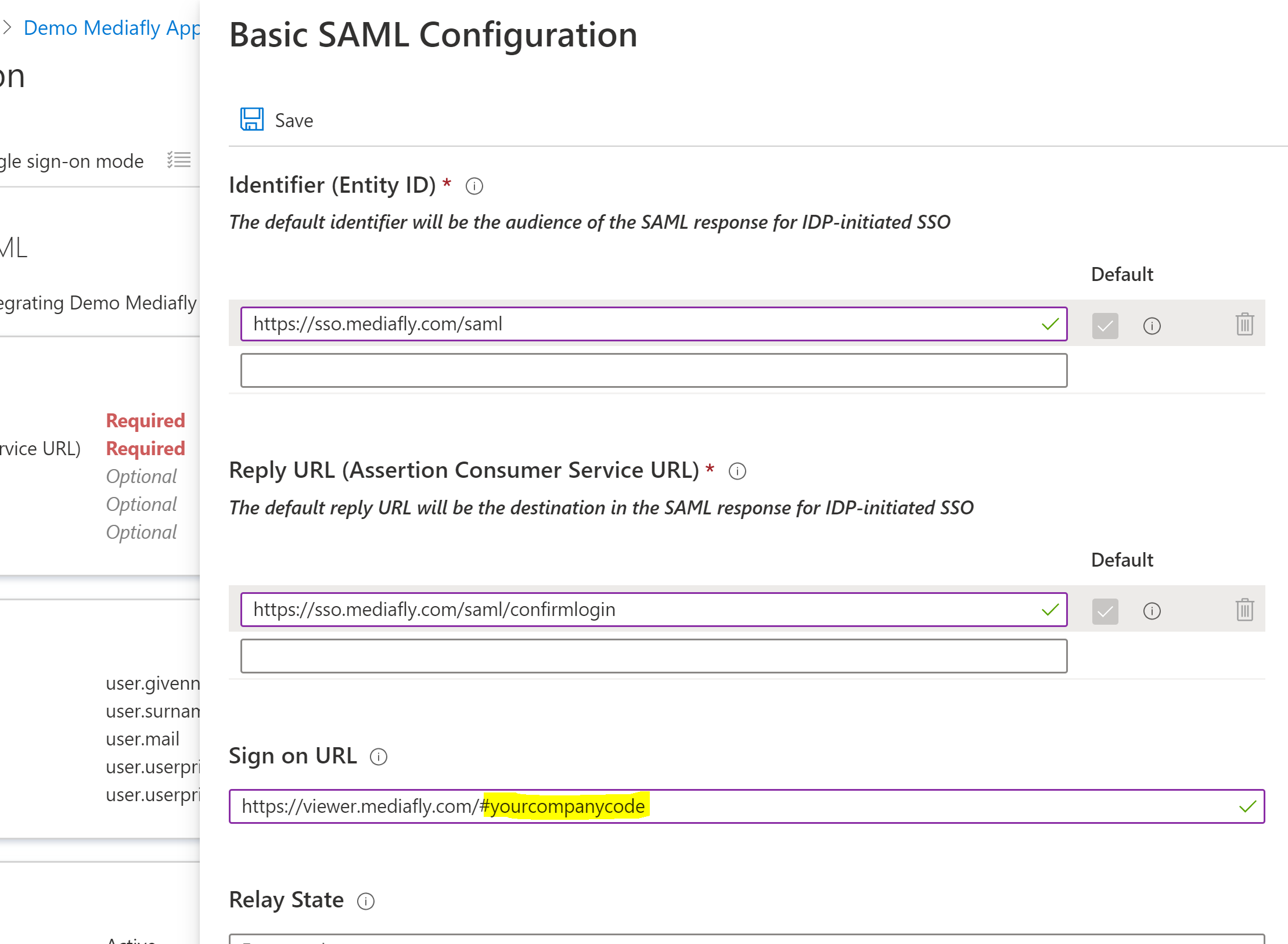
Note the highlighted portion. This URL needs to have your company code.
https://viewer.mediafly.com/{companycode}
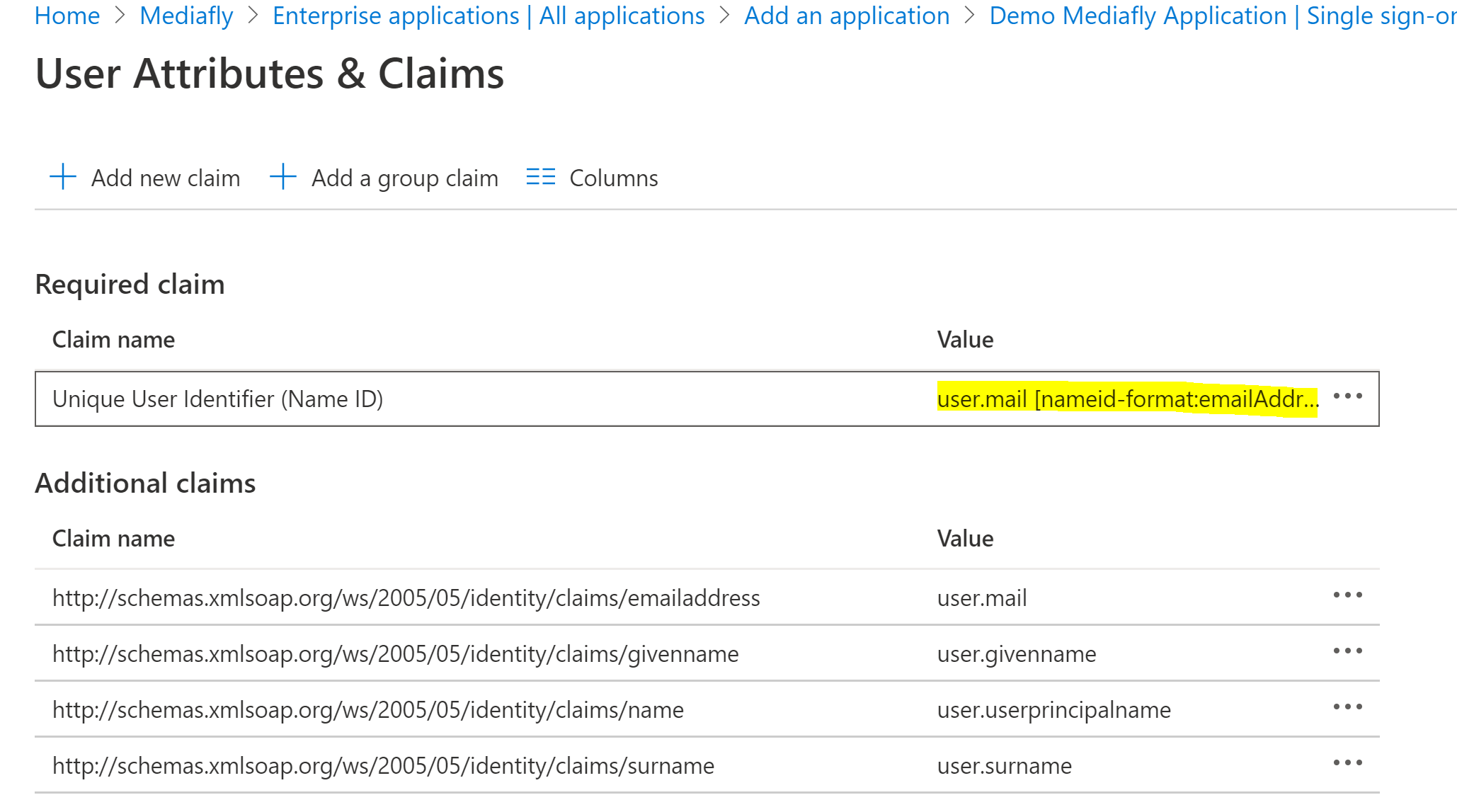
Under Attributes & Claims, select user.mail as the claim for Name ID identifier, leave the rest of the settings as default:
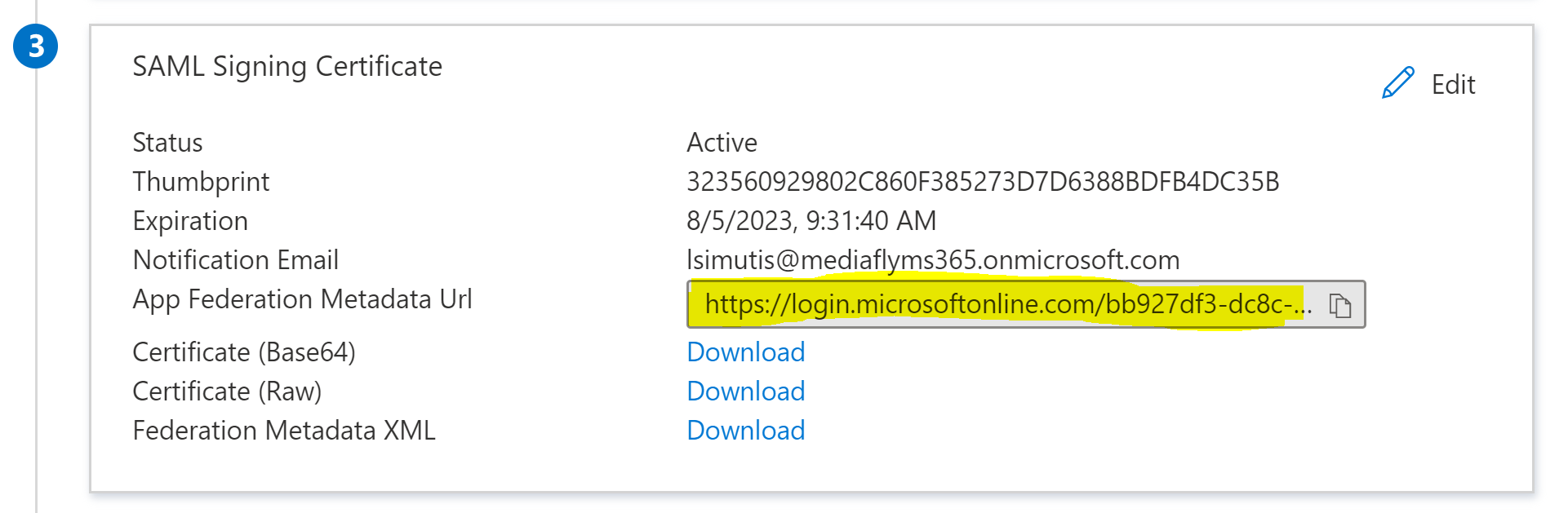
Finally, provide Mediafly CSM with the Metadata URL that we can use to configure the SSO on our end. You can copy the URL from the "SAML Signing Certificate" section.
Once Mediafly finishes the configuration, you should attempt logging in via https://viewer.mediafly.com/{companycode} URL to confirm the integration is working.
Troubleshooting issues
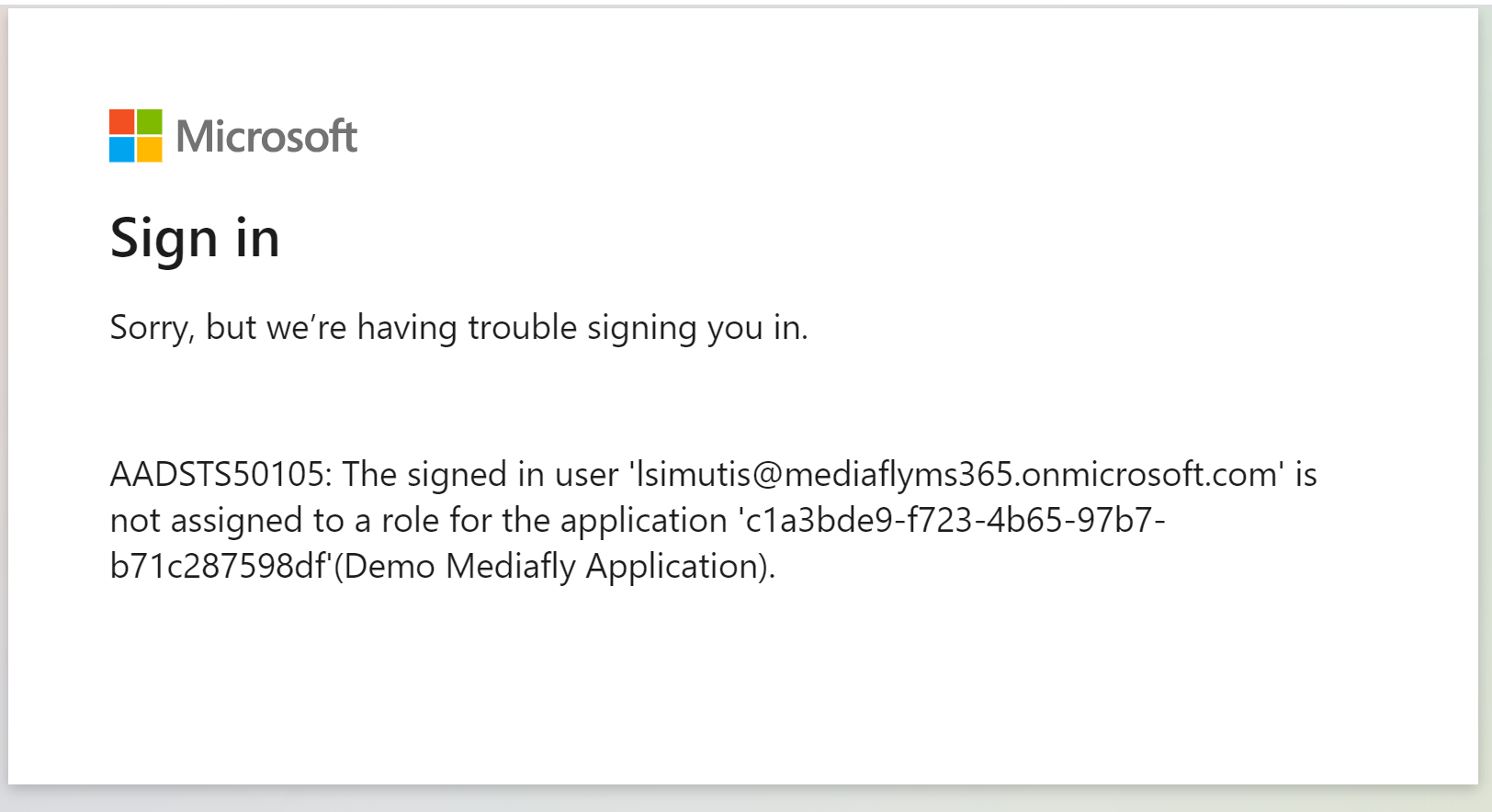
While testing the integration, you might see an error that looks something like this:
Replies have been locked on this page!