


For customers managing large Value programs with multiple templates in Tool Builder, finding the right template quickly can be challenging. Creating unique URLs for templates makes it easy, allowing:
-
direct access to templates without searching through a long list
-
the use of keywords to make templates searchable
-
for streamlined workflows for different business units within a large organization
This can reduce admin workload by organizing templates through direct links and improve the efficiency of reps by minimizing unnecessary searches.
How to Create a Unique URL for a Template
Steps to Create a Unique URL
-
Retrieve the Base Value URL
-
Navigate to any page in Value.
-
Copy the URL up to and including the
/index.htmlportion and paste it somewhere you can edit the URL text.
Note: do not include anything beyond the /index.html portion.
Example:
https://viewer.mediafly.com/rev360/interactive/56/index.html
-
-
Edit the URL
-
Copy the following parameters and paste them to the end of URL:
?modal=createAnalysis&template-mnemonic={mnemonic}-
Replace
[mnemonic]with the specific template mnemonic assigned in the template. -
To find the mnemonic:
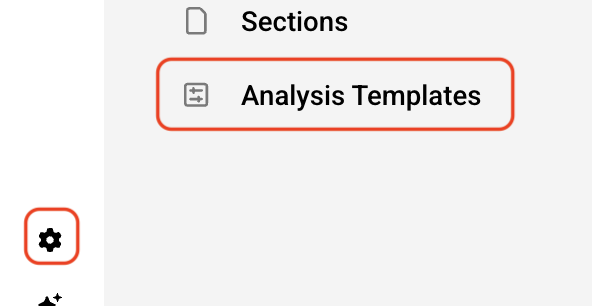
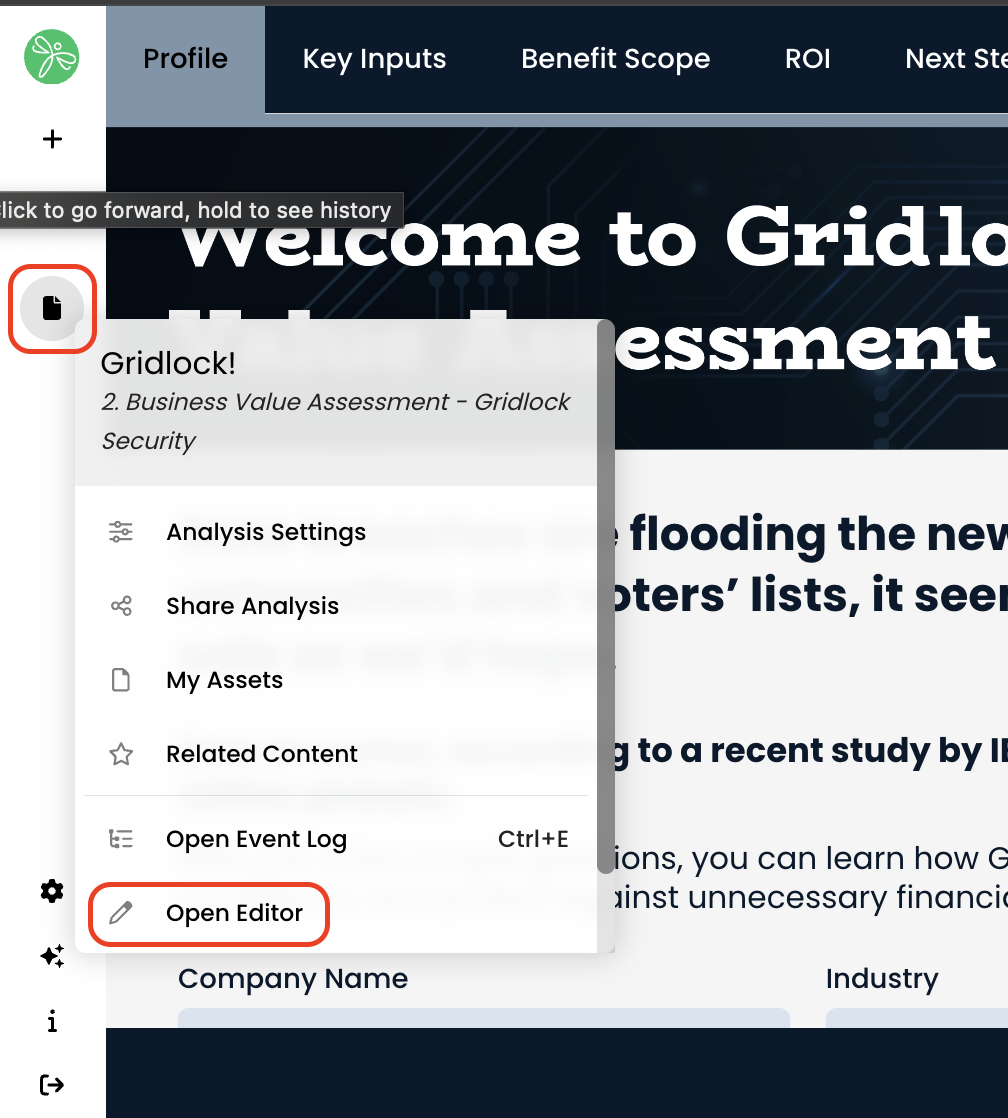
a. Open the template by clicking the settings icon > Analysis Templates > open desired template > click Edit Template
b. Click the analysis menu > select Open Editor
c. Go to Setup > General
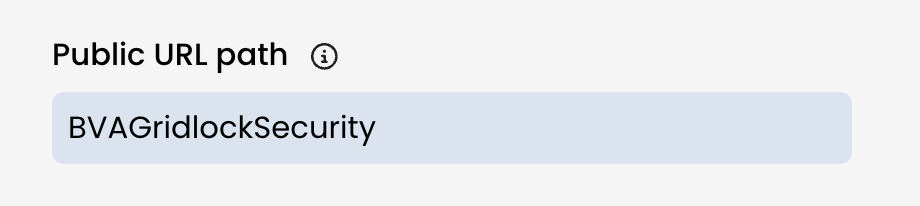
d. Scroll down to Public URL path and copy the url path (this is your mnemonic). If there is no URL path, you can create one; we recommend using something similar to the name of the Analysis to make it easily identifiable, there can be no spaces. If you add or update the mnemonic, be sure to publish updates made to the template.
e. replace [mnemonic] in the URL you're editing with the public URL path
f. Now copy the entire newly created URL
Example:
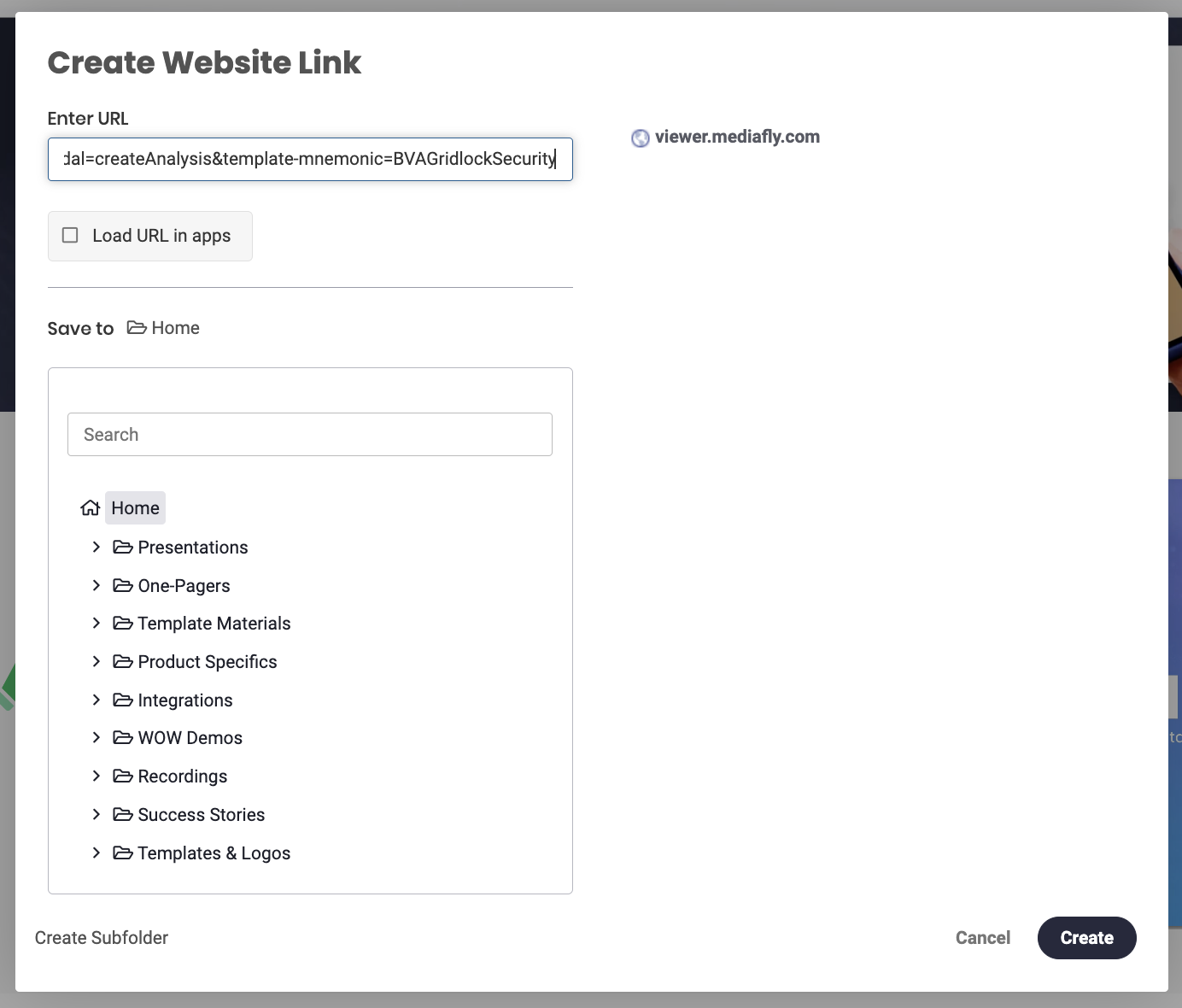
https://viewer.mediafly.com/rev360/interactive/56/index.html?modal=createAnalysis&template-mnemonic=BVAGridlockSecurity -
-
Create an Item in Mediafly
-
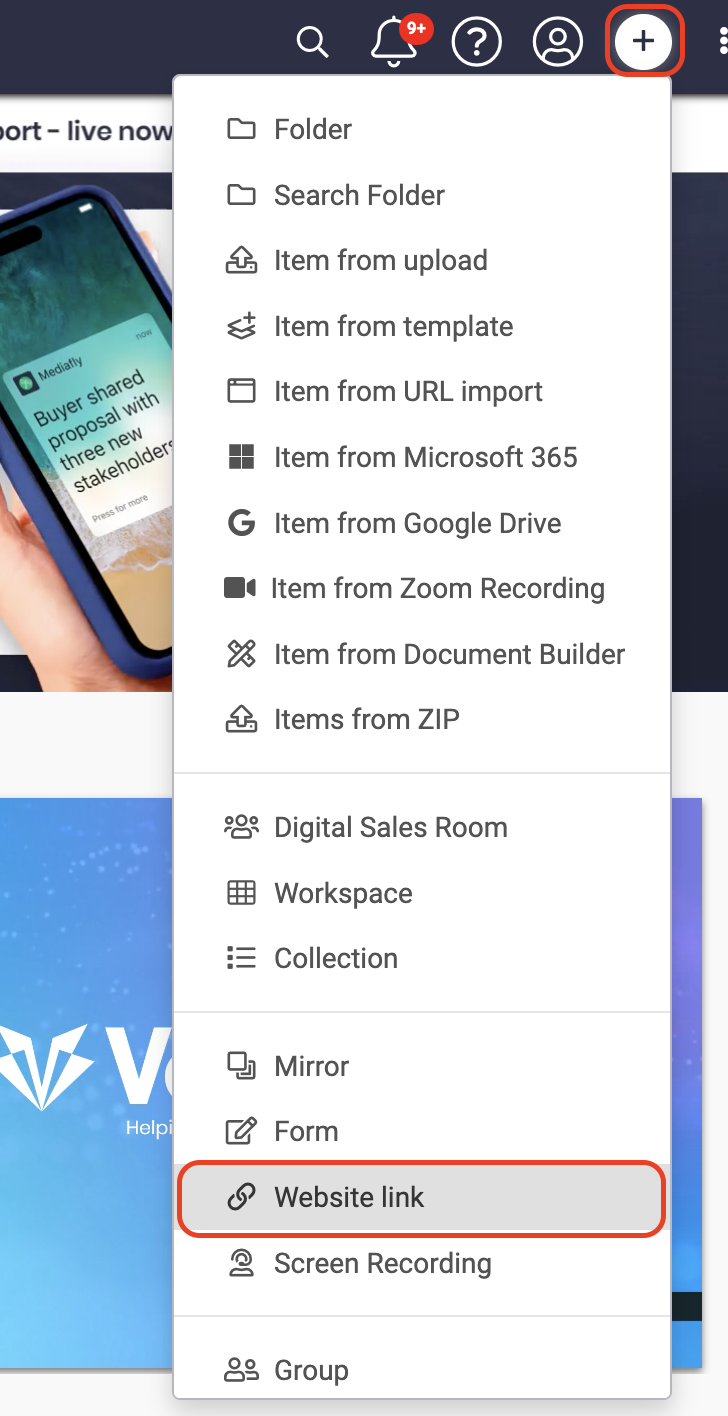
From the Mediafly home page, create a new item using the Create Item from Website Link feature.
-
Paste the generated URL into the Website Link field, determine where you want the item to live in Mediafly by saving it to your desired folder, then click Create
-
The item will now appear in the selected folder. To edit the item in Airship to change the title and add relevant keywords to make the template searchable by clicking the three dot icon on the item and selecting "Edit in Airship".
-
-
Validate the Link
-
Click on the newly created engagement tile.
-
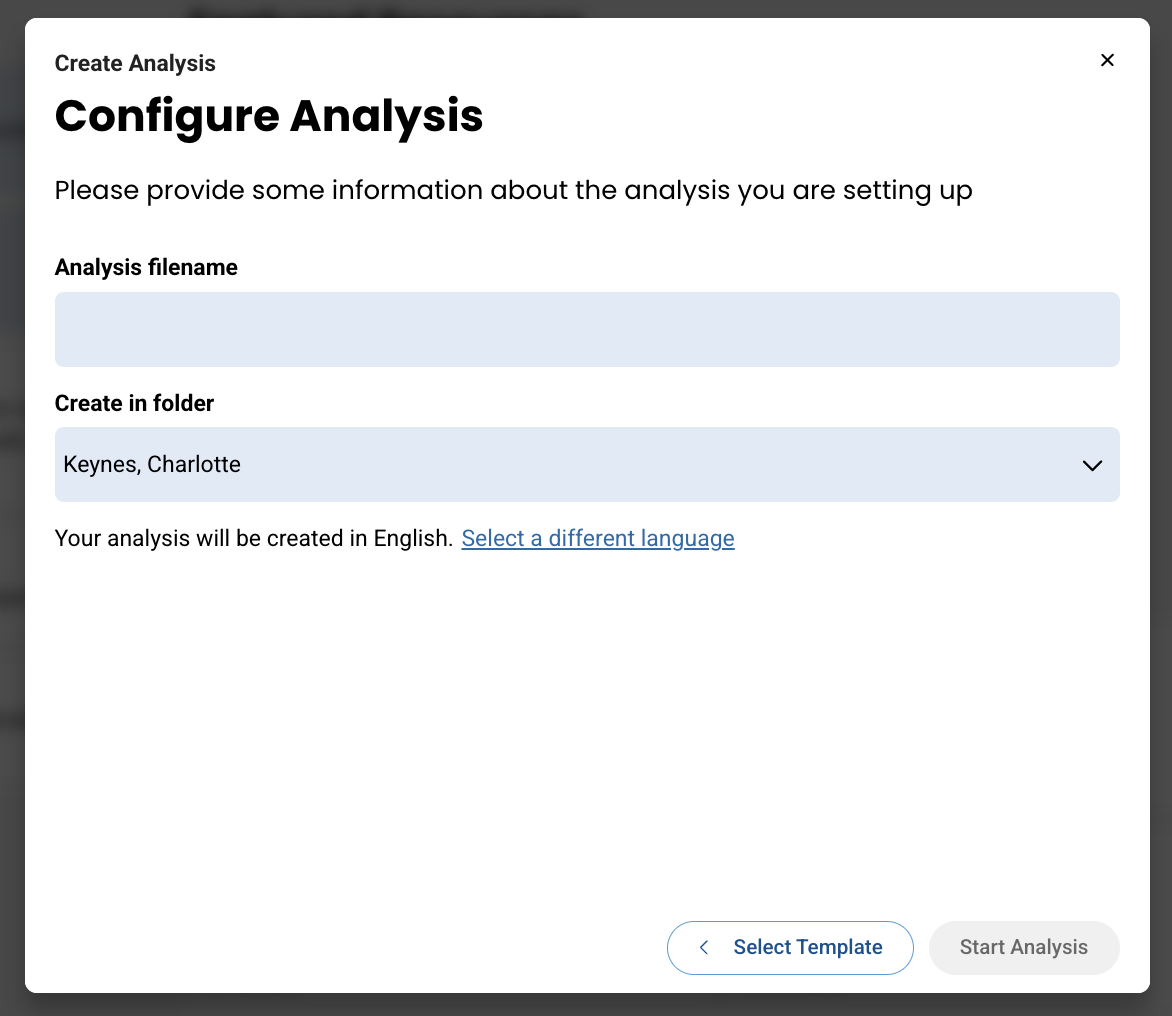
Ensure that it directly opens the correct template in Value360’s Create Analysis screen.
-
- You can now access, search for, and share this Value Template as you would any other item.
When the item is selected and template opened, users will begin configuring their new analysis using the template.
🚨Permissions for the copied engagement item will inherit those of the original item; ensure permissions are set correctly.🚨
Considerations and Limitations
-
Permissions for the copied engagement item will inherit those of the original item; ensure permissions are set correctly.
-
The template mnemonic is displayed in the template drawer in the library for easy reference.
Replies have been locked on this page!