


Overview
You are a sales leader, a marketing campaign manager, or a business value consultant at your company. You chose Mediafly Value to create your own ROI discovery, or account planning tool. With this tool, you plan to arm yourself, or your sales teams, to confidently model complex financial outcomes for your clients buying your products or services, resulting in shorter sales cycles and larger deals.
Definitions
Mediafly Value allows you to create Templates, which are standalone tools containing inputs and outputs connected by logic. These tools can capture information and create a dynamic and interactive experience resulting in a piece of unique content that can be provided to a buyer.
Templates can be edited over time and published for sellers to use. Sellers then have the ability to generate an Analysis, or version of that template, that can be customized for any engagement or audience.
At the end of each Analysis, there is then the option to generate an Output Report that has a breakdown of the information that was provided for that specific client. These too can be customized in order to fit each particular use case. Please see Output Report Authoring Basics for more information.
There are three distinct types of users, each of which have different permissions in the platform:
-
Administrators typically lead the group using the tools and are often also Authors. Their permissions (in addition to those of other users) include:
- Domain settings
- Analysis Metadata
- Branding
- User Permissions
- Output Report Template Management
- Usage Reporting and Data Mining
- Enabling/Disabling Features
-
Authors are the ones who build and manage the tools themselves. This can be anyone from a value engineer to a product marketer. There are typically 1 or more Authors on a team, depending on the size. Their permissions (in addition to those of End Users) include:
- Template Default Settings
- Benefit Library Management
- Value Category Library Management
- Related Content Management
- Enabling reps to show Benefit calculators, explore Benefits, and import Benefits from the library
- Enabling Assumptions settings
- All aspects of building tools, e.g., creating and configuring items, pages, and page sections
-
End users use the tools built by authors to create Analyses. End users are typically sellers, prospects or buyers. Their permissions include:
- Generate output reports
- Change the state of any pre-built component, e.g., checkbox, global variable field, select, investments, etc
- Create and share Analysis links
- Adjust assumptions settings
- Collaborate a folder with internal stakeholders
Getting Started
When you first get to Value, you land on the home page. From his page, you will be able to view recent projects, create new analyses, and navigate to helpful resources. This screen will look different depending on your permissions.
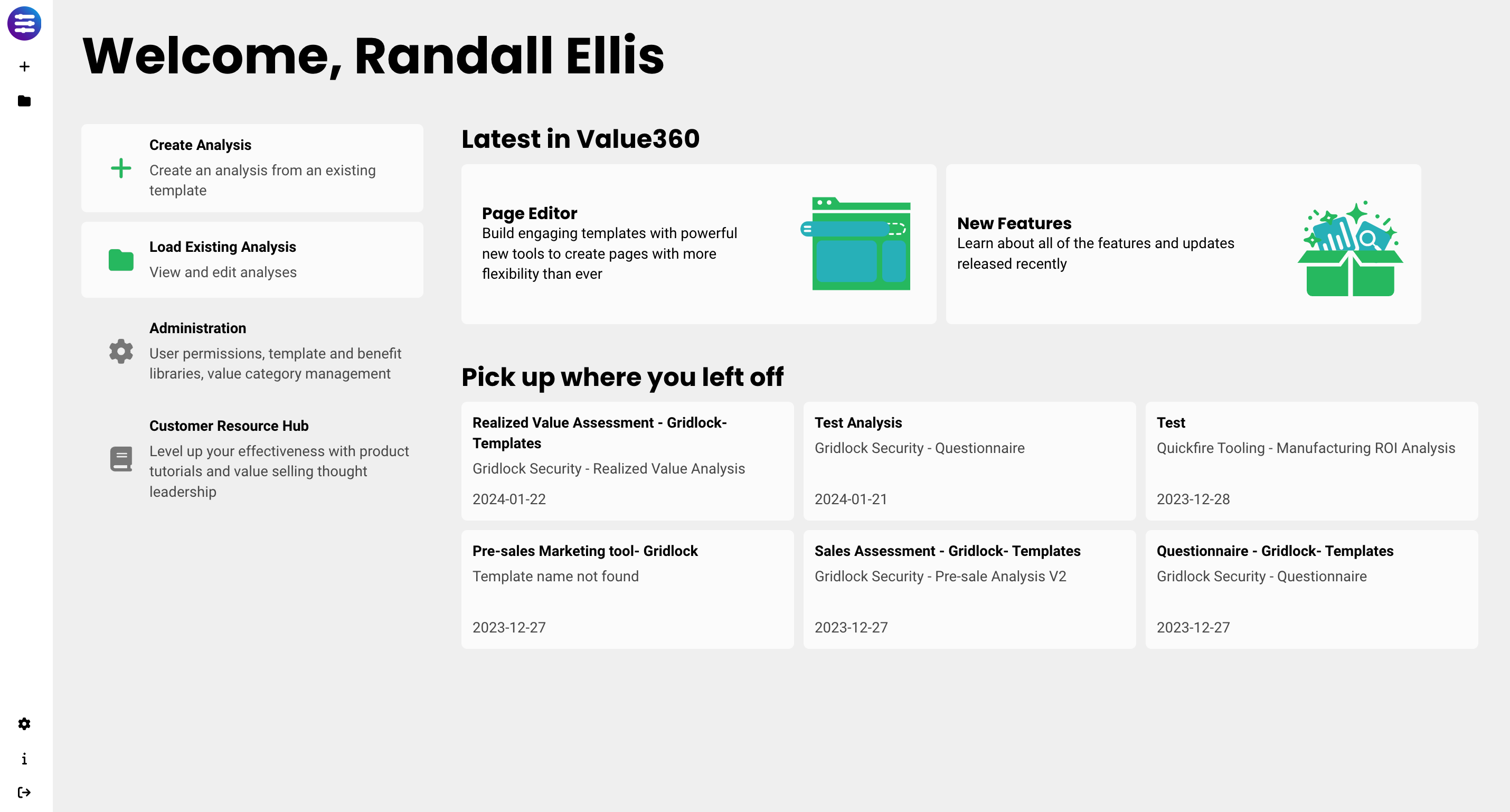
Create Analysis - name and create a new analysis. You can also create a new analysis by clicking the "+" icon at the top left-hand side of the screen.
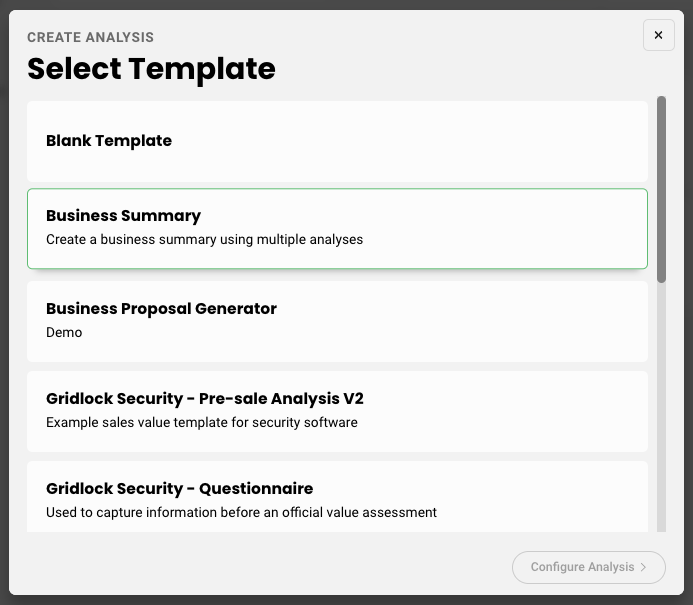
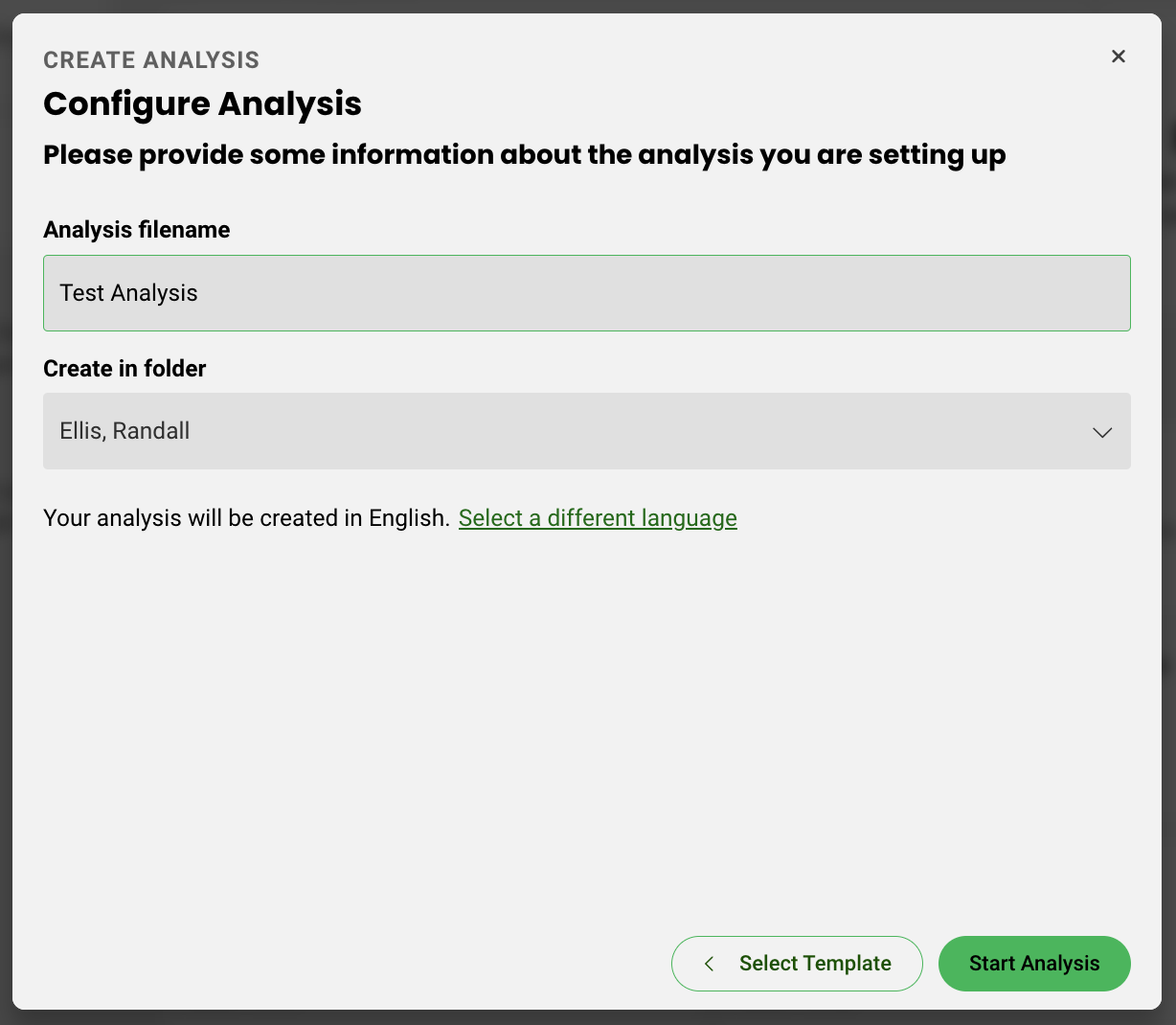
Load Existing Analysis - more information on analysis management can be found here. You can also access Analysis Manager by clicking the folder icon at the top left-hand side of the screen.
Administration - more information on Administration can be found here. You can also access Administration by clicking the gear icon at the bottom left-hand side of the screen.
Pick up where you left off - open a recent analysis
Once you start your Analysis, you will be able to access a number of settings from the left nav bar.
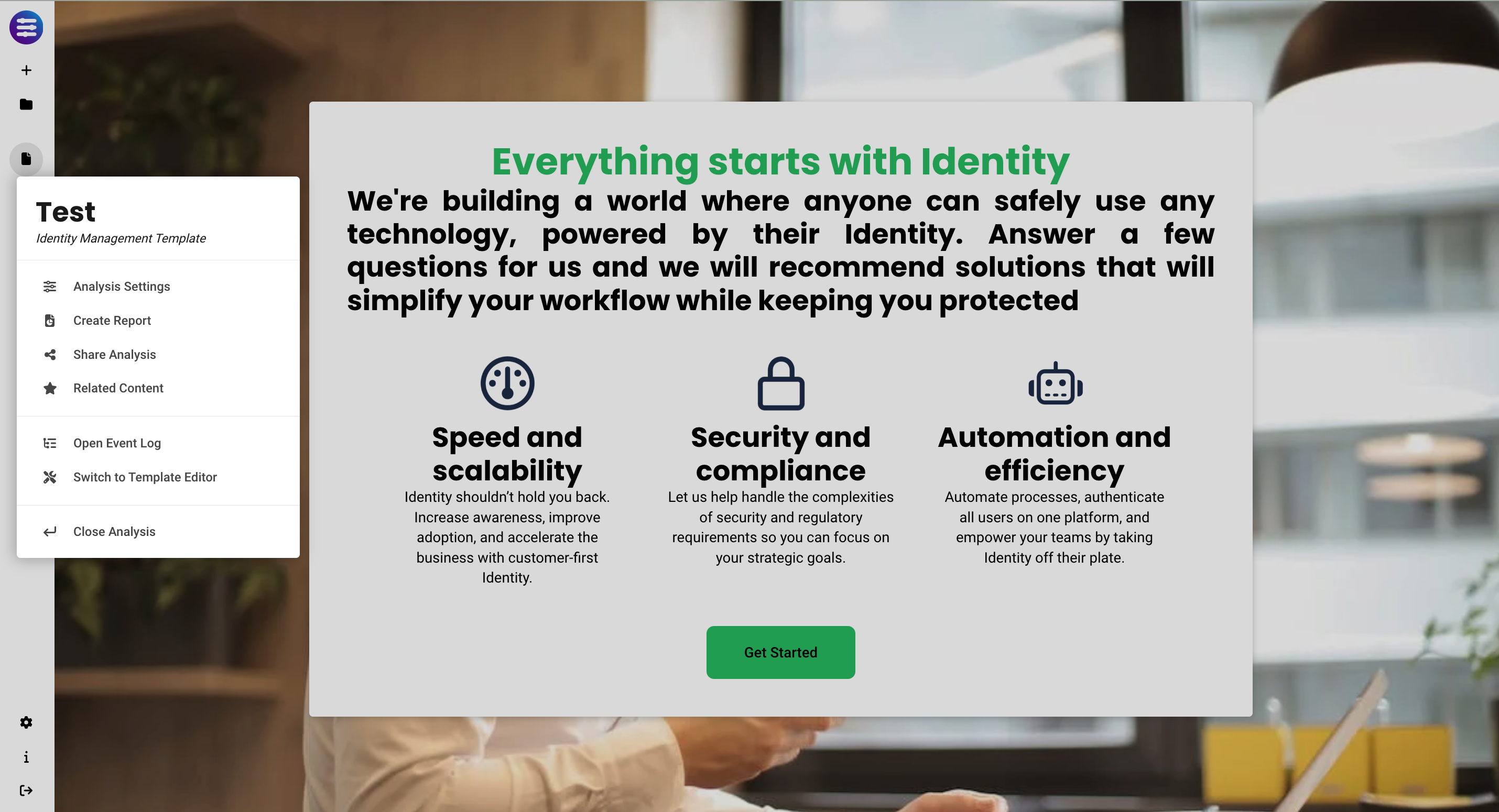
Analysis Settings - let's you inherit data from other analyses, and change things like currency, time to deploy, and analysis period.
Create Report - shortcut to create a report
Share Analysis - more information on sharing here.
Related Content - access resources that have been added by your administrator. More information on adding related content here.
Open Event Log - let's you view what changes are being made and what impact they have on other elements in the tool as you adjust inputs. More information on the event log can be found here.
Switch to Template Editor - allows you to edit the analysis if you have Authoring rights.
Close Analysis - closes the current analysis
Replies have been locked on this page!