


Jump to:
Publishing a New Analysis Template
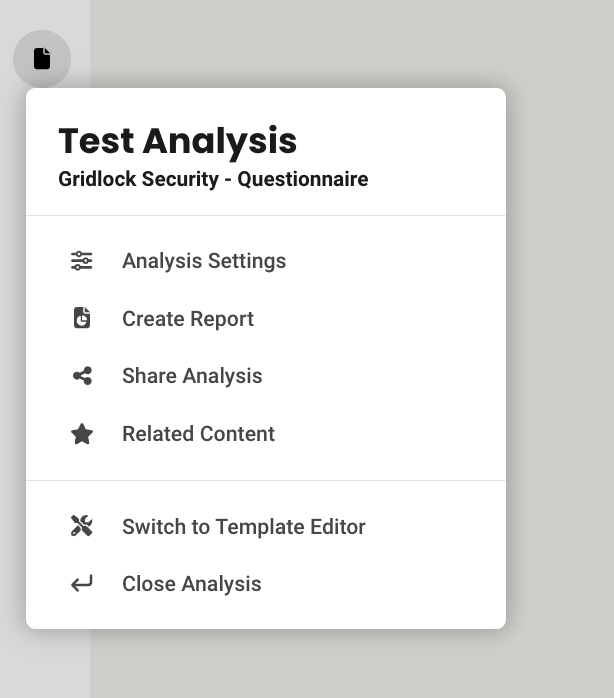
If you want to create a new Analysis Template, first create the analysis using our Design Studio. After creating an Analysis and building your tool, click the page icon on the left and Switch to Template Editor.
Note: Template changes do not affect existing analyses.
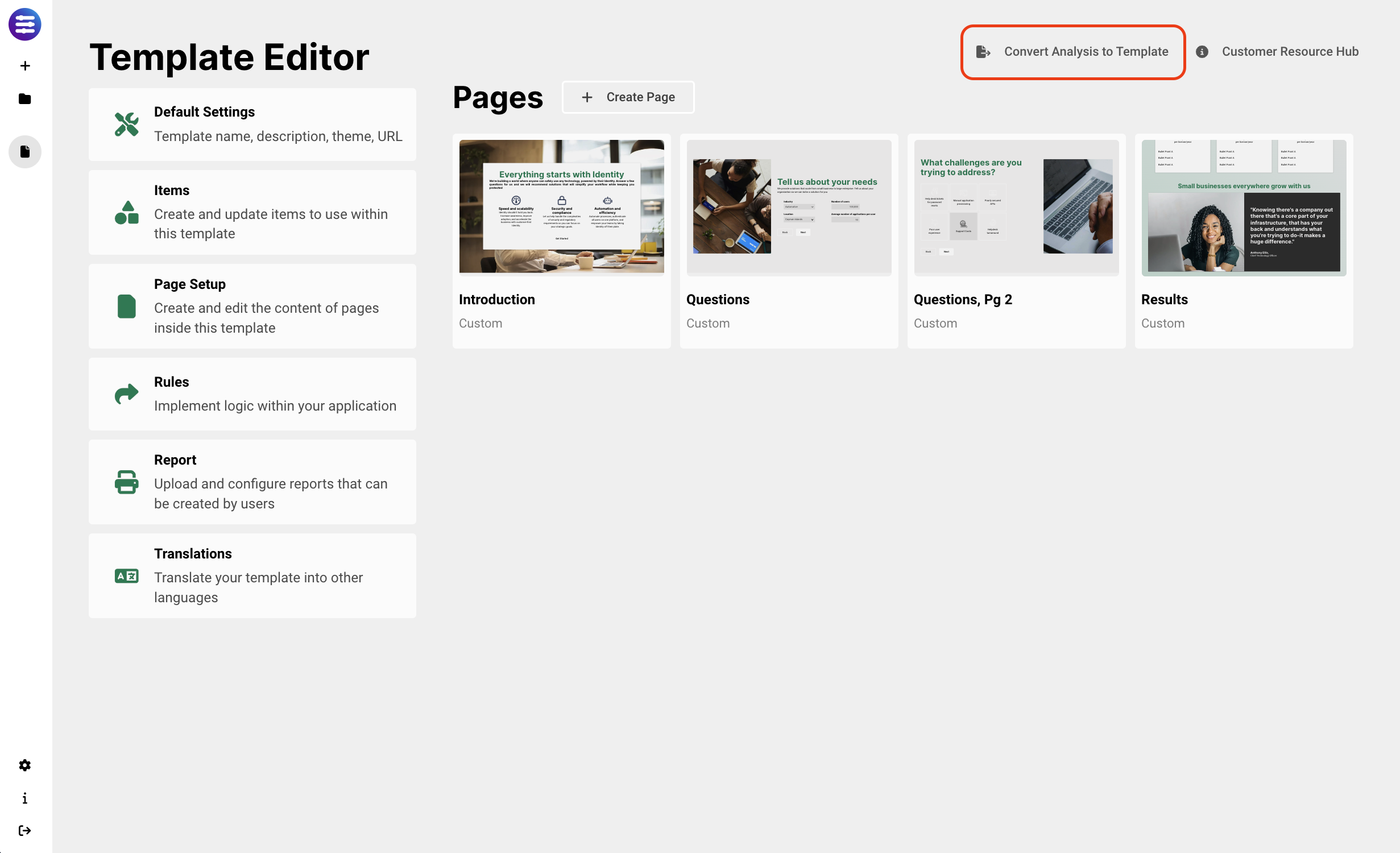
Then select Convert Analysis to Template at the top right hand corner of the screen.
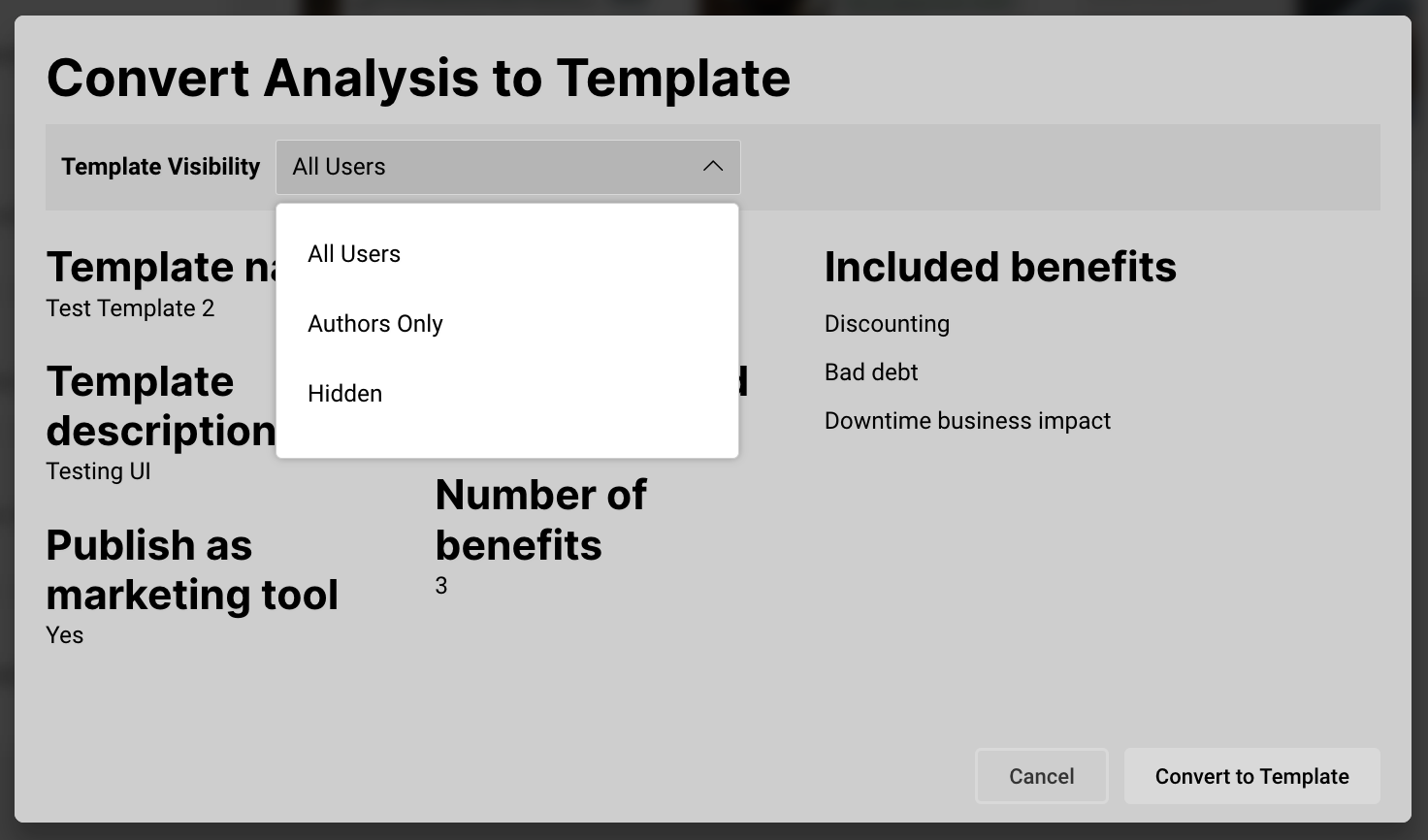
You can then select who can see the template before publishing to the analysis template library. The options today are "All Users," "Authors Only," and "Hidden." If hidden, it will still exist in the Template library, but be hidden on the Template Selection screen for users.
Notes:
- Changes made to an Analysis created from a Template do not affect the Template or other Analyses.
- Templates set to "All Users" will sync to Salesforce and be available for selection; "Authors Only" and "Hidden" templates will not appear in Salesforce.
- Be aware that changes to visibility may take several minutes to sync to Salesforce.
Updating Templates
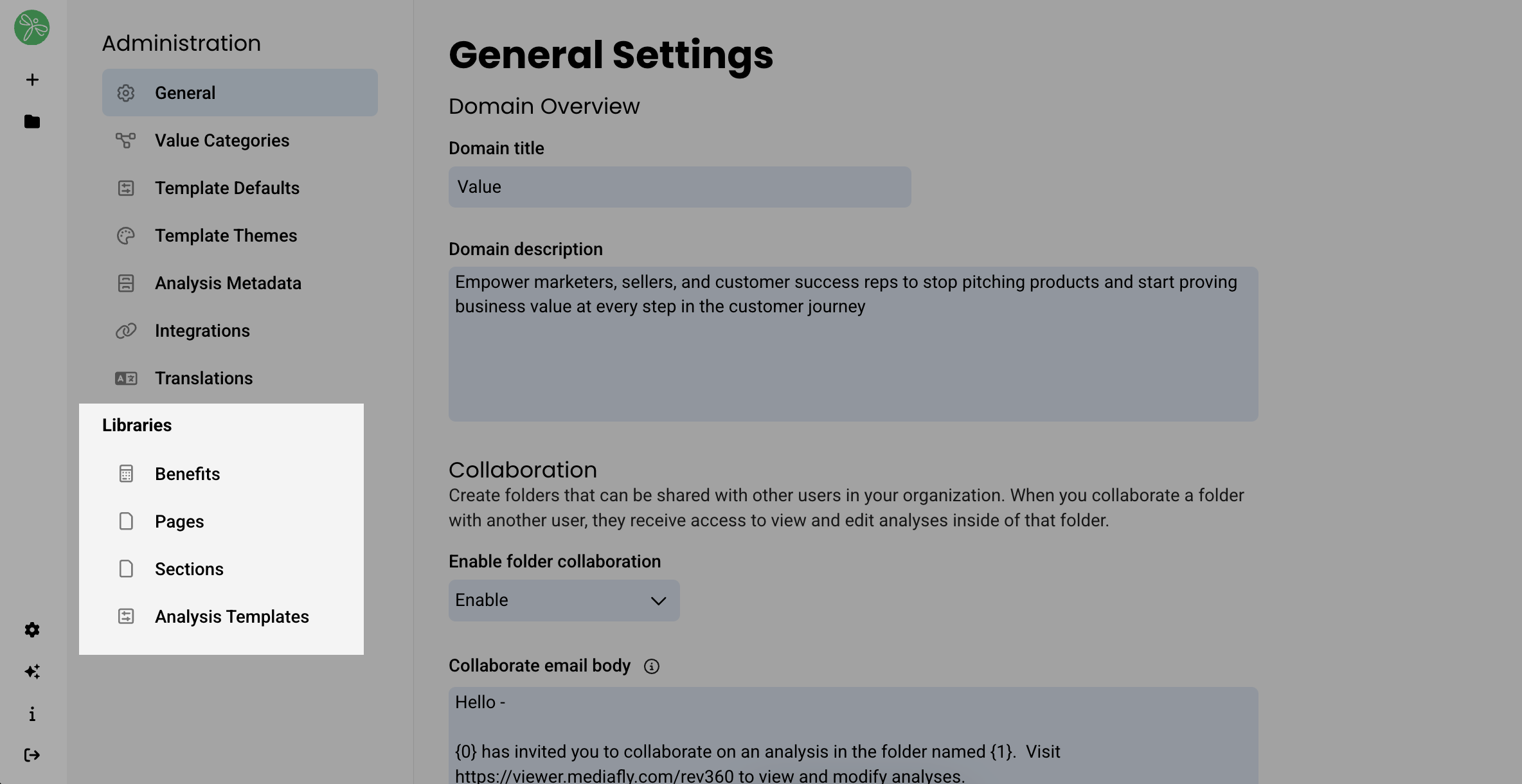
You can access and edit all Templates from the Template Library. This is accessed via Administration from the landing page, or via the icon on the bottom left.
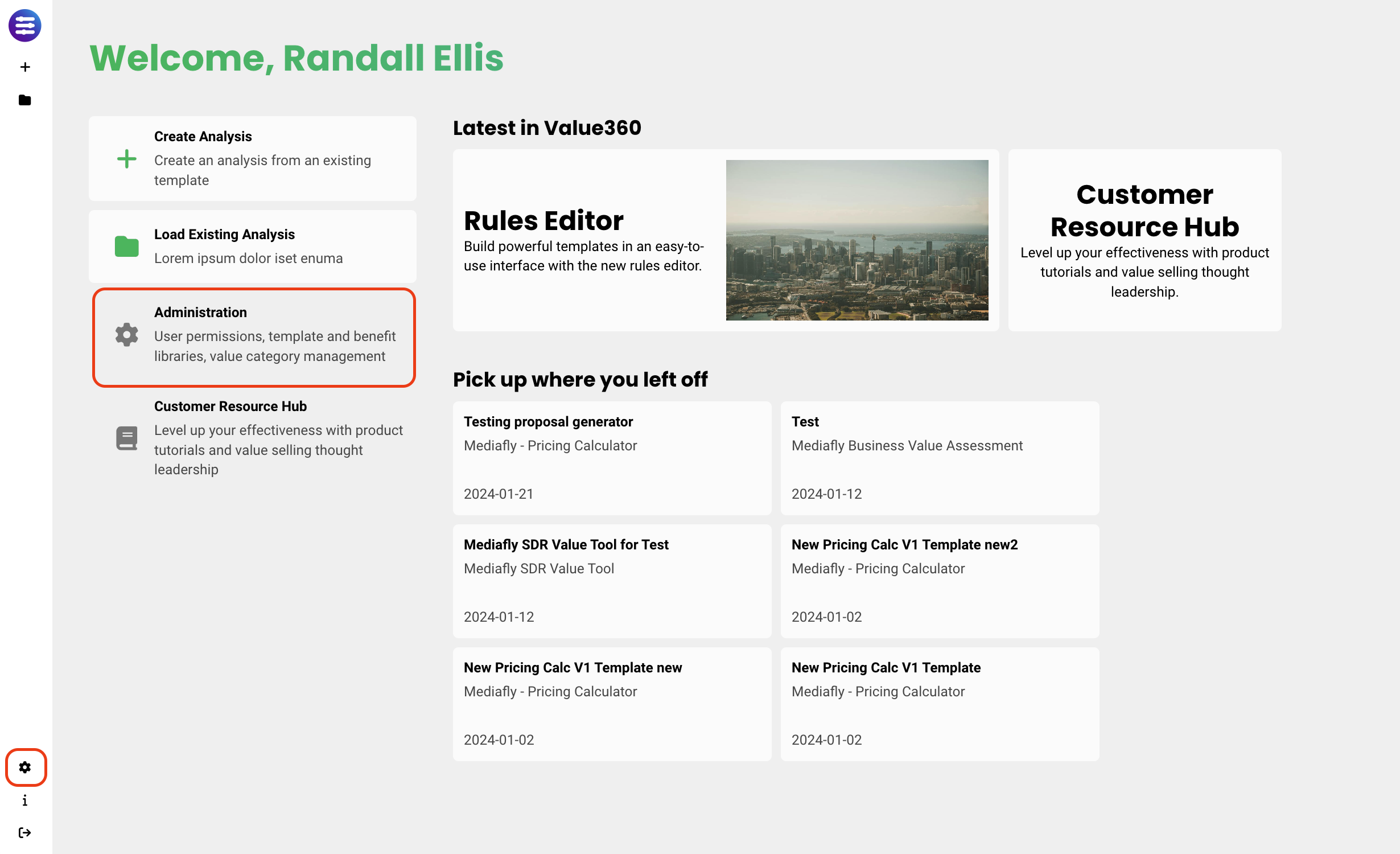
Under the Libraries section, you can select which type of template to update (Benefits, Pages, Sections, Analysis Templates) or create new (Pages, Sections).
Benefits
Clicking on Benefits will populate existing benefits. Select the benefit you wish to modify & follow the advice in this managing benefits article. Remember to save when you're finished with modifications.
Note: Changes made to a Template does not affect previously generated Analyses.
Pages
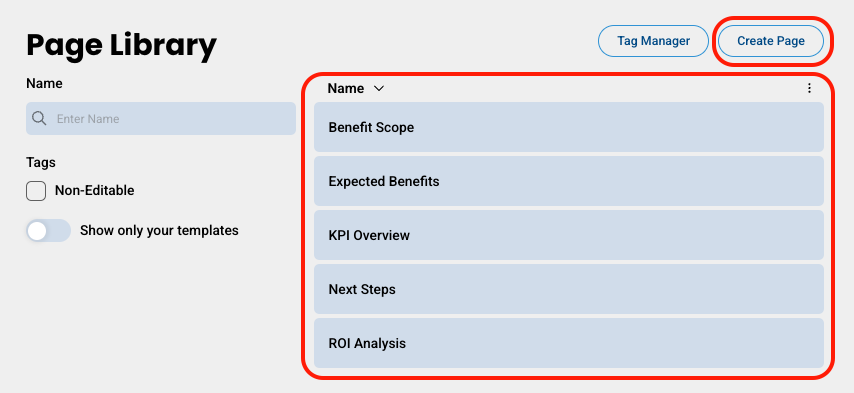
Clicking on Pages displays a list of existing page templates and provides the option to create a new one. Page templates allow authors to build individual pages rather than full analyses, making it easier to include consistently used information while allowing for variations in other content. This enables pages to serve as reusable components across different analyses, eliminating the need to recreate the same page multiple times.
-
Select an existing page template OR click Create Page to create a new one.
Page Template Search Tips
▪ Name Search: search page templates by name
▪ Tags: select tag(s) to narrow your search to page templates matching the selected tag(s)
▪ Show only your templates: enable to show only your templates, not those created by others
▪ Sort order: click the three dot menu to sort by name, popularity, or modified date - Once you've selected a page template, you'll see the page template settings where you can view and update general page information, tags, visibility and preview the page. If you're creating a new page template, you'll complete all of this information:
▪ General: name, description, owner, modified date, popularity
▪ Tags: select which tags are associated with the template to help narrow its search-ability
(click here to learn more about template tags)
▪ Visibility: determines if this template is available to users when they create a page from the library
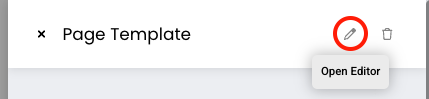
▪ Preview: view a preview of the page - Click the pencil icon to open the editor to make modifications to the page itself.
- Use our articles on Creating Pages for new pages and Editing Pages for modification to existing page templates.
- Be sure to save your newly created or modified page, which will now be available in the page library and available to other authorized authors to be added to analyses.
Note: Changes made to a Template does not affect previously generated Analyses.
Sections
Clicking on Sections displays a list of existing section templates and provides the option to create a new one. Section templates allow authors to build individual sections rather than full analyses or pages, making it easier to include consistently used information while allowing for variations in other content. This enables sections to serve as reusable components across different analyses and pages, eliminating the need to recreate the same section multiple times.
-
Select an existing section template OR click Create Section to create a new one.
Section Template Search Tips
▪ Name Search: search section templates by name
▪ Tags: select tag(s) to narrow your search to section templates matching the selected tag(s)
▪ Show only your templates: enable to show only your templates, not those created by others
▪ Sort order: click the three dot menu to sort by name, popularity, or modified date - Once you've selected a section template, you'll see the section template settings where you can view and update general section information, tags, visibility and preview the section. If you're creating a new section template, you'll complete all of this information:
▪ General: name, description, owner, modified date, popularity
▪ Tags: select which tags are associated with the template to help narrow its search-ability
(click here to learn more about template tags)
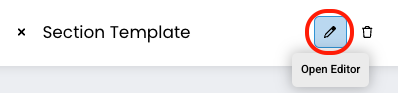
▪ Preview: view a preview of the section - Click the pencil icon to open the editor.
- Use our article on sections for modification to existing templates.
- Be sure to save your newly created or modified section, which will now be available in the section library and available to other authorized authors to be added to pages and analyses.
Note: Changes made to a Template does not affect previously generated Analyses.
Analysis Templates
Clicking on Analysis Templates will populate entire existing analysis templates to which authorized authors can make updates to all parts of the analysis template.
- Select the template you wish to update, then click Edit Template.
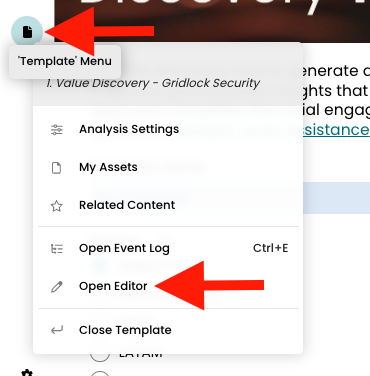
- Click Template Menu, then Open Editor
-
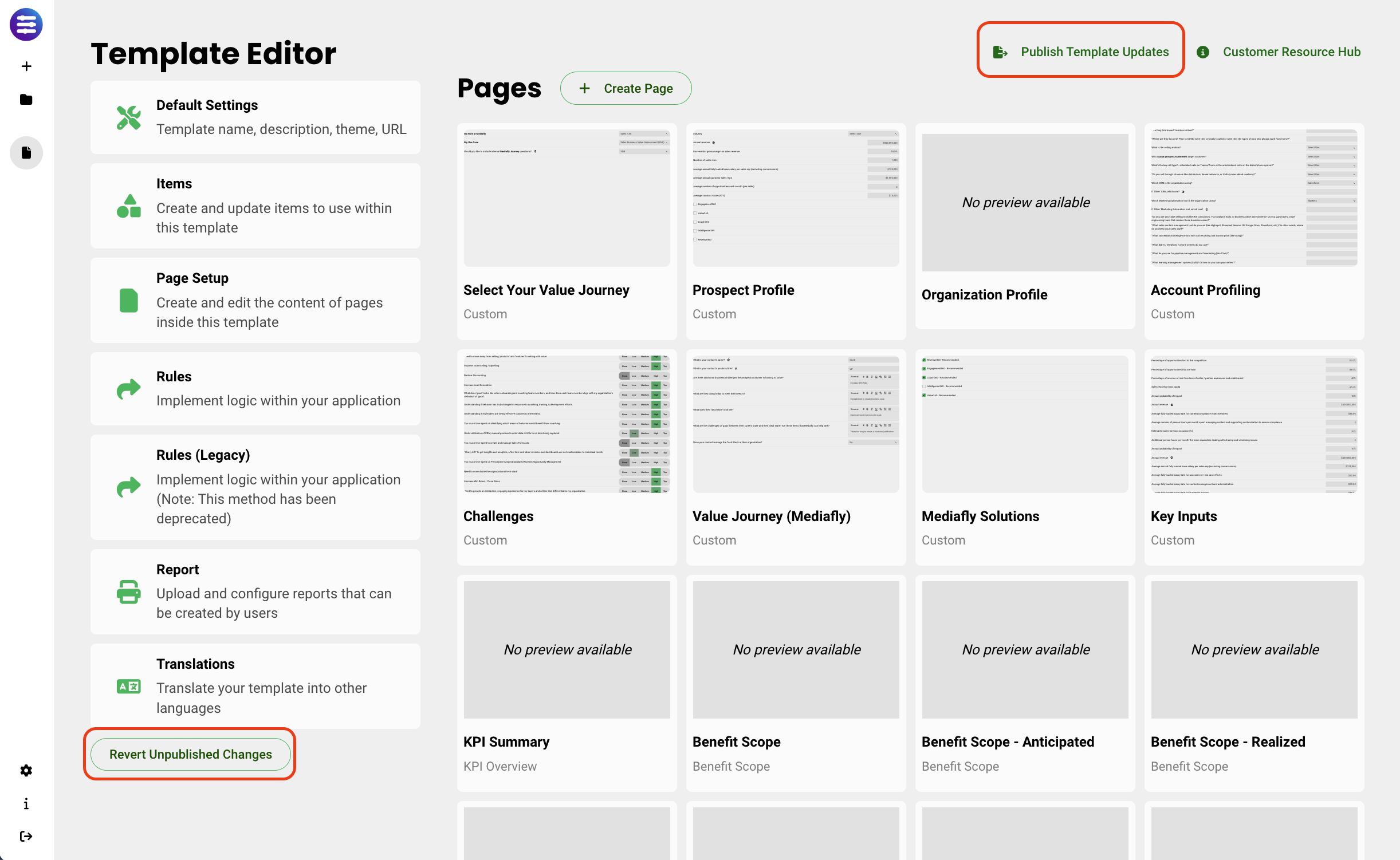
Use the design studio to make modifications. Once you are are finished modifying the Template, you can either Revert Unpublished Changes, or Publish Template Updates. =
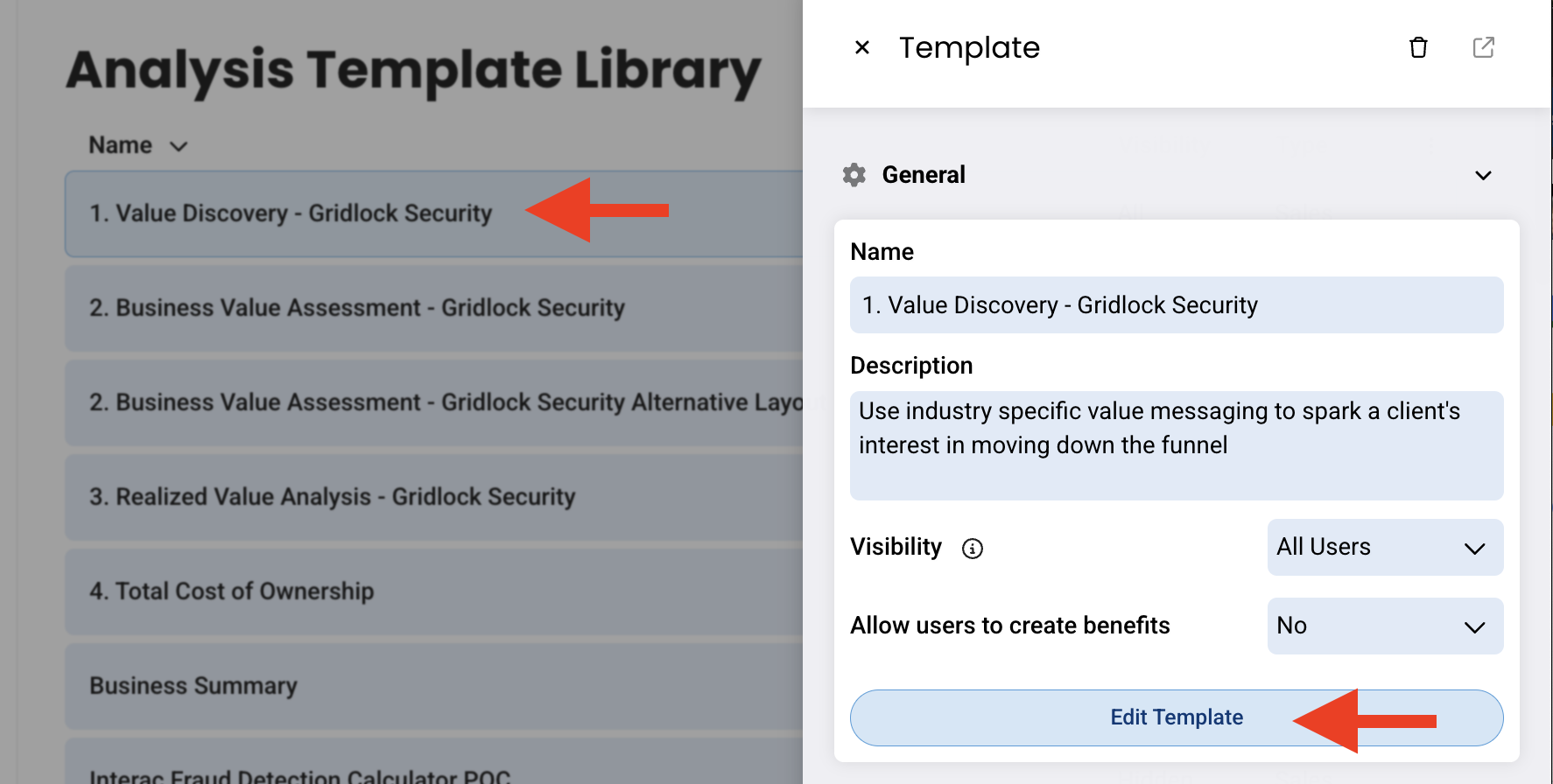
Note: Changes made to a Template does not affect previously generated Analyses.
Template Tags
Template library tags allow you to create and maintain a list of tags that can be used to organize content in various libraries, making them easy to filter in a template search. The process for created tags works the same for both page and section templates.
Creating a Tag
- In the template library, click Tag Manager
- Click the + icon
- Name the tag and click Create
- The tag now lives in the template library for which it was created (section or page)
Managing Tags
- In the template library, click Tag Manager
- Click the edit icon inline with a tag to make changes to that tag OR the trash icon to delete tag
- Click Select to save your changes
Adding / Removing Template Tags
- Open the existing template or add the tag when creating a new template
- In the Tags section of the template settings click Edit (if you do not see the Edit option, you do not have permission to update tags for the template)
- Select OR deselect desired tags
- Click Select to save
Replies have been locked on this page!