


There are multiple ways to work alongside stakeholders, both internal and external, when building a business case from the Value platform.
Share Links
The first method of collaboration is Share Links This enables you to send a copy of any Analysis as a link, with special permissions. Here's how it works:
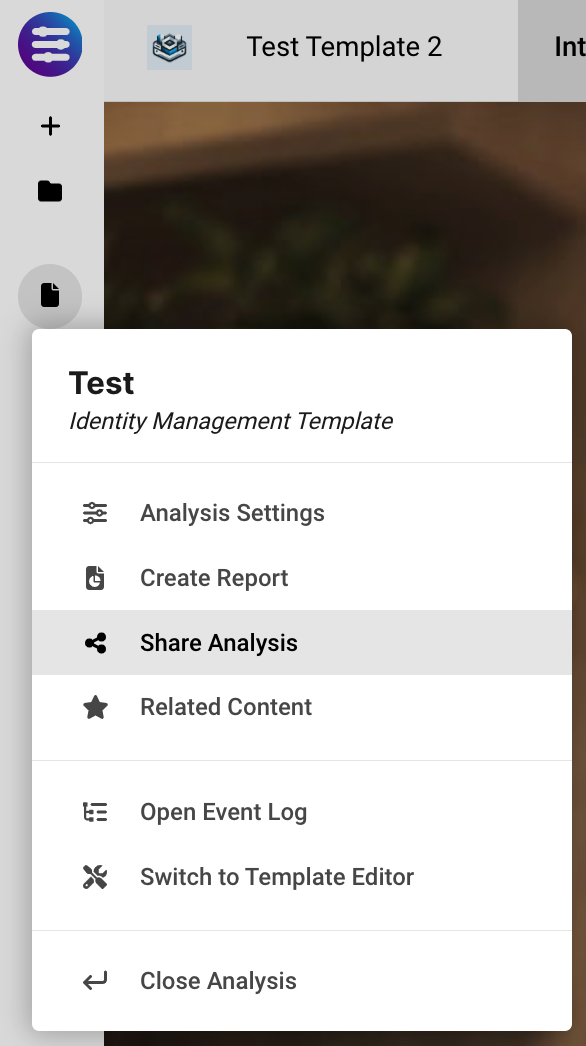
- From Menu on the left hand nav bar, select Share Analysis.
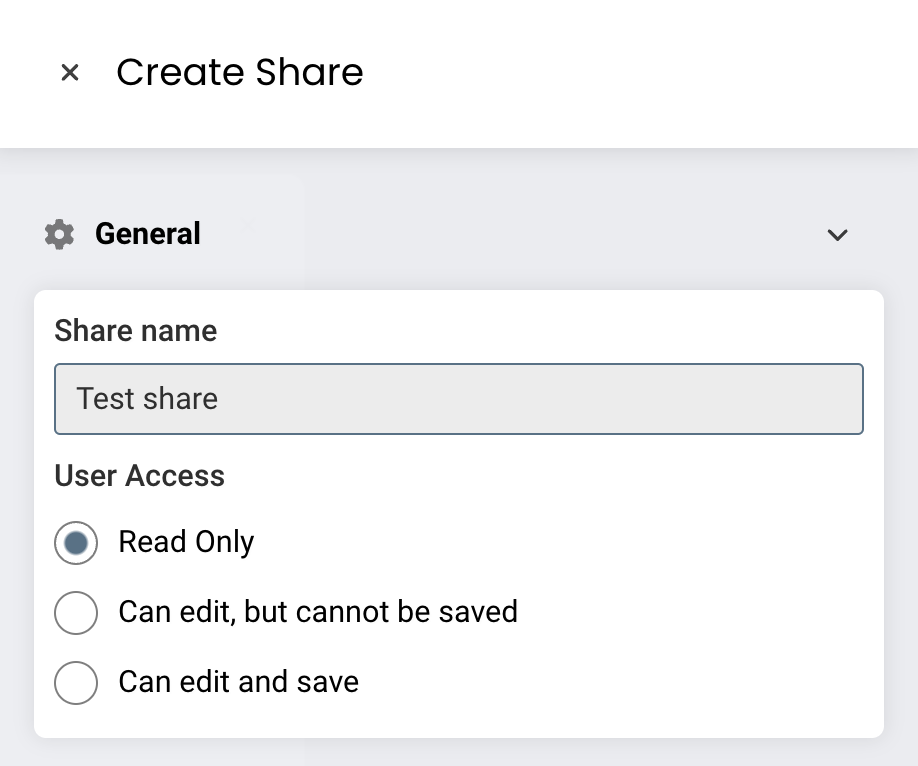
When selected, you will have the ability to name your share link, and set the user access level.
-
- Read only - recipient can view all elements in an Analysis, but cannot make any changes
- Can edit, but cannot be saved - recipient can make changes to the Analysis, e.g., change checkbox status to unchecked, or enter in a new value for a Global Variable, but as soon as they exit the Analysis, all changes are reverted.
- Can edit and save - recipient can edit any portion of the analysis and all changes made are persisted and reflected in the original Analysis sent by the rep.
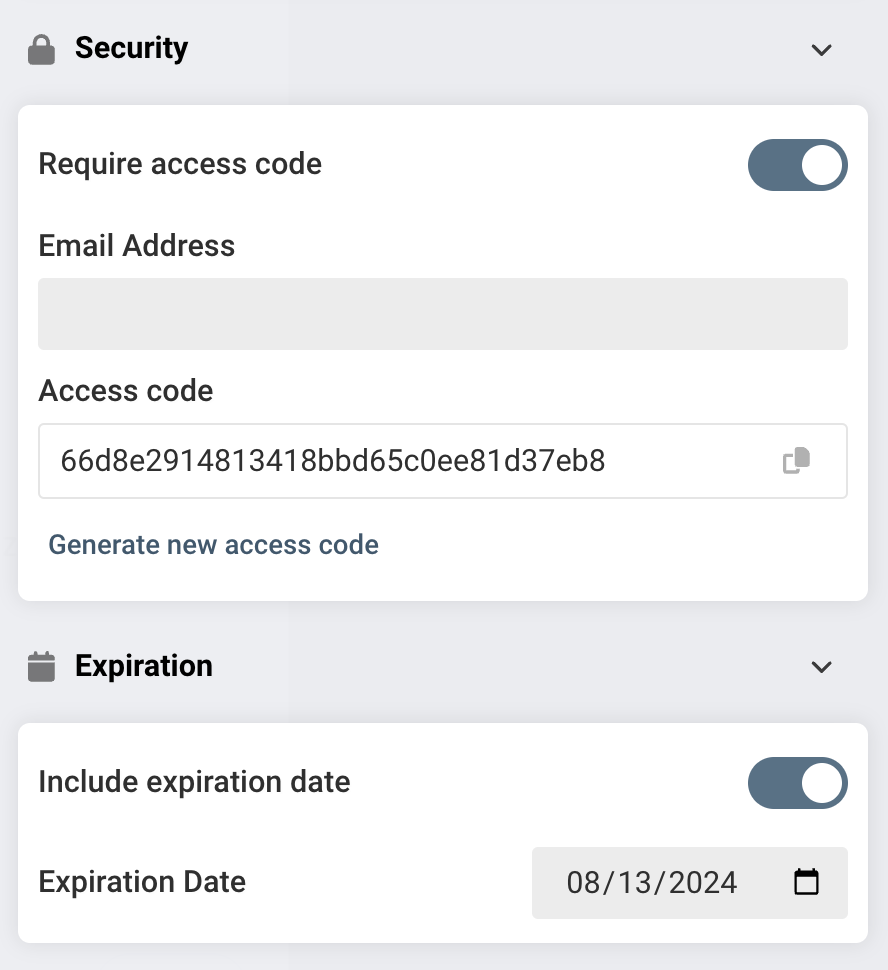
You will then have the option to add an access code and an expiration date. For the access code, you can enter the address the share will be sent to when saved, and a copy of the code in case.
You will also be able to set whether the link and code are sent in separate emails, or in one email.
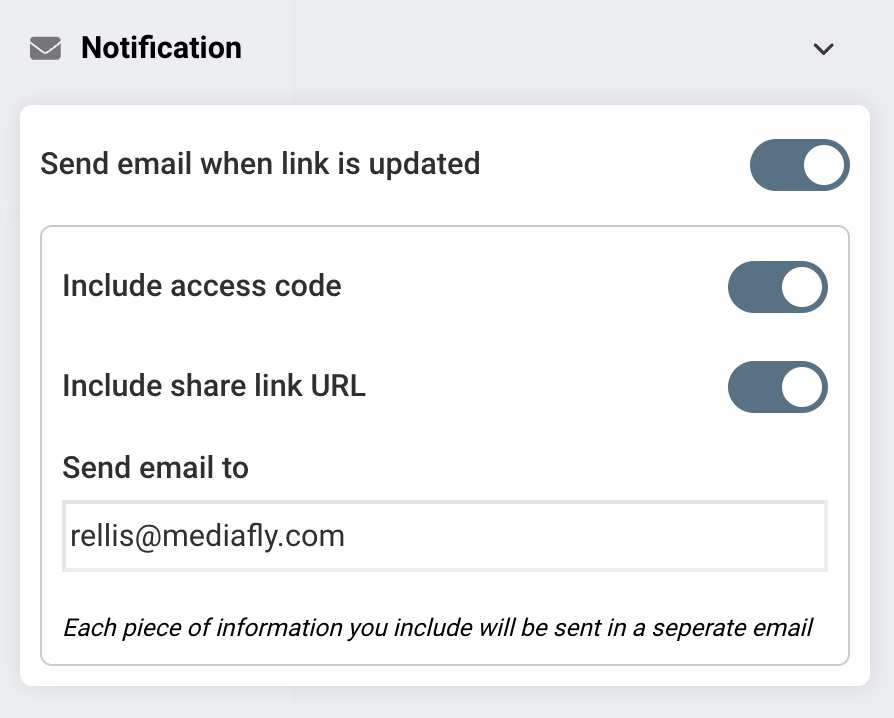
After you have configured the share link, once you click Create, the link and code will automatically be sent to the email entered.
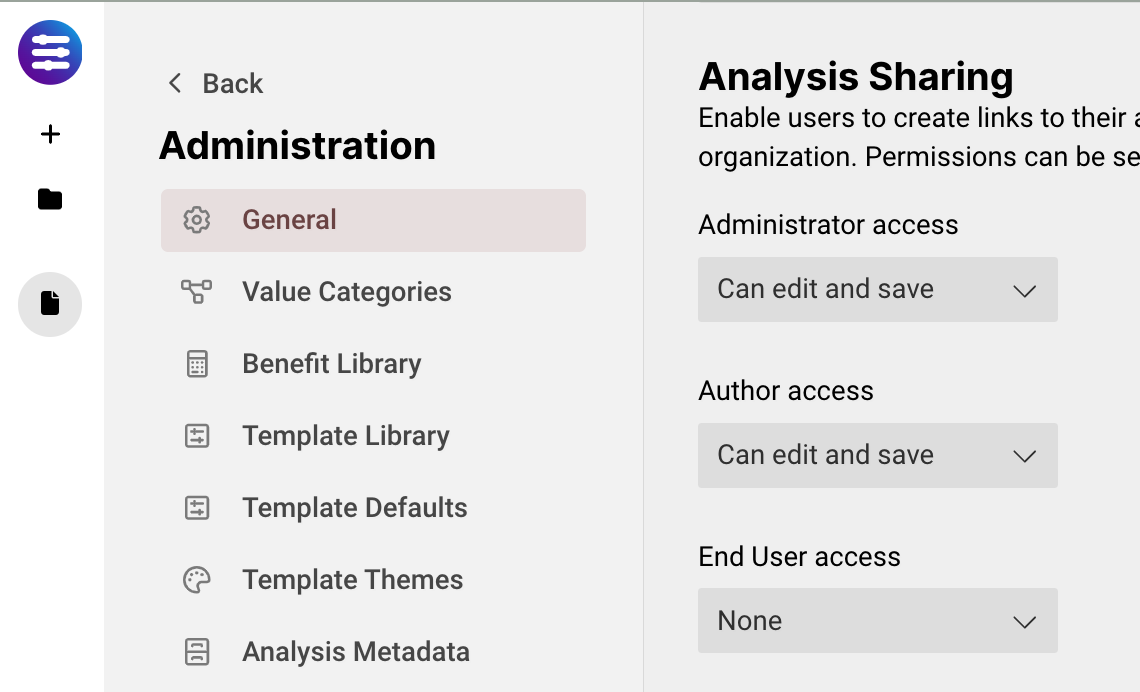
As an Admin, you can adjust the share permissions of each type of user from the General tab when in Domain Administration. Each type of user - Author, Admin, and End User, can be given each of the aforementioned permissions for a link.
Choose what content you want visible in a share link
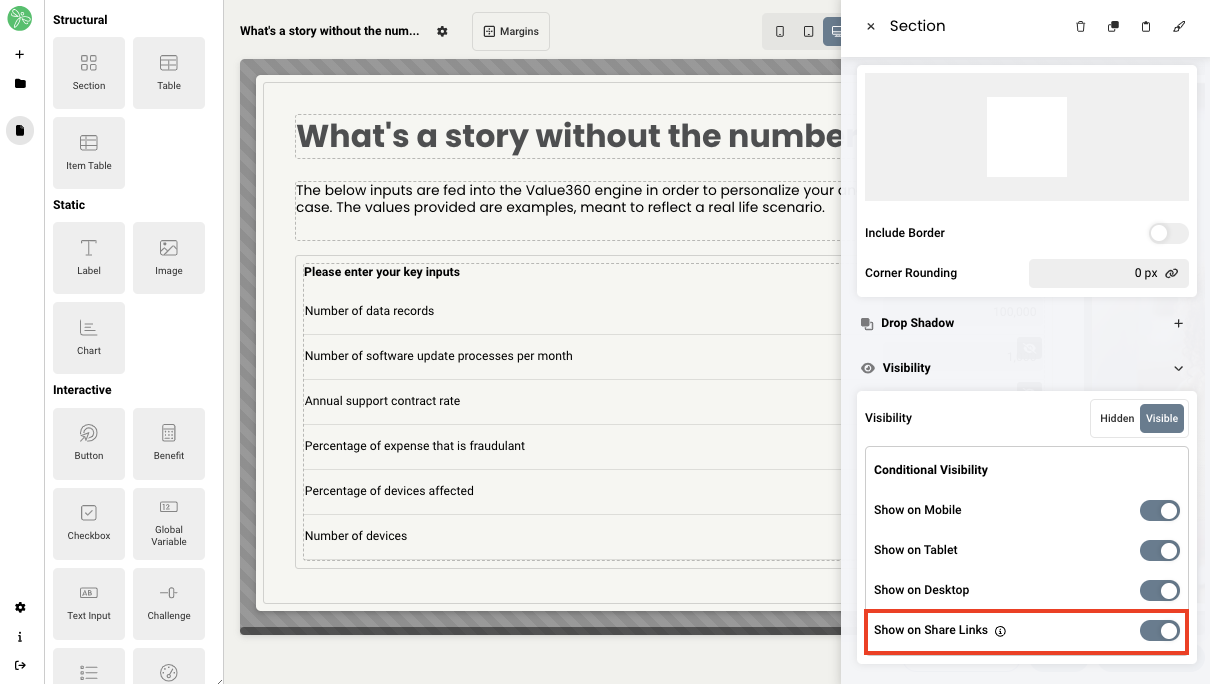
You also have the ability to hide or show any page or section in a share link. This can be done using the setting in the editor tray. All you need to do is select the page or section then scroll down to the visibility options. From there, if you want the content to be hidden on the share link, just use the toggle Show on Share Links to hide it.
Collaboration
The second method of working alongside your stakeholders is Collaboration. This is where an Analysis is shared internally with other users on your Domain. Once shared, these users will have access to edit your Analysis based on their own permissions. Here's how it works:
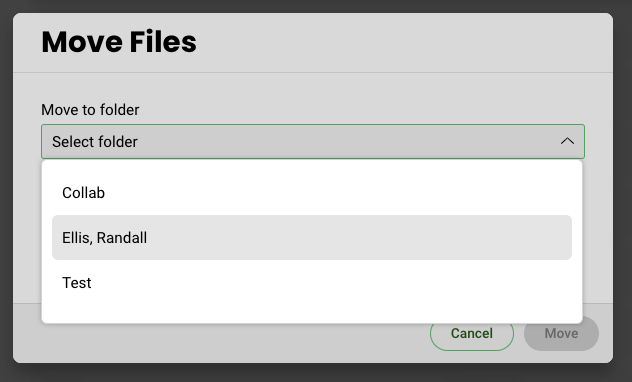
Navigate to Analysis Manager and add the Analysis you wish to share to a folder. This can be done by selecting it and clicking Move, or by dragging and dropping.
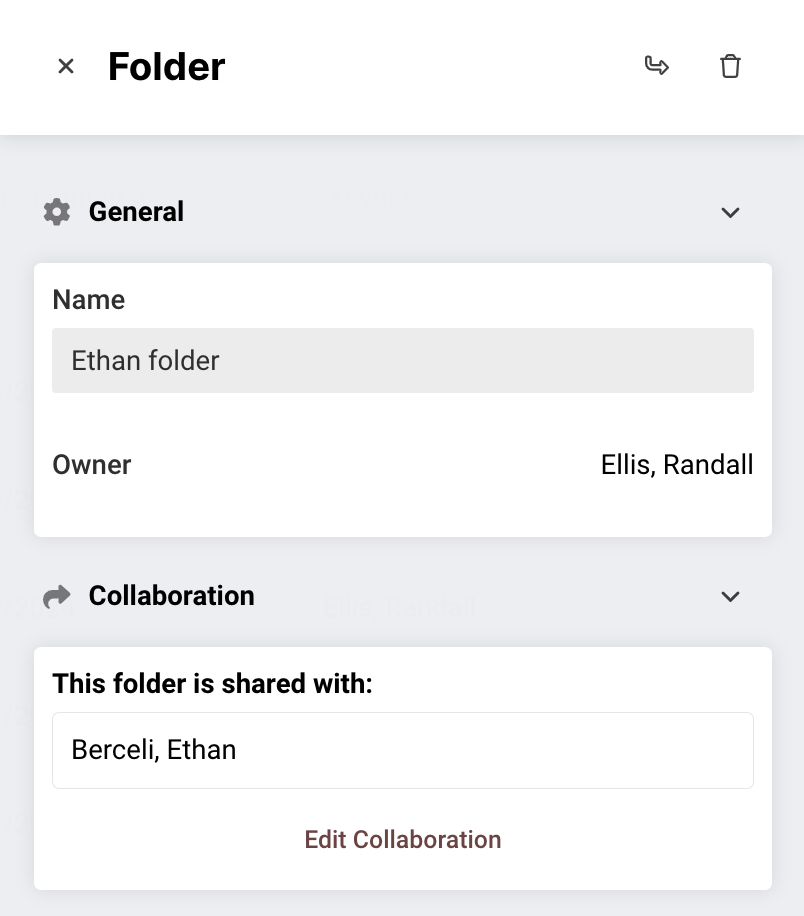
Once you have the Analysis you wish to share inside a folder, you can then select the folder and click Edit Collaboration in the right-hand tray.
You will be then be given a list of all users who are active in your environment.
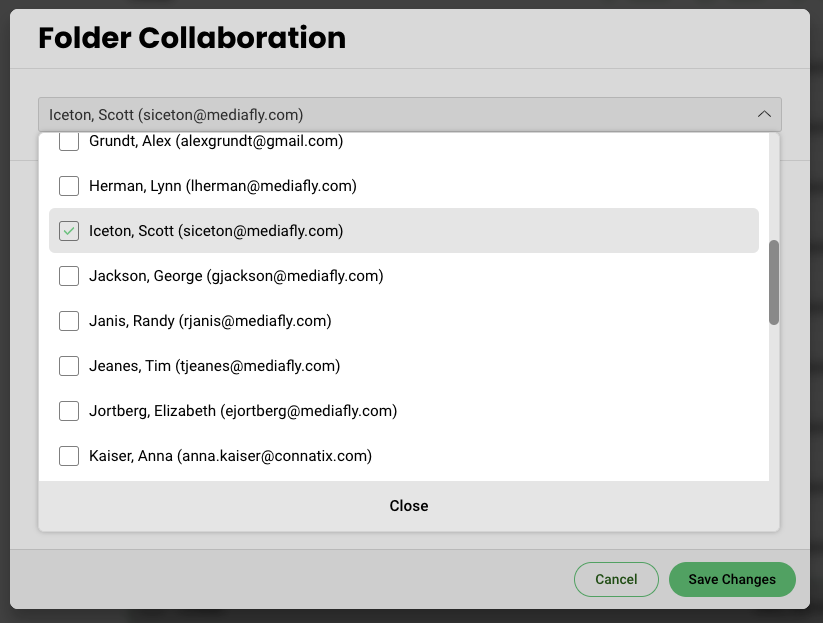
Once selected, click Save Changes. That user will be given folder permissions and will receive an email indicating the folder has been shared with them.
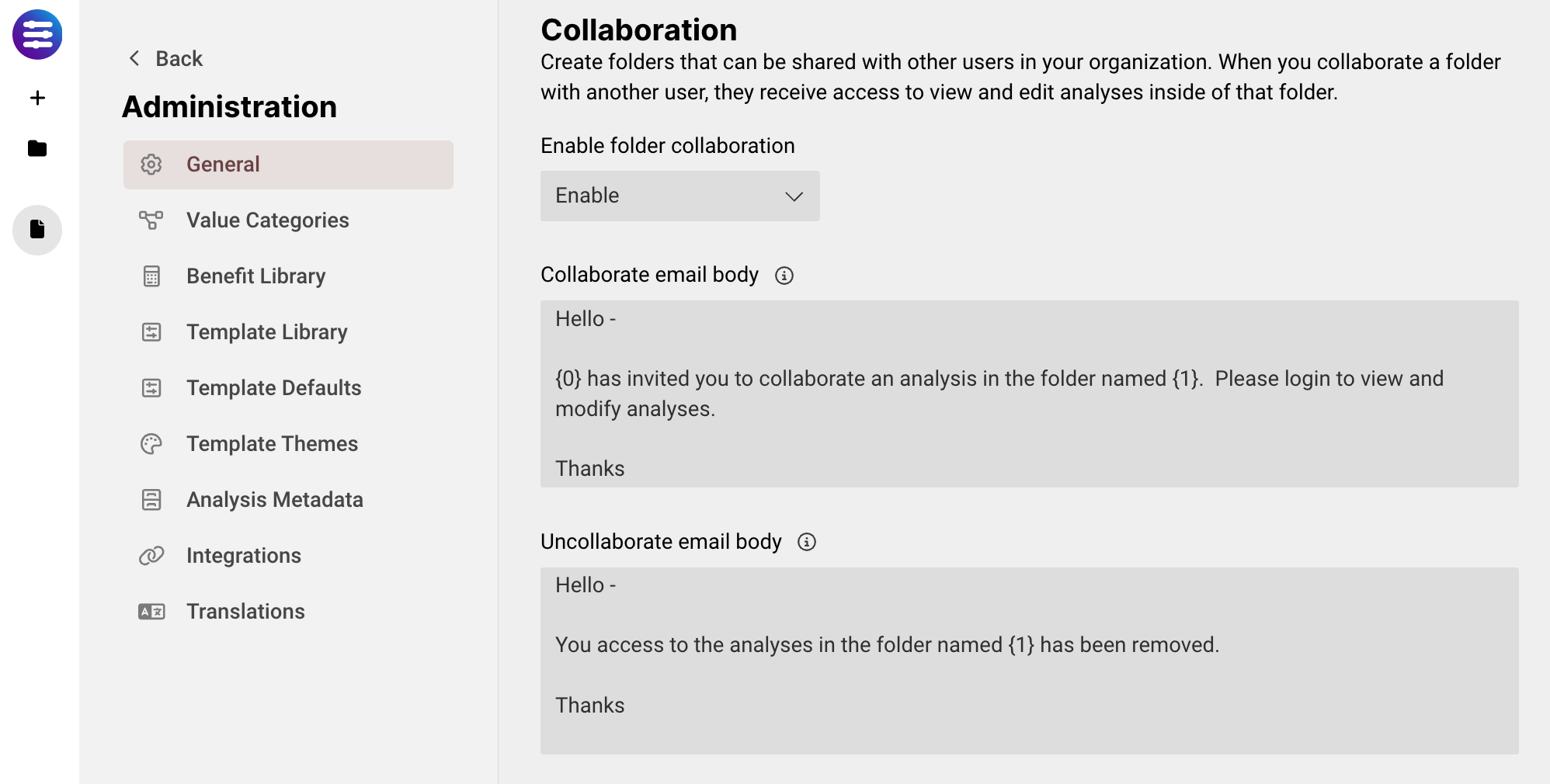
As an Admin, you also have the ability to enable collaboration for your organization, and edit the details in the email the recipient receives when a folder is collaborated or un-collaborated via Menu > Administration.
Replies have been locked on this page!