


A Team Hierarchy builds your hierarchy to show a manager's individual data broken out from how the whole team is performing, in addition to overall team performance. This allows for simpler roll ups, custom inclusion of a team lead's numbers as a member of the team, and easier goal setting to match your organization's hierarchy. There are two types of Team Hierarchies, CRM and Non-CRM. Once created, both hierarchies will work the same.
- CRM Team Hierarchy: Based on the data in your CRM.
- Non-CRM Team Hierarchy: Created during your org's implementation, your Implementation Consultant will work with your org on creating the appropriate Groups and building and uploading a spreadsheet with your hierarchy data.
Note: Team Hierarchies does not work for Forecasting.
Team Hierarchy Configuration Options
Admin can view and manage hierarchies by clicking here or going to Intelligence > Settings > Hierarchies > selecting desired hierarchy
-
show only teams and users in the hierarchy that a user is authorized to view: this allows you to determine whether the hierarchy is visible to everyone or is based on group authorizations
-
Default Root Node: determines the root node of the hierarchy (is it your CEO? someone else? who does everyone fall under?)
-
Include the managers as a member of their own team: THIS is the main purpose of a team hierarchy that allows you to determine whether a manager is only the manager of their team or also a member of the team (this will be very important in how you set goals!)
-
Exclude nodes and their subordinates: enter any nodes that should be excluded from the hierarchy, eg. an Ops team that doesn't access this data or set goals can be excluded so the hierarchy only shows the users you want visible
-
Exclude users from the hierarchy: you can also exclude individual users from the hierarchy
Configuration Considerations for CRM Users
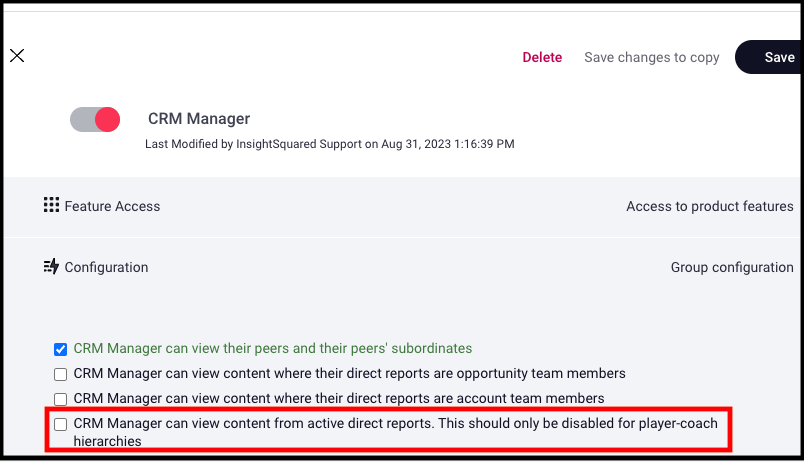
If you're using Team Hierarchy with your CRM and want your Team Hierarchy to reflect a "player- coach" hierarchy, you'll need to make an adjustment to your CRM Manager Group.
- Go to Settings > Groups
- Select CRM Manager
- Under Configuration, ensure that the last item listed, "CRM Manager can view content from active direct reports. This should only be disabled for player-coach hierarchies" is UNchecked
Replies have been locked on this page!