


Benefits on the Fly is a flexible feature in Mediafly Value that empowers sellers to create new benefits directly within a customer analysis—on the fly—without needing an Author to configure them in advance. This is especially useful when new opportunities or challenges arise during discovery conversations that aren’t covered by the default benefit library.
Enabling Benefits on the Fly
Step-by-Step Setup:
-
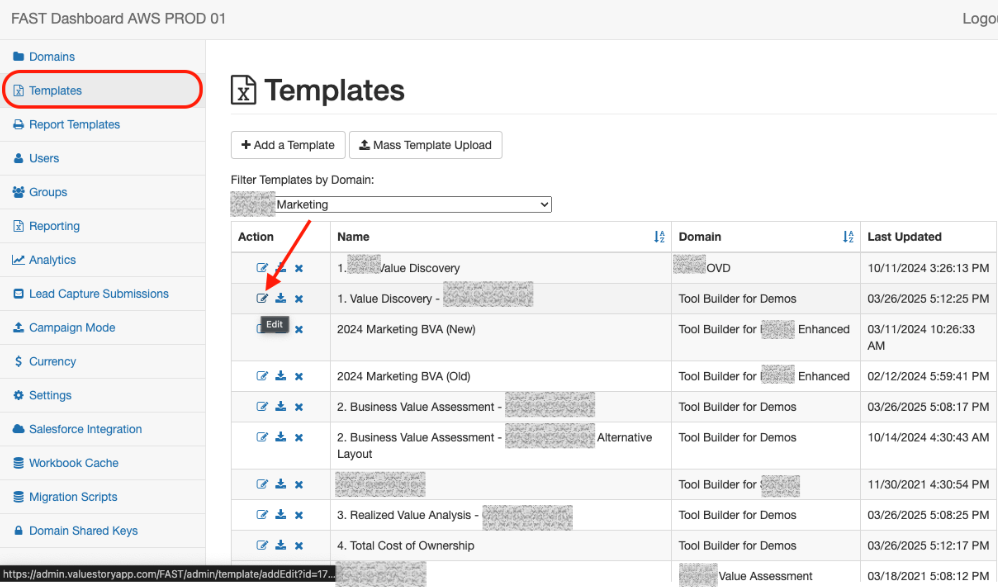
Access the FAST Admin Portal
Visit: https://admin.valuestoryapp.com/FAST
-
Navigate to Template Library
Select the template (not a report template) where you want to enable this feature.
-
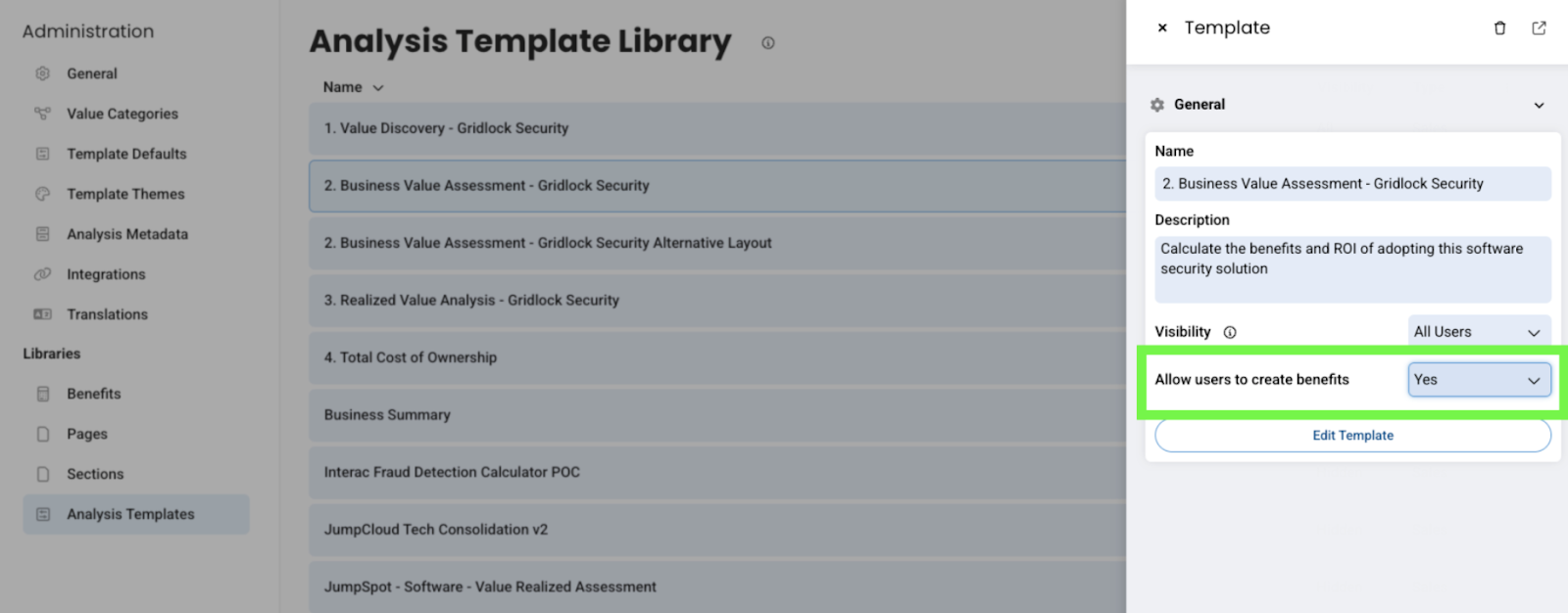
Enable User-Created Benefits
In the template settings, check the box labeled:
"Allow users to create benefits" - Then in the application go to Administration > Template Library > Select the Template and make sure that 'Allow users to create benefits' is set to Yes

Using the Benefit Scope Section
Once the feature is enabled, users can navigate to the Benefit Scope section within the analysis and click "Create Benefit" to add a new benefit.
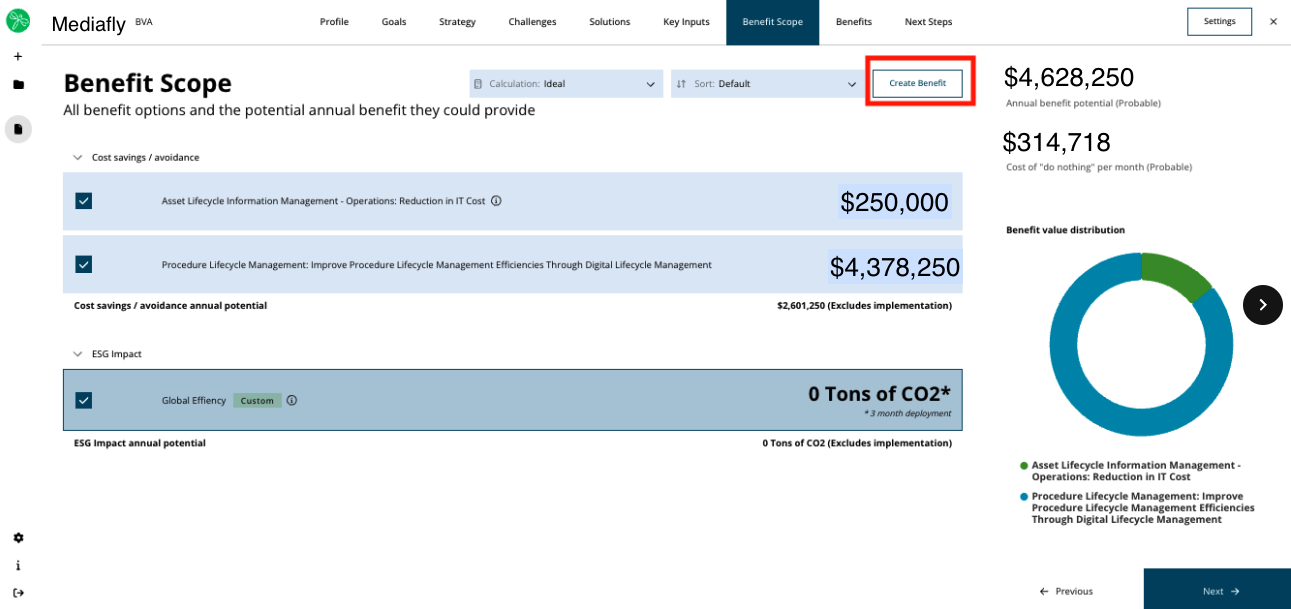
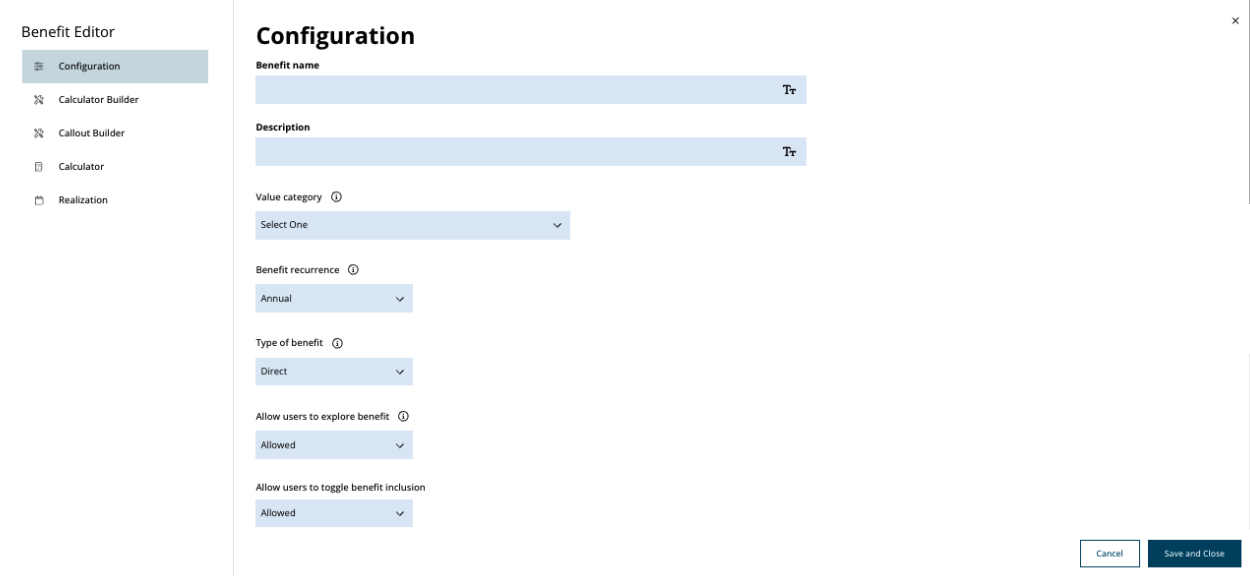
This opens a benefit configuration window where the user can fully define a single, unique benefit manually.
Benefit Configuration Options
Users can configure:
-
Benefit Name & Description
-
Associated VMC (Value Messaging Component)
-
Recurrence, Type, and Icon
-
Challenge and Benefit Narratives
-
Benefit Objective (e.g., Growth or Cost/Productivity – this affects whether increases or decreases are shown as improvements)
Calculator Builder
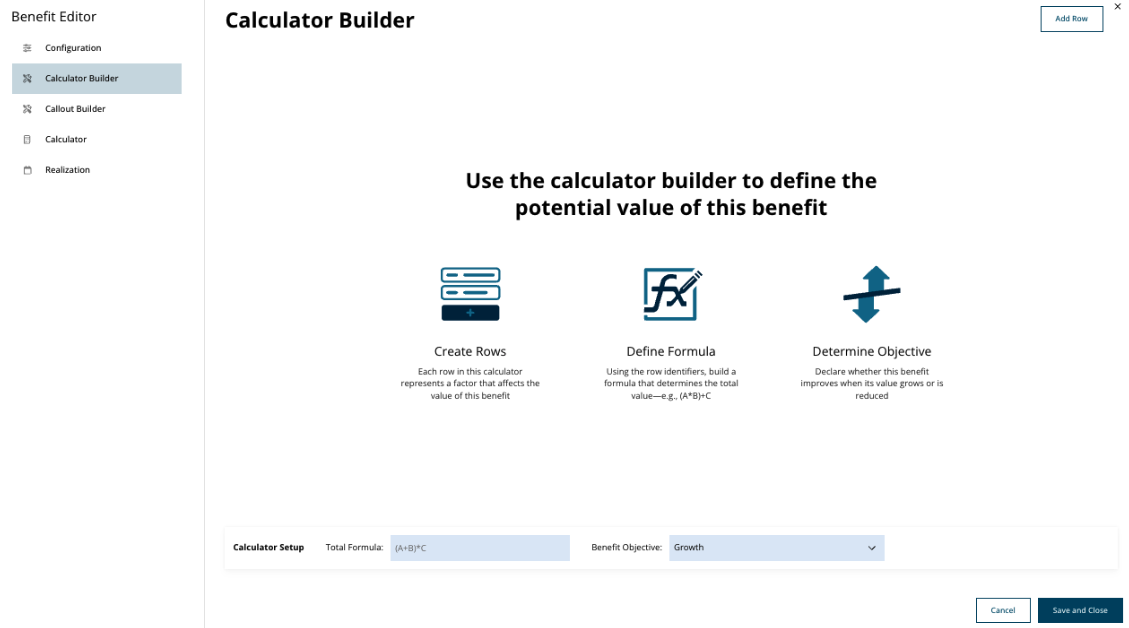
The calculator builder allows users to define or update the impact calculations of the benefit. Both monetary and non-monetary types are supported.
Key Features:
-
Add Row: Add line items to your calculation.
- Each line item has:
-
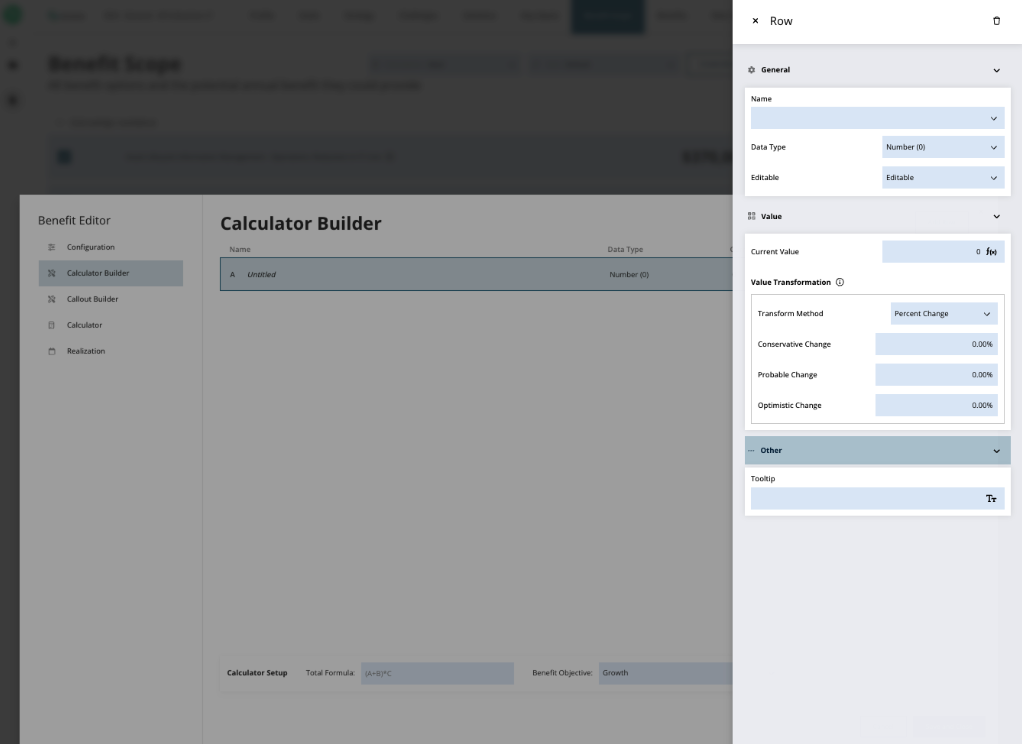
Name
-
Data type (number, currency, percent — which defines precision)
-
Editable/Read-only setting
-
Current Value (default or 0)
-
Transform Method:
- Absolute Value
- Percent Change
- Additive
- No Transform
- Absolute Value
-
Tooltip (for clarifying notes)
-
Name
- Each line item has:
-
Sub-Totals:
- Created by clicking the f(x) icon in the "Current Value" field.
- You’ll be shown available variables (on the left) and can build formulas using assigned letters (on the right).
- Supported operators: +, -, *, /, ^
- Sub-totals cannot use transforms.
- Created by clicking the f(x) icon in the "Current Value" field.
-
Global Variables:
- Click the “globe” icon in the Add Row tray to promote a line item to a global variable accessible across the entire template.
- Click the “globe” icon in the Add Row tray to promote a line item to a global variable accessible across the entire template.
-
Total Formula:
- Uses the same letter-based notation and limited operators to calculate the final benefit value.
- Uses the same letter-based notation and limited operators to calculate the final benefit value.
Callout Builder
This section lets users define non-monetary or additional visual variables shown in the calculator’s side panel.
Parameters Include:
- Name
- Data Type
- Calculation
- State to Use (Current, Proposed, or Impact)
- Formula (based on benefit calculation letters)
- Tooltip
Users can click "Create Callout" to begin.
Calculator Panel (User View)
This is the view sellers see when using the benefit in a customer conversation. Only editable fields configured by the Author will be visible. The panel will show:
- Final Totals
- Defined Callouts
- Editable Fields (as permitted)
Realization Settings
Define how benefits will be realized over time:
-
Annual Benefit Growth Rate
-
Time to Deploy the Solution
-
Installment Method (whether benefits are realized up-front or spread over time)
-
Comprehensive Realization Adjustments
What Users Can Do with Benefits on the Fly
- Edit benefit name, description, icon, type, and recurrence
- Add calculation rows and sub-totals
- Define transforms, tooltips, and formulas
- Add and edit callout values
- Explore benefit visualizations
- Use variables in formulas
- Unlink global variables from a calculation
What Users Cannot Do
To preserve data integrity:
- Cannot publish to the global benefit library
- Cannot create new VMCs
- Cannot remove the calculator section
- Cannot adjust visibility settings (benefits are always visible)
- Cannot edit or create mnemonics
- Cannot delete line items that are referenced in charts
- Cannot save with invalid formulas
Important Notes
- If a user cancels or exits the benefit editor without saving, all changes will be lost.
- Benefits created this way are analysis-specific and cannot be reused across templates or stored globally.
- Invalid formulas will block the user from saving.
- Line items can be dynamically referenced in other formulas and calculations.
FAQs
🔹 Is this feature available to everyone?
Only if enabled at the template level in FAST by a Mediafly admin.
🔹 Can sellers save these benefits to reuse later?
No. Benefits on the Fly are scoped to the analysis where they were created.
🔹 Who can enable this feature?
Only admins with access to the FAST Admin Portal.
Replies have been locked on this page!