


This article goes over the context menu and how it's used. The context menu is accessed by right clicking anywhere on the screen while in the platform. This brings up a menu with specific options for the element you clicked on.
This allows a user to quickly edit anything on screen directly, and see changes in real time, without having to go back to the items library or page editor every time. Here are some examples.
Editing items
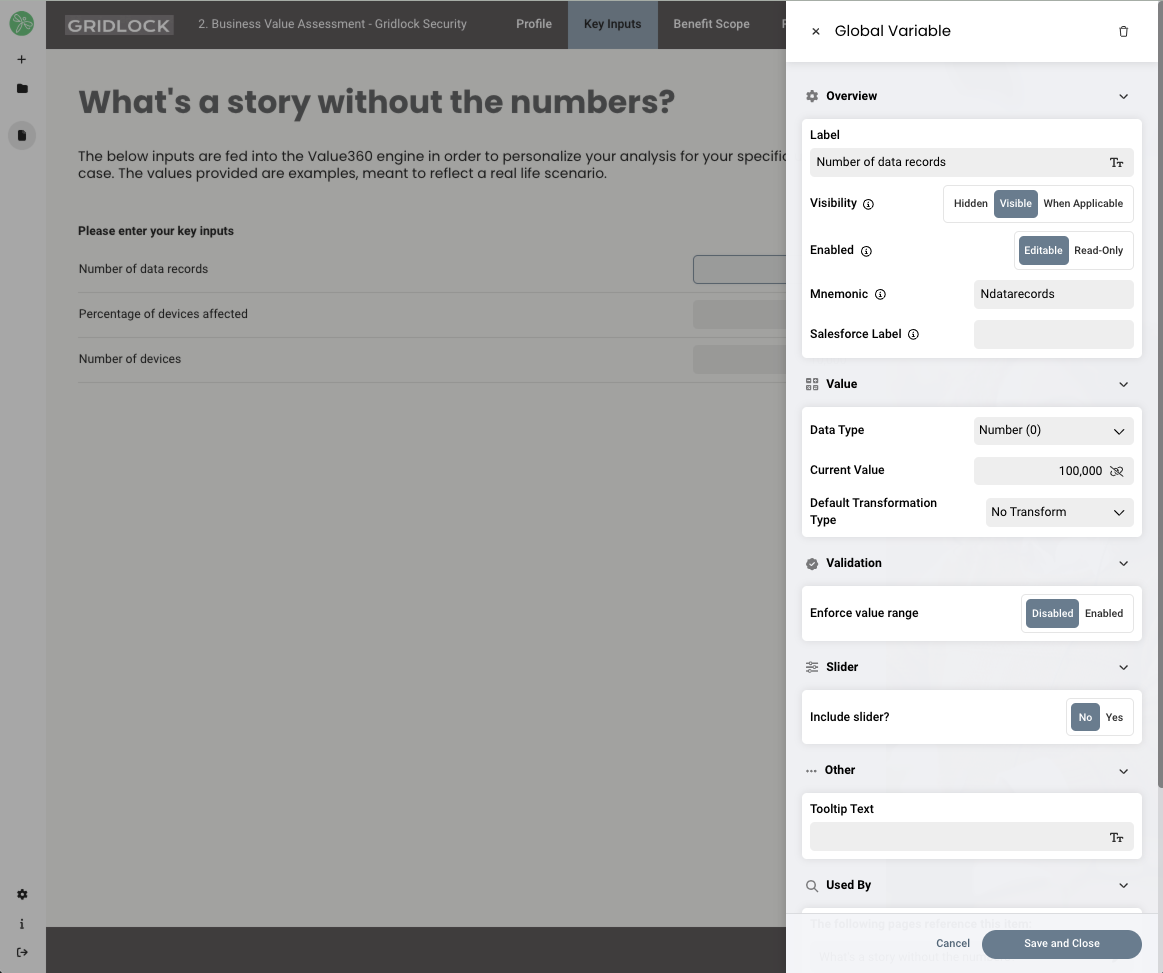
On a page like the key inputs page, historically if you needed to change all the global variables on the page, you would need to go to Menu > Page Editor > Items Library > the item category you want to edit > then select the specific item and edit. If there were multiple global variables al with different names, this would involve having to search for the items individually to edit each one. With the context menu, you can simply right click each item and edit them one by one on the same page.
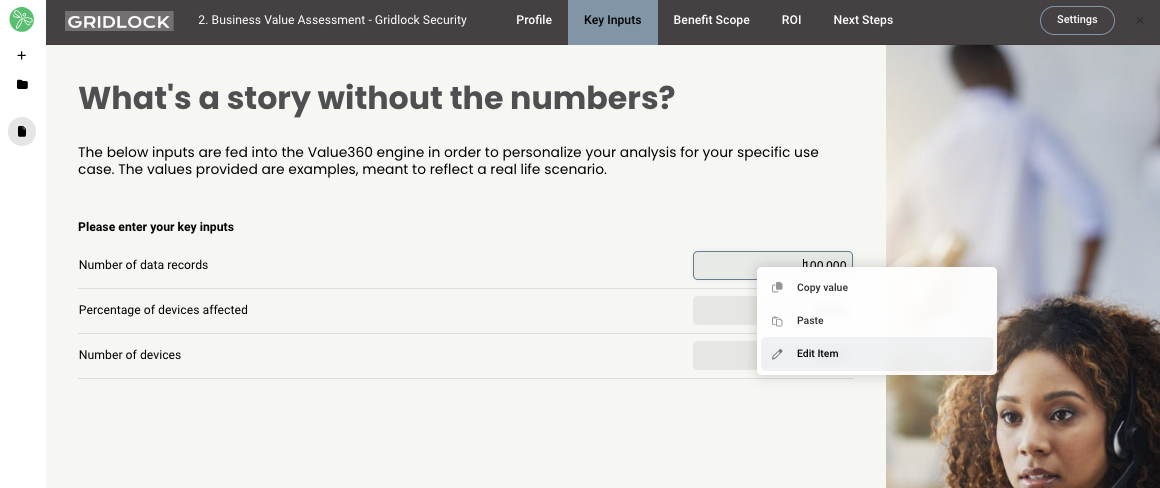
When you right click, you will see the available options for the item. For most items today, you can either:
- Copy the value (fields - global variables, text inputs, etc)
- Paste the value (fields - global variables, text inputs, etc)
- Edit the item (all items)
Editing Pages
The same thing works for pages. If you right click anyone on the page, it will bring up a context menu allowing you to being up the page editor.
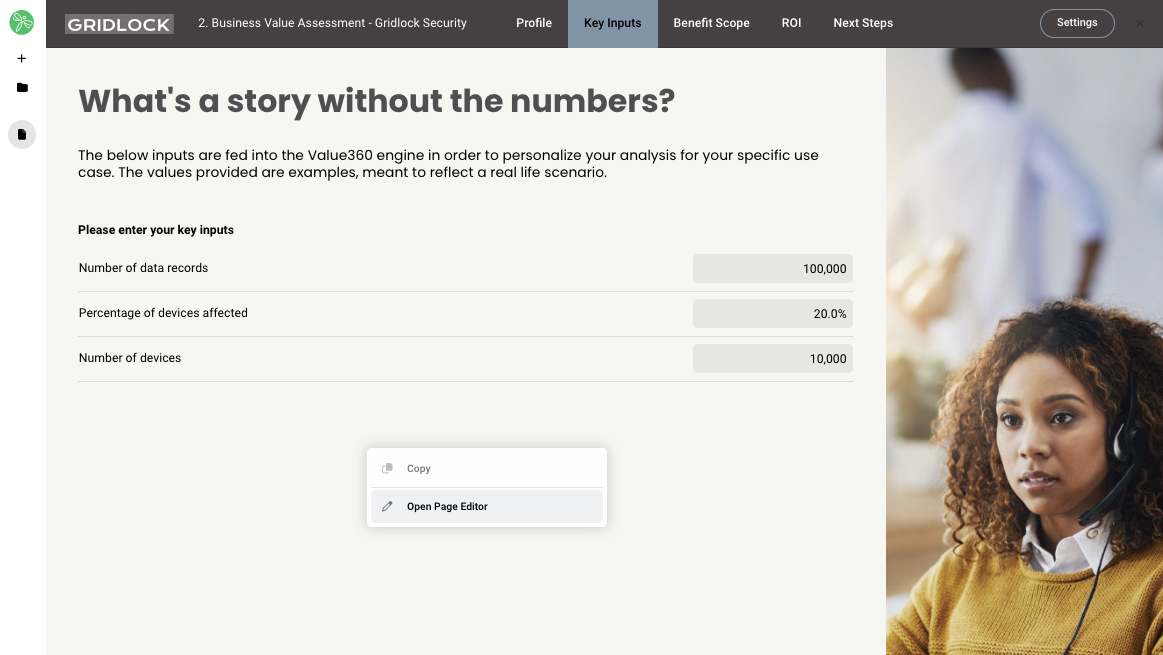
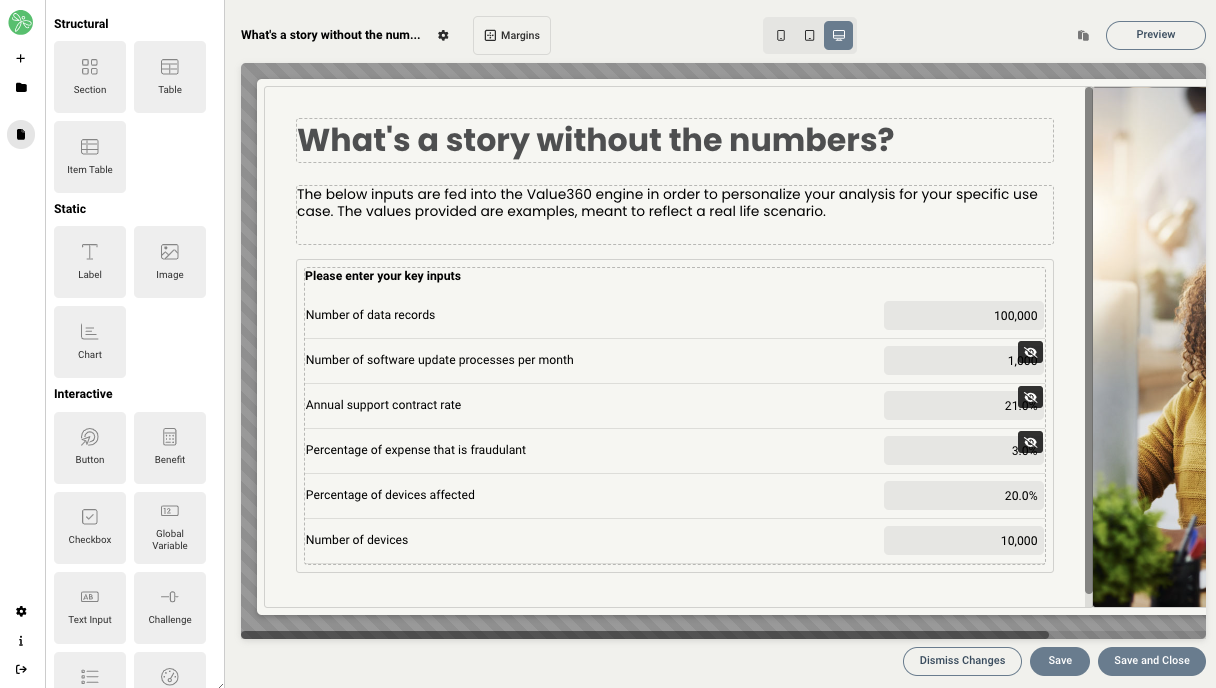
Then, just click Open Page Editor and it will being up the editor for that specific page. This makes it so you don't have to go to the editor and select the page you want to edit.
Replies have been locked on this page!