


Intelligence allows the mapping of properties from Salesforce to the Platform. Our flexible mapping layer allows you to add data of many kinds to solve different problems around reporting and actions.
This article will help if you're trying to map an Object but it’s a reference from a different object. I.e. “I want to report on an Opportunity Product Line Item field on the Opportunity object" as you'll need a custom JSON to map it.
If you're mapping a custom field, which should be mapped to whichever Object you are navigating to, i.e. “I want to map a custom field from SFDC onto the Opportunities object”, you should check out Mapping a Custom Field.
Mapping a Lookup Field
-
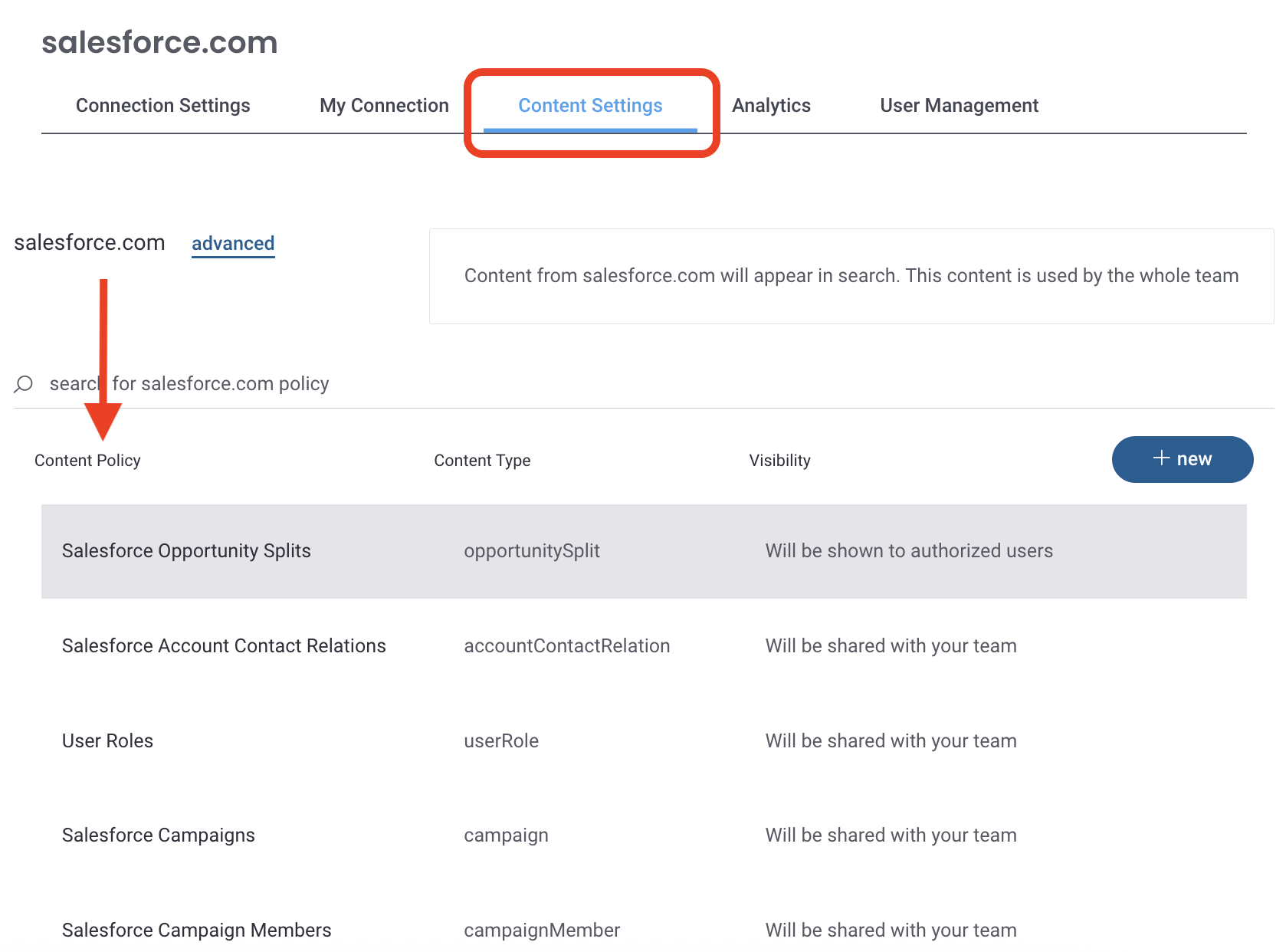
Click Content Settings or navigate to the content settings page by:
▪ Revenue Intelligence only users: Go to Settings > All Integrations > Salesforce > Content Settings
▪ Mediafly users: Go to Administrative Settings > Report Management > All Integrations > Salesforce > Content Settings -
Select an existing Content Policy to add its custom fields (account/opportunity/etc.)
-
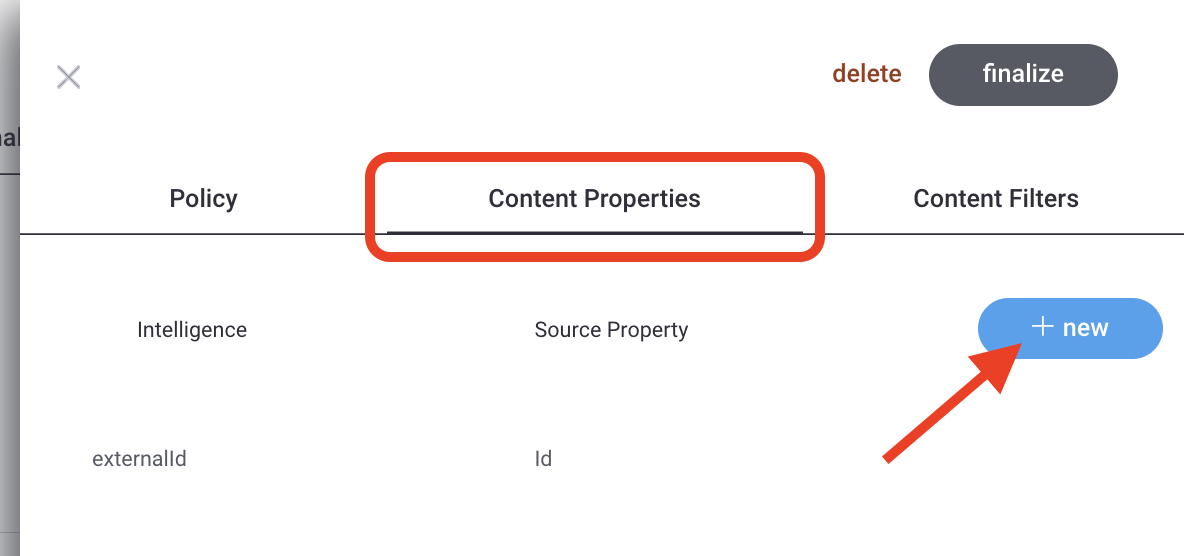
From the pop-up menu, select Content Properties ⭢ NEW
-
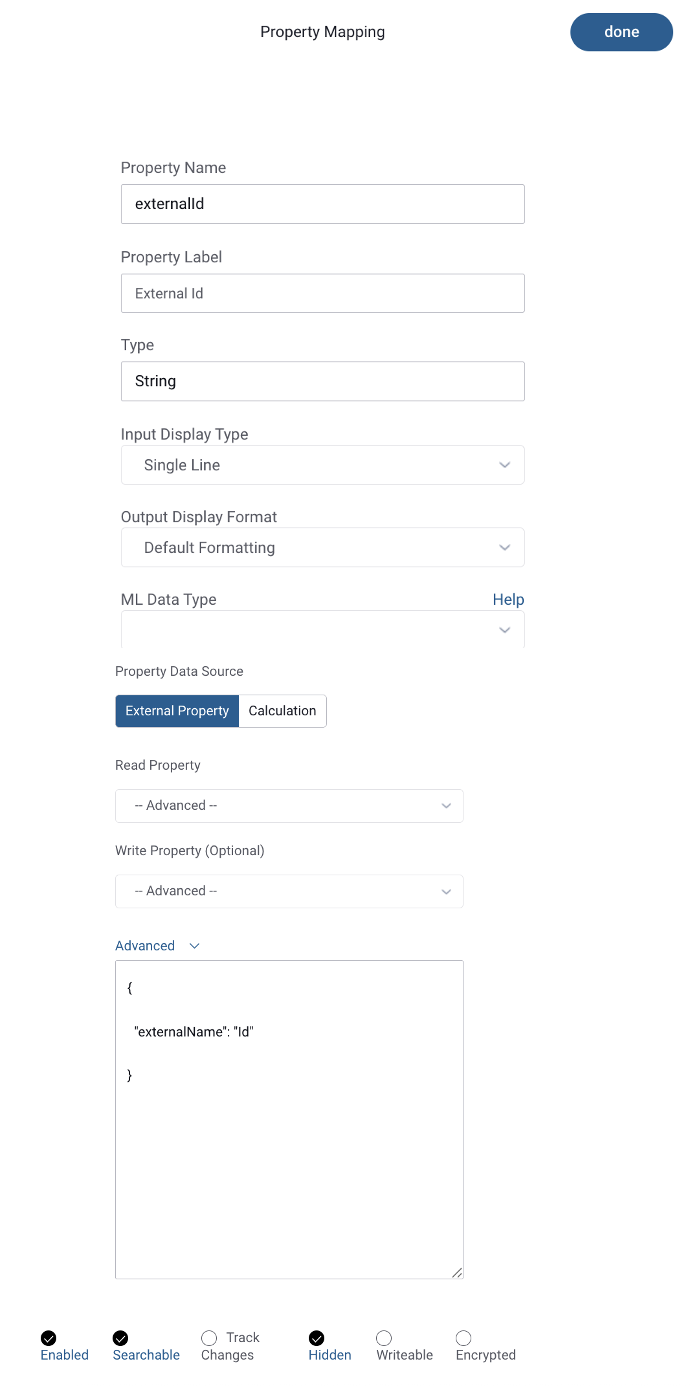
Complete the populated Intelligence Property Mapping window
▪ Property Name - SFDC field name, using camelCase. NOTE: camelCase is the practice of writing compound words or phrases using no spaces, where the first word is lowercase, and each word thereafter starts with a capital letter. Examples: intelligence360SavesRepsTime, theAlphabetStartsWithAB
▪Property Label - The label that will be shown for this property across the Platform
▪Type - Use the mapping table below to select a type (VERY IMPORTANT!!)
Salesforce Data Type ⭢ Intelligence Data Type Reference TableName ⭢ String
Checkbox ⭢ Boolean
Currency ⭢ Number with decimal
Date ⭢ Date
Date/Time ⭢ Date
Email ⭢ String
Number ⭢ Number
Percent ⭢ Number
Phone ⭢ String
Picklist ⭢ String
Picklist Multi-select ⭢ String (display type multi-select)
Text (<70) ⭢ String (display type single line)
Text (70-255) ⭢ String (display type short text area)
Text Area Long ⭢ String (display type large text area)
Text Area Rich ⭢ String (display type html)
Text (encrypted) ⭢ String (encrypted)
Time ⭢ Date
URL ⭢ String
Formula ⭢ Get formula output type and see above
Lookup Relationship ⭢ Contact Mediafly Intelligence Support▪Output Display Format - Select from the dropdown: Default Format, Phone Number, Display Raw Output, or Auto Link
▪Select ML Data Type - Learn more about ML Data Types here
▪Property Data Source: Select External Property, then click Advanced -
In the advanced window you'll enter the Salesforce Lookup id in the code block below, replacing
My_Important_Champion_r.SomeProperty__cwith the Salesforce Lookup id you want to use. Read the next section, Salesforce Lookup id, for more on these ids.Pro tip: Copy and paste this code into the advanced window, then replace the Salesforce id to ensure the code is correct. And don't forget to include the {brackets}.
{"externalName": "My_Important_Champion_r.SomeProperty__c"}
-
Click done.
Salesforce Lookup id
In Salesforce, Lookup fields are used to related two record types together using an id. For example, you may have a Contact lookup field called My_Important_Champion__c that represents the champion of an opportunity.
Using the documentation above, mapping My_Important_Champion__c into Intelligence will simply pull in the id (as a string) of the important champion to the field it is mapped to, into Intelligence. This is important to map in for Intelligence write-back functionality to Salesforce.
What if I want to see more than just the id ? What about the contact name?
This is where the Salesforce relationship syntax comes into play. In order to pull in more properties via a lookup, we must specify each Salesforce property as a property in Intelligence. Using the __r notation rather than the usual __c notation, we can access the properties of the underlying lookup object. For example, mapping My_Important_Champion__r.Name will get the contact name. Another: emails, My_Important_Champion__r.Email will get the champion's Email. Each of these properties needs to be mapped to an Intelligence property like My Important Champion Email or My Important Champion Name .
NOTE: non-custom salesforce Lookups do not need the __r notation. For example, CamaignId on the Opportunity object can be mapped as above but without the __r or id suffix: Campaign.Name will retrieve the campaign name.
You may also be interested in Mapping Custom Salesforce Fields in Intelligence.
Replies have been locked on this page!