


Prerequisites:
-
Complete Getting Started With the Intelligence Salesforce Integration
-
You are a Salesforce Admin
Intelligence Visualforce Pages that can be embedded as Salesforce tabs:
WARNING: Currently, if you are using Chrome 72 or greater, dragging and dropping columns in a report will not work in SFDC embedded views. This limitation will remain until there is a fix from Chrome.
Jump to Creating a tab in Salesforce
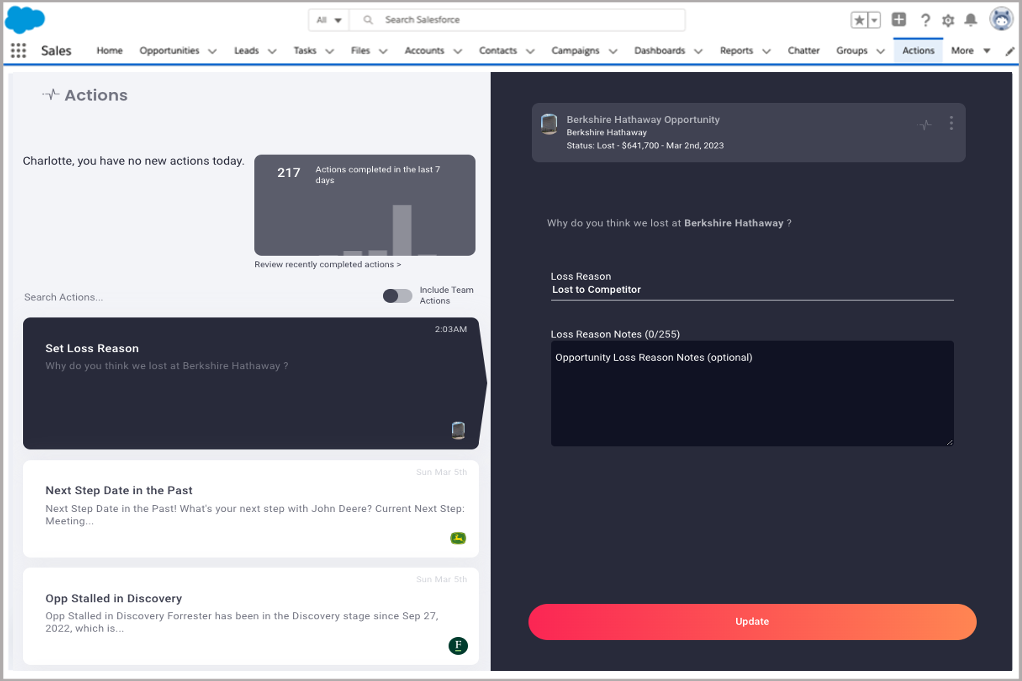
Actions Feed
VisualForce Page Name: Actions Feed (olono_insights.Actions_Feed)
List of the Next Step Actions for a team member or the entire team.
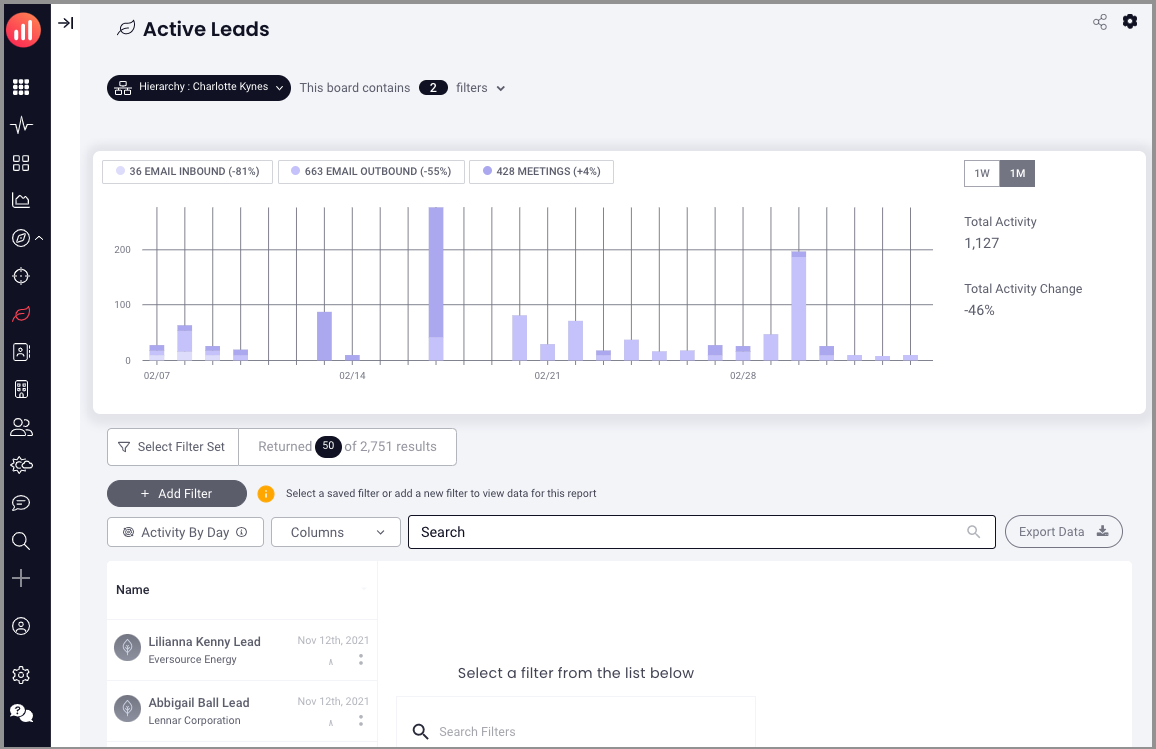
Leads Activity Reporting
VisualForce Page Name: Lead Activity (olono_insights.Lead_Activity)
Reporting and graphing for activity related leads.
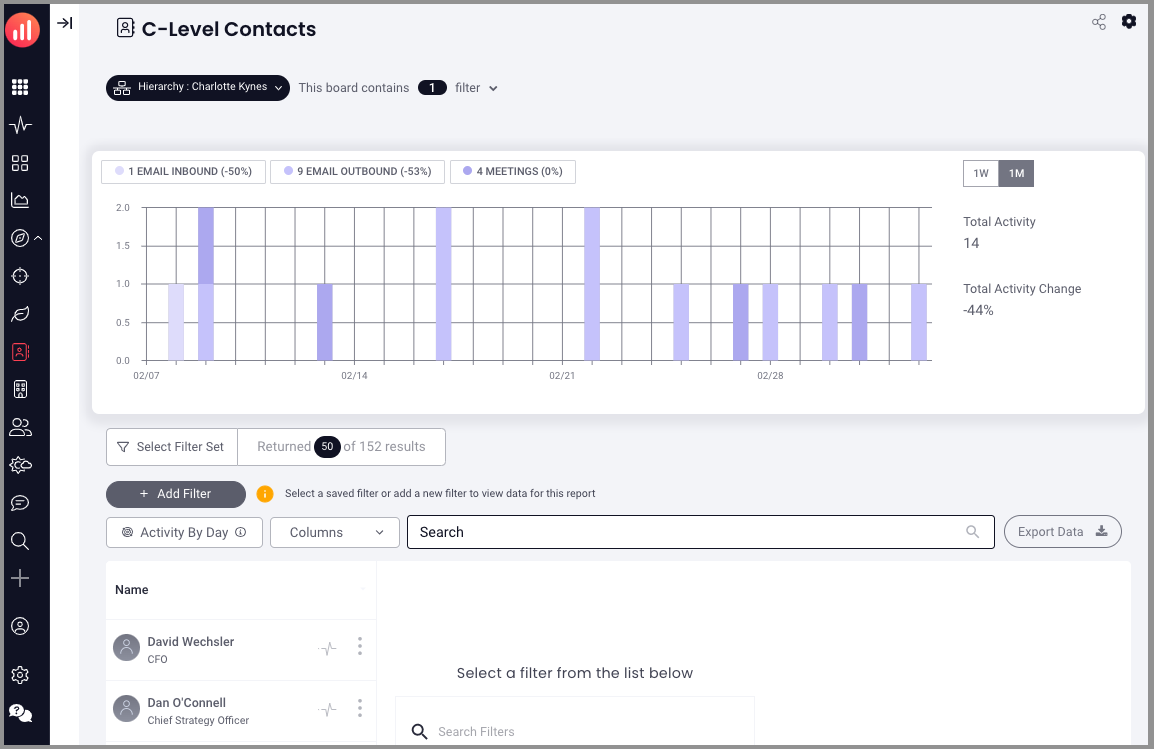
Contacts Activity Reporting
VisualForce Page Name: Contact Activity (olono_insights.Contact_Activity)
Reporting and graphing for activity related contacts.
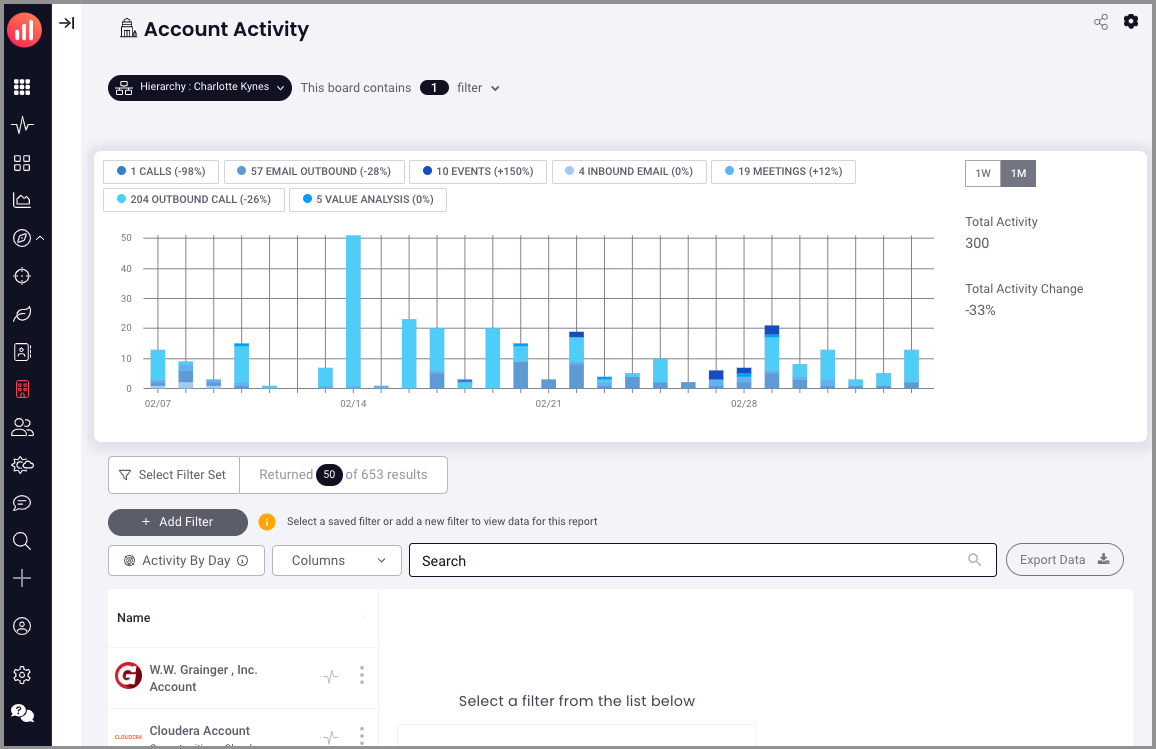
Account Intelligence
VisualForce Page Name: Account Activity (olono_insights.Account_Activity)
Reporting and graphing for activity related to accounts.
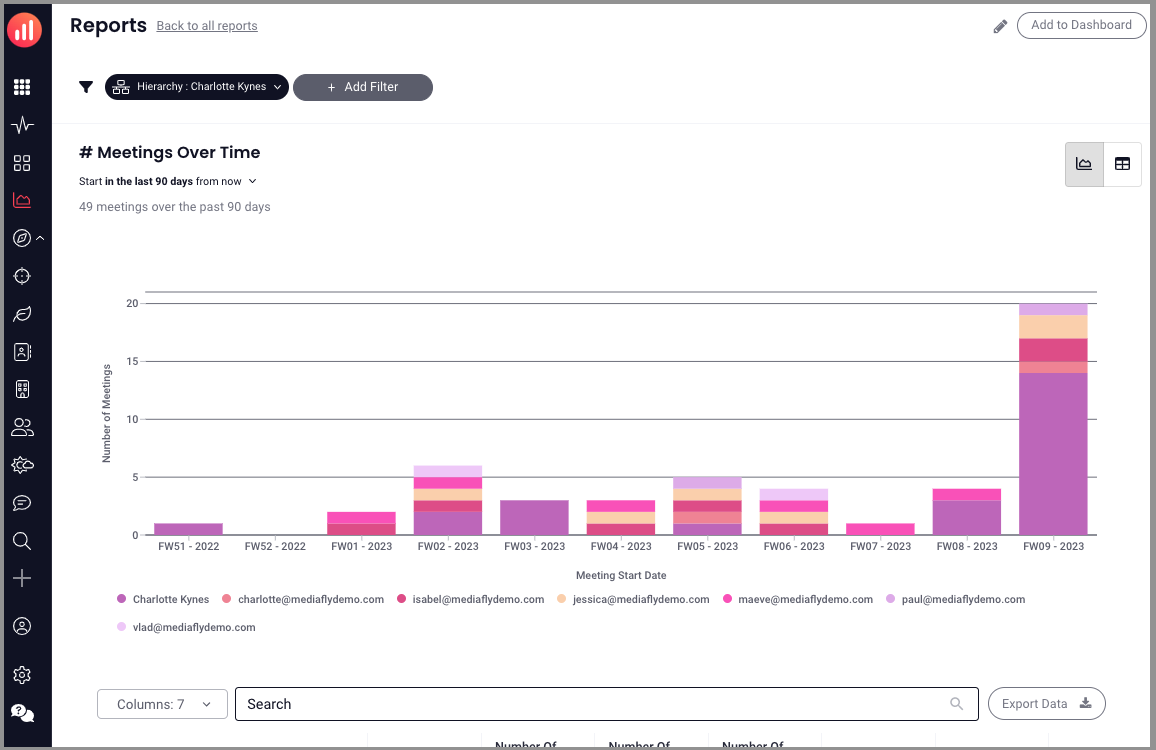
People (User) Activity Reporting
VisualForce Page Name: People Activity (olono_insights.People_Activity)
Reporting and graphing for activity related to reps and managers.
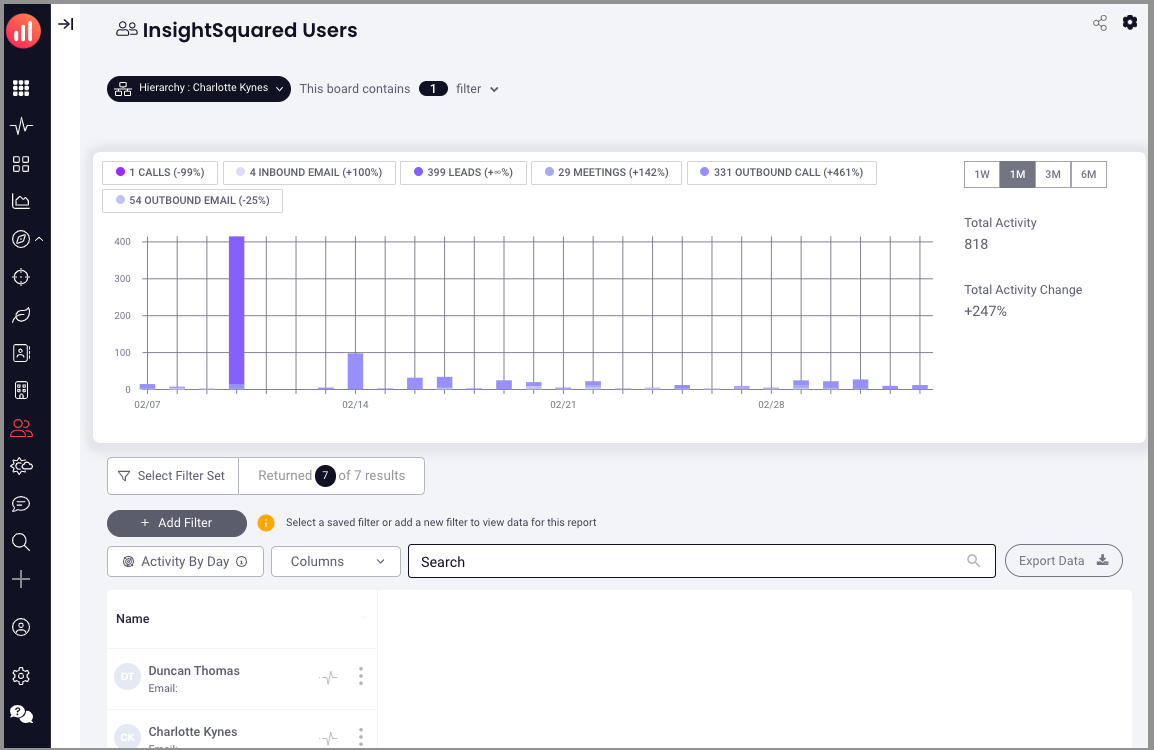
Opportunities
VisualForce Page Name: Opportunity Activity (olono_insights.Pipeline)
Overview of your opportunity pipeline with interactive filters and instant actions.
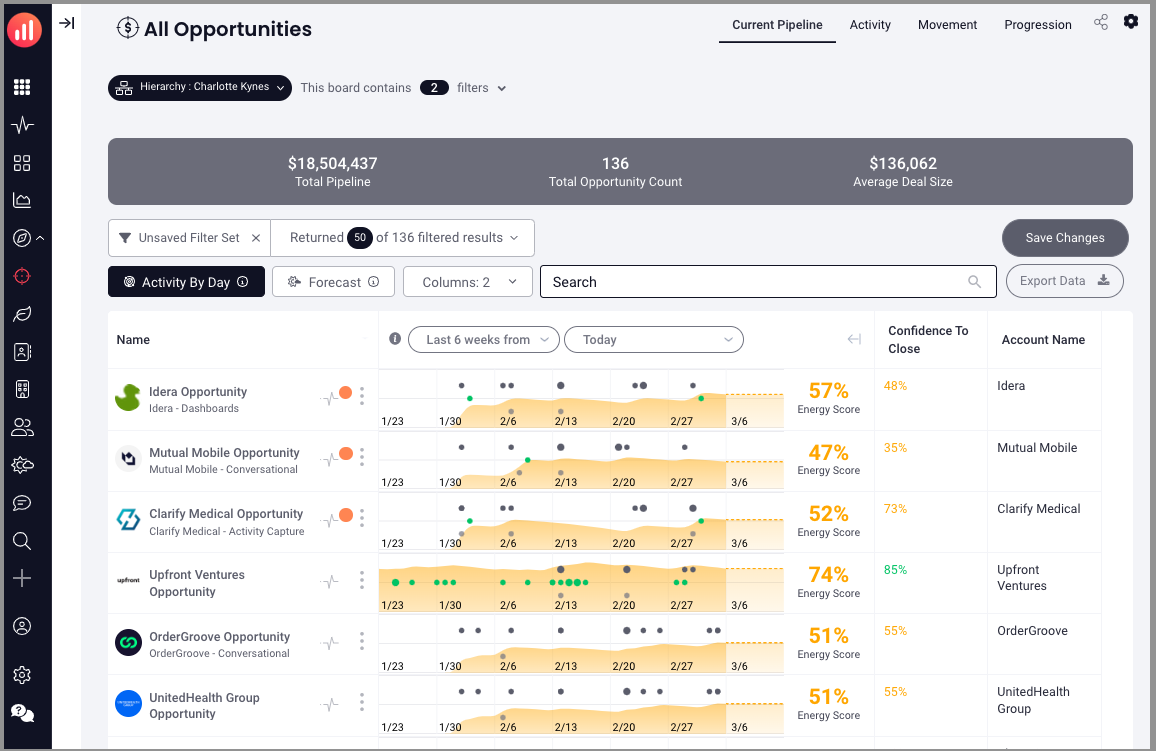
Dashboards
VisualForce Page Name: Dashboard (Insights) (olono_insights.insightsquared_insights_dashboard)
Create & inspect custom dashboards that illustrate various datasets and visualizations in one place.
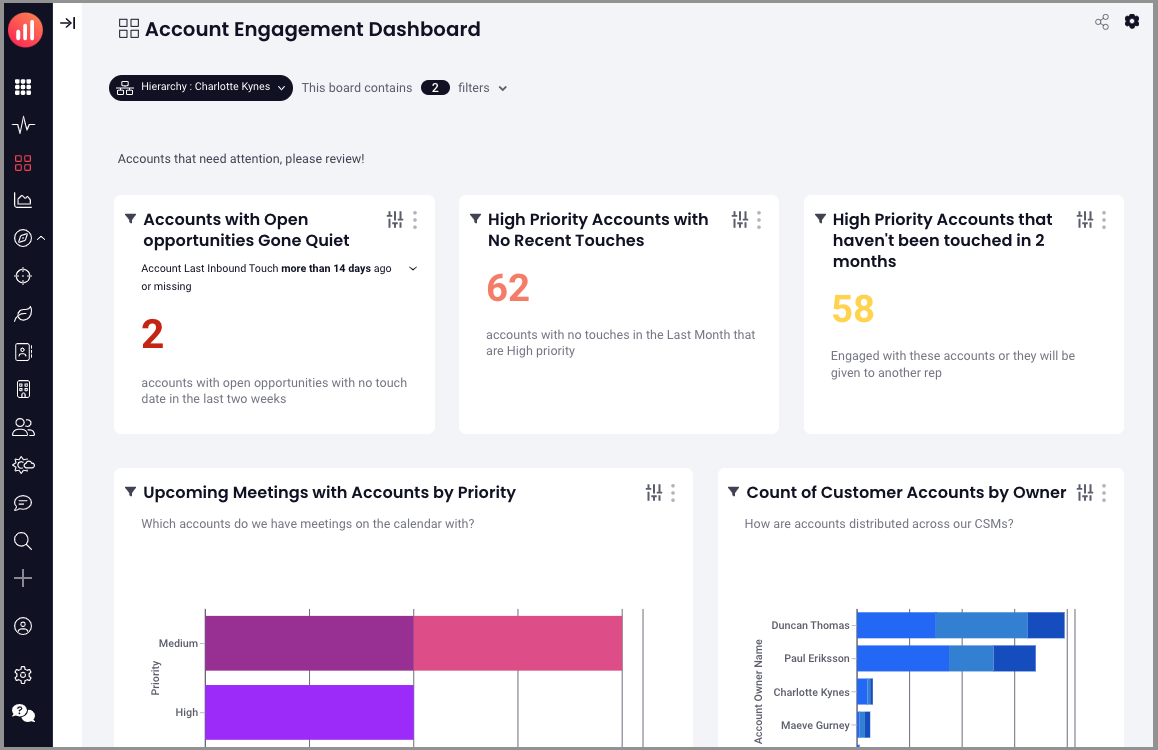
Reports
VisualForce Page Name: Reports (olono_insights.Reports)
Quickly & easily discover both existing and out of the box reports.
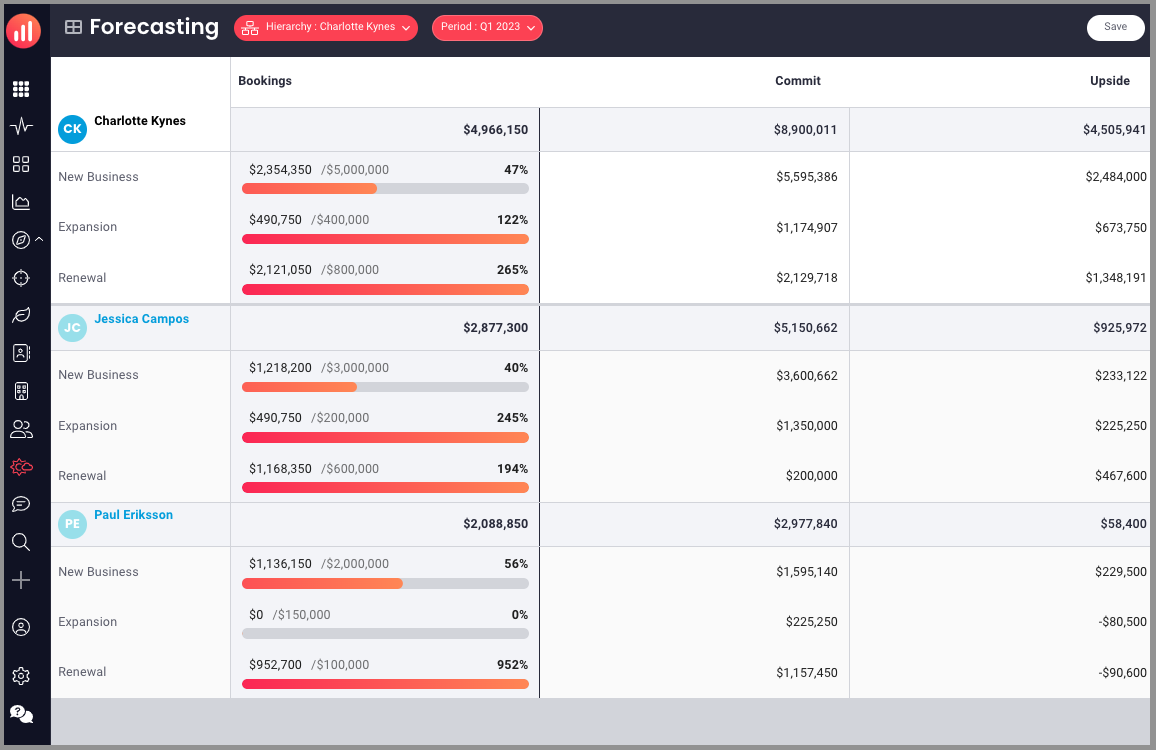
Forecast Submission
VisualForce Page Name: Forecast Submission (olono_insights.Forecast_Submission)
Determine predictability in producing flexible monthly and quarterly forecasts based on customized categories and business segments.
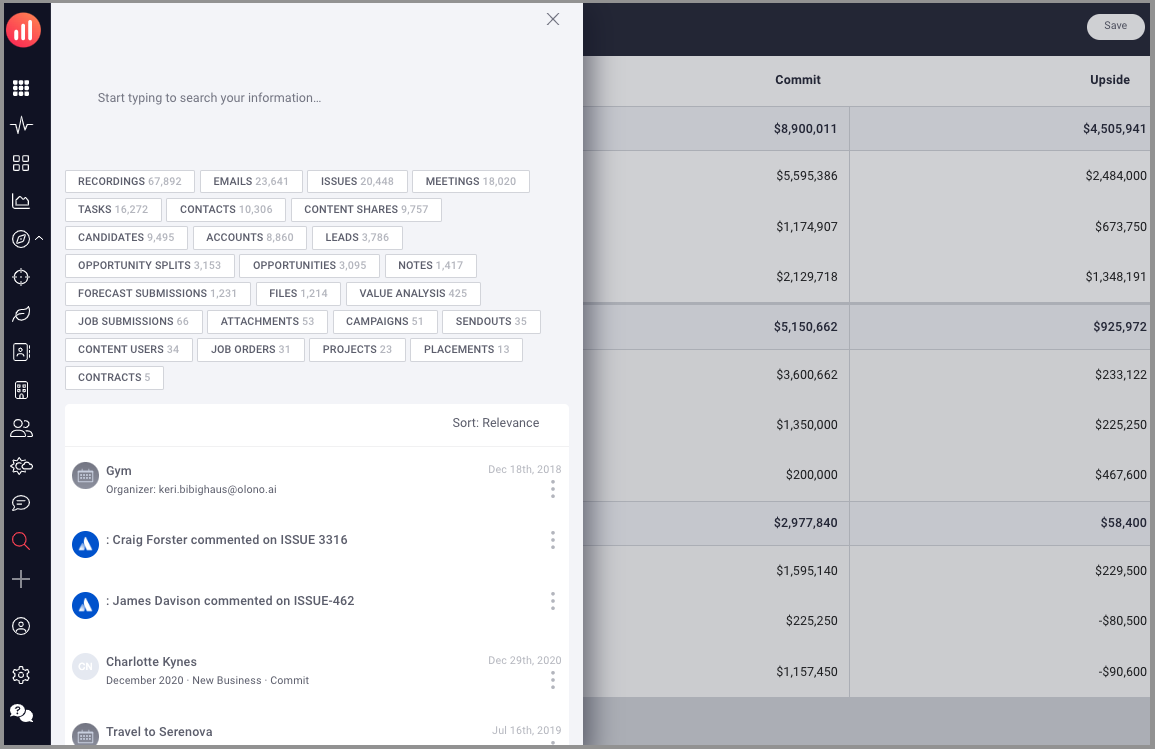
Search Everything
VisualForce Page Name: Search Everything (olono_insights.Search_Everything)
Search
Getting Started
1. Creating a new Tab in Salesforce
a) Navigate to Set up (gearshift icon) > Tabs
b) Click New in the Visualforce Tabs section
c) Choose the Tab Label, Tab Name and Tab Style you want to embed, and click next
d) Add the tabs to the profiles you want to view in this ta
2. Creating or adding to the tab to a permission set
a) Navigate to Setup > Permission Sets
b) Add to an existing permission set or create a new one by clicking New
c) Populate the new permission set with your desired name (Label) and License level
d) Update the Visualforce Page Access by selecting a Permission Set Label to open,
then clicking Visual Page Access it in the Apps section of the permission set
e) Click Edit
f) Add the desired Visualforce Page to the enabled pages
g) Save your changes.
3. Adding Profiles and Permission Sets to the Connected App
a) Navigate to Manage Connected Apps from Salesforce Setup and select a Master
Label from the list
b) Scroll down to find the Permission Sets section and click Manage Permission Sets
c) Select your new (or existing) permission set and Save your changes
Your tab should now be active.
Replies have been locked on this page!