


Admin access gives a user admin privileges to manage data & users within Intelligence and is not the tool to use if you're simply trying to give certain (non-admin) users visibility into certain data. If you're looking for information on how to give users data visibility, check out the articles on Groups: Data Visibility & Feature Access.
Admin Access
This document is to walk through how to grant admin access to a user.
From within Intelligence: Go to Settings > Users
From within Mediafly: Go to Administrative Settings > Report Management > Users
-
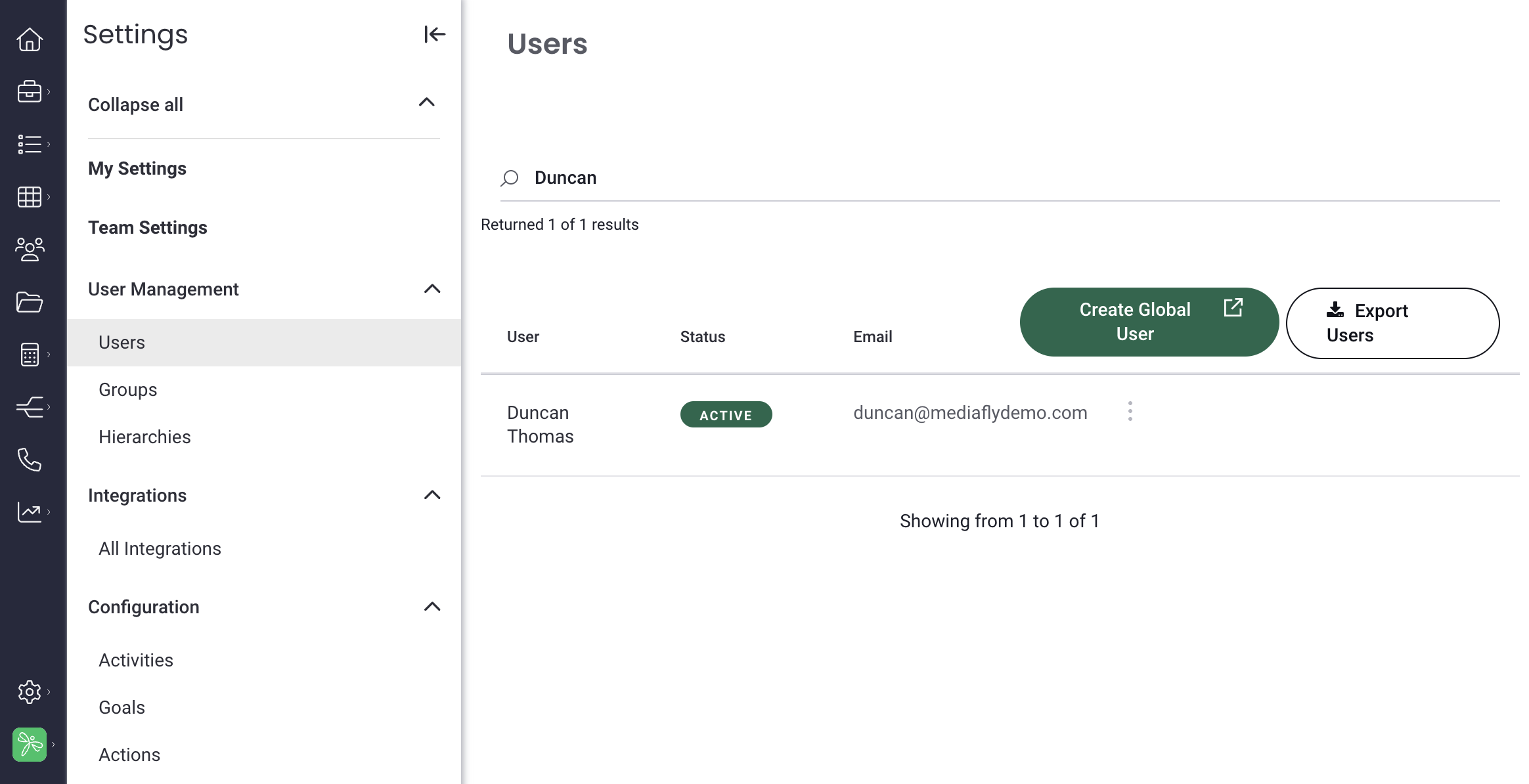
Let's look at the group access for one of these users. I can search for the name of the user I need. Here I've searched for "Duncan" and get one result.
Clicking on Duncan's name gives me his full user profile, including global user details, email signature, home page, global user ID, apps, content by type chart, content by week chart, groups, feature access, viewable boards, editable boards, etc.
-
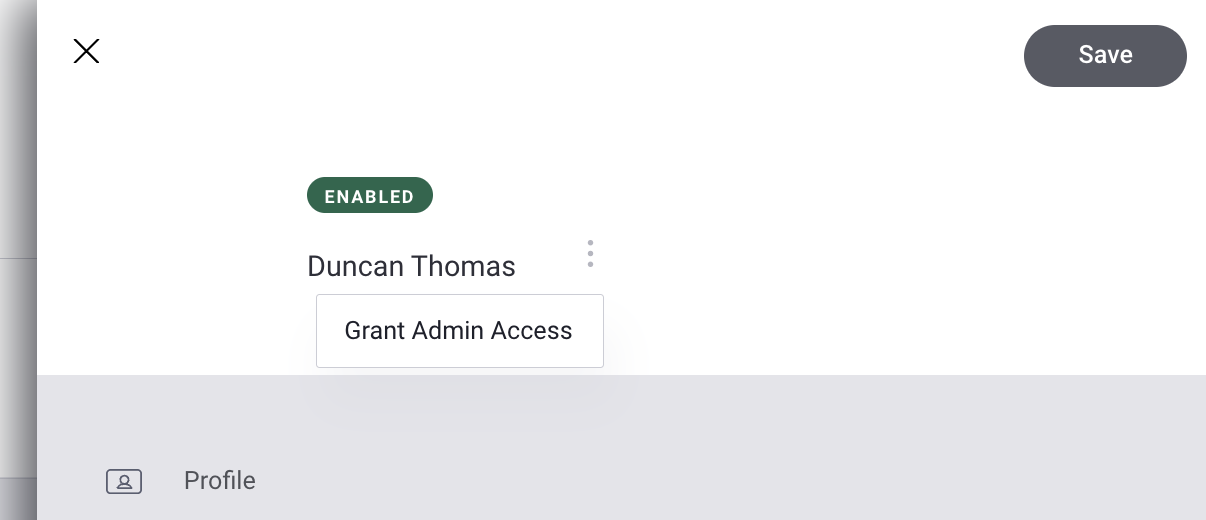
Click the "..." triple dot menu next to his name to see the "Grant Admin Access" option (you can remove admin access from the same menu).
-
Once admin access has been added, you will see the user status update to show "Admin". Clicking the "..." menu on an admin user will then show "Remove Admin Access".
-
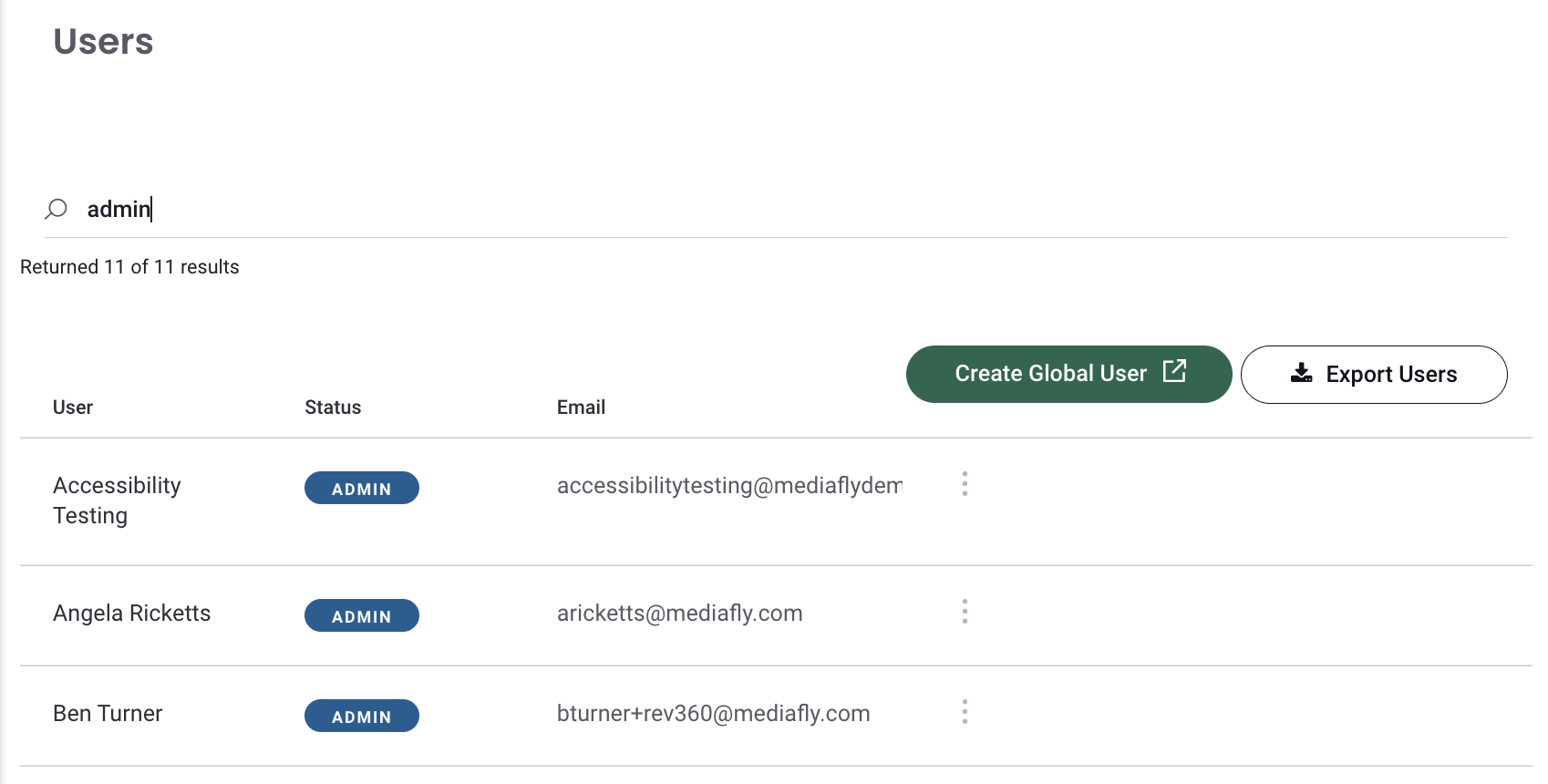
Searching for "admin" from the user management list will show all current Intelligence Admins

Replies have been locked on this page!