


Thank you for choosing Mediafly! The purpose of this document is to instruct SugarCRM/Sugar Sell administrators on how to install and configure the Mediafly for Sugar integration.
It should take around 30 minutes to complete all configurations in this document.
Jump to:
Minimum Requirements
Mediafly for SugarCRM works with SugarCRM versions 8 and later.
It works with the following variants/flavors of SugarCRM:
- Sugar Sell Premier
- Sugar Sell Advanced
- Sugar Sell Essentials
- Sugar Serve
- Sugar Enterprise
It works with both on-premise and cloud versions of SugarCRM.
Company Code
Obtain your Company Code from your Mediafly team member. This is an important configuration parameter that we will use to configure several parts of Mediafly for Sugar. We will refer to this as [company code] going forward.
Install & Configure the Module
- Obtain the .zip file from your Mediafly team member
- Navigate to Admin > Module Loader
- Pick the file, and choose Upload
- Tap on Install then Commit
- Wait for installation to complete
- Navigate to Admin > Content Security Policy Settings
- Add *.mediafly.com & *.insightsquared.com to the Trusted Domains & Save
- Navigate to Admin > Mediafly Plugin > Configuration
- In the Company Code field, enter the [company code] that you were given by your Mediafly team member, as discussed earlier
- Tap Save
Install CRM Integration
Ensure Proper Access & Permissions
- You are a Sugar CRM admin with the access to manage user permission and install managed packages.
- You have Mediafly login with admin privileges in both engagement and intelligence. If you do not please contact support.
Prerequisite:
You have setup OAuth credentials in Sugar CRM and have access to:
- Instance URL: the URL you use to log into your Sugar CRM instance
- Client ID (aka Consumer Key)
- Client Secret (aka Consumer Secret)
Connect SugarCRM
- Navigate to app.insightsquared.com/#/boards/sugarcrm.com/settings/connections
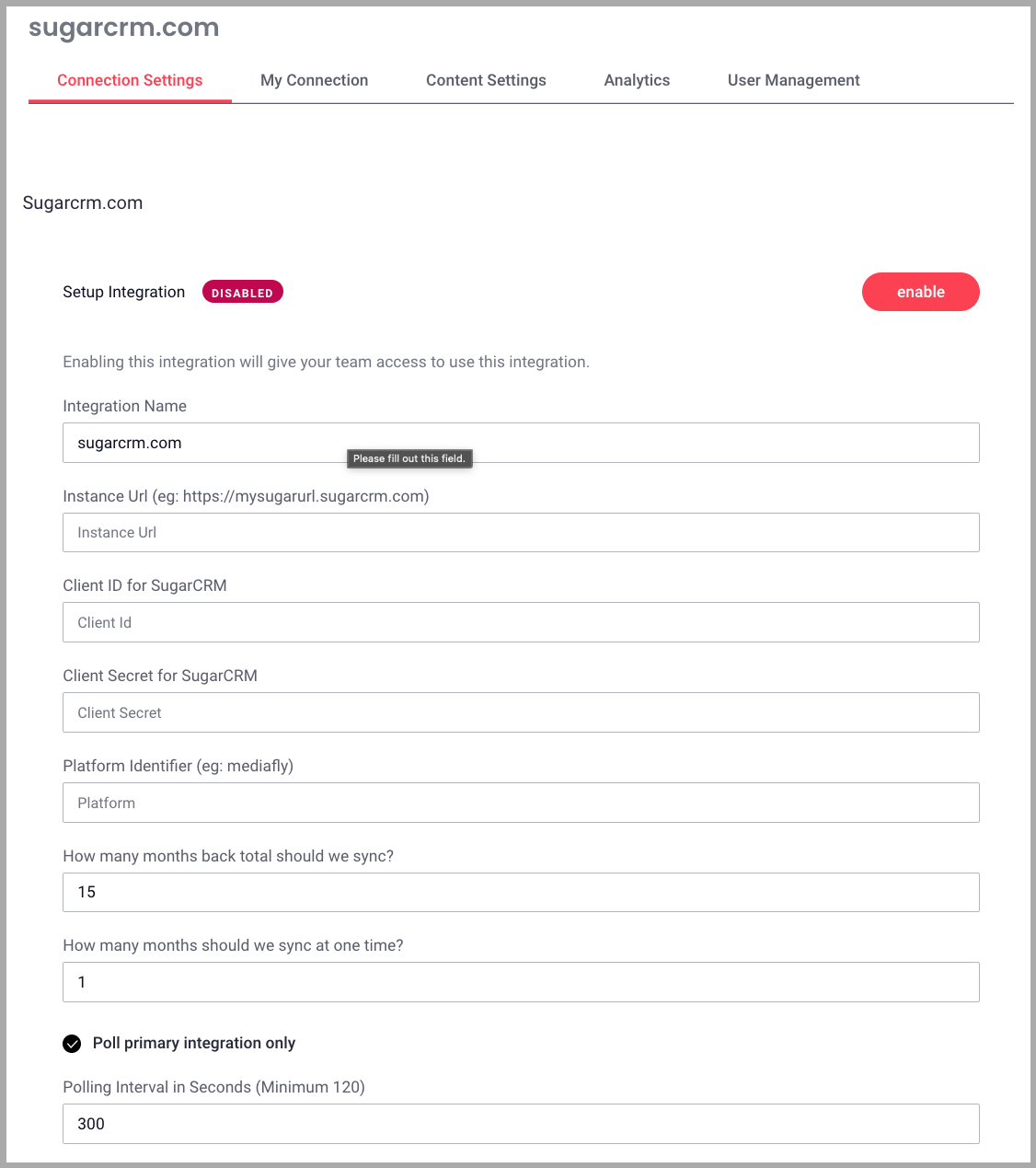
- In the Connection Settings tab enter the following information:
- Integration Name
- Instance URL
- Client ID
- Client Secret
- Platform Identifier
- How many months back should we sync? Leave as 15
- How many months should we sync at one time? Leave as 1
- Check Poll Primary Integration Only
- Polling Interval in Seconds, leave as 300
- Click Enable
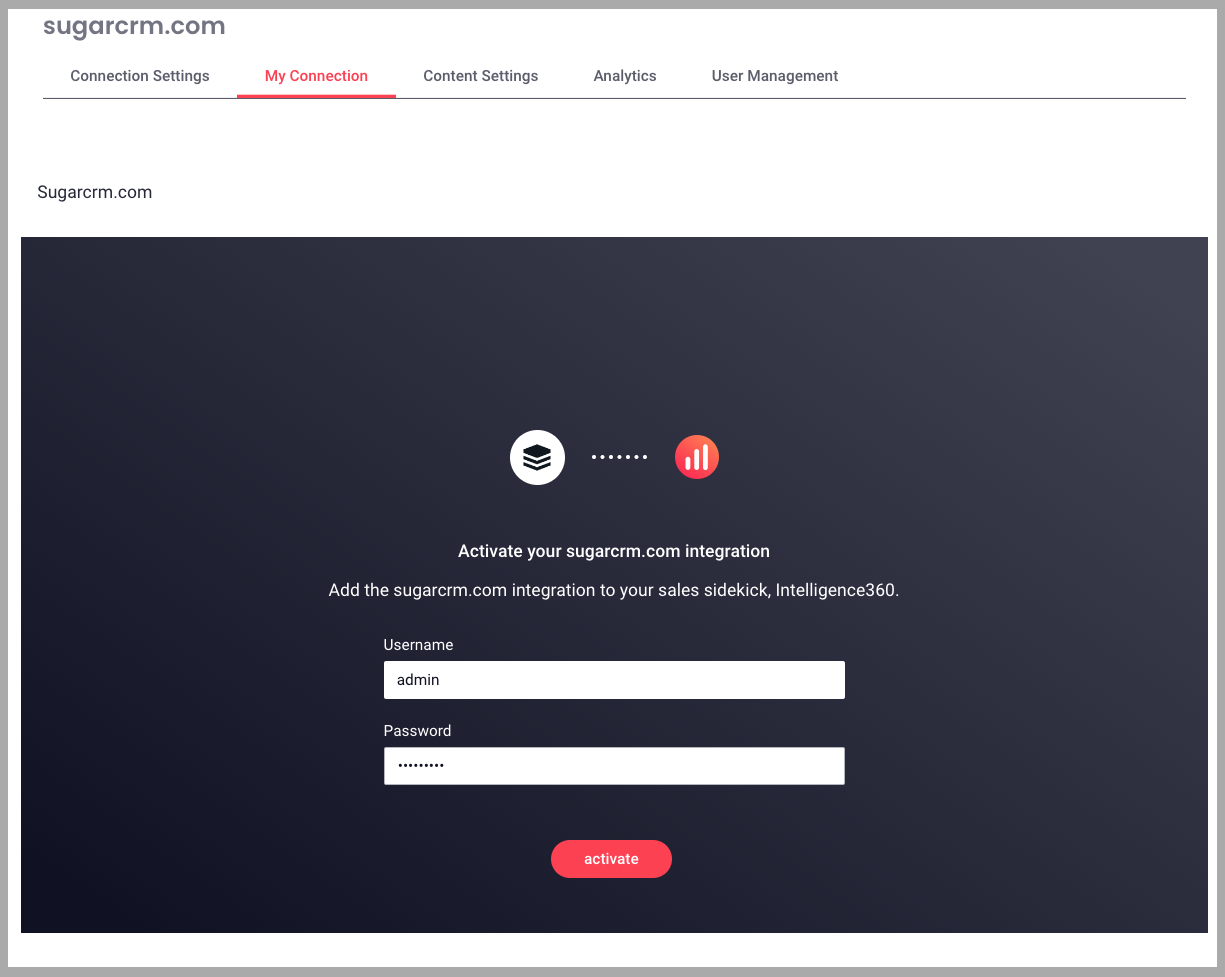
- Click the My Connections tab
- Enter Sugar CRM username and password, and then click Activate to go through the OAuth flow. After loading, you should receive a confirmation message.
Data is now flowing into Mediafly from Sugar, please allow 36 hours for initial data load to complete
Components
There are several components that we offer through this application. This document will explain what they are and how to configure them.
- Mediafly Viewer
- Content Assistant & Additional Dashlets
Mediafly Viewer
Mediafly Viewer is our user-facing interface. It is used by revenue professionals (sellers, sales managers, CSMs, content managers, and marketers) to:
- Review and present material to clients and prospects
- Set up Collections, which are personal playlists, of content
- Share Collections and individual items after your meeting
- Make comments and take notes against content
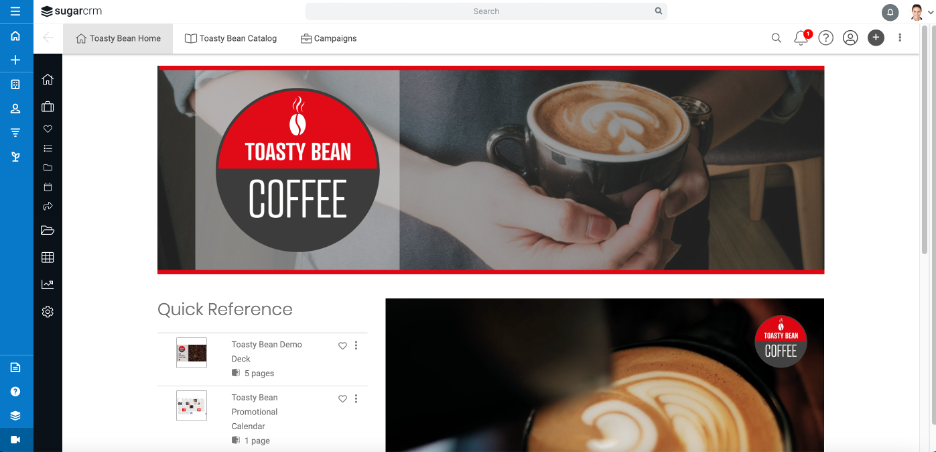
Note that iconography and images are examples only and subject to change.
The Mediafly plugin Mediafly within the Left hand navigation of your Sugar environment
Mediafly as a primary icon on the bottom left hand nav:
- As part of the Sugar Package Mediafly will appear as a primary icon for users in the bottom left hand navigation with the Mediafly logo.
- Having entered the company code in the Installation section will allow this to load for any user who has an active Mediafly license
Content Assistant & Additional Dashlets
Content Assistant allows marketers and sales operations teams to bridge the content gap with revenue teams. It allows them to provide targeted recommendations while sales teams are looking at an Opportunity, Account, Contact, or Lead. Content Assistant will search Mediafly's content management system for documents that are tagged with specific parameters, and return those to the salesperson. They can then view the found documents/images/videos, add them to Collections, share them, take notes, and more.
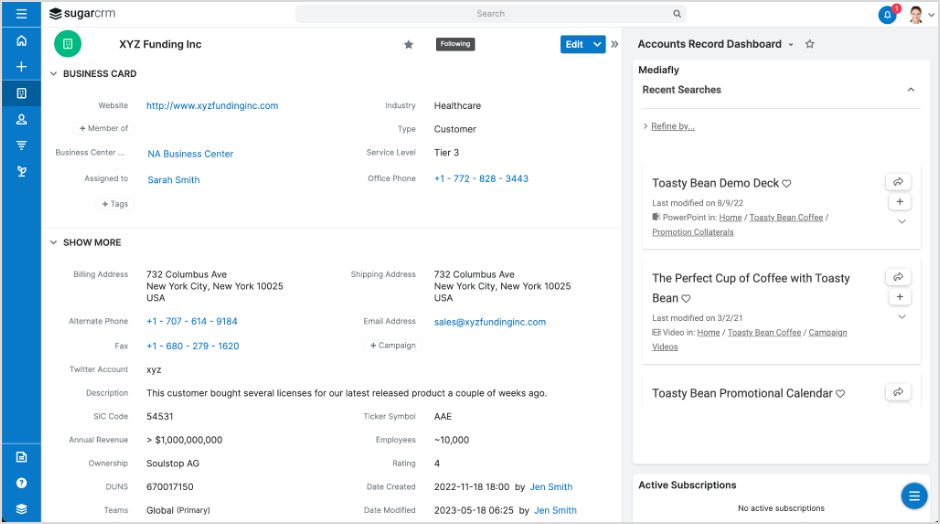
To configure Content Assistant, please follow these steps:
- Identify which core object(s) you wish for Content Assistant to appear. Your options include:
- Accounts
- Opportunities
- Contacts
- Leads
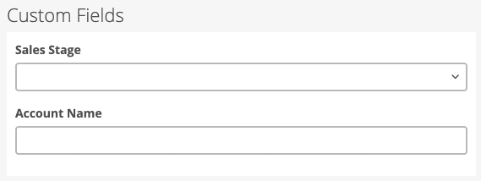
- Determine which fields should influence the content that appears in Content Assistant. For example, you may wish for Content Assistant to appear in Opportunities, and to show content where the Sales Stage and Account Name are used to pull in the right content.
- Work with your Mediafly team member to create the appropriate fields in your Mediafly environment to match against the fields you picked in #2 above. For example, in our example, we would create a field for Sales Stage and Account Name in the Mediafly Content Management System:
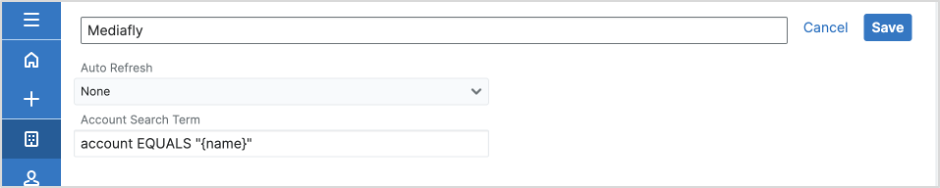
- Work with your Mediafly team member to create a query to pull the right content into Content Assistant. This will require that the fields you wish to access are available to the core object. An example opportunity query:
opportunity EQUALS “{name}” OR salesStage EQUALS “{sales_stage}” OR account EQUALS “{account_name}” - Add the Dashlet into the appropriate CRM objects
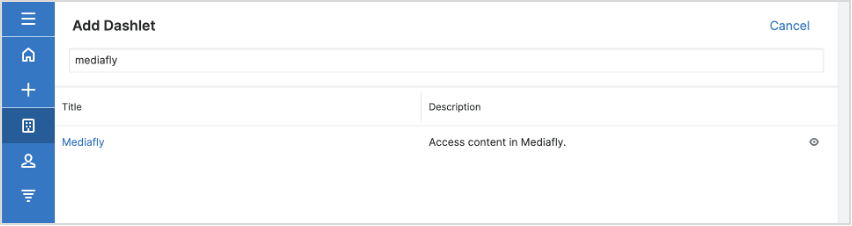
- Within the object into which you wish to add Content Assistant, go to the hamburger (3 lines) menu in the bottom right and choose Add Dashlet
- Choose Mediafly from the list
- Paste in the query that you defined in the step above. Set Auto Refresh to None
- Tap on Save
- Adjust the placement of the Dashlet as you wish
- Be sure to adjust permissions for your Dashboard if necessary, to ensure the appropriate users or groups have access to it
- Repeat the above step for any other CRM objects as necessary
To Configure Additional Dashlets:
- Open “additional dashlets” on the accounts, opps, or contacts page in Sugar
- Click on Mediafly Timelines (You will see the options below)
- Activity Timeline
- Opportunity Energy Score
- Content Shares
- Account and Contact Energy Score
- Record Details
- Value Analysis
- Contact Details
- Call Recordings
NOTE: These may include functionality you are not using in Mediafly today. Most Sugar users will leverage the Energy Score, Content Share, and Activity Timeline views as needed.
Replies have been locked on this page!