


Sharing Dashboards & Reports
Sharing a dashboard or report with colleagues is a game-changer for communicating valuable business data across your organization. Intelligence has two share options: 1) you can email a dashboard/report directly from the dashboard screen or 2) download a hi-res image of your data to share as an attachment. Each option allows you to share your data with anyone, including anyone that does not have Intelligence access to that dashboard or report. The images will not include access to clicking into or editing the data, giving you the control to only show the data you want to be seen. Plus, it's really easy! (You can also schedule emails to automatically send on your desired cadence.)
You can also Schedule Report & Dashboard Emails!
Email a Dashboard and Selected Reports
-
Open the dashboard you want to share
-
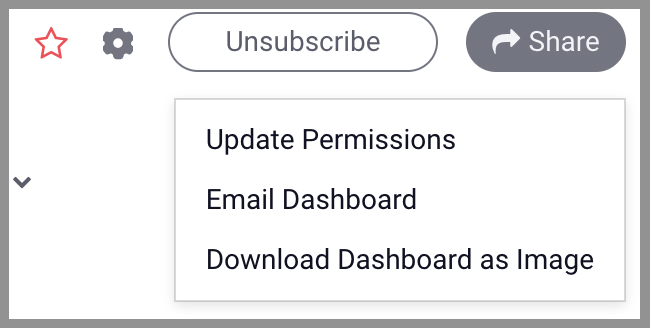
Click Share in the top right of the page , then click "Share {Dashboard Name} as Email"
-
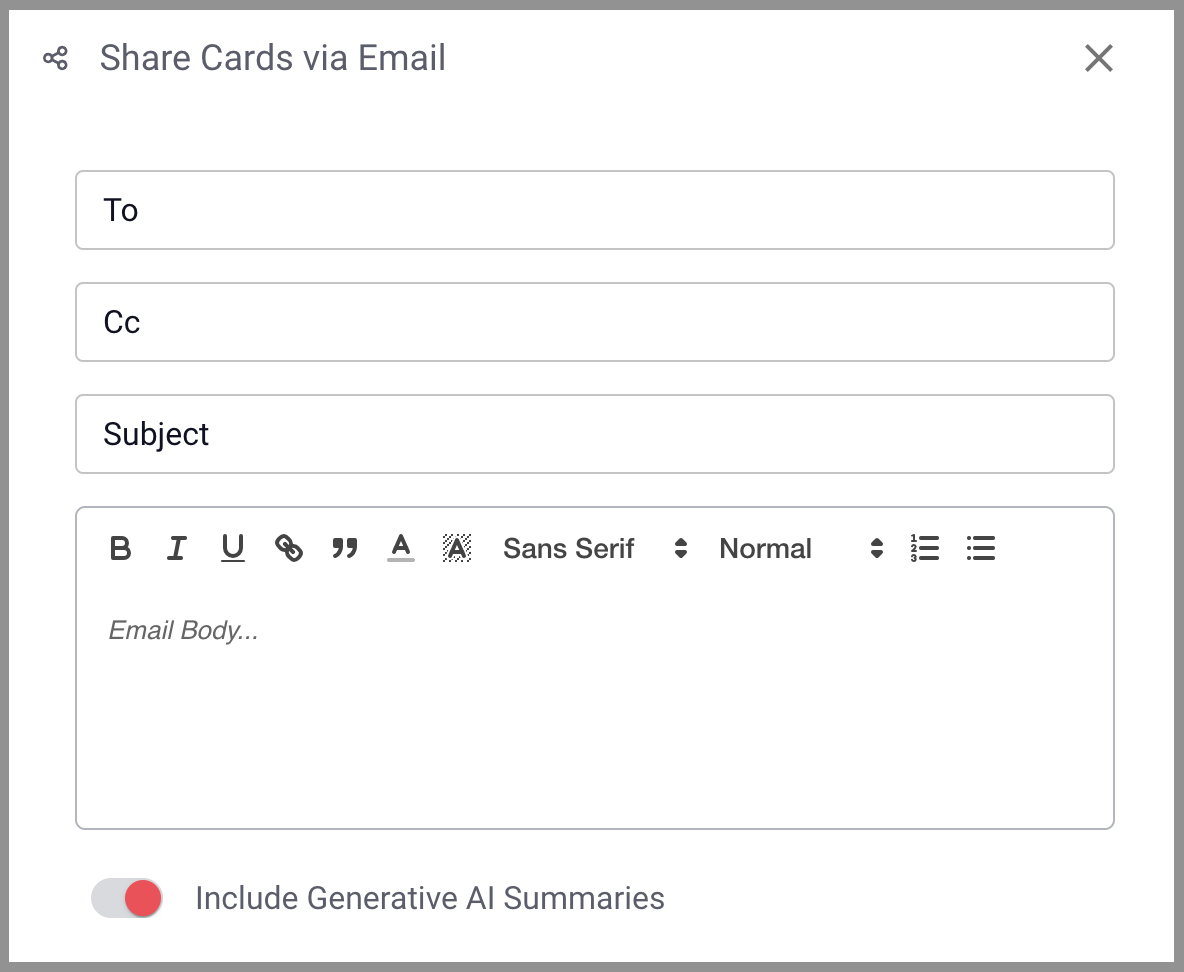
Complete the email template
-
Enter recipients in the "to" and "cc" box. (You can search for users or enter any email address)
-
Enter subject
-
Enter the email body (you can adjust fonts, use hyperlinks, etc.)
-
Optional: Include Generative AI Summaries
-
Enable this functionality to include automatically generated summaries directly from the data in the dashboard/cards.
-
-
-
Dashboard Hierarchy: Select the level of hierarchy you want visible to recipients (access will max out at their max hierarchy level)
-
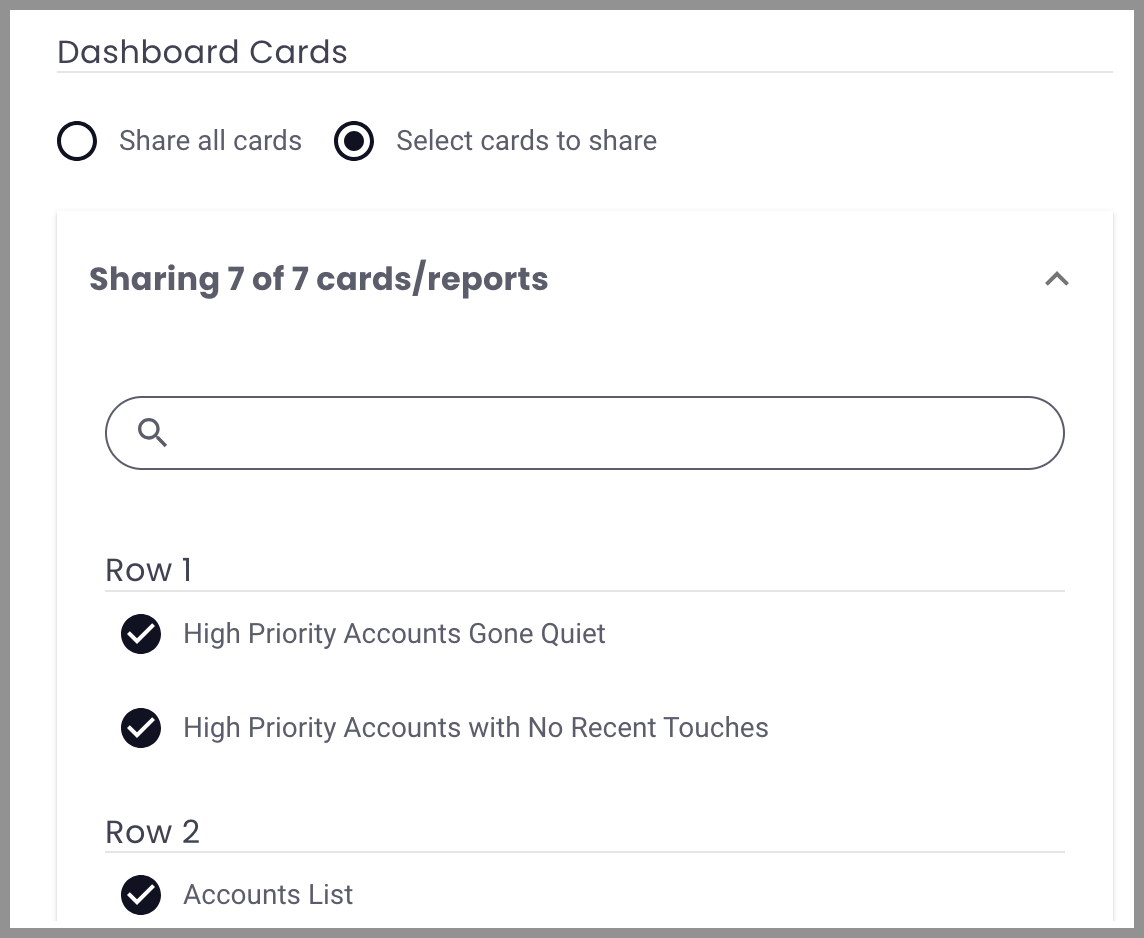
Dashboard Cards: You can either select "Share all cards" to include all reports on the dashboard, or "Select cards to share" to open a dropdown that will allow you to select certain reports to be included in the email.
-
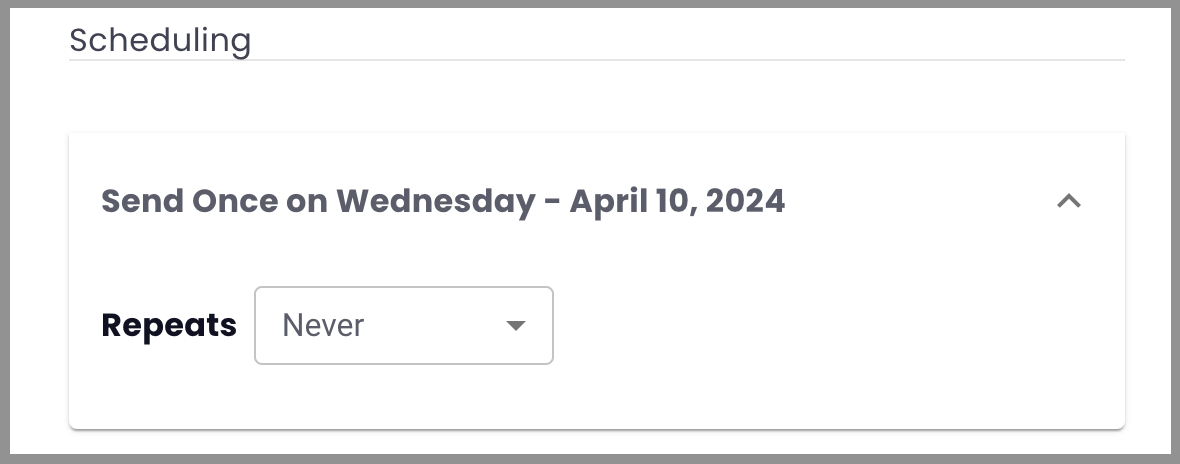
To send one time, right now, ensure the scheduling section is set to Never
-
Click Send, you will receive a confirmation that your dashboard email has been sent, you can close this window to continue working in Intelligence. If you want to create a schedule for this email to send automatically on a regular cadence, click here.
Recipients will receive ordered images of the selected reports from the dashboard as well as links to view within the application (only available to Intelligence users with access to the dashboard), it will look like this:


Email an Individual Report
You can also email an individual report direct from the dashboard.
-
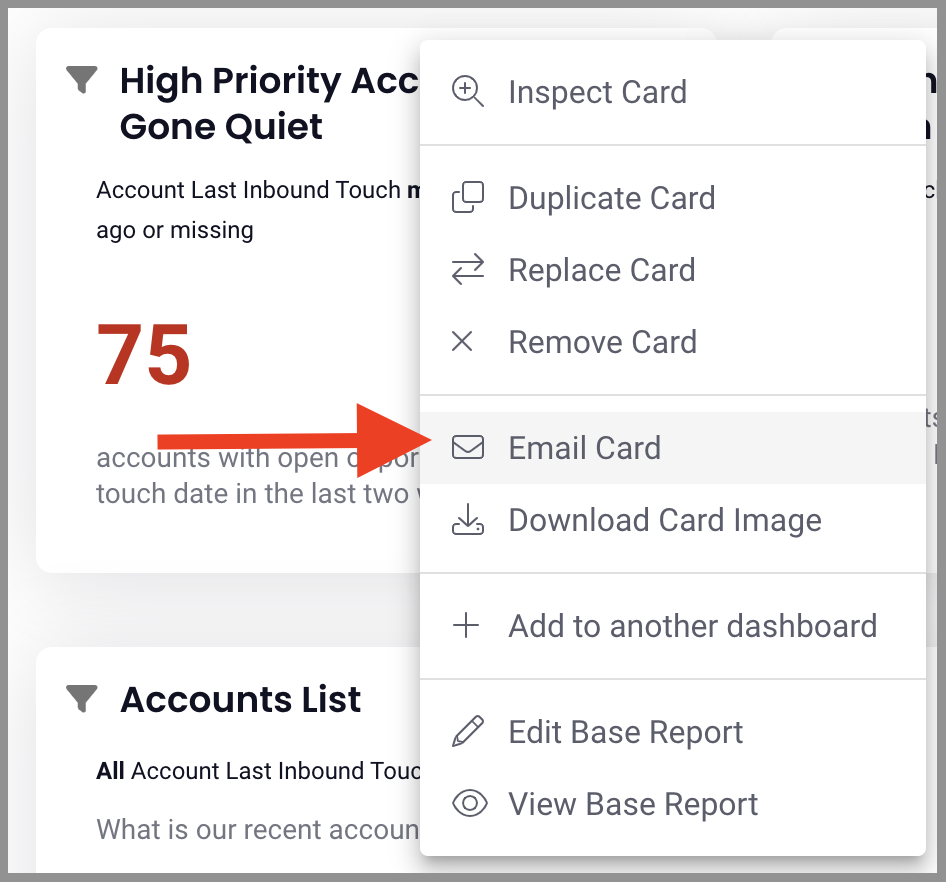
Click the three-dot menu in the top right of the report then click Email Card
-
Follow the same steps 3-7 above, this time the email will automatically only select one card from the dashboard to share. (Though the option to add others is still available.)
Recipients will receive ordered images of the selected reports from the dashboard as well as links to view within the application (only available to Intelligence users with access to the dashboard).
Download & Share a Dashboard Image
You can download images of dashboards/reports to your device to share as attachments, this option allows for share opportunities in addition to email, like Slack.
-
Open the dashboard you want to share
-
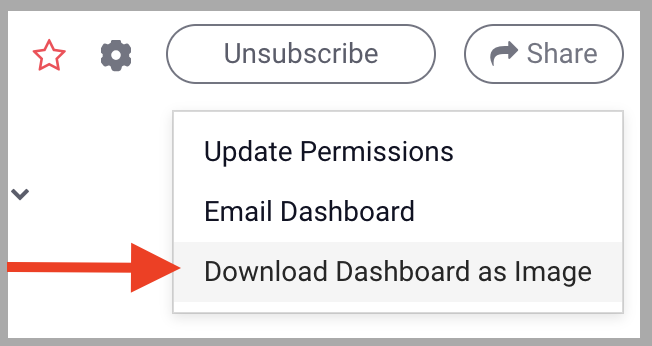
Click Share icon in the top right of the page, then click Download Dashboard as Image, the image will take a minute to download to your browser
-
You can now save the dashboard image and share via email, Slack message, DMs, etc.
Download & Share a Card Image
-
Open the dashboard that houses the report you want to share
-
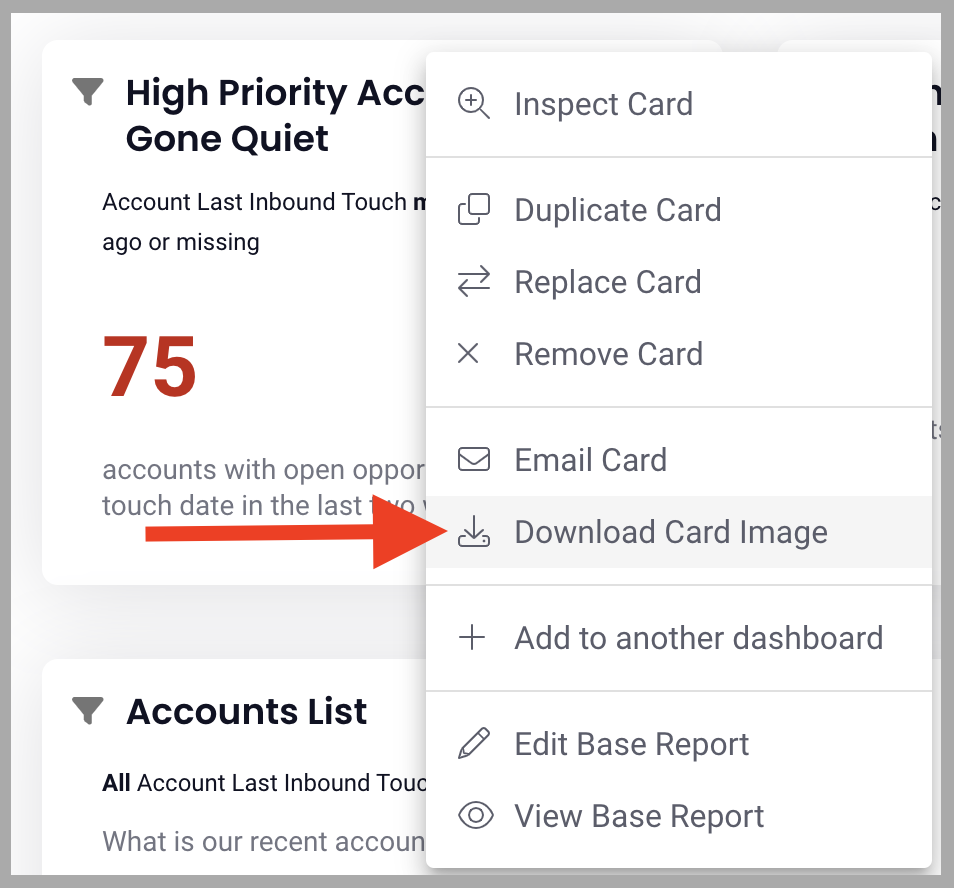
Click the three dots in the top right of the report, then click Download Card Image, the image will take a minute to download to your browser
-
You can now save the report image and share via email, Slack message, DMs, etc.
Below is an example of a dashboard image. Imagine being able to attach this to an email or quickly Slack a colleague who needs this data stat.

FAQ
Why can't I see the emailed report images in Outlook?
Microsoft says, "Blocking pictures can help protect your computer. Microsoft Outlook is configured by default to block automatic picture downloads from the Internet. You can, however, unblock pictures that you think are safe to download."
Learn how to unblock pictures from the Microsoft article, "Block or unblock automatic picture downloads in email messages".
Related Articles
Schedule Dashboard / Report Emails
Replies have been locked on this page!