


The Service Account setting allows Intelligence Admins that have already set up their Office 365 integration to maintain a single connection to Office365 to sync emails and to manage service account users. Maintaining a single connection prevents the annoyance of per user re-connects and pauses in data capture. If an organization requires regular password resets, maintaining one connection will prevent each individual user from having to reconnect after each mandatory password change.
Please reference the Service Account FAQ for common questions about capabilities, permissions, data security.
🔐 Use Service Account is available to Admin only. 🔐
What permissions does the Office365 admin need to connect via service account?
They need to be a Microsoft Entra ID of their Microsoft team and have access to their team's Microsoft Entra admin portal. (Microsoft Entra Global Admin)
Setting Up Service Account for Office 365
-
Sign in to the Microsoft Entra Admin Center as a Global Administrator.
-
Browse to Identity > Applications > Enterprise applications > Consent and permissions > Admin Consent Settings.
-
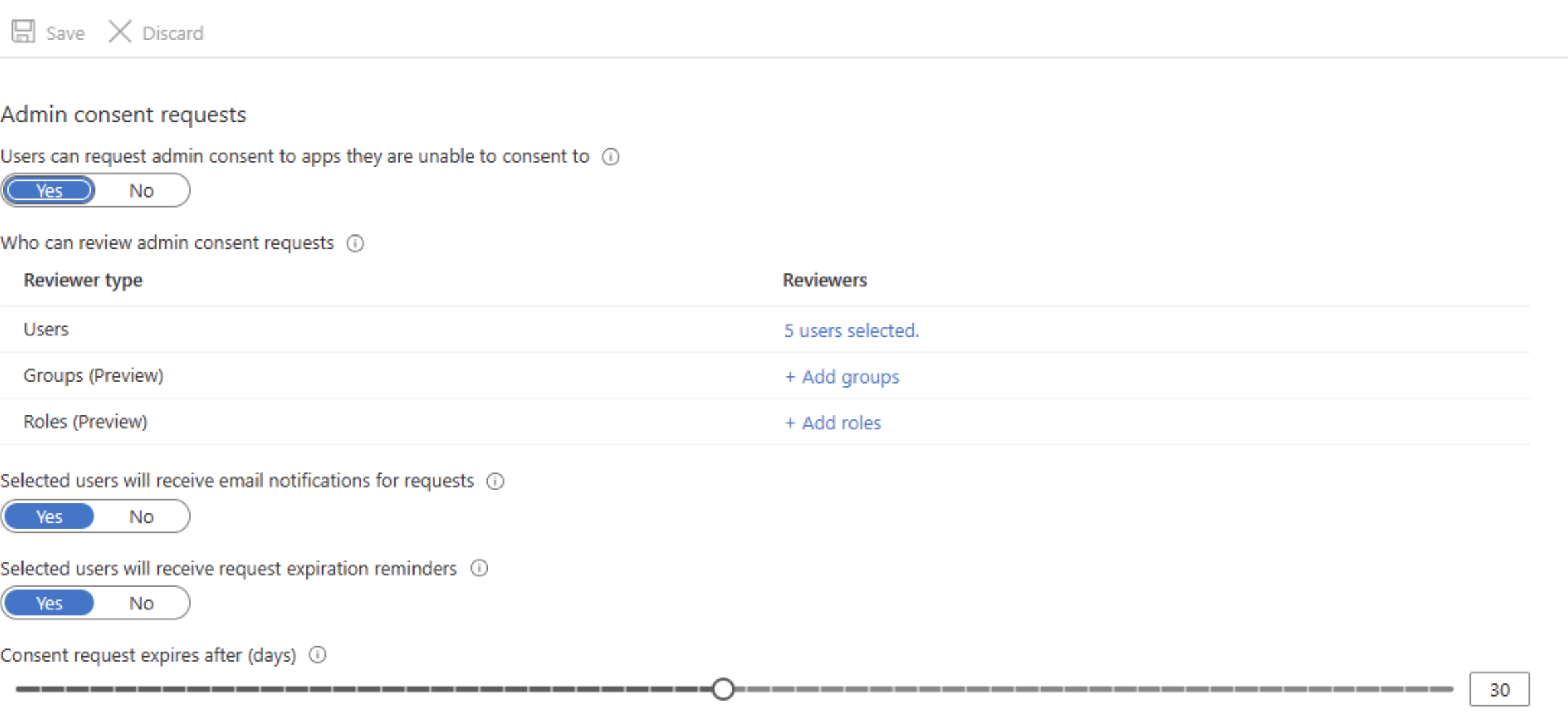
Under Admin Consent Requests, select Yes for "Users can request admin consent to apps they are unable to consent to."
-
Under admin consent requests, select “Yes” and add Intelligence admin users who can provide Microsoft Entra admin consent (typically the Global Administrator). This user will need to be the Primary user in the Intelligence Office 365 integration*.
*Note: To determine if a user is listed as "Primary" in the Office365 integration, look at the list of users in the next step under User Management, "Primary" will be listed next to a Primary user. If the user is not primary, click the three dots next to their name and select "Set as Primary User".
Configure the following settings:
▪ Who can review admin consent requests - Select users, groups, or roles that are designated as reviewers for admin consent requests. Reviewers can view, block, or deny admin consent requests, but only Global Administrators can approve admin consent requests for apps requesting for Microsoft Graph app roles (application permissions). People designated as reviewers can view incoming requests in the My Pending tab after they're set as reviewers. Any new reviewers aren't able to act on existing or expired admin consent requests.
▪ Selected users will receive email notifications for requests - Enable or disable email notifications to the reviewers when a request is made.
▪ Selected users will receive request expiration reminders - Enable or disable reminder email notifications to the reviewers when a request is about to expire. The first about-to-expire reminder email is likely sent out in the middle of the configured "Consent request expires after (days)." For example, if you configure the consent request to expire in three days, the first reminder email is sent out on the second day, and the last expiration email is sent out almost immediately the consent request expires.
▪ Consent request expires after (days) - Specify how long requests stay valid.
Select Save. It can take up to an hour for the workflow to become enabled. -
Navigate to Intelligence. Click on Settings in the left nav, select All Integrations, open the Office 365 Integration and navigate to the User Management tab. If the Microsoft Entra Global Admin’s email address is not already added on your User Management page within Intelligence, add that user and set them up as an Intelligence Admin and as the Primary User. To set someone as primary, click the three dots next to a user in the list and select "Set as Primary User".
• Set as Primary User
• Listed as Primary User
-
Have that user accept their email invitation to log in to Intelligence, then have that individual complete the steps below.
-
Under User Management, take note of any existing user connections that are disabled. Once switched to a service account those should go away.
-
Intelligence Admin with Microsoft Entra ID permissions should open the Office 365 integration from applications, navigate to Connection Settings and click on "Use Service Account". Save changes.
Optional: You can enable "Read Only Permissions" to enable read only access.
-
Under "My Connection" the Intelligence admin with Entra permissions should set up their connection. If a connection already exists, delete and reactivate the connection.
-
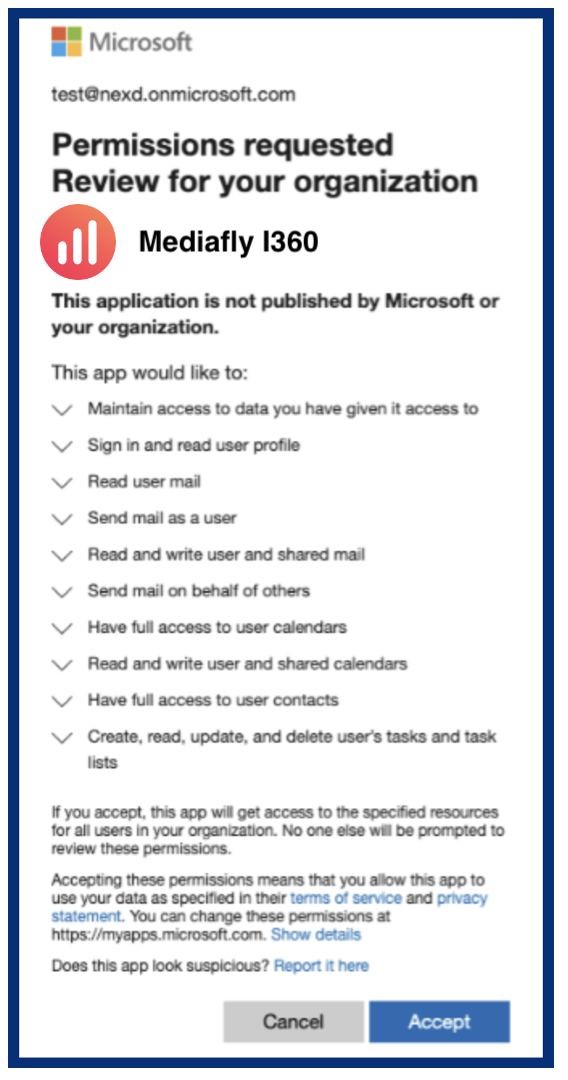
You should get redirected to a URL that looks like this: https://login.microsoftonline.com/organizations/v2.0/adminconsent that prompts the user for admin consent. The app will show up in the marketplace "Mediafly I360".
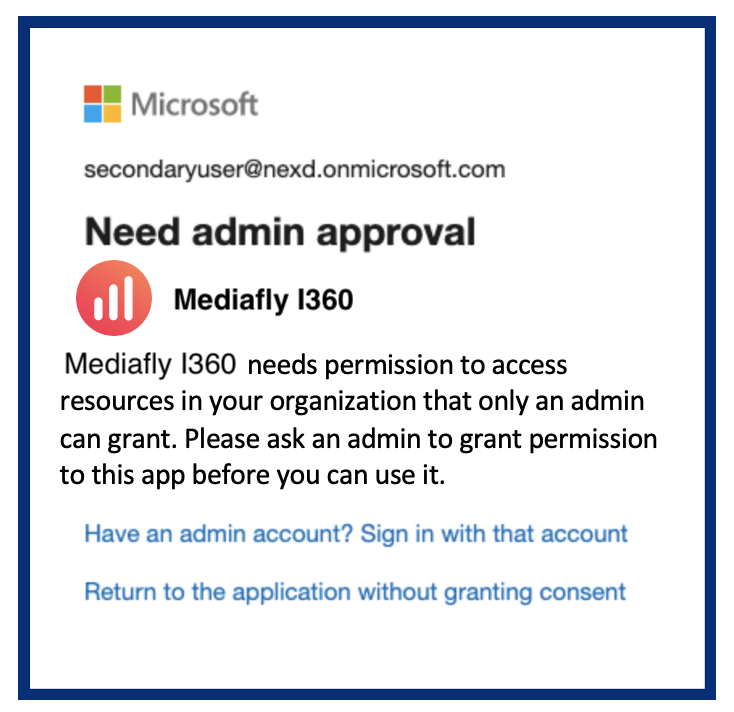
Note: Only the admin of the organization's Microsoft account is authorized to accept this. Otherwise, you’ll see a message like this:
-
You should be redirected back to the app and subsequent syncs of any already connected users should go through the service account flow.
-
Navigate to "User Management" and click on " + add/edit" to connect Platform users to the O365 integration.
-
Using the dropdown, select the emails of the Platform users you wish to include and toggle the left button to connect and sync their emails.
-
Click Save.
-
If you are setting up the integration for the first time, you're good to go! If you are switching to the service account (previously used this integration without service account enabled), click here for next steps.
Troubleshooting
Insufficient Privileges/Authorization Identity Not Found
If you see the following errors:
-
Insufficient privileges to complete the operation
-
Authorization identity not found
Complete the following steps:
-
Login to the Microsoft Entra Global Admin's portal at https://entra.microsoft.com/
-
Navigate to Identity > Applications > Enterprise applications
-
Here, you should see the Intelligence application; click on the application and navigate to Permissions and click Grant Admin Consent.
-
Accept the permissions and navigate back to our Platform.
-
If there’s still a connection for the Microsoft Entra Global Admin in Intelligence (the primary user) delete it and click “Activate” to set up the connection again. Make sure to use the same email with which admin access was granted in the Entra portal.
-
You should get redirected back to the Platform with a working connection. If you still see an “Insufficient privileges” error, wait 30 seconds and refresh the page.
Unable to Find a User Matching [email]
If you see an error “Unable to find a user matching email@company.com”, this indicates that the user does not have their Outlook account set up correctly.
Replies have been locked on this page!