


Advanced Analytics (Intelligence) is a powerful revenue intelligence platform, and can help you manage your data from your CRM effectively.
It’s common that, over time, your sales process changes. One of the most obvious ways that occurs is that opportunity stages are updated to reflect the new reality of your business. This can impact the accuracy of your historical data, such as stages that used to exist but no longer do.
We provide the ability to map old historic stage values to your “new” stage values, restoring the accuracy of historical reports and machine learning models:
-
Pipeline History By Stage
-
Opportunity Funnel Conversion Rates
-
Opportunity Progression
-
Opportunity Timeline/Activity (deal progression inspection)
-
Confidence to Close Machine Learning Model
How it Works
Example: You want to take an old stage like “01 - Discovery” and map it to your current stage “01 - Qualification”. After mapping, any deal that went through “01 - Discovery” will now show that it went through “01 - Qualification” instead. It’s that simple!
Considerations:
-
You can only map inactive historic stages to current active stages
-
You can only map a inactive history stage once, to a single current stage
-
You should map all historic stages to current stages, or reports may not match expectations
How do I set it up?
-
Mediafly users: Go to Administrative Settings > Report Management, proceed to step 2.
Revenue Intelligence only users: Go to Settings - Select All Integrations
-
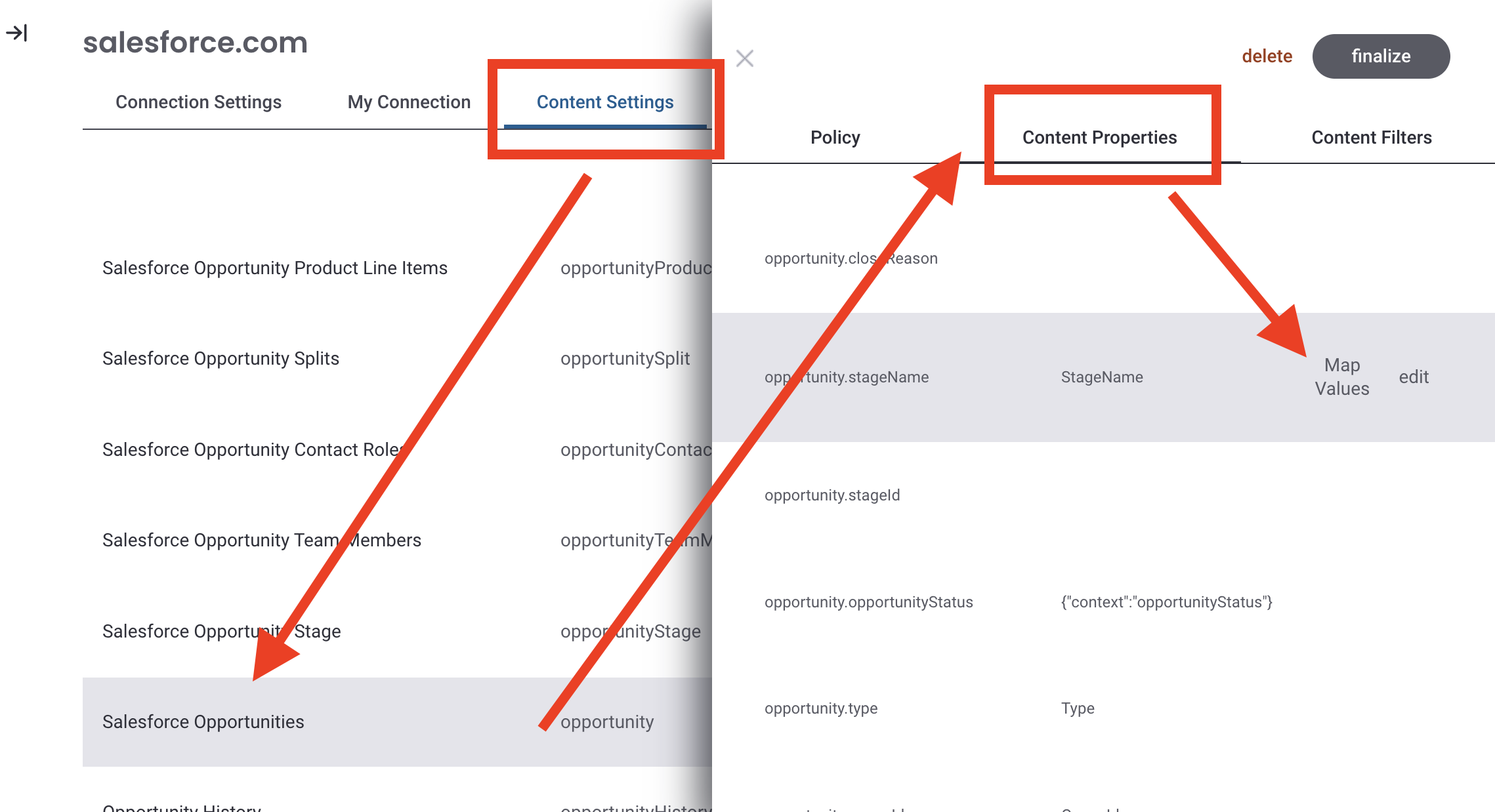
Once your CRM application is open, click the Content Settings tab
-
Search for then select your CRM's opportunity policy, then click on the Content Properties
-
Hover over "opportunity.StageName” in the property list and select Map Values
-
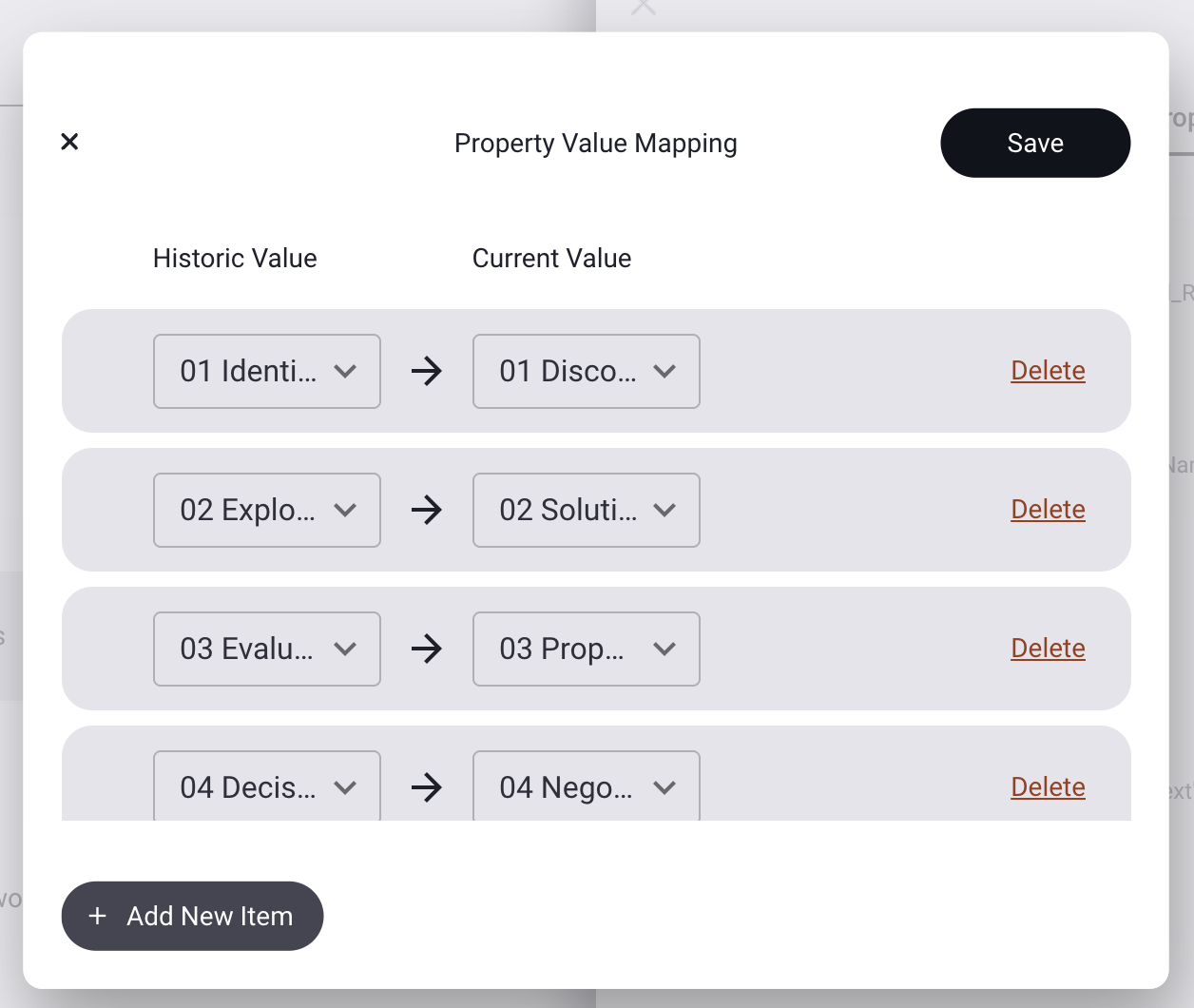
This window is where you'll map the values from “old” to “new, start by clicking Add New Item
-
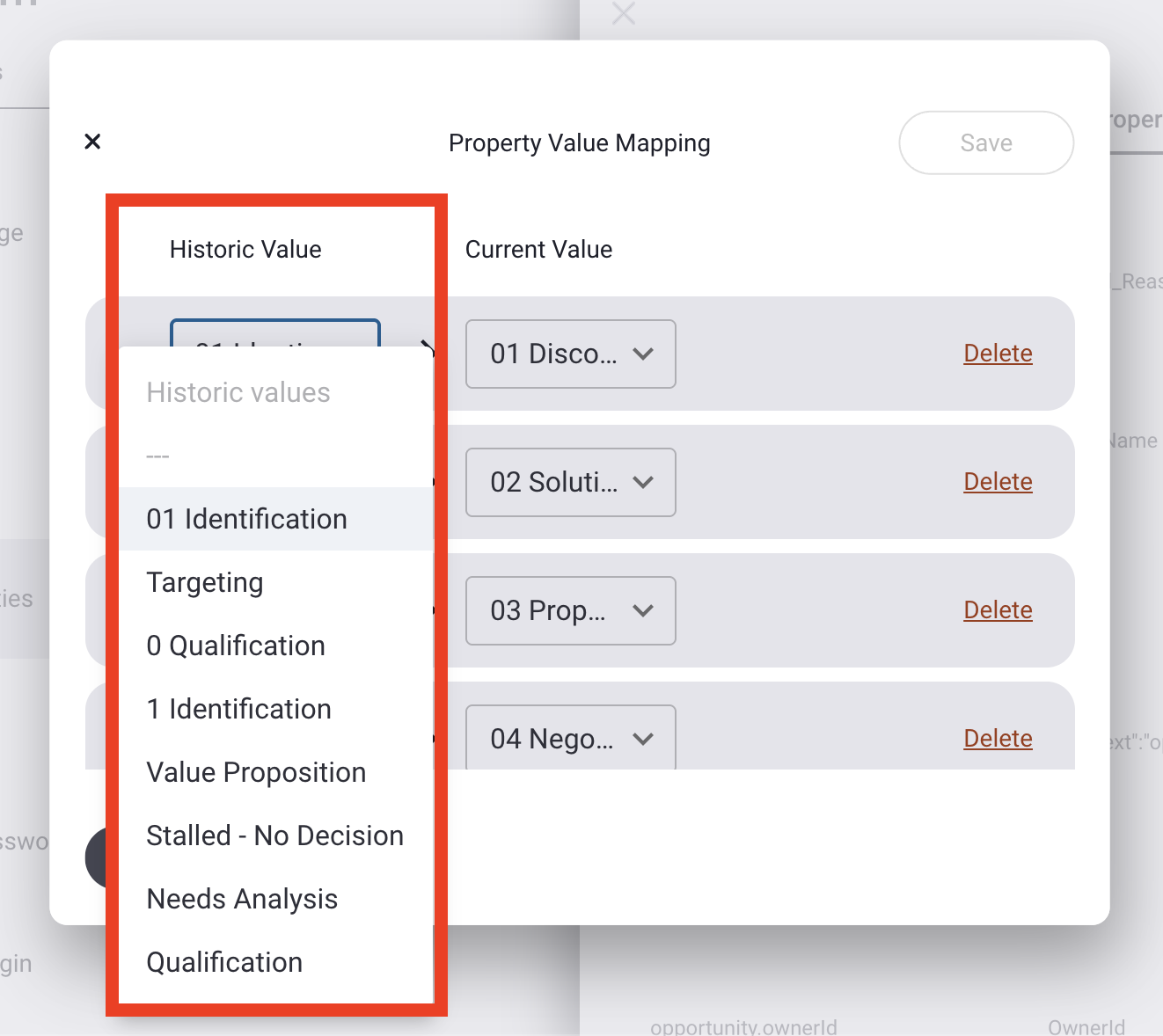
Click on the Historic Value dropdown to see the available inactive stages names (you can select each one once) and make your first selection
-
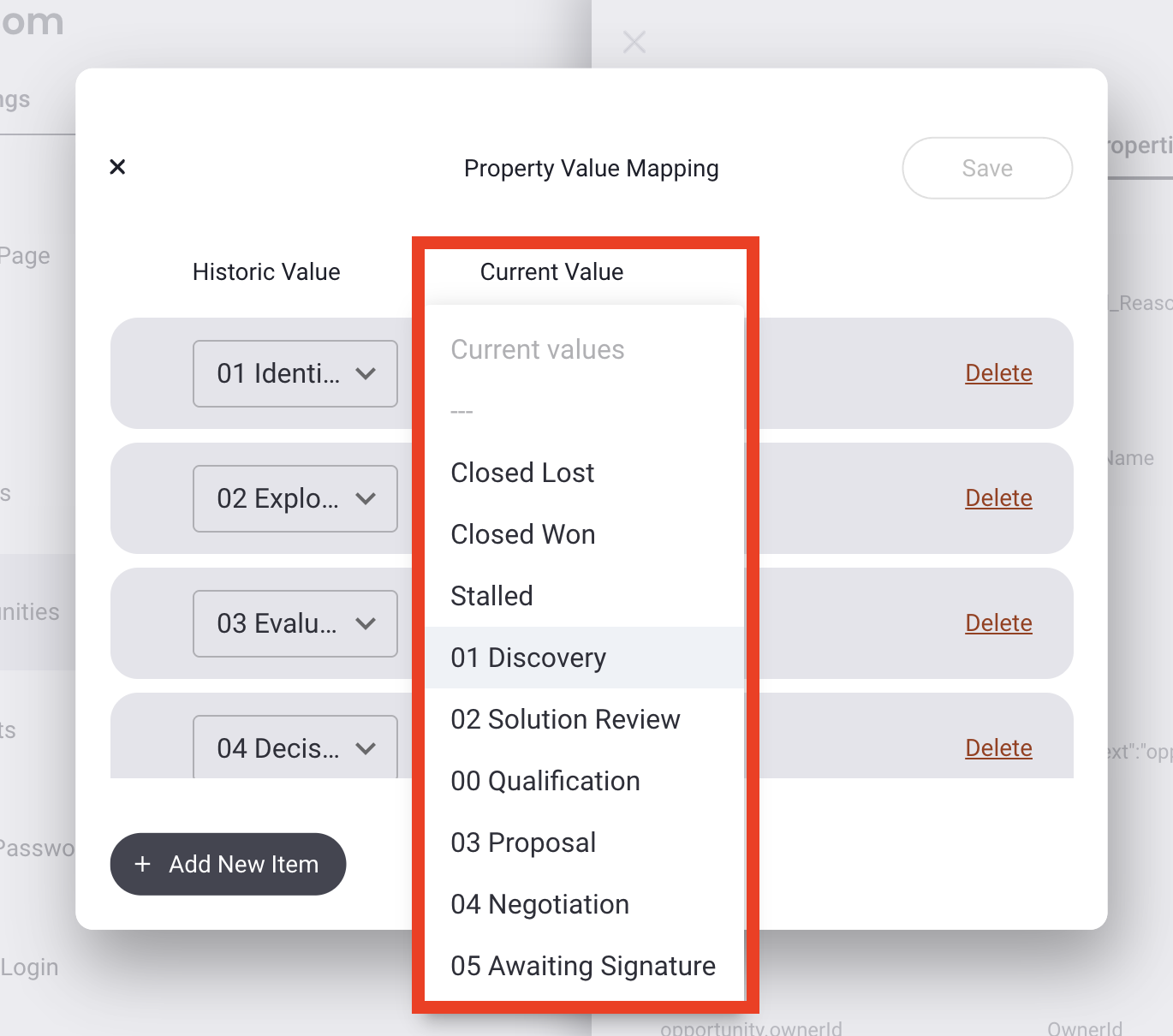
Once you pick the historic stages, you can select from the Current Values dropdown which of your current active stages you want to map it to.
-
Complete mapping all the old stages to new stages, then click Save.
-
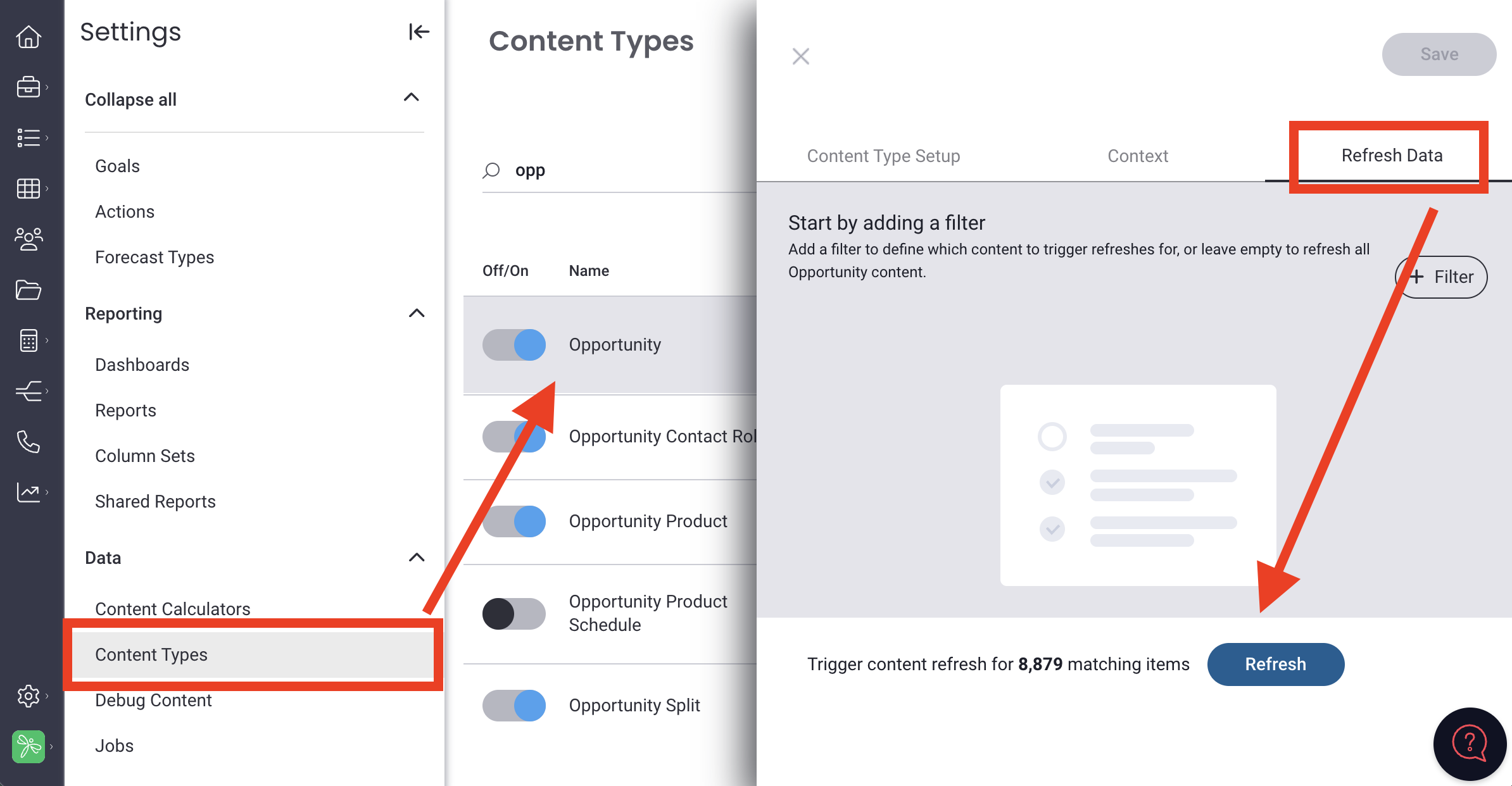
Now that the mappings are complete, let’s regenerate clean historical data. We can do that via the opportunity refresh process:
-
Go to Settings
-
Content Types
-
Opportunity
-
Select the Refresh Data tab
-
Refresh
-
-
You're done! You can monitor the status of the data refresh from the jobs page (Settings > Jobs). When the progress shows all opportunities were refreshed, everything should be updated.
Notes
-
Verify you have an accurate list of active opportunity stages (if it doesn’t look right, open a support ticket)
-
Historical filters will still show the inactive stage values, but reports will be correct.
Replies have been locked on this page!