


Intelligence provides inline, interactive inspection capabilities for any CRM record on a report. From any report, you can drill into a record's details and access all of its related content.
You can view every field from the CRM, as well as all the fields that Intelligence calculates. You can read more about that here in the "Content Properties and Types".
Note: Different content types provide different details, but every content type provides the default list of fields from the CRM, enriched with extra data from Intelligence.
- View Record Details & Related Content
- View in CRM
- Update Record
- View Recent Actions
- Run Instant Actions
- Details Search
View Record Details & Related Content
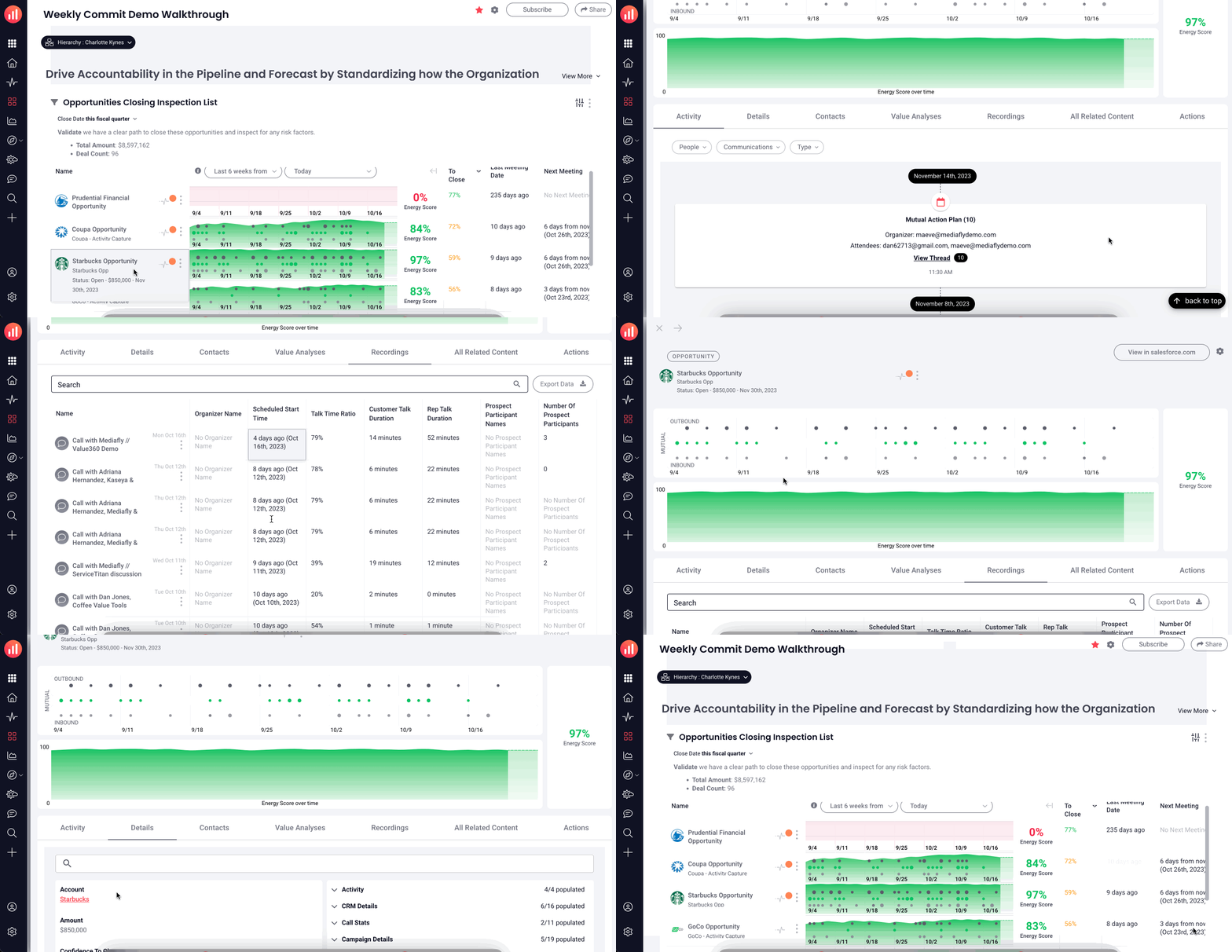
-
Click the record icon OR any blank space in the record to open the details drawer.
Note: clicking directly on the record name will open the details in a new window, this window will behave exactly as the expanded detail drawer without the "back" button.
- Once you've clicked the icon, a details drawer will open; this is an overlay on the right of every report that will display the default details. If you see the details you need, you can stop here and inspect the data you're after. If you want to see a little more...
- Click Expand Drawer (left arrow icon) to expand the detail drawer and view even more related content tabs.
For example, a scatter plot activity graph, related call recordings, actions, etc. Clicking on one of these content tabs will allow you to drill into additional content types with data related to the record, and even into individual pieces of content for even further inspection. For example, if you visit the Recordings tab, you can access a specific recording with all of your regular call access; like listening, sharing, or coaching. All content related to this record in one place!
- To get back to the smaller detail drawer, you can click Collapse Drawer (right arrow icon) or click the X to close the drawer completely and return to the original report.
So you've just inspected a report, drilled into a single record and all of its related content...and never really left the report itself.
What else can I do?
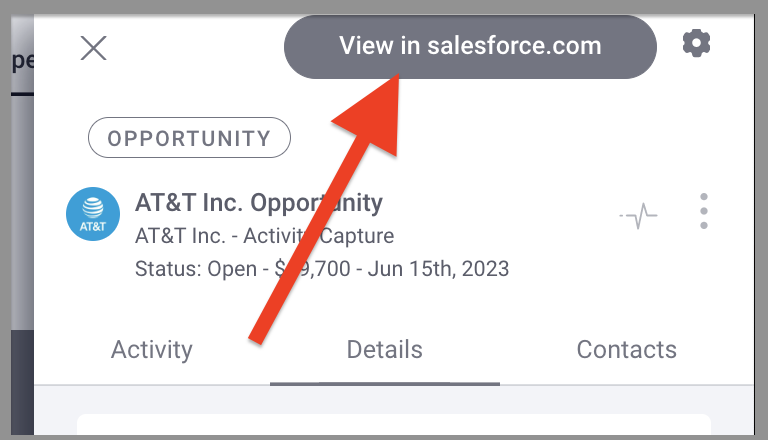
View in CRM
Click this button to open the record in your CRM.
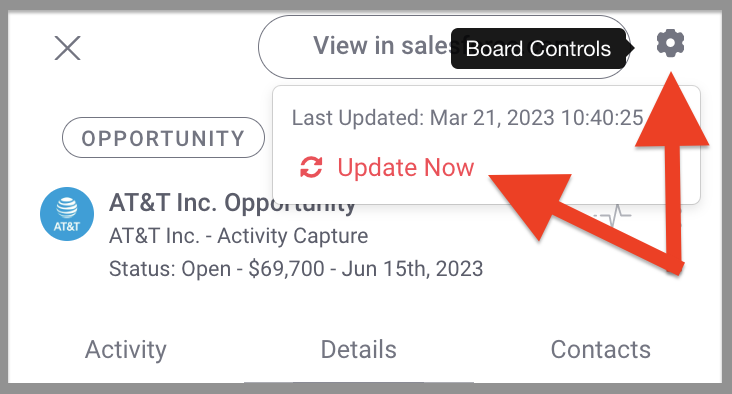
Update Now
Click the gear in the upper right to immediately update any record.
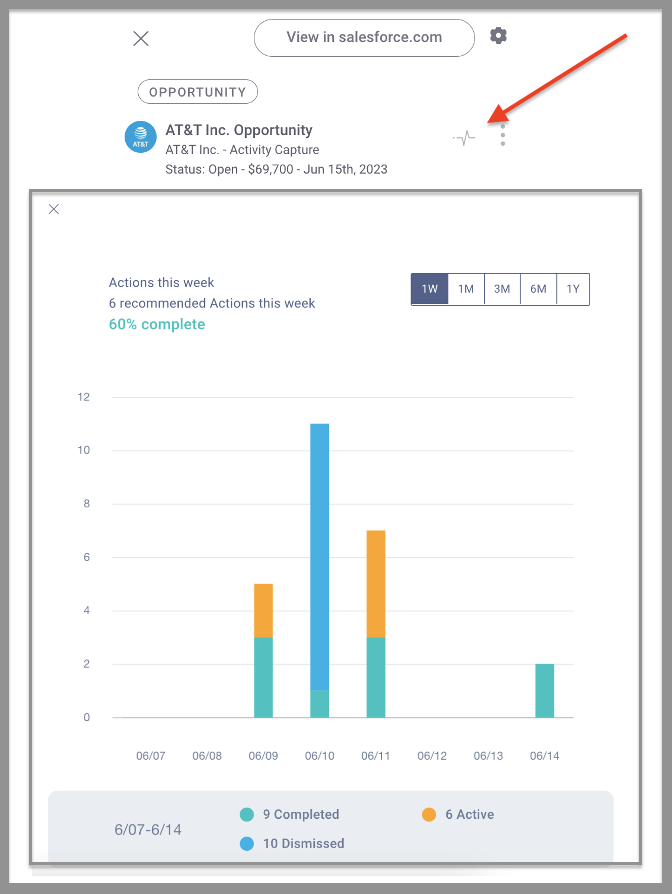
View Recent Actions
What are all the actions that exist or have run against this record? The actions "heartbeat" show all actions that are open or have been completed for this CRM record. (The actions view is also available in the expanded drawer under the Actions tab.)
Run instant actions
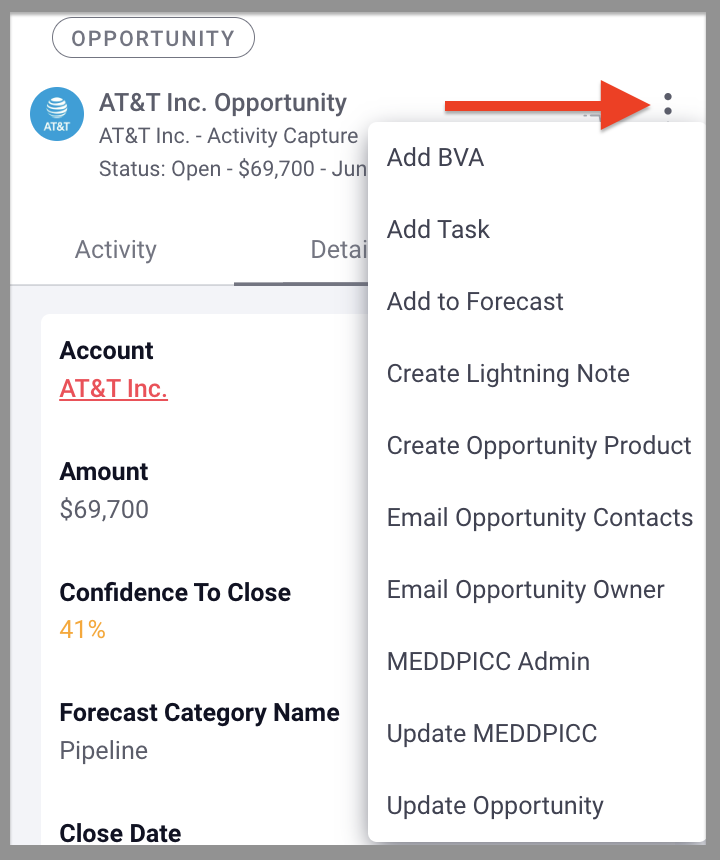
Click the triple dots to take action.
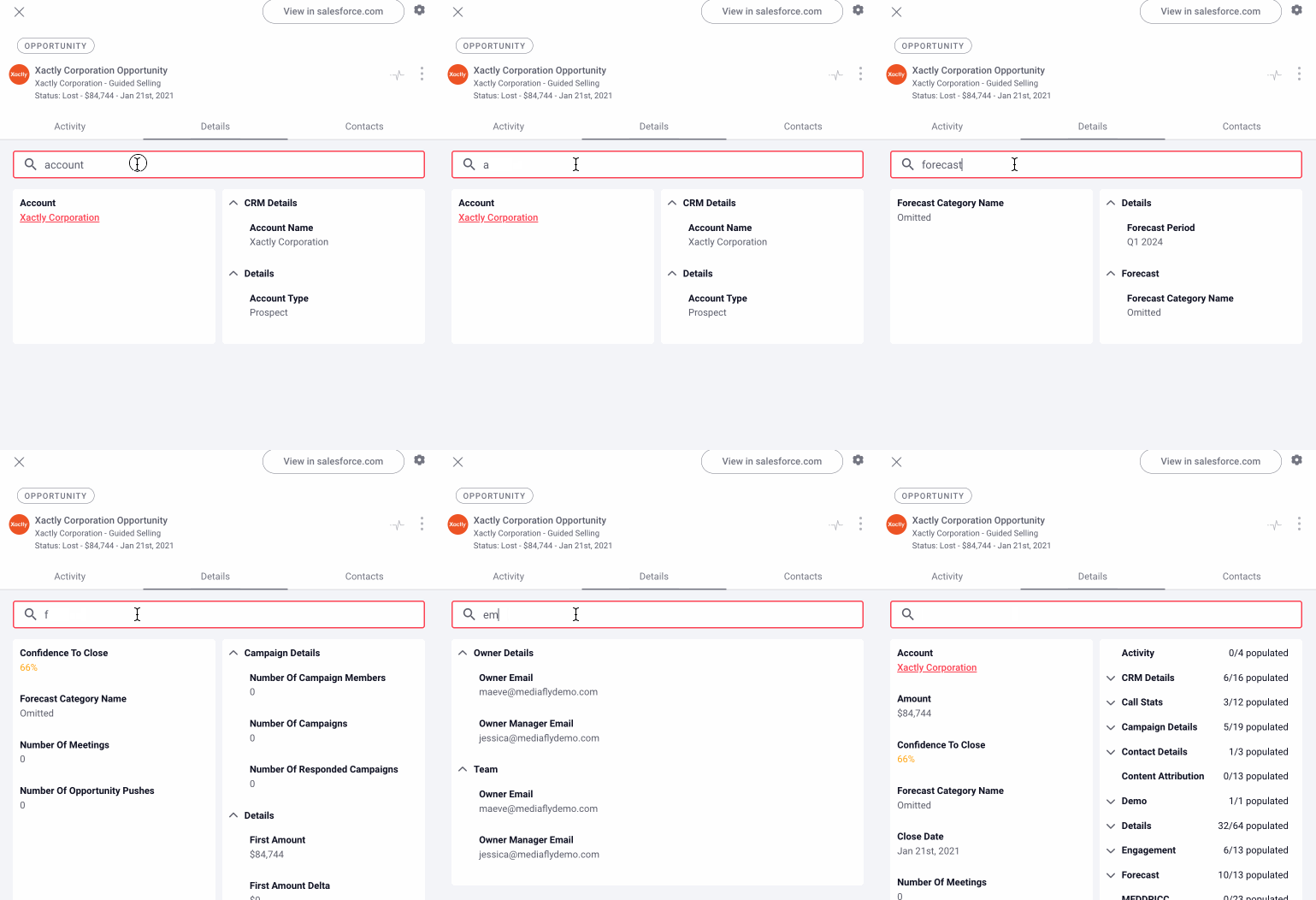
Details Search
Replies have been locked on this page!