


Intelligence provides inline-interactive inspection capabilities for any CRM record on a report. From any report, you can click into and view additional record details.
Note: Different content types provide different details, but Accounts / Opportunities / Contacts / Leads / People content types provide a list of related activity, enriched with extra data from Intelligence.
Jump to:
Viewing the record details from a report
Viewing the record details from a report
- Click the icon or any blank space of the record.
- Once you've clicked the icon, the details pane will open, this is an overlay on the right of every report.
- Click the Activity tab to view all the related activity for a record. The activity tab will show the engagement with the most recent first, then moving back. Don't see the Activity tab? Try clicking Expand Drawer (left arrow icon) to show more related content types.
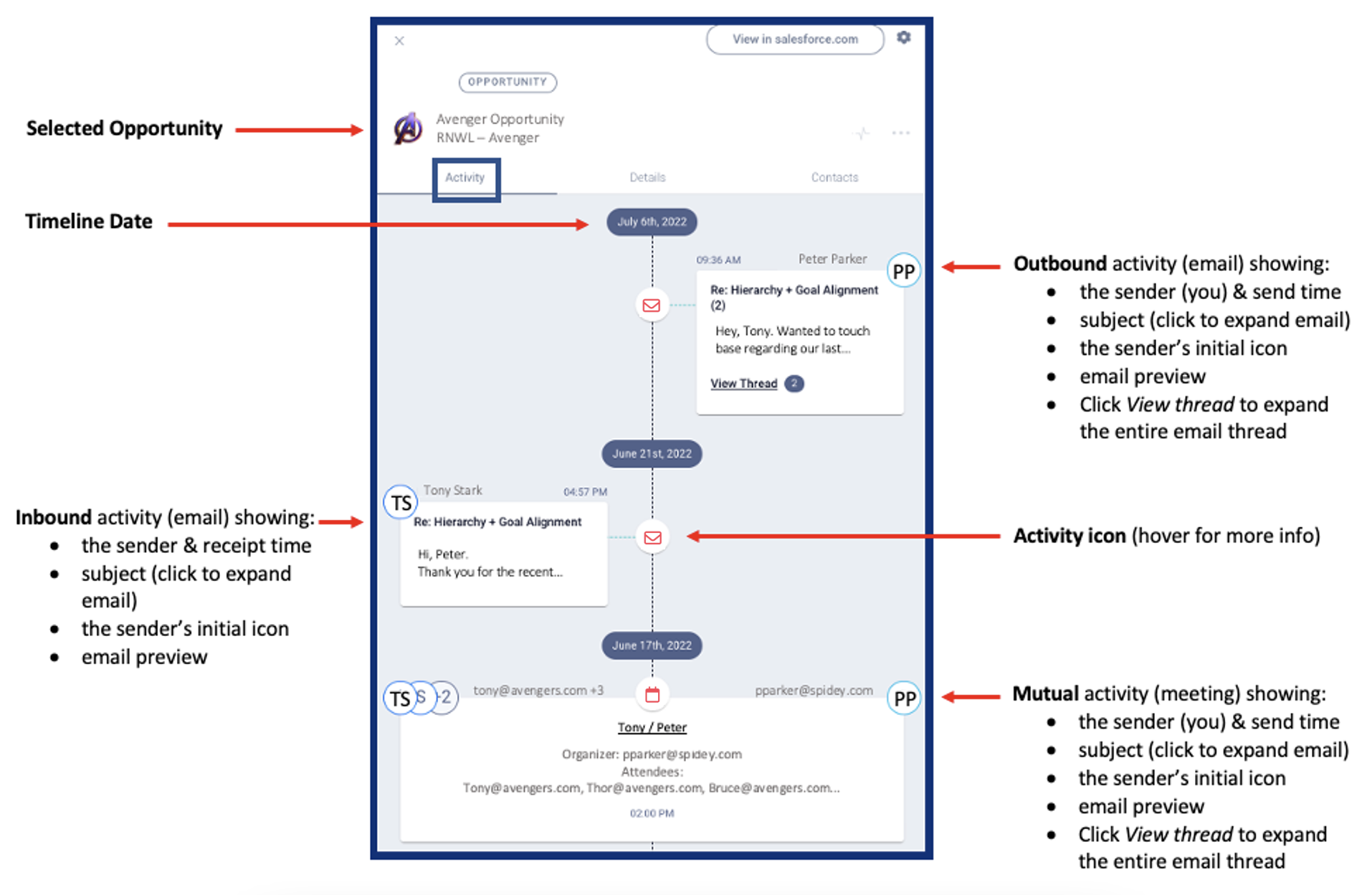
This view differentiates, in chronological order, inbound/outbound/mutual activities by position and includes activity related data and the option to expand for even more information.
-
Left: inbound (ex. you'd see emails you've received here)
-
Right: outbound (ex. you'd see emails you sent here)
-
Middle: mutual activities (ex. meetings you & your customers both attended)
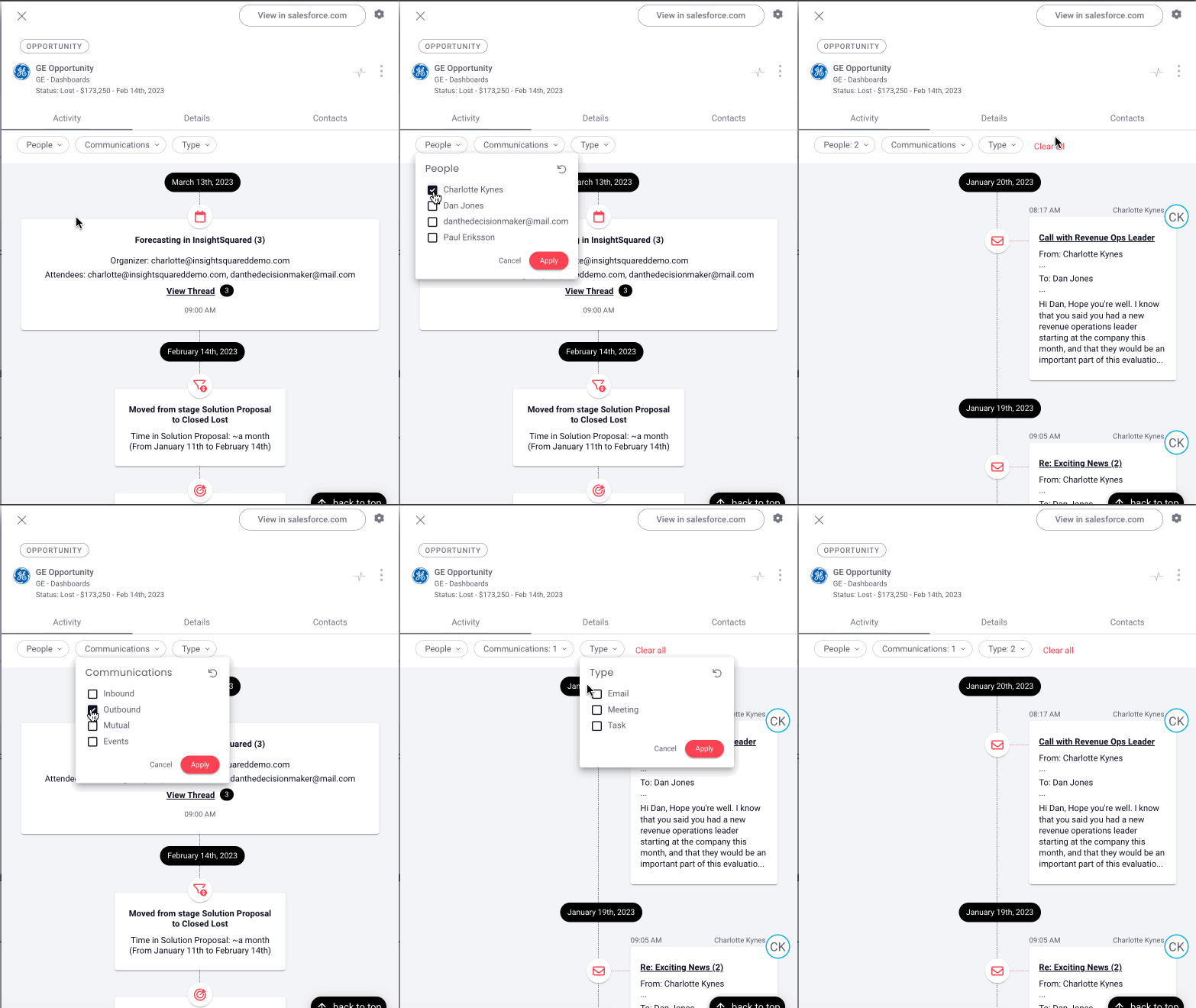
Pro tip: Click View Thread to expand the timeline of an entire thread and click on the subject to expand the individual activity!
Activity Feed Filters
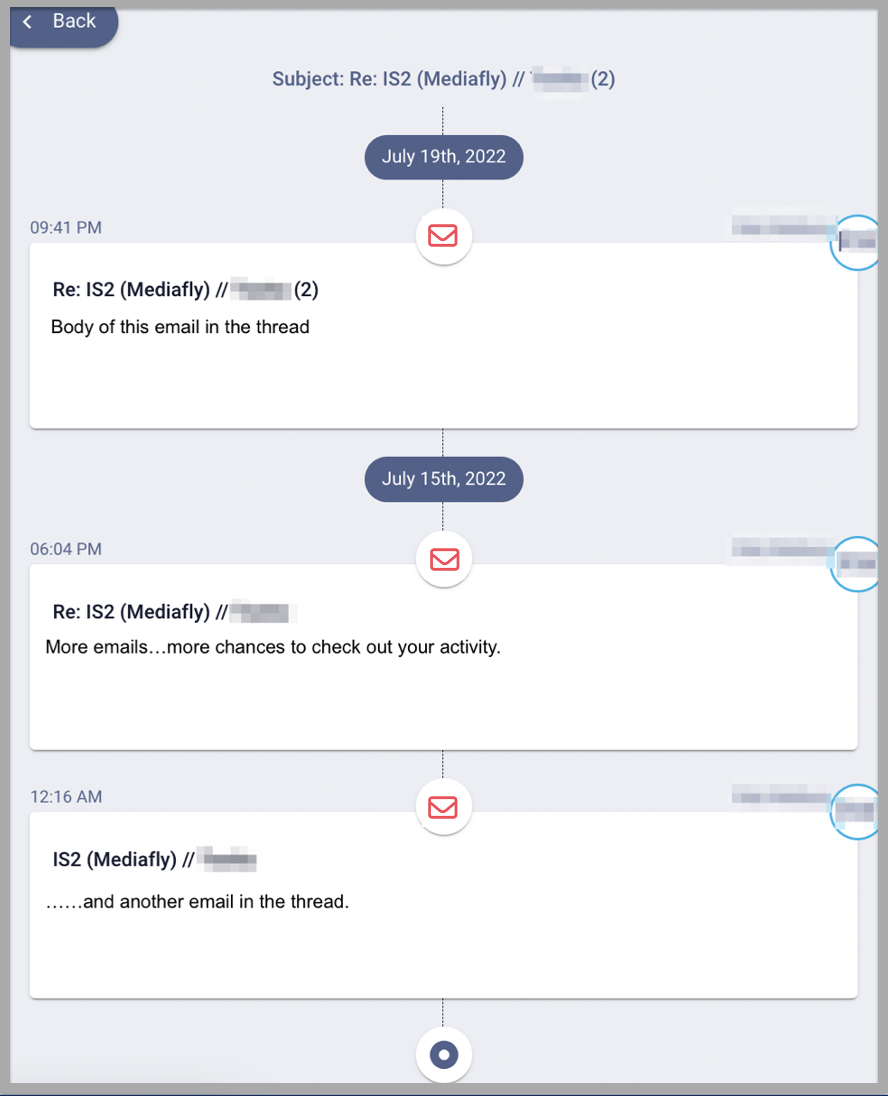
You can specify your search in the activity feed filter by People, Communications and/or Type. The activity filters populated will be based on the activities configured in your instance. This makes it quick and easy to find the activities you're looking for,
- People - Select a person or multiple people from the hierarchy to narrow down activities by person
- Communications - Filter activities by the type of communication that occured; Inbound, Outbound, Mutual, Events
-
Type - Filter by activity types such as email, meeting, task, etc.
Activity Icons
In your activity inspection, you'll see that each activity has an icon next to it that's there to help you easily identify what type of activity you're looking at. These are the activities (and their icons) that you might see:
|
Icon |
Description |
 |
Account |
 |
Amount (increase / decrease) |
 |
Attachment |
 |
Campaign |
 |
Campaign Member |
 |
Candidate |
 |
Close Date (pushed / pulled) |
 |
Closed Lost |
 |
Closed Won |
 |
Contact |
 |
Content Share |
 |
Content Share View |
 |
|
 |
File |
 |
Job Order |
 |
Job Submission |
 |
Lead / Lead Status |
 |
Meeting |
 |
Note |
 |
Opportunity |
 |
Opportunity Products |
 |
Placement |
 |
Recording |
 |
Sendout |
 |
Stage |
 |
Task |
Replies have been locked on this page!