


Creating & Editing Templates
Admin can create and manage workspace templates, controlling who has access to provide users with structured, flexible layouts, that ensure consistency and efficiency. With placeholders, admins define key sections while allowing users to easily customize content, streamlining workflow and collaboration.
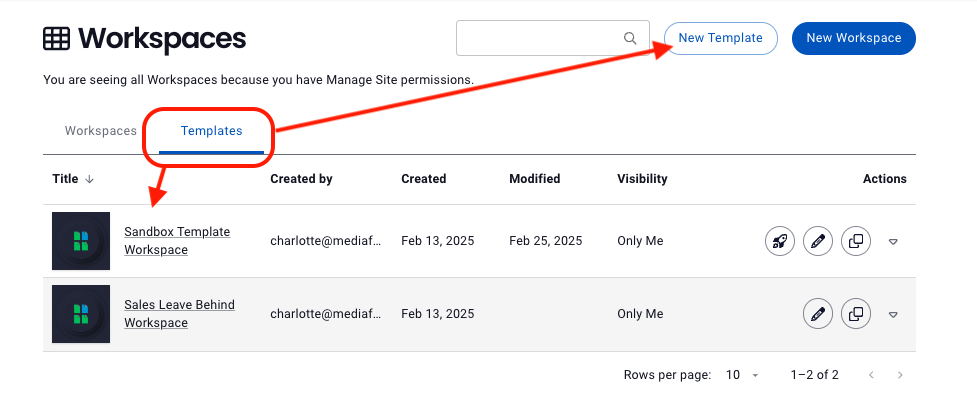
- Go to Workspaces > View All Workspaces > Select the Templates tab, then:
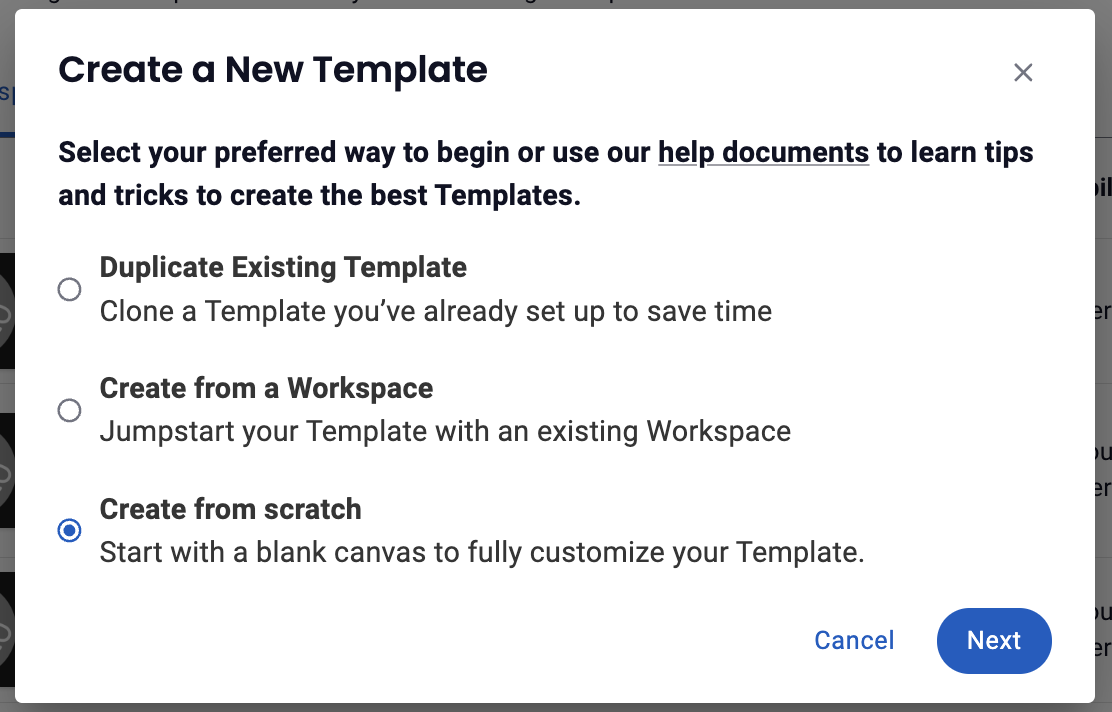
▪ Select New Template to duplicate an existing template, create from an existing workspace or create from scratch OR
▪ Select an existing template to make changes to an existing template and skip to Step 5 - If you've selected New Template, select your preferred way to begin (duplicate existing template, create from a workspace, create from scratch) and click Next
- If duplicating or creating from an existing workspace, select the existing template or workspace you want to work from and click Next
Note: You can also create a template directly from an existing workspace by opening the workspace, clicking the three dot menu in the top right, then selecting + Create Template from Workspace
- Name your template and click Create Workspace
- Use the Workspace Editor to edit or create your template & set permissions in Collaboration to determine which users can create a workspace from this template.
-
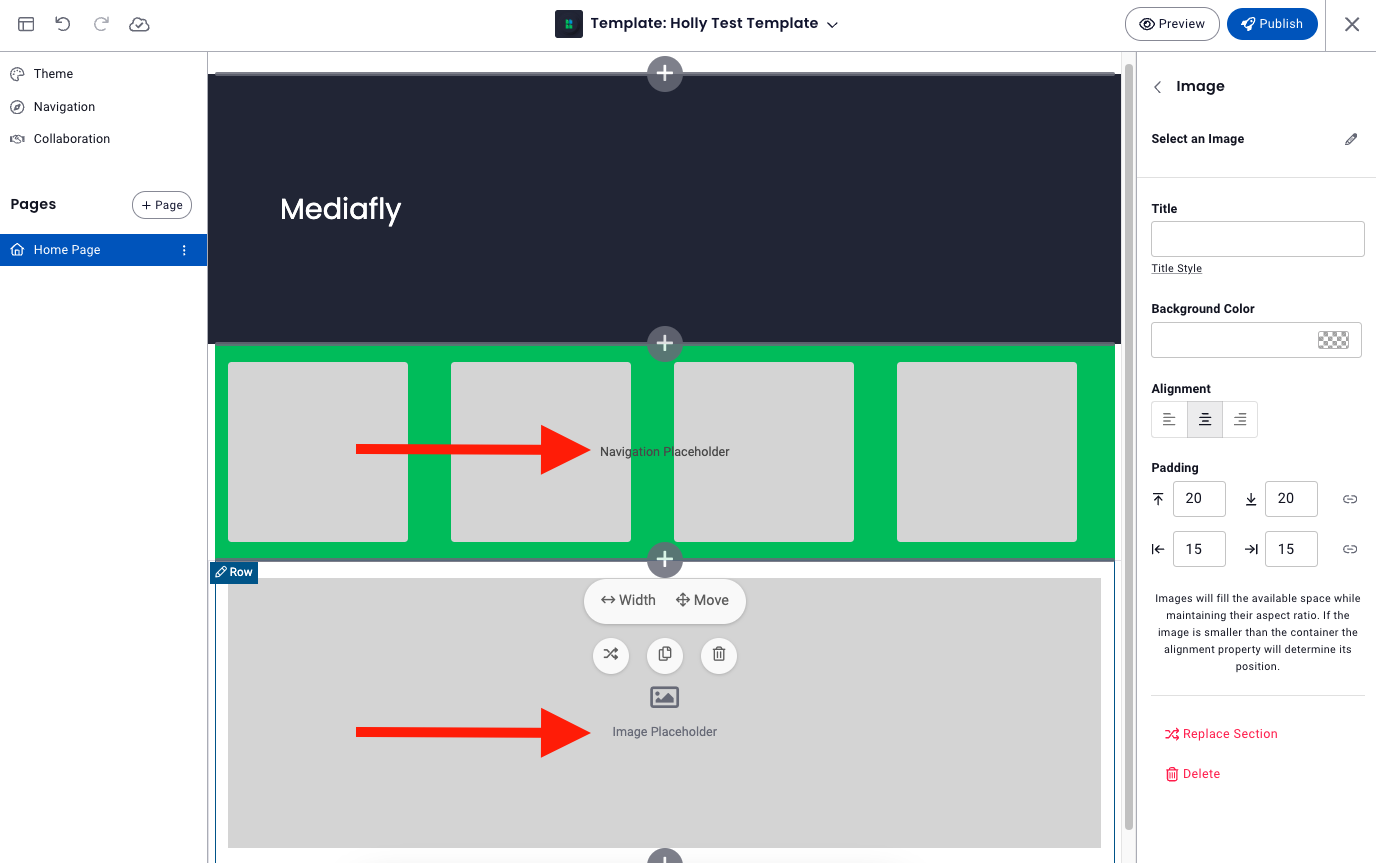
Placeholders (optional): Using placeholders in templates allows you to define a workspace structure without requiring specific content upfront. This makes it easy to create reusable templates that maintain consistency while giving users the flexibility to customize each instance as needed. By leaving placeholders instead of fixed content, users can quickly input customer- or task-specific details without having to modify the template itself, ensuring efficiency and adaptability for repeated use.
To set a placeholder, simply add a section and select the section type. You can customize up to the point you want, like setting a navigation background color to match your brand. This makes it quick and effortless to structure templates exactly as needed while keeping them flexible for different use cases. When someone uses the template to create a workspace, they'll see the placeholders and be able to update as needed.
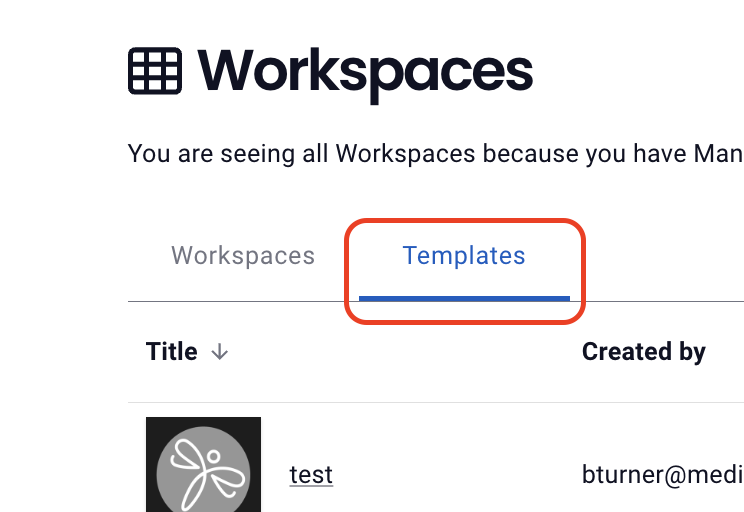
Note: Users cannot publish workspaces that contain placeholders. Before publishing, they will be prompted to edit these sections to ensure customer-facing workspaces include the necessary content. - The template will be available to those with permissions to use it in the template library either when users are creating workspaces or can be accessed by clicking Workspaces > View All Workspaces > clicking on the Templates tab
Replies have been locked on this page!