


Users may access the Mediafly app on iOS devices. For Android users the Mediafly platform is best utilized through the web viewer on your device. This gives you an easy way to access, view, and even share files from your Mediafly environment while on the go!
Downloading the Mediafly App
Download Mediafly App for iPhone
- Open the App Store
- Browse and select Mediafly
- Tap Get and then Install
- Follow the on-screen instructions
Note: Users may also search and download Mediafly Classic, which uses the classic interface.
Logging into Mediafly
1. Specify the company code to access your environment.

2. Sign in with your respective access method.
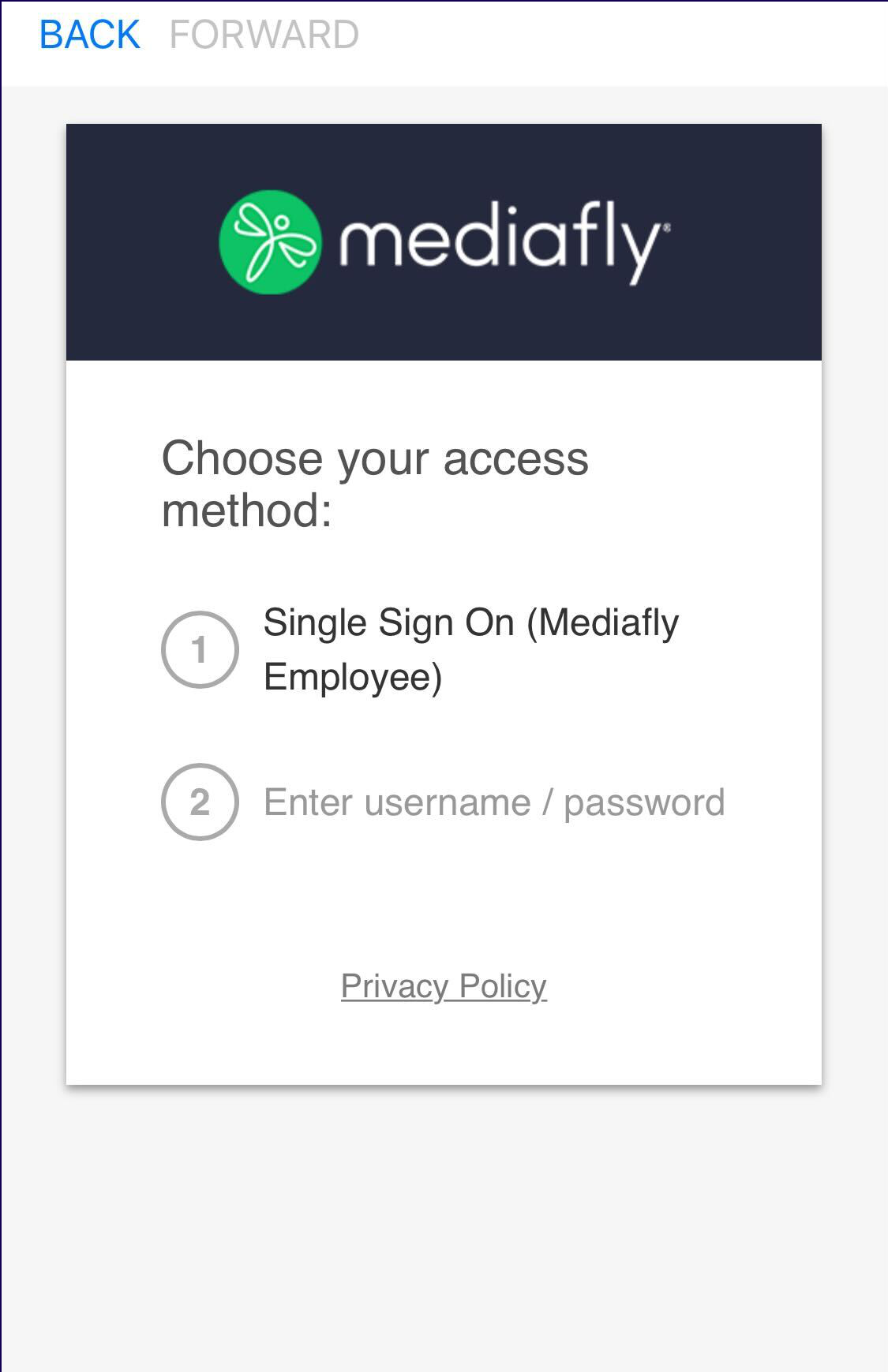
Using Mediafly in iOS
1. Once log in, you will be directed to the homepage. Navigate through the home page as you would in the site.
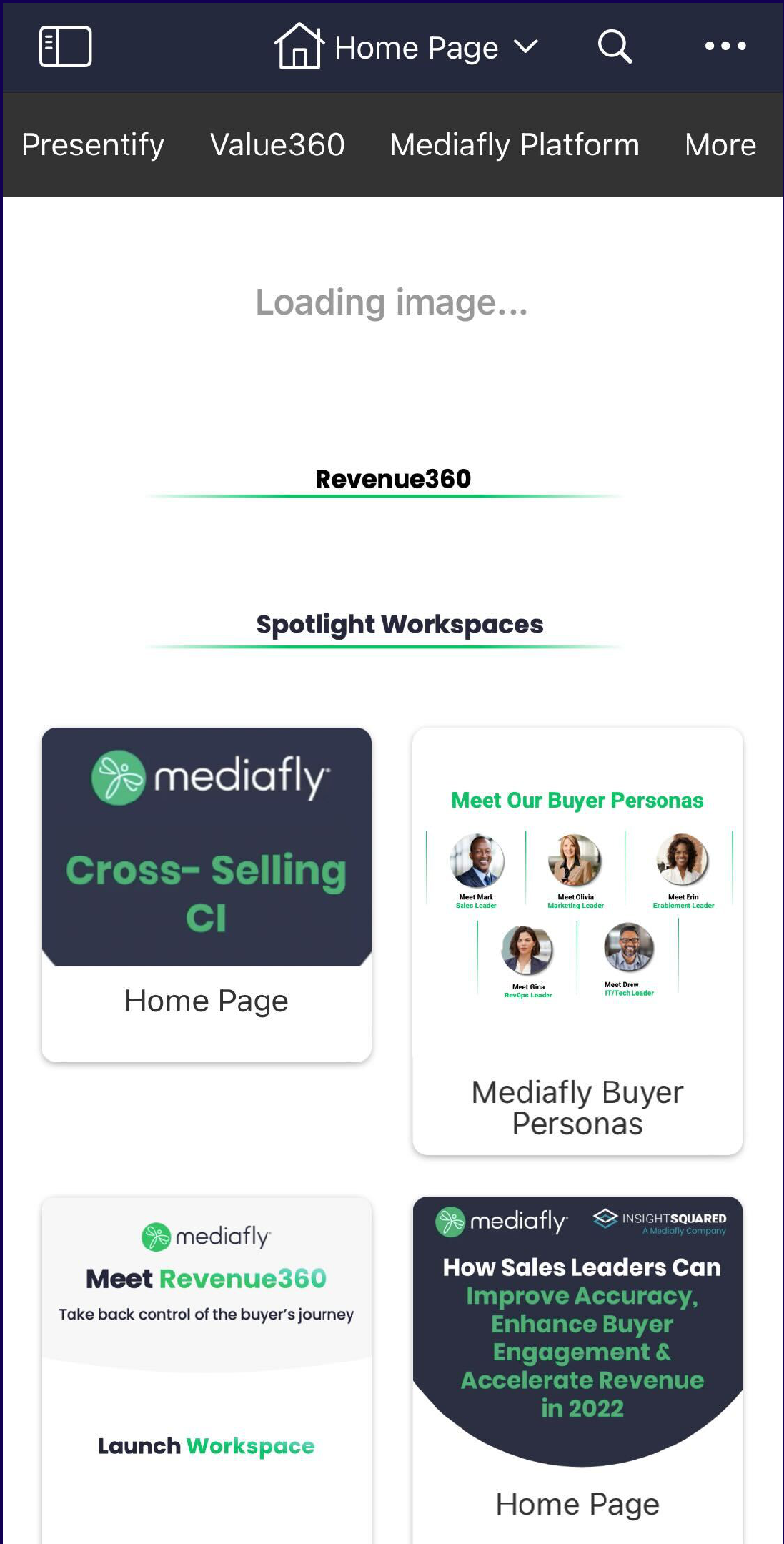
2. Click on the 
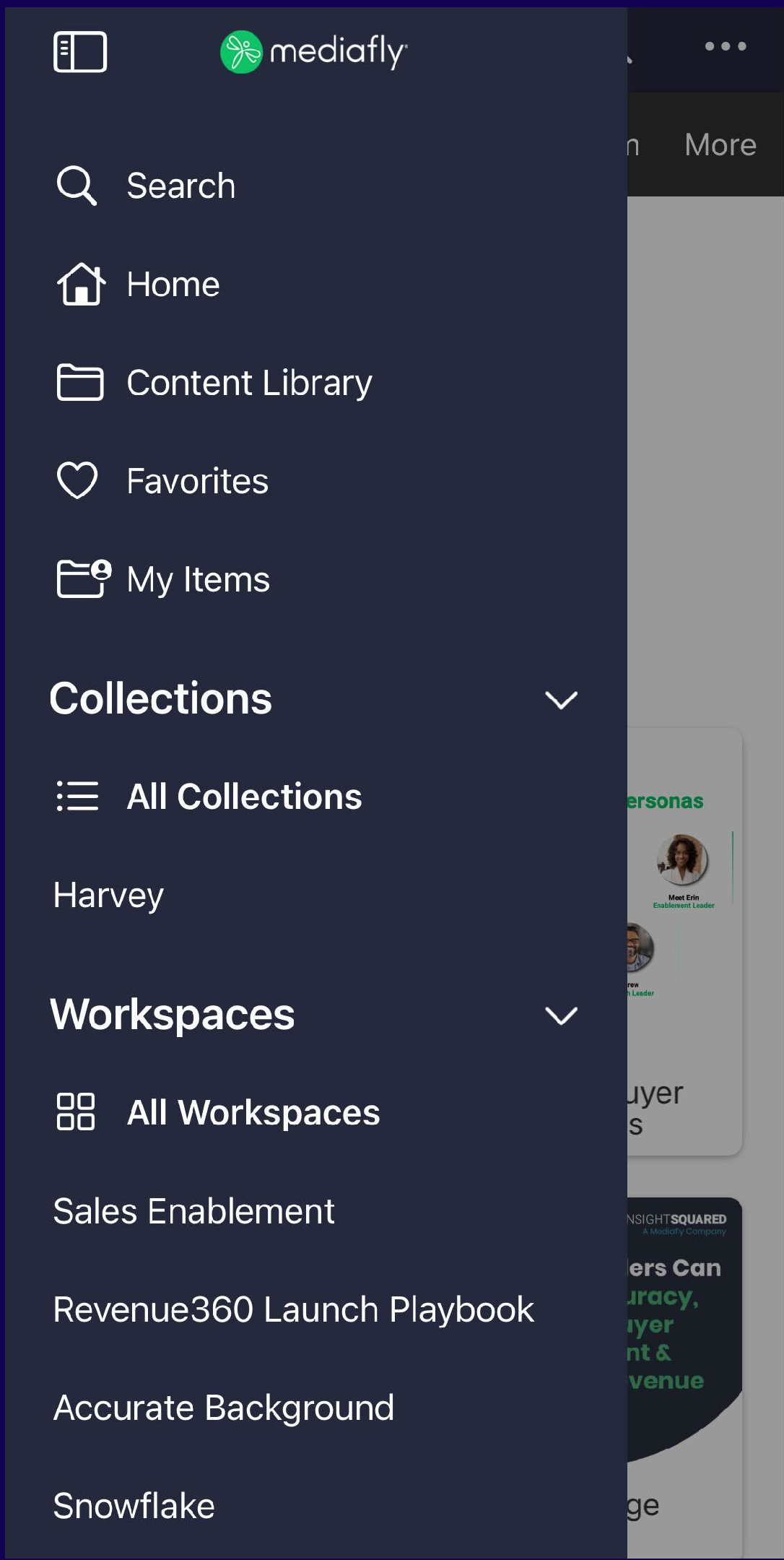
3. You can view all items, access workspaces, and share items in the app as you would accessing on the computer. You may download files so that you can access them offline.
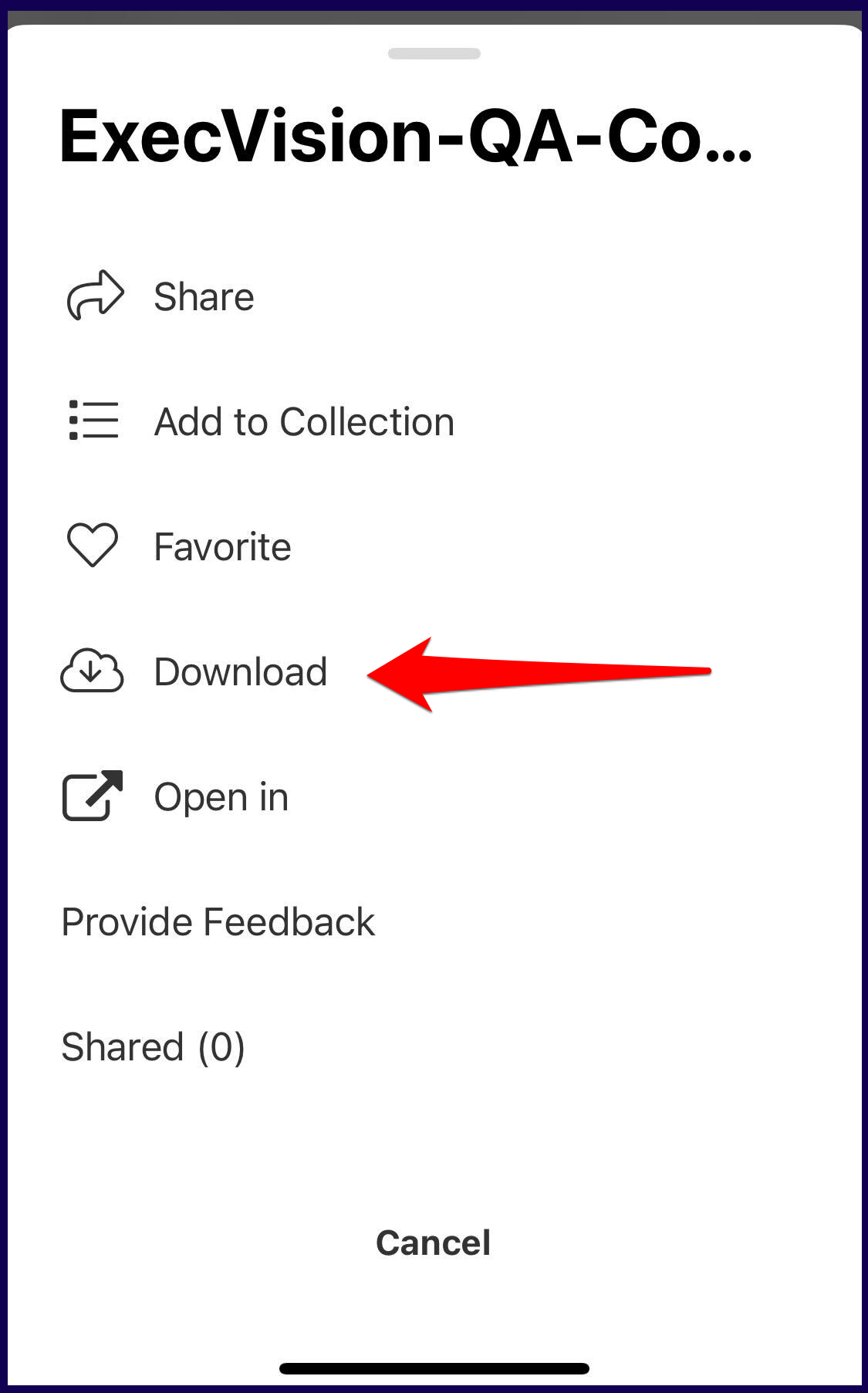
To download items in the mobile app:
- Locate the item you want to download. Click on the three dots next to the item you want to download.
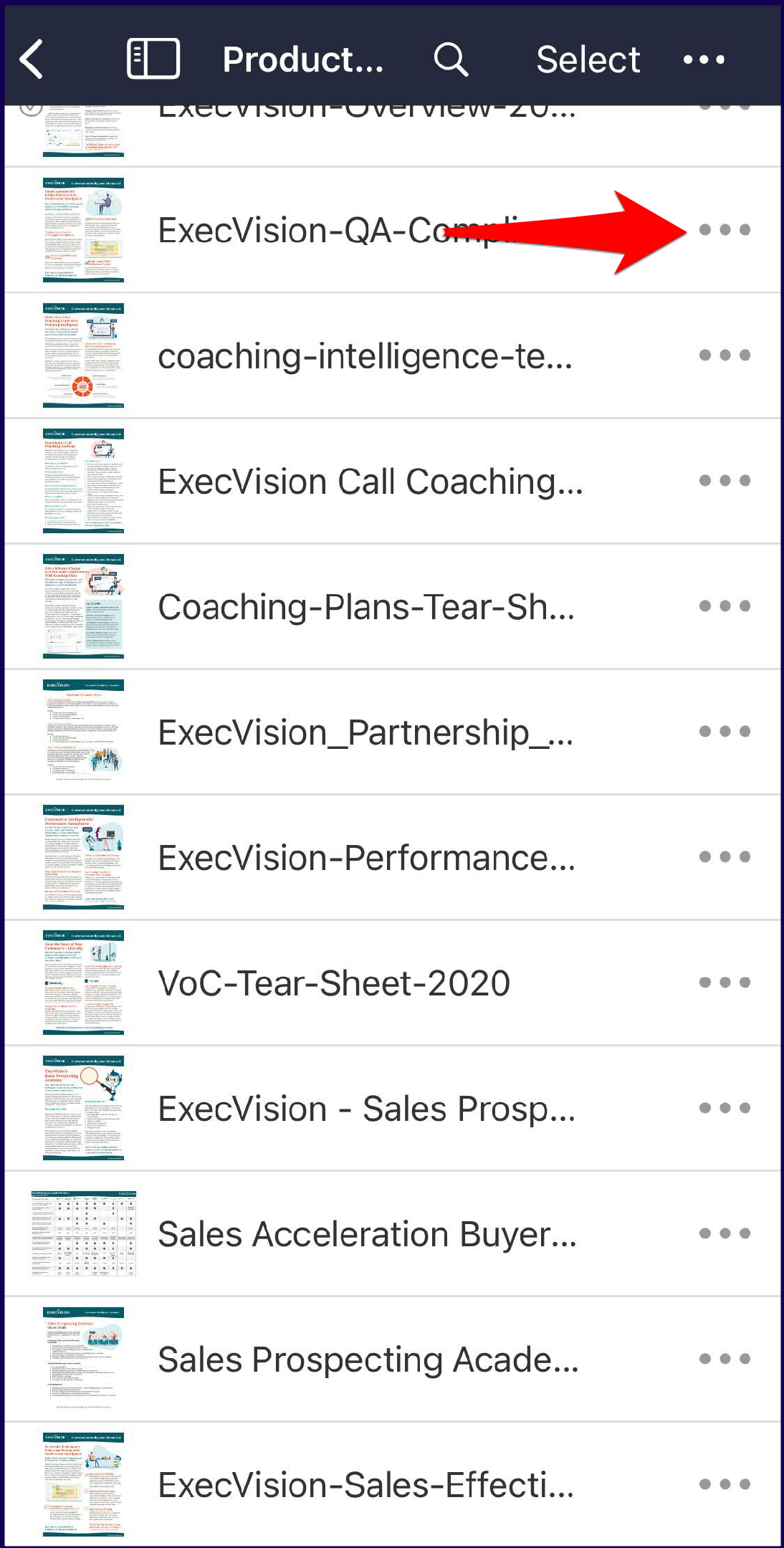
- The details of the file is displayed on a new window. Click on the download option.
- Files that have been downloaded are marked with the
icon, while files that are currently being downloaded are marked with the
icon.
4. Accessing Mediafly on mobile devices puts certain limitations as to what you can do in the app, compared to accessing them in a computer. See the a full list of the capabilities and limitations of the app.
Replies have been locked on this page!