


SAML enabled Single-Sign-On (SSO) allows users to log in once and use the same credentials to log into other service providers. In order to simplify the user experience and enhance the security of our platform, Revenue Intelligence supports single sign-on (SSO). Here we will outline the necessary steps, by both parties, to enable SSO access.
Jump to:
What You'll Need
Before you get started, there are a few terms you'll need to know when connecting to other service providers, and sometimes those terms differ based on the provider. This table will also show you what information you'll need to get from your IdP and what information you'll need to enter into your IdP. Here's everything you'll need:
| Name Listed in our UI | What is it? | Sometimes known as... |
| Single Sign-on URL |
This is the Intelligence URL that the IdP should send SAML assertions to.
Enter this into your IdP’s configuration. |
|
| Service Provider Issuer (note: not in our UI) |
Use the string “olono”
This is the unique string that is used to identify Intelligence.
Enter this into your IdP’s configuration. |
|
| Identity Provider Single Sign-On URL |
This is the IdP URL that Intelligence will send SAML authentication requests to.
Get this from your IdP. |
|
| Identity Provider Issuer |
This is the unique string that is used to identify your IdP.
Get this from your IdP. |
|
| X.509 Certificate |
This is the public certificate that matches the key your IdP will use to sign or encrypt SAML assertions. It allows us to decrypt and/or verify the assertions as being authentic.
Get this from your IdP. We require the Base64-encoded version of the certificate. |
Setup Process
-
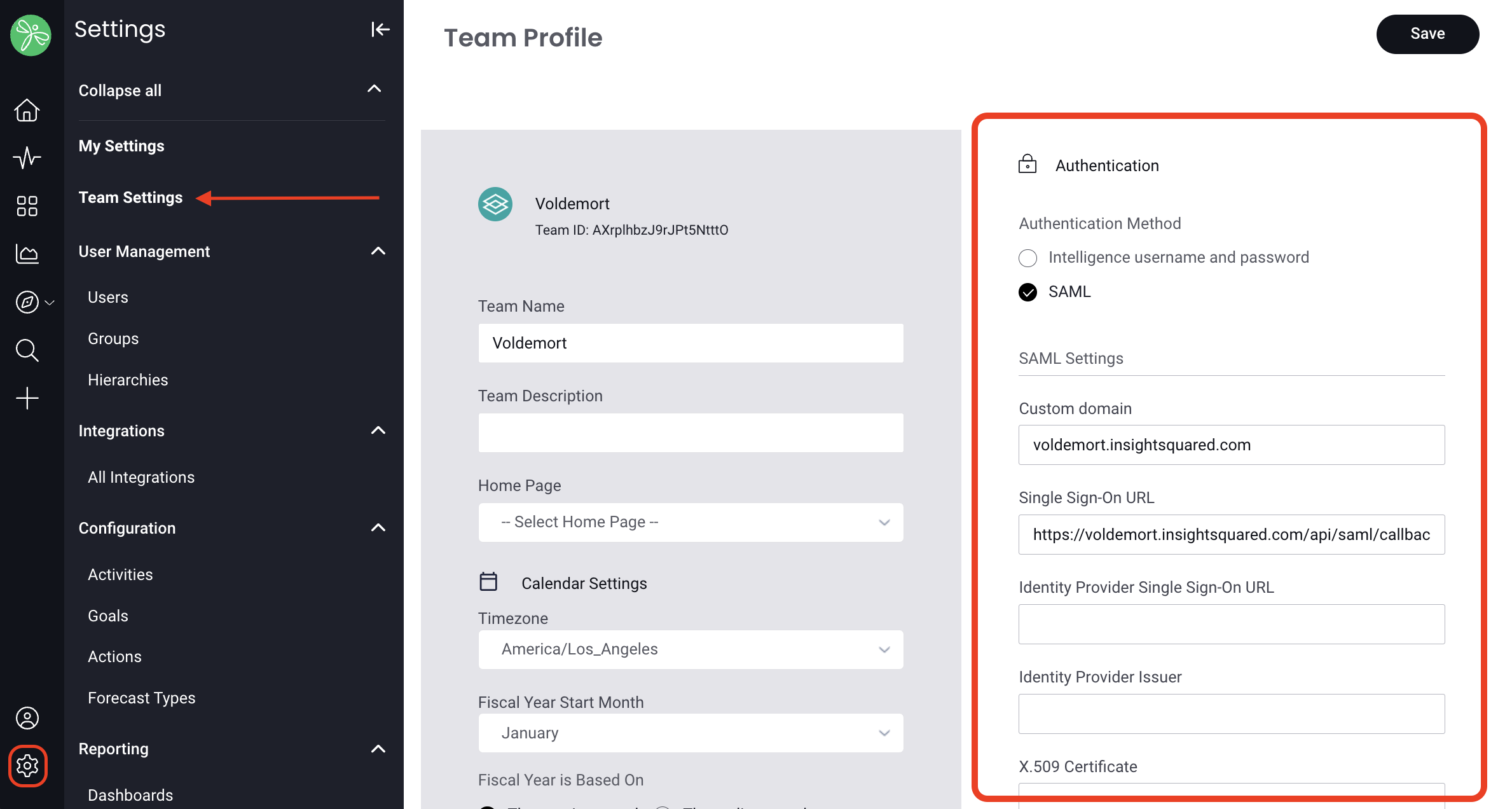
Go to Settings > Team Settings, under Authentication Method select SAML to set as your method.
This is the Mediafly Intelligence Single Sign-On URL that you will need to give your identity provider.
-
Next, go to your identity provider (Microsoft Azure, Okta, etc.) and ensure that the service provider entity ID or audience restriction is set to olono (this is case sensitive so be sure to use all lower case), and get the following information:
1. Identity Provider Single Sign-On URL
2. Identity Provider Issuer
3. X.509 Certificate
- Return to the Team Settings page to finish the setup by entering the credentials retrieved.
Note: If you ever need to bypass the SAML authentication process, you can log in via the “Single Sign On Admin” option located on the bottom of the login screen.
Replies have been locked on this page!