


Minimum requirements
Mediafly for Salesforce is supported for Enterprise and Unlimited editions of Salesforce.com. Developer and Sandbox versions are also supported for testing, but are not supported for production usage.
For Intelligence360, if you are using a Salesforce Professional license, having the optional Web Service API add-on will also suffice. Not sure if you have this add-on? If you have other tools in Salesforce like Outreach, Ringlead, or Sales Navigator, you probably already have this add-on.
Technical details
Please refer to the Mediafly for Salesforce: technical data flow document for more details on data flow and architecture.
Note that Mediafly cannot support clients that require enabling “Enforce IP address range” limitations. This is because Mediafly relies on connecting to hostnames whose IP addresses can fluctuate behind the entirety of Amazon Web Services.
Relatedly, Mediafly cannot support clients that require enabling “Enforce login IP ranges on every request”, for the same reason.
Overview and Benefits
Mediafly Value360 for Salesforce.com enhances how your teams use and interface Value360 with your Salesforce organization. Delivered as a managed package, it provides the following benefits:
- Provides access to your Value360 tools from within Salesforce
- Supports creating an analysis for any Opportunity, Account, or Contact
-
Leverages Salesforce’s core objects to pre-populate your Value360 sales tool with, for example:
- Company name
- Opportunity and Account ID
- Industry
- Location
- Number of Employees
- Revenue
-
Provides access to prior analyses and reports for the selected Opportunity and Account, ensuring seamless account transition. This includes:
- A list of any saved analyses for the Opportunity or Account
- The ability to launch the Value360 tool and obtain direct access to saved analyses
-
Collects key information from completed analyses into Salesforce as custom objects. This typically includes:
- List of top challenges
- Census information about current and/or legacy solutions and costs
- Information about business value results, including ROI, NPV savings, and IRR
-
Provides the ability to create customized Salesforce reports to be developed to track usage and business value of using Mediafly Value360 tools, including:
- Improved win rates
- Increased deal sizes
- Accelerated decision cycles
- Better quota performance
Configuration
Initial setup
The following steps are required to set up Mediafly Value360 for Salesforce.
- Install the managed package. The package is available from the Salesforce AppExchange by searching for: “Mediafly: The End-to-end Sales Enablement Solution”. Note that you will need to approve third-party access to login.salesforce.com and test.salesforce.com as a part of this process.
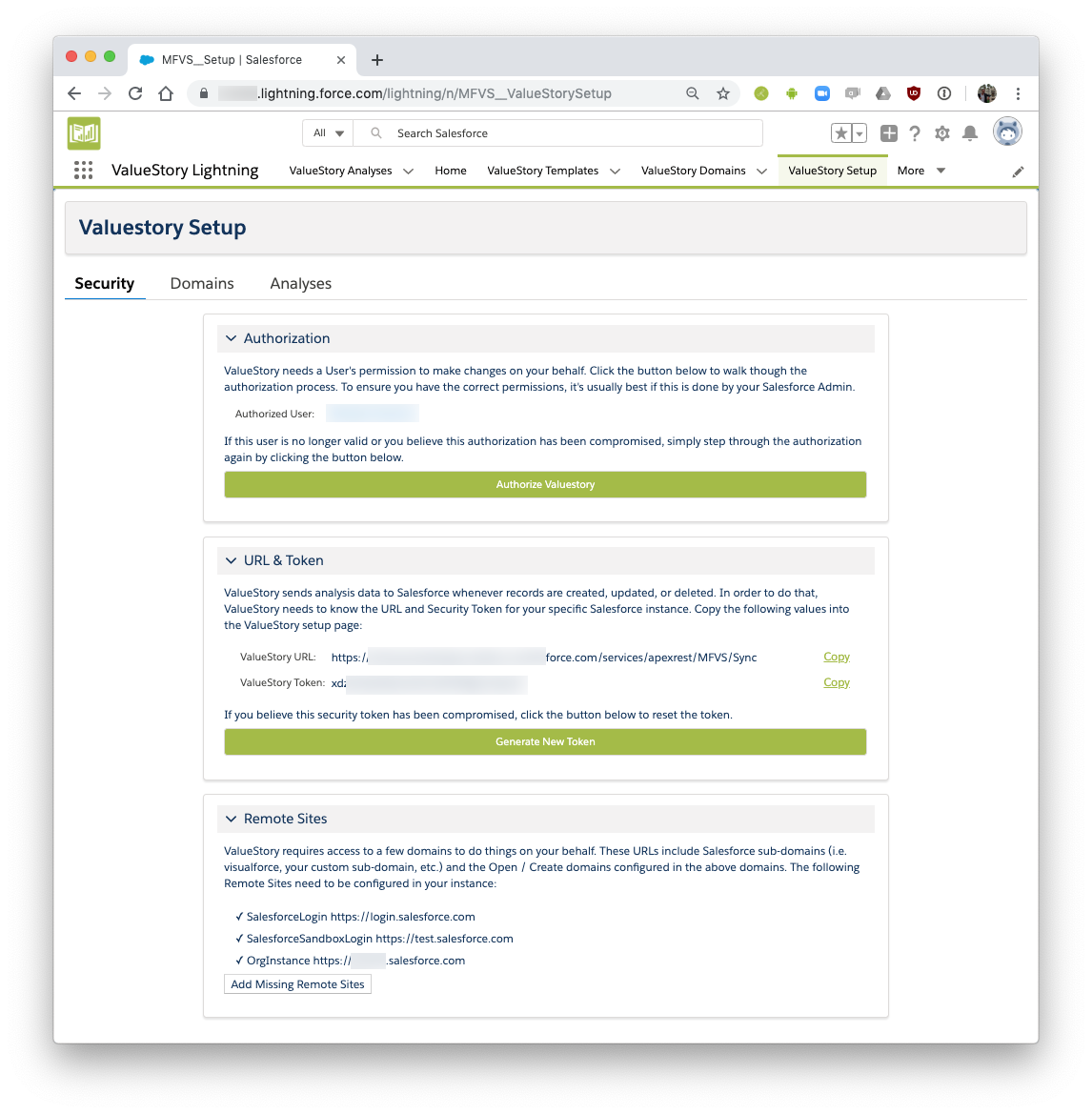
- Open the ValueStory Setup tab. You will see something like this:
-
Under the Security tab, complete the following steps:
- Review the list of Remote Sites. If there are any Remote Sites that were not authorized (they will be highlighted in red), you will need to manually authorize them. Highlight the domain portion, then navigate to Setup > Security > Remote Site Settings, and create a new entry. Name the entry whatever is most appropriate (suggestion: MF_VS_[name], where [name] is the name next to the Remote Site domain), paste the Remote Site URL, and tap Save
- Connect your Salesforce org with Value360 by tapping on Authorize ValueStory and logging with an appropriate user. The user must have “Modify Metadata Through Metadata API Functions Permission”, which is a requirement from Salesforce to be able to modify the metadata of objects within one’s own package
-
Send the ValueStory URL and ValueStory Token to your Implementation and Onboarding Manager. These will get loaded into the Mediafly backend
-
If you do not see a URL within ValueStory URL, you will need to add a Site and add the sync process to the site
-
First, we will create the Site
- Go to Setup > User Interface > Sites and Domains > Sites
- Tap on New Site
- Pick a Label and Name, for example, MF_VS_Sync
- Default Web Address will not be used. We entered a value such as mfvssync
- For Active Site Home Page, look up InMaintenance and use that
- Keep InMaintenance chosen for Inactive Site Home Page
- Leave the remaining options chosen and choose Save
- Activate the Site
-
Now, tap on the Site Label (MF_VS_Sync) from the list
- Tap on Public Access Settings
- Find the “Apex Class Access” section and tap on it, then tap on Edit
- In the Available list, find Mediafly.SyncRestService, highlight it, and tap the right arrow to bring it into the Enabled list
- Tap Save
-
First, we will create the Site
- Head back to ValueStory and refresh the page. You should now see a value within ValueStory URL
- Tap Generate New Token. Note: after tapping it, you may need to refresh the page for your token to appear
- Copy these along with SFDC instance OrgId send them to your Implementation and Onboarding Manager
-
If you do not see a URL within ValueStory URL, you will need to add a Site and add the sync process to the site
- Once you have sent the URL and Token, your Implementation and Onboarding Manager will set up the values that you need to place into the Domains tab. Under the Domains tab, you will see this:
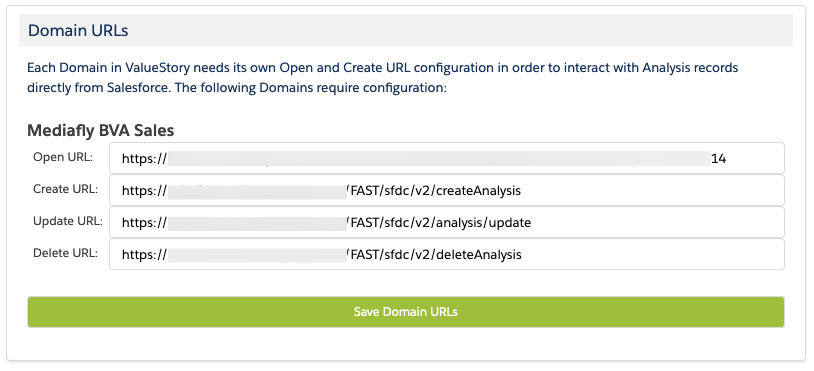
- Work with your Implementation and Onboarding Manager to obtain the appropriate values to enter here for each of Open URL, Create URL, Update URL, and Delete URL. Note that you will see a separate block of URLs for each template you have configured with Mediafly.
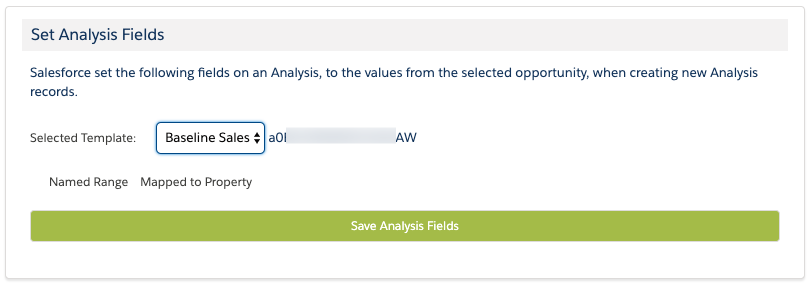
- Under the Analyses tab, you will see something like this:
-
- This screen is used to map fields from your CRM objects (Account and Opportunity) to your Value360 tools. For example, the Company Name from the Account can be pushed into the Company Name field in the Analysis, so that the user doesn’t have to enter duplicate information when initiating an Analysis from an Account.
-
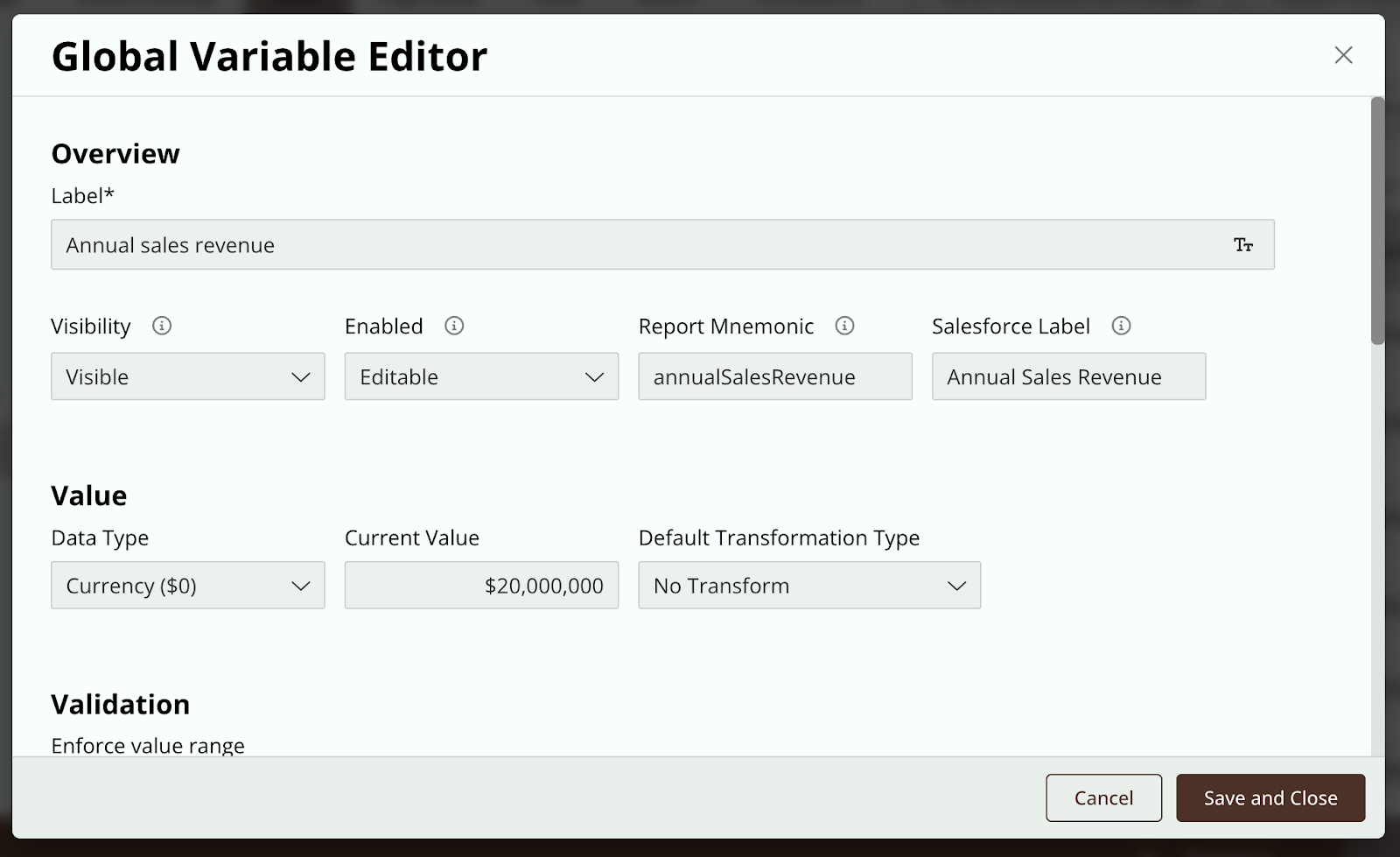
In order to map a salesforce value to a custom field created in Tool Builder, such as a Global Variable, KPI, Select, or Text Input, you must use the Salesforce ID field located in Item Editor, and ensure the item also has a Report Mnemonic assigned, shown below.
→ Once the item has been saved and the Template updates published, the field will show up in the list under the Analysis tab. You can then choose the Account or Opportunity field from the drop down that Value360 will pull from when an Analysis is created from SFDC.
→ Please work with your Implementation and Onboarding Manager to choose the appropriate values to select here.
Add Analysis Records to Account and Opportunity layouts
Most salespeople wish to see a list of Value360 Analyses tied to a specific Account or Opportunity from within that object in Salesforce. To do this, we need to add Analyses Records to the specific objects’ page layout as a Related List. For example, to set this up for Account within Lightning:
- Navigate to Setup > Object Manager > Account > Page Layout, and edit the appropriate Page Layout
- In the hovering selection box, choose Related Lists
- Drag the Related List named Analyses into the list of Related List blocks in the center part of the page
- Save your changes
- If you are using Lighting, you may need to use the Lighting App Builder to add the Related Lists into your Account and Opportunity pages as well.
Set up a Report Type to run reports against Analyses usage and key fields
Before going through these steps, be sure to have completed your first sync. This will ensure the appropriate fields have been created on Analysis to match your Template.
To create and run reports around usage of your tools or templates in Salesforce, you will first need to create a new Report Type. We do not explicitly include this in our managed package, because some clients have already used up all Report Types allocated to them, and if so this prevents the client from even being able to install our managed package. However, creation is pretty straightforward.
When creating your Report Type, be sure to choose ValueStory Analyses as Object A, like so:
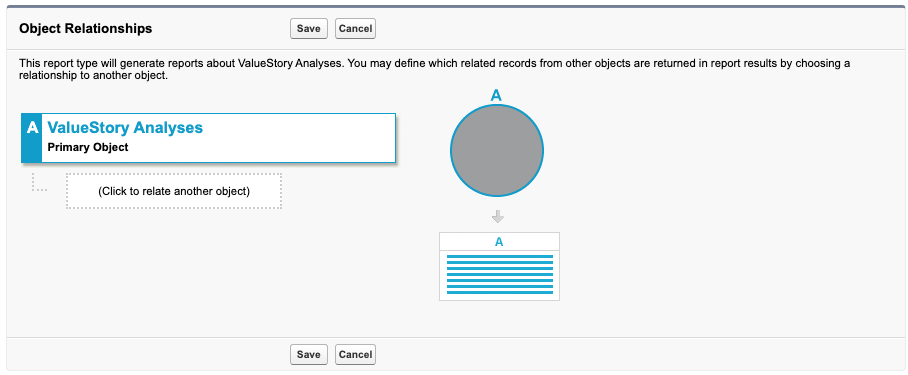
Save, and then under Fields Available for Reports, tap on Edit Layout.
You will need to drag each Analysis field from the bottom right list into the main center list, like this:
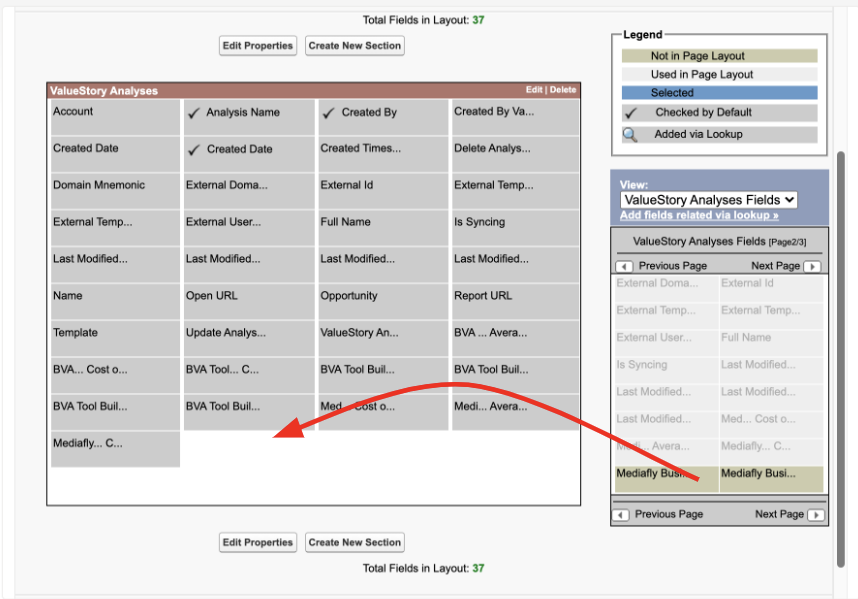
Save you changes, and your Report Type is now ready to be used in Reports.
Limit permissions on analysis creation or deletion
In some cases, you may wish to limit the ability for a user to create or delete an analysis.
This is completely controlled by Salesforce permissioning. Navigate to Setup > Users > Profiles > (pick a profile) > Custom Object Permissions. From here, you can modify what permissions a specific user profile has against the key Value360 objects.
We also provide three Permission Sets as a part of the package for this purpose: Admin, Power User, and User.
- Admin: assign this permission set to admins
- Power User: when clients install For Admins Only, assign (a clone of) this permission set to users
- User: ignore this permission set.
And that should be it for configuration.
In summary, you will send to your Implementation and Onboarding Manager your ValueStory URL and ValueStory Token, and you will receive from them the Create URL and Open URL values for each of your templates.
Setup for Salesforce Communities
Using Mediafly for Salesforce within Salesforce Communities requires additional configuration. This is because Salesforce Communities do not allow overriding Lightning “New” buttons with Visualforce components, only with Lightning components. And, without a “New” button, users cannot create a new Analysis from within a Salesforce Community.
The following configuration steps bring the “New” button back to working order.
To configure the following, you must be using version 1.43 or later.
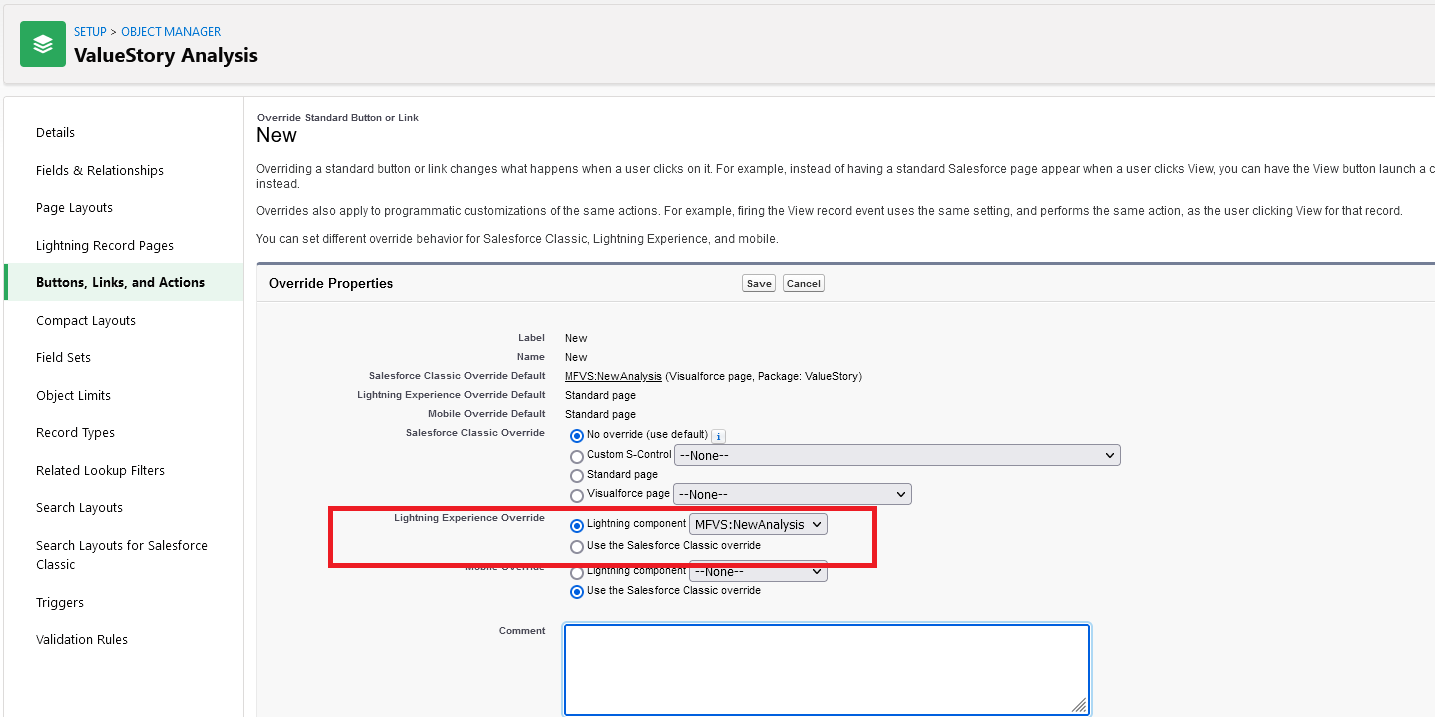
Override the ValueStory Analysis: New button
- From Setup > Object Manager, open ValueStory Analysis.
- Tap on Buttons, Links, and Actions
- On the New row, tap the dropdown arrow and choose Edit
- Change the Lightning Experience Override option to match as shown below
Add CSP Trusted Sites
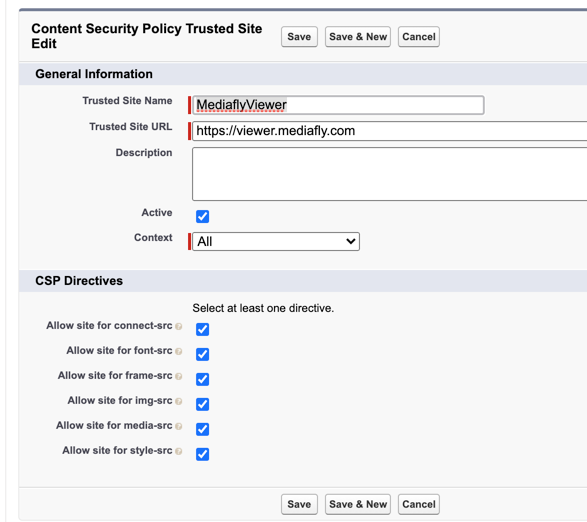
First, add the following two domains to the CSP Trusted Sites. This is found under Setup > Settings > Security > CSP Trusted Sites:
For each of these two domains, you will mark the site as Active, and select all available directives. Example configuration for viewer.mediafly.com should look like this:
Update Security in Experience Cloud
- Navigate to the Site Builder experience for your site. (To do this: from within Setup > Feature Settings > Digital Experiences > All Sites, find the site that will contain your embedded Value360 tool, and tap on Builder to launch the Builder experience)
- Once Builder loads, look for the gear (Settings) icon. Click on it, then choose Security and Privacy
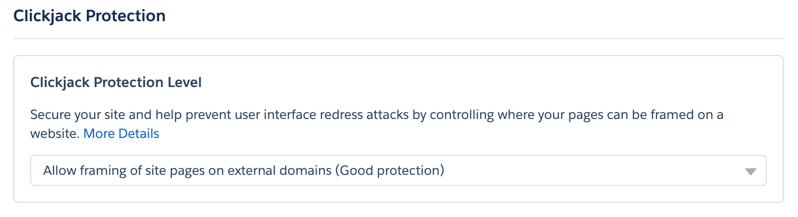
- Under Clickjack Protection Level, choose Allow framing of site pages on external domains
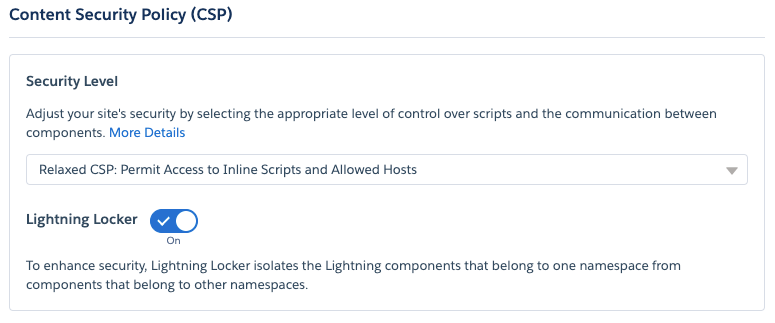
- Under Content Security Policy (CSP), change the dropdown to Relaxed CSP: Permit Access to Inline Scripts and Allowed Hosts
- In the modal, tap Allow. The result will look like this
- Go back to the gear (Settings) > Security and Privacy
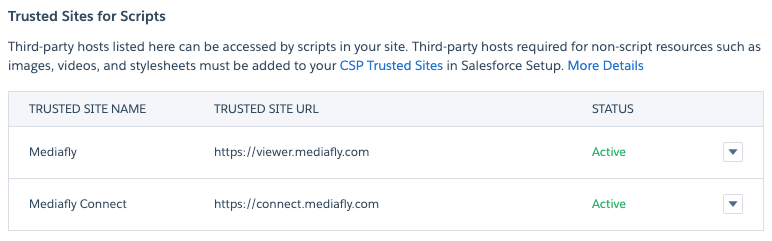
- Under Trusted Sites for Scripts, add two Trust Sites, one at a time, as follows:
Override Standard Actions with a Lightning Component
- Navigate to the Site Builder experience for your site. (To do this: from within Setup > Feature Settings > Digital Experiences > All Sites, find the site that will contain your embedded Value360 tool, and tap on Builder to launch the Builder experience)
- Once Builder loads, within the chooser icon in the upper left, choose Administration
- Check the Override standard actions with a Lightning component, and save your changes
Add Record Page to Experience Cloud
- Navigate to the Site Builder experience for your site. (To do this: from within Setup > Feature Settings > Digital Experiences > All Sites, find the site that will contain your embedded Value360 tool, and tap on Builder to launch the Builder experience)
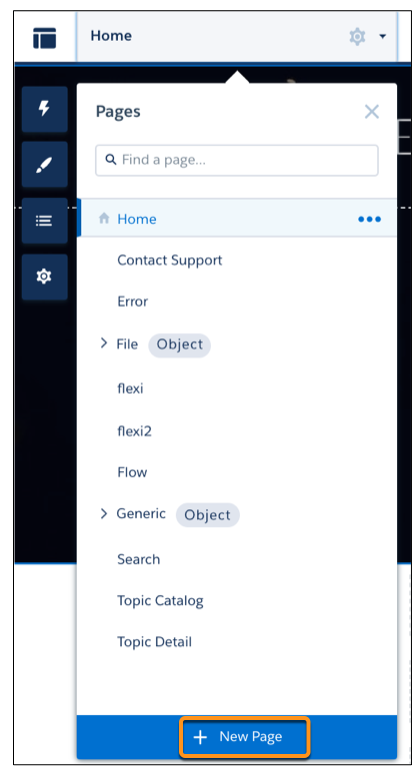
- Once Builder loads, open the Pages menu on the top toolbar. Tap on New Page at the bottom of the menu:
- Tap Object Pages, then choose ValueStory Analysis
- From the Pages menu, choose ValueStory Analysis Detail
- Tap on the Lightning (Components) icon. Search for AnalysisView, and drag that into the Content block
- Publish the Site when you have customized it to your liking
Usage
View all analyses
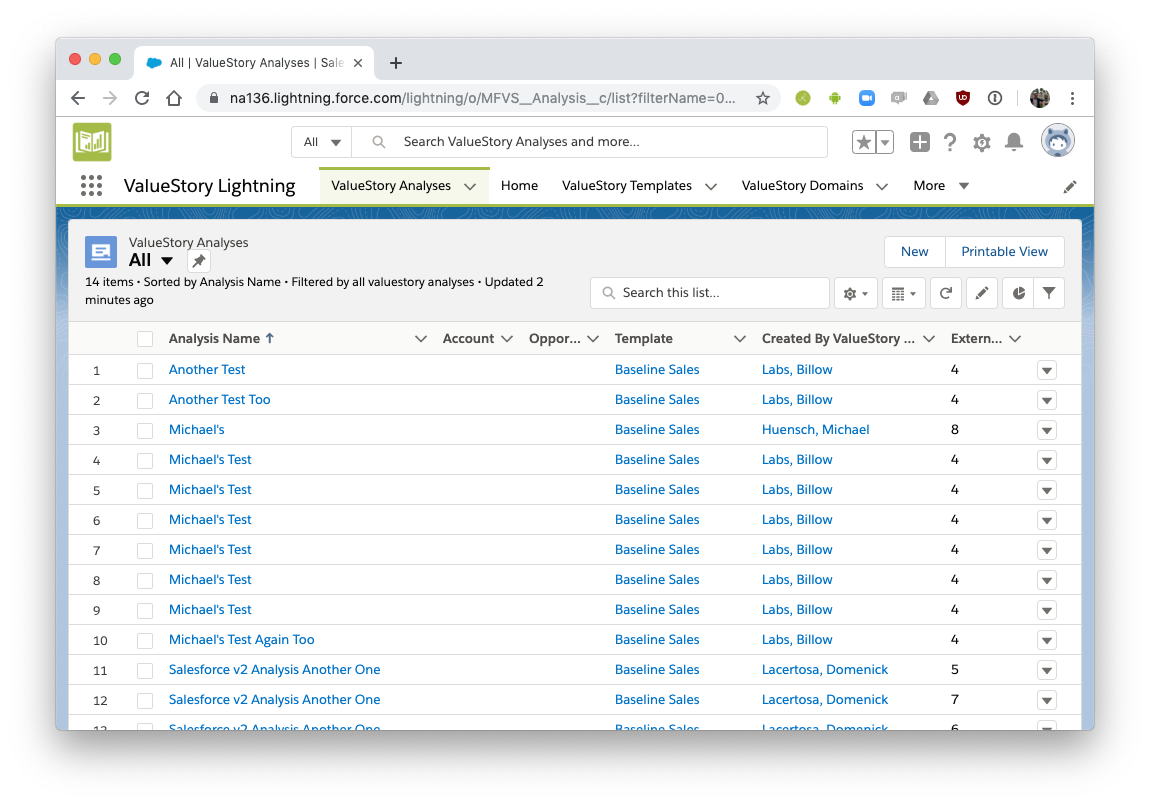
To view all completed analyses for all templates, open the ValueStory Analysis tab. You are shown a list of all previously completed analyses for all templates. Administrators and/or users can customize the list of fields that are shown in this page within Salesforce.
View a single analysis’s details
Tap on any analysis from this list to see the details for the analysis:
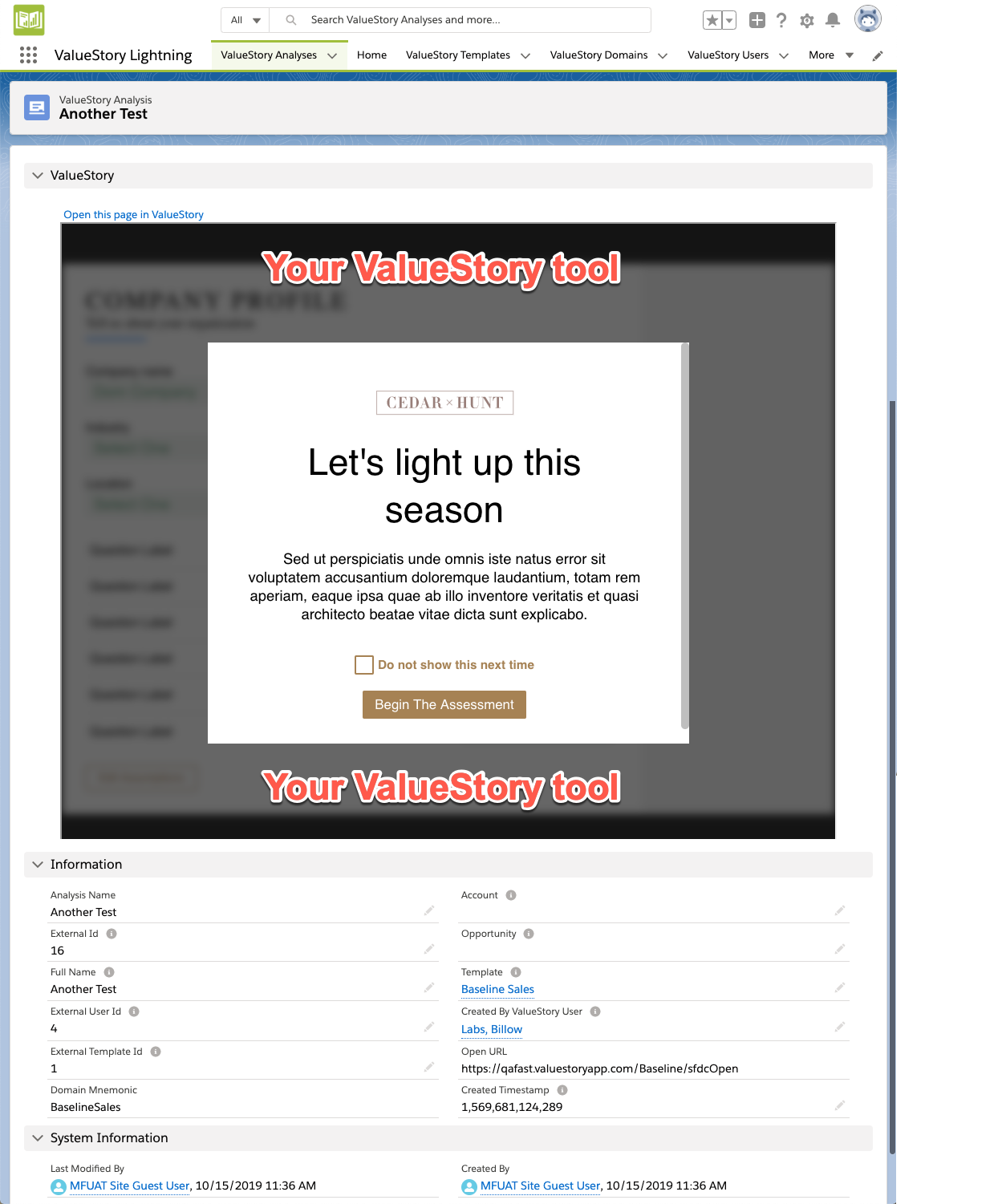
The upper section shows the analysis within your ValueStory tool. The lower section shows all relevant fields for this analysis as stored within Salesforce. The fields that are visible on this page are configurable by the Salesforce administrator.
Create a new analysis
From within ValueStory Analyses, tap on New. You will be presented with a form like this:
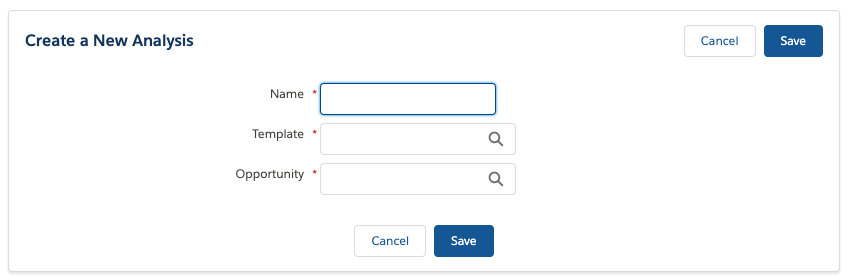
Complete it, and you will be brought into the appropriate template in Value360 with the correct fields filled out.
Create a new analysis from an Account or Opportunity
Navigate to the Account or Opportunity record, and find ValueStory Analyses in the Related list. Tap on the dropdown arrow, and tap on New:
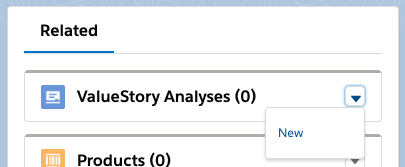
You will be taken to the Create a New Analysis page, with the Account and/or Opportunity already prepopulated.
Run reports on sales tool usage within Salesforce
You can report against the ValueStory Analyses object with Salesforce’s Report Builder.
- Be sure to choose the Report Type you created during setup above
- Pick the columns that matter to you. For example, Created Date, Analysis Name and Created By ValueStory User: User Name are good starting points
- Save, schedule and assign permissions as you require
Run reports on data captured from Value360 tools
One primary value of Value360 is that it can capture key data fields (inputs and metrics) that are either collected from salespeople, or computed by the tools. Mediafly for Salesforce can then push these key data fields into Salesforce for reporting, analysis, and account continuity.
When a Value360 template is updated and the key data fields are set or changed, the fields are automatically created and removed from the ValueStory Analysis object. When an analysis is then created or updated, the key data fields are populated against that object.
You can report against the key data fields with Salesforce’s Report Builder.
- Be sure to choose the Report Type you created during setup above
- Pick the columns that matter to you. This will vary based on your chosen template
- Save, schedule and assign permissions as you require
Limitations
For custom Value360 tools, clients and Mediafly can work together to specify a list of fields in Value360 that will be pushed into Salesforce when an analysis is created or updated. Note that the number of fields we can support is no more than (500 / number of templates), because of Salesforce limitations on the number of custom fields in a custom object.
For Self Serve/Tool Builder tools, there are 7 fields that are created and pushed into Salesforce:
- Average Annual Realized Benefits
- Cumulative Realized Benefits
- Cost of doing nothing (per month)
- Proposed investment
- Return on Investment
- NPV Savings
- Payback period
These are pushed per analysis
- VMC name
- VMC Year 1 value
- VMC Cumulative value
The ability to customize this list of fields is on the Tool Builder roadmap.
The max length of a field name is 35 characters, due to Salesforce limitations on the length of a field name.
Frequently Asked Questions
We cannot see the Mediafly Tab in the list of tabs. Where is it?
Please be sure you have installed the manage package.
Can we enforce IP address restrictions on Mediafly’s managed package?
Mediafly cannot support clients that require enabling “Enforce IP address range” limitations. This is because Mediafly relies on connecting to hostnames whose IP addresses can fluctuate behind the entirety of Amazon Web Services.
If we deactivate the administrator, will the connection to Mediafly continue to work?
Deactivating the administrator should keep the managed app alive, per https://salesforce.stackexchange.com/questions/304601/deactivating-user-with-connected-apps .
However, you might need to re-authenticate to another admin. In that case, please reach out to Mediafly and we can send you another URL to re-establish the connection.
Will this managed package create new custom objects and fields? If so, provide details.
Custom objects:
- Value360 (mediafly_Analysis_c)
- Represents an external ValueStory Analysis in Salesforce
- Value360 Field Map (mediafly_Fieldmap_c)
- Describes how to map a Table.field in VlaueStory to an Object.property in Salesforce
- Value360 Log (mediafly_Log_c)
- Audit log object used for monitoring and debugging package issues. This object is only used when "Enable Logging" is checked in the Value Cloud custom setting. However, it will be cleaned out as part of a regularly scheduled job that runs every 24 hours by default. This exists because it's impossible to get useful debugging information out of Salesforce from inside of an installed managed package.
- Value360 Object Map (mediafly_ObjectMap_c)
- Value360 Template Field (mediafly_TemplateField_c)
- Describes how to map a Template field in ValueStory to an Object.property in Salesforce
Will this managed package create new fields on existing standard objects? If so, list how many and which objects.
- No, Mediafly’s perspective is that we should never touch standard objects as part of installing a managed package. All changes are made to objects that Mediafly creates.
Will this managed package consume Static Resources?
- Yes, the package has 10 (small) static resources within it
Will this managed package require apex batch job(s) to execute at specific timeframes? If so, how many and at what frequency?
- Number of batch processes: 4
- ClearLogsJob: removes custom logging information. This is scheduled by the installer to run every 24 hours, to ensure logs information stays trim
- PrepIncomingMessage and SyncIncomingMessage: these process updates pushed from Mediafly Value360 backend into Salesforce. It runs on demand when items are pushed in, but no more than once every 10 seconds
- SyncOutgoing Messages: pushes new/changed/deleted Analysis objects to ValueStory
Will this managed package require the addition of trigger logic or flows on existing standard objects?
- No
Will this managed package require any lookup relationships? If so, provide details.
- Value360 object
- Lookup(account) - the account that the analysis was run for
- Lookup(user) - created by ID
- Lookup(v360 user) - custom object, the ValueStory user who ran the analysis
- Lookup(user) - last modified by ID
- Lookup(opportunity) - the opportunity that the analysis is related to
- Value360 Field Map
- Lookup(user) - created by ID
- Lookup(user) - last modified by ID
- Value360 Log
- Lookup(user) - created by ID
- Lookup(user) - last modified by ID
- Lookup(user,group) - owner ID
- Value360 Object Map
- Lookup(user) - created by ID
- Lookup(user) - last modified by ID
- Lookup(user,group) - owner ID
Can this managed package be installed in a Sandbox before installing in Production?
- Yes, the managed package can be installed in a sandbox environment, but because Value360 does not have a sandbox environment, Value360 would point to the SFDC sandbox environment.
- When ready to move to production SFDC, the process can be replicated
Will this managed package require separate licenses than Salesforce?
- Yes, Value360 licenses
Can a customer opt out of the maintenance/upgrades schedule?
- The historical release schedule can be found here: https://changes.mediafly.com/salesforce_changes.html . We typically release 2-3x/year. By default it is opt-out; admins need to proactively install new versions of the package (like all Salesforce packages)
Is an API key required to integrate?
- No API key is required
What objects and fields does the tool need access to? What types, read/Write or both?
- The managed package doesn’t touch any standard SFDC objects, and all changes are made to objects that Mediafly creates and manages. Read and Write access on the objects that Mediafly creates.
What is the sync frequency? Batch job?
- Sync process is apex Batch and is continually being synced back based on users editing and creating analyses. We send messages to the sync message queue and those are pulled off to apex Batch each "x" seconds based on our SFDC custom settings value. default=5 seconds.
What data does Mediafly store in their database from analyses that are created?
- At minimum, if the managed package is installed and reps are generating analyses from an account or opportunity, the Opp and Acc IDs are automatically stored. In addition to these default values, no other data is automatically stored unless the client has chosen to map other values of interest to their SFDC instance.
Replies have been locked on this page!