


Linking your Calendar to your Coach profile unlocks the ability to conveniently Schedule and Reschedule Coaching Sessions during open time blocks.
Authentication
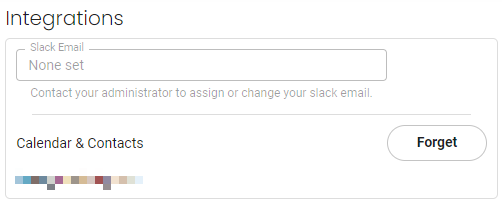
To connect your calendar Log into Coach and navigate to the Settings tab. On your Profile Page select the "Connect" option next to the "Calendar & Contacts".
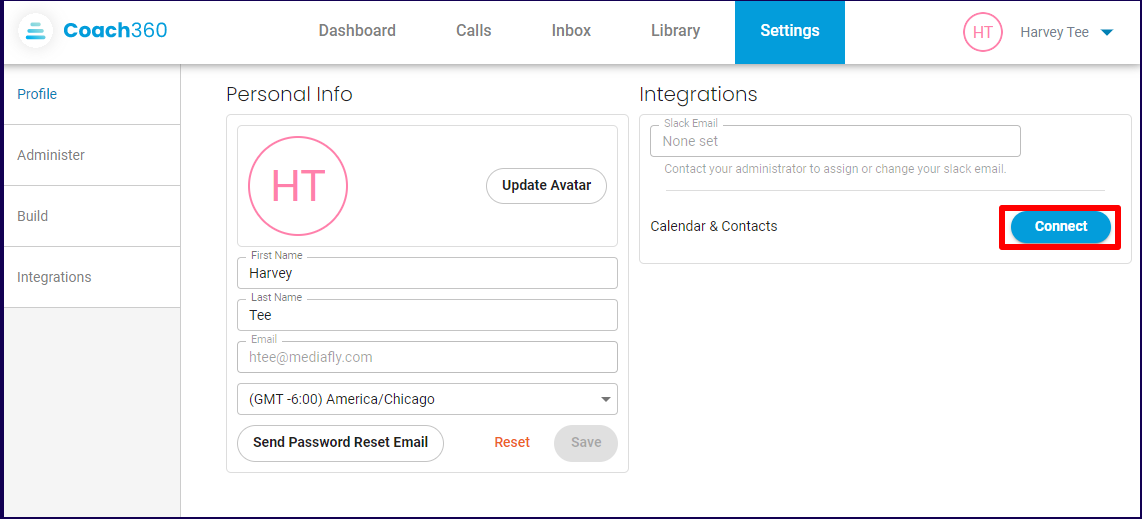
This will direct you to log in to the email provider associated with your browser or select a different email provider.
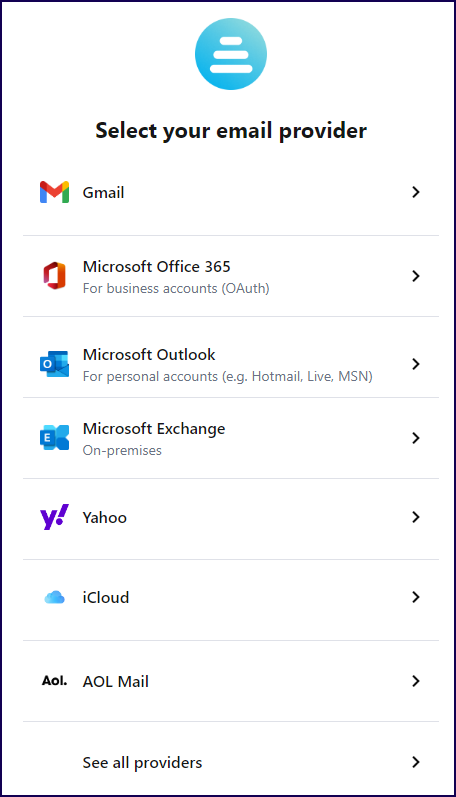
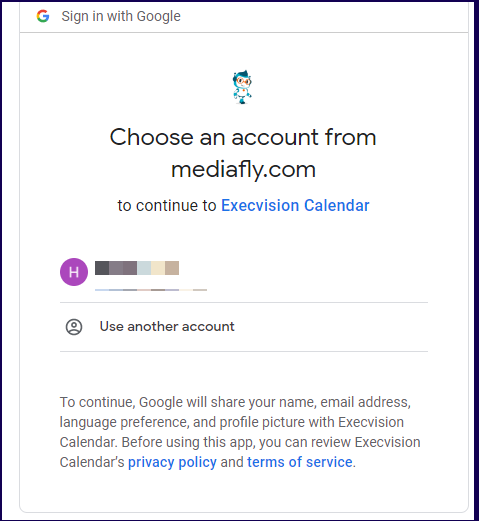
Depending on your selected email provider, you may be prompted to select which email account to log in.
Once you have logged into your email provider be sure to select all checkboxes as they are needed for the Calendar Integration to function.
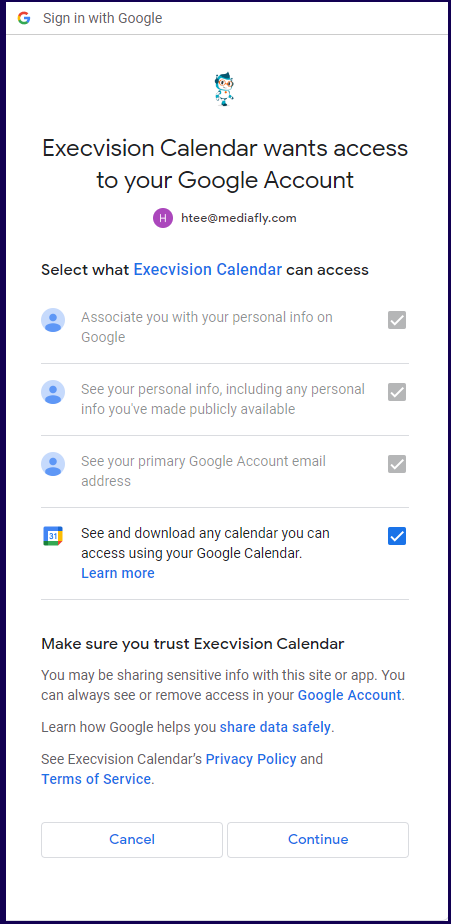
Once all the check boxes are ticked click "Continue" and you will be directed back to your Coach user profile. The "Connect" button will now show as "Forget".
Removing the Bot from a Meeting
Since linking your calendar will ensure the bot joins your calls, you should know how to remove the bot if there is a request to stop recording. You can remove the bot from online meetings just like you would remove a meeting participant while the meeting is in progress.
Removing the Bot from a Zoom Meeting
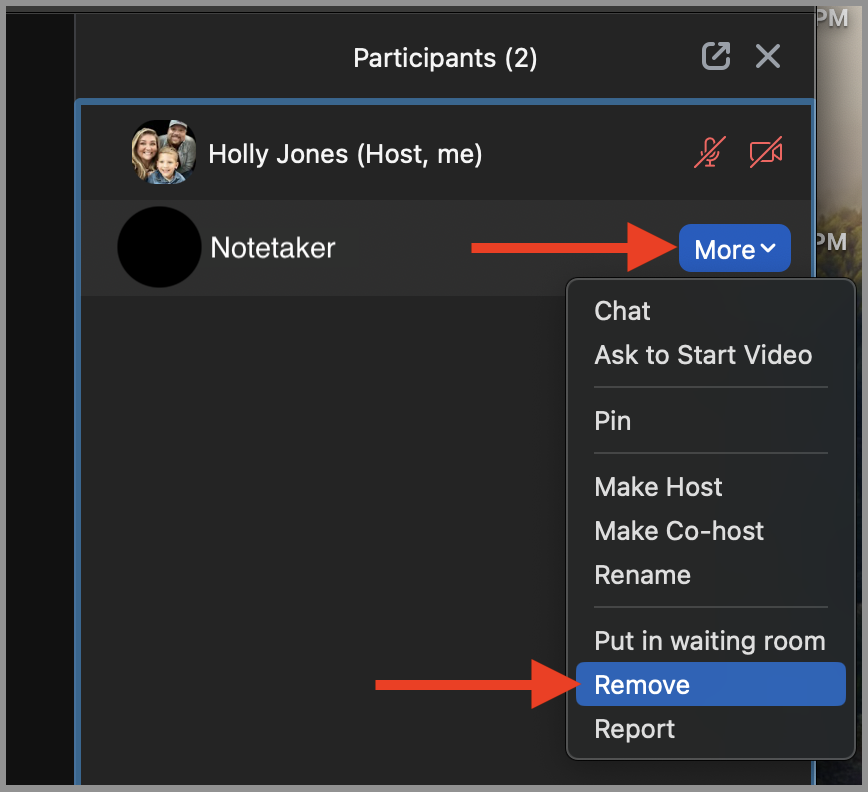
- Hover over your bot's name in the participants list , then click More > Remove
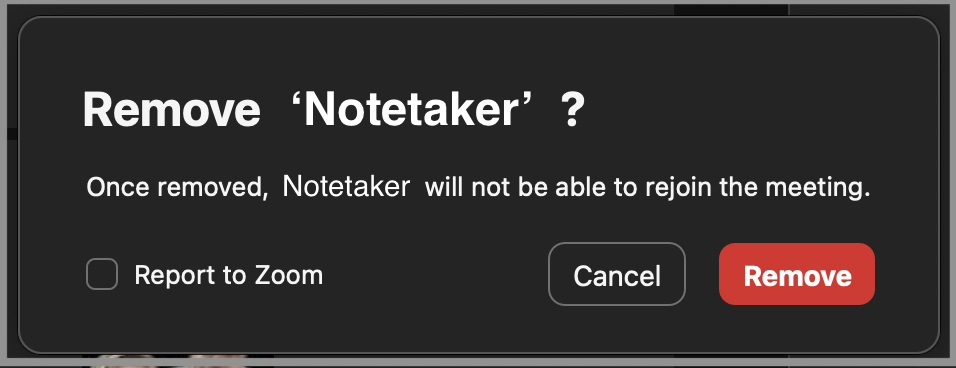
- A window will appear asking if you're sure you want to remove the bot and explaining that, once removed, they will not be able to rejoin the meeting. Ensure that the "Report to Zoom" box is NOT checked, then click Remove.
Removing the Bot from a Microsoft Teams Meeting
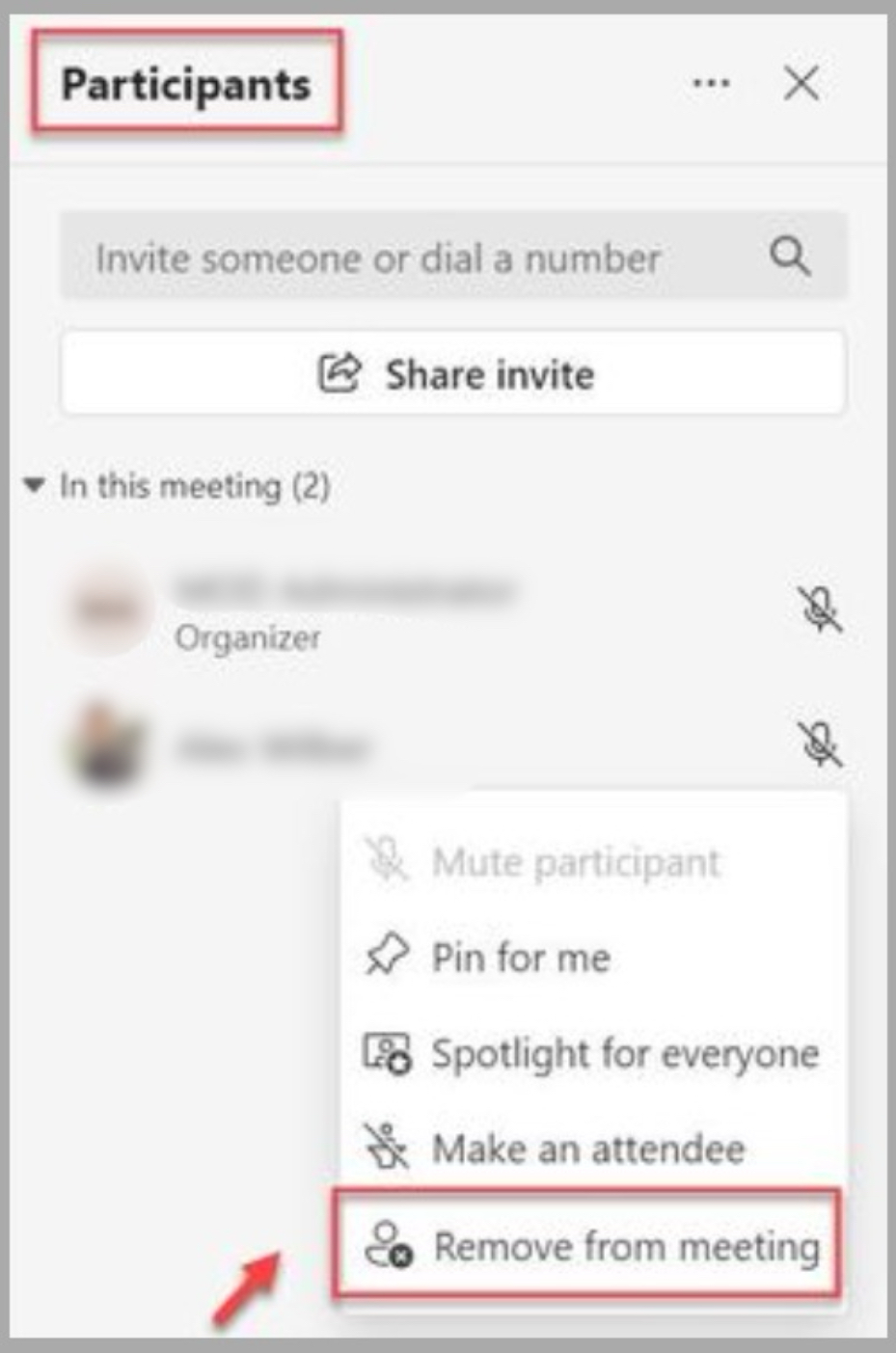
- In the meeting window, click the Participants icon to see all of the attendees.
- Right-click the name of the person you want to remove.
- In the drop-down menu, choose Remove from meeting.
Replies have been locked on this page!