


Sharing a call allows users to share a call internally or externally. When shared internally, the system sends a message to the Coach inbox of the user, while calls shared externally can be sent by entering an email address not in the system.
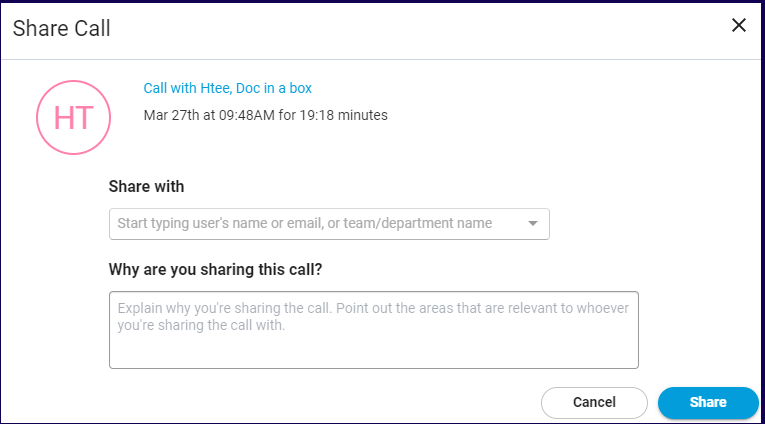
When the share button is selected, the Share Call window is displayed.
The Share Call window provides the following fields:
- Share with - Specify the users name, email, or team/department share to share the call.
- Why are you sharing this call? - Specify the reason why you are sharing the call.
Sharing Externally
To share a call externally, enter the email address of where you want to share the call. A dropdown will appear giving the user the option to add the email address into the field.
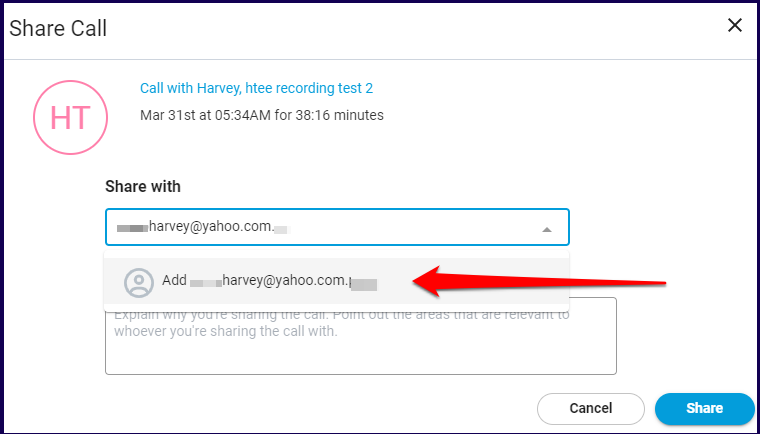
Once the email is added, the External Sharing settings section is displayed.
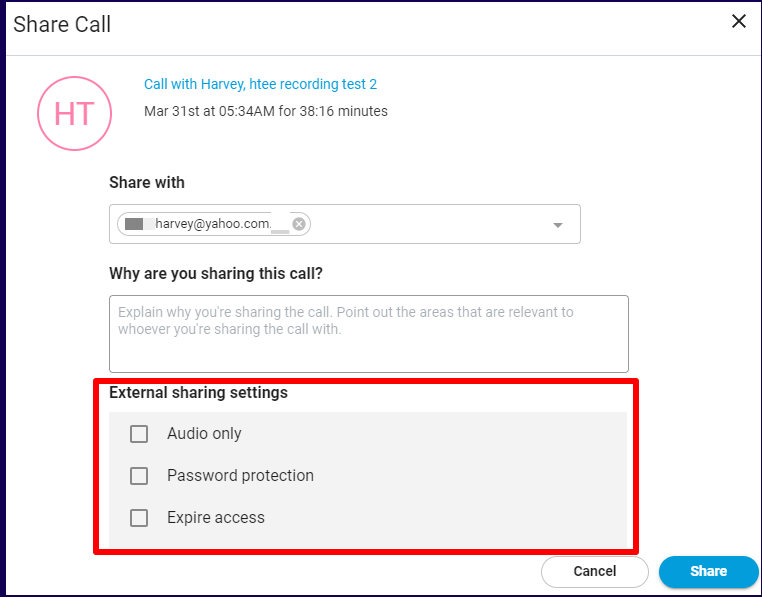
The External sharing settings section provides the following fields:
- Audio only - Use this if you want the recipient of the share to view only the audio of the call.
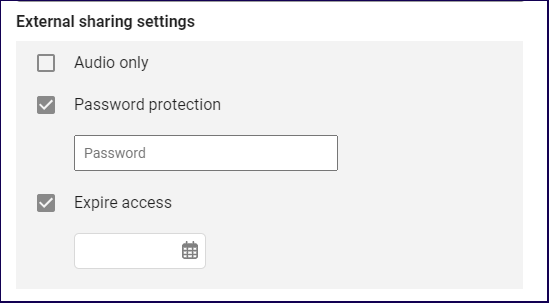
- Password protection - Use this to add a password protection that the recipient must key to view the call.
- Expire Access - Use this to set a time limit to when the access to share expires.
Once the external share is confirmed, users may copy the external link through a button that appears once the share is confirmed.

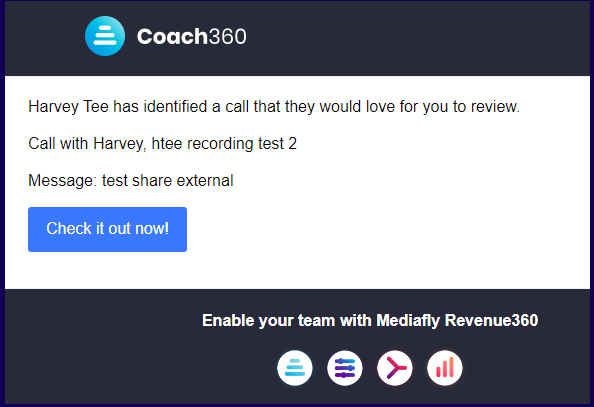
An email message is sent to the external share indicated.
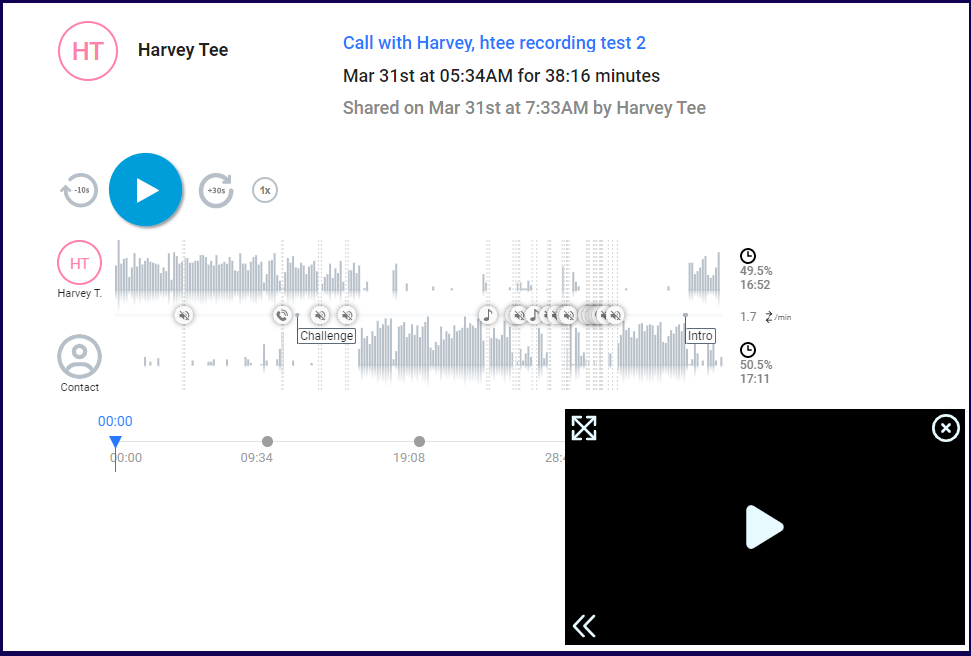
Accessing the external share will provide a simple page of the call tracker and the video.
Replies have been locked on this page!