


To access the Dashboard Page:
- for Mediafly users: in the left nav, click Insights icon > select All Dashboards
- for Intelligence only users: in the left nav, click the Dashboards icon
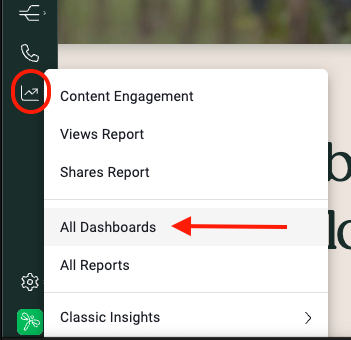

Here you can easily open, find, create, edit, and share dashboards. Simply click on a dashboard title to open the dashboard & start gaining insight or keep reading to learn more about Dashboard Page navigation & actions.
Jump to:
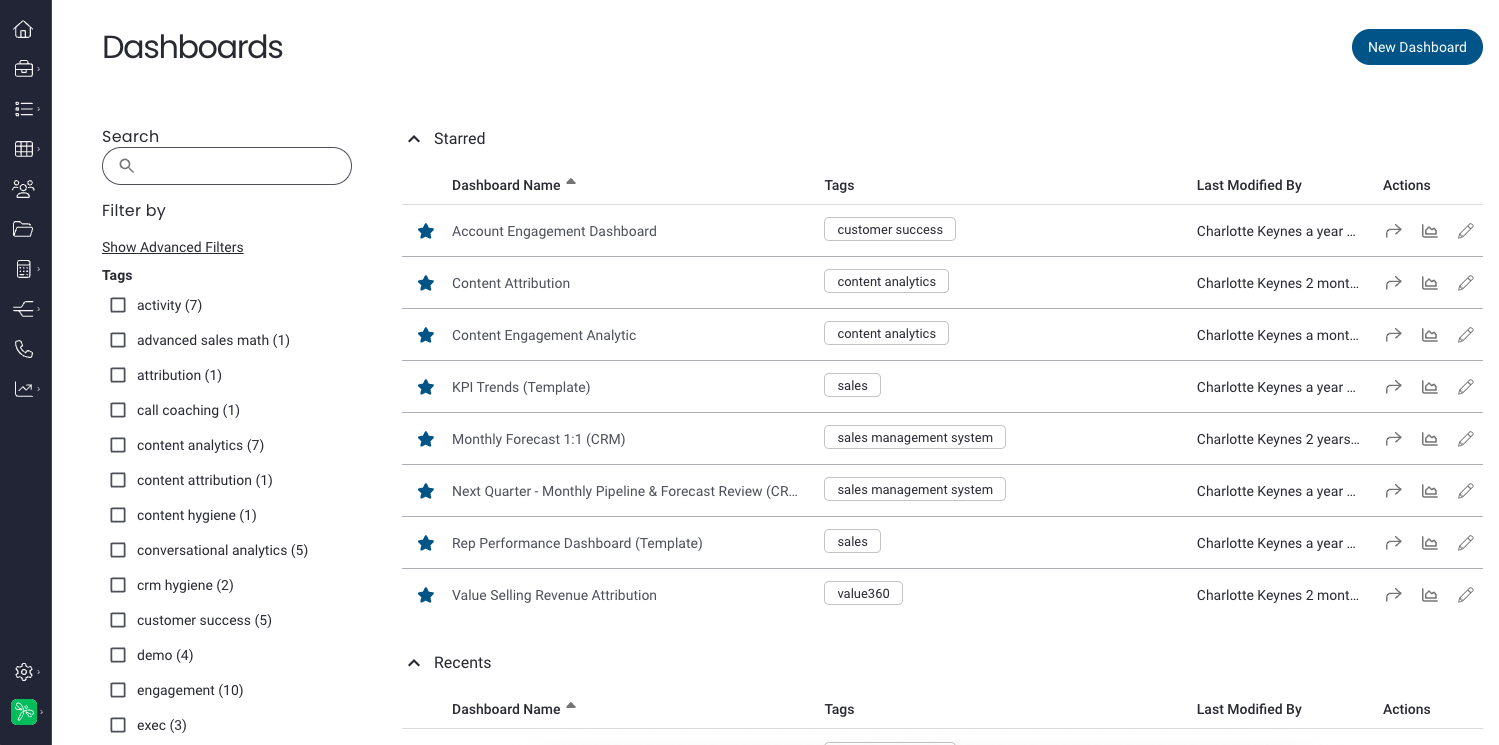
Navigation
Quickly find the dashboards you need using multiple search and navigation options. You can expand/collapse any of the main section (Starred, Recents, All Dashboards). The list of dashboards will immediately adjust to your search/filter. You can also sort by Dashboard Name or Last Modified by clicking on the arrow next to the heading; sorting will be applied to all sections.
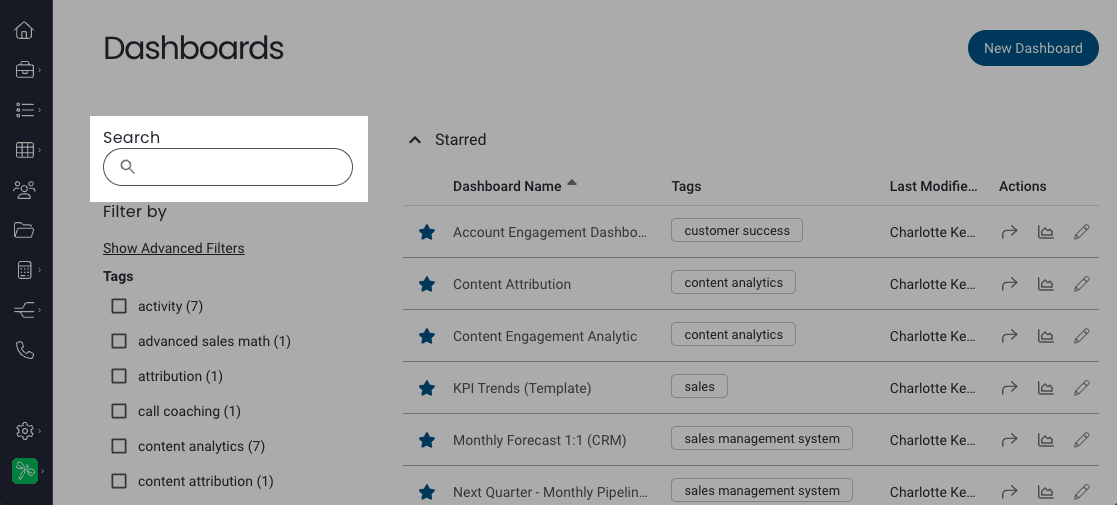
Search: Type title or keywords into the search bar to narrow down your dashboard search.
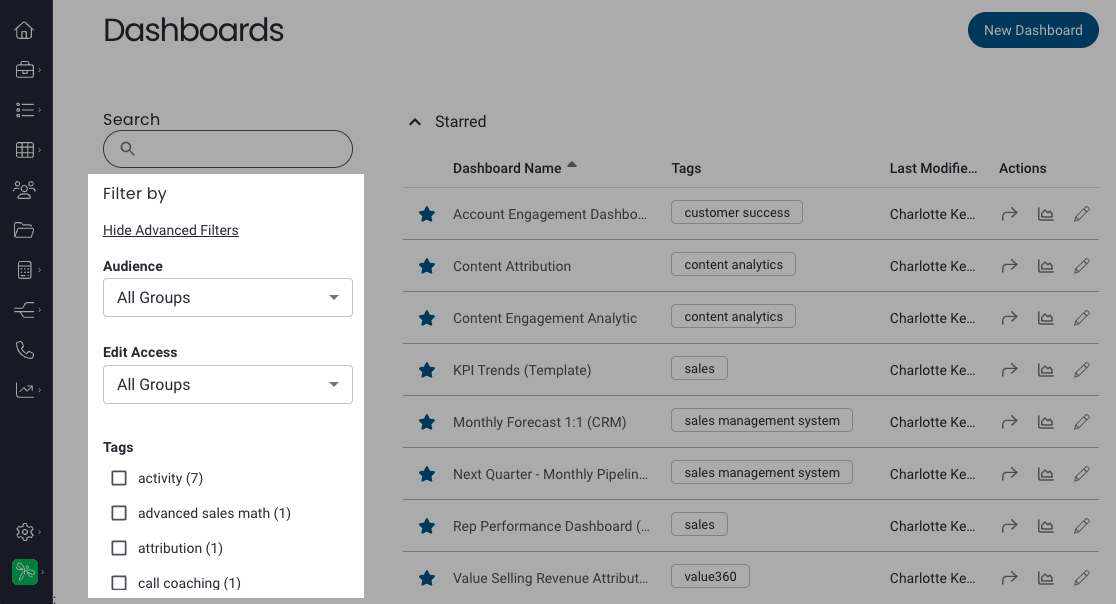
Filter by Tags: Select a tag(s) to filter the list of dashboards by tag.
Starred: Your starred (favorite) dashboards are listed first in the "Starred" section. You can also select/deselect a star next to a dashboard title to add/remove it from the Starred list.
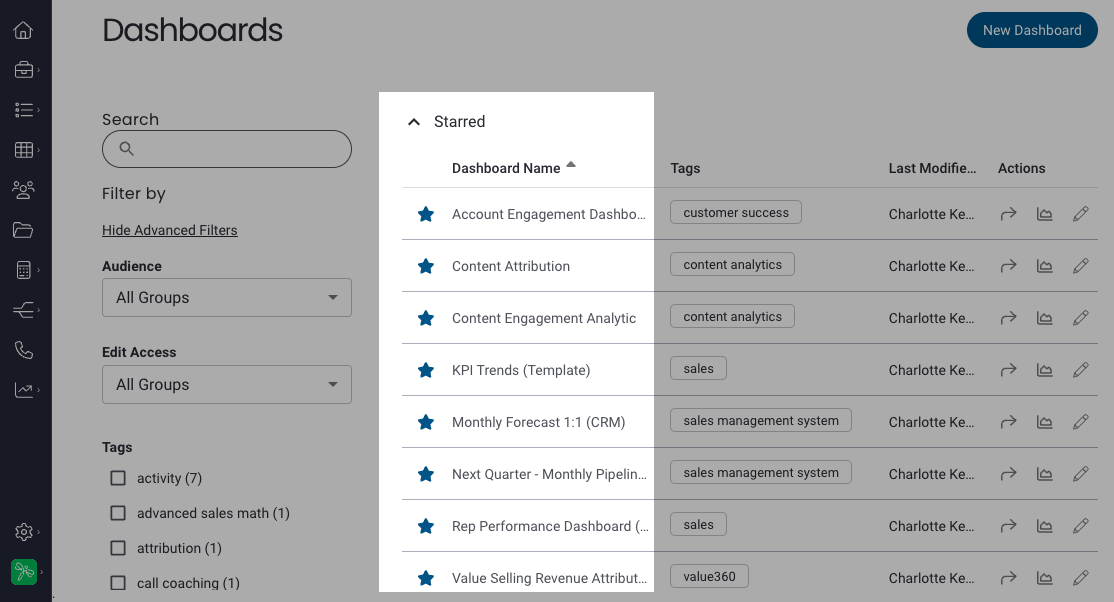
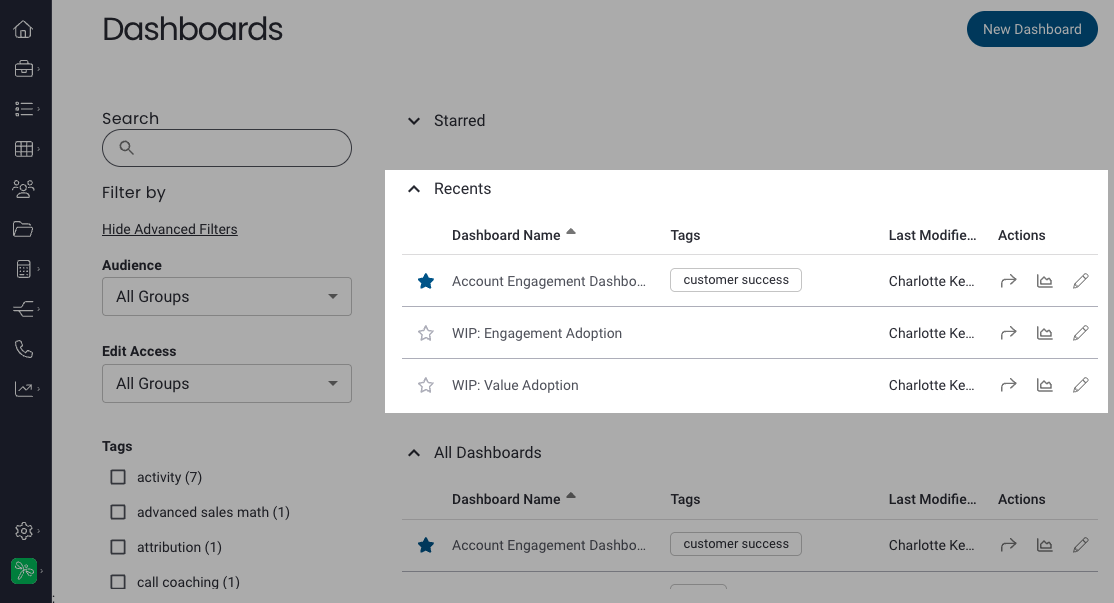
Recents: Quickly find the dashboards you've opened recently under the Recents section.
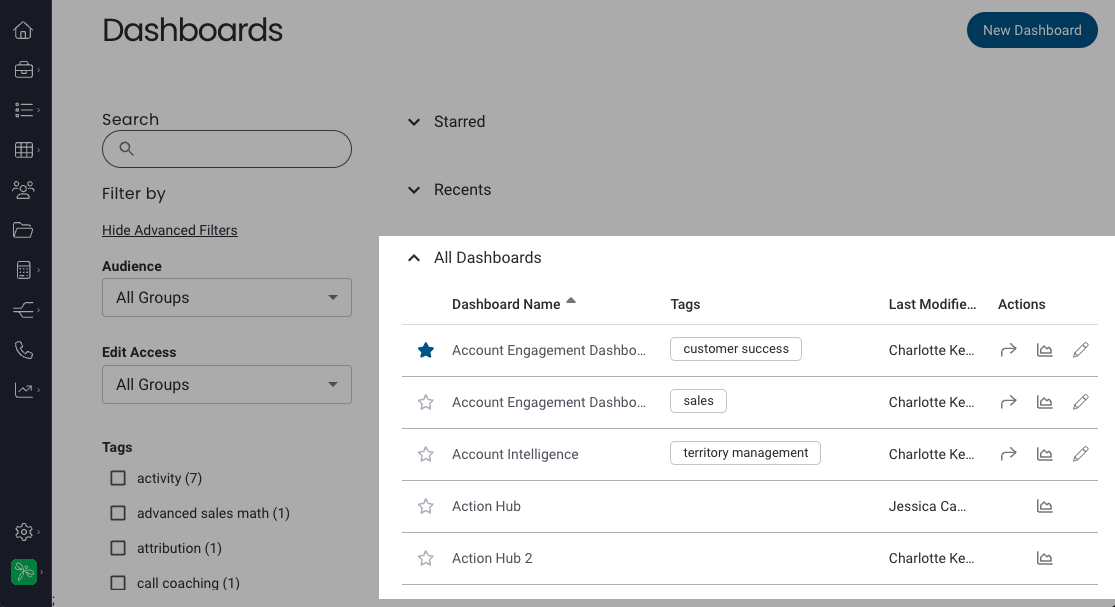
All Dashboards: All dashboards you have access to are listed here.
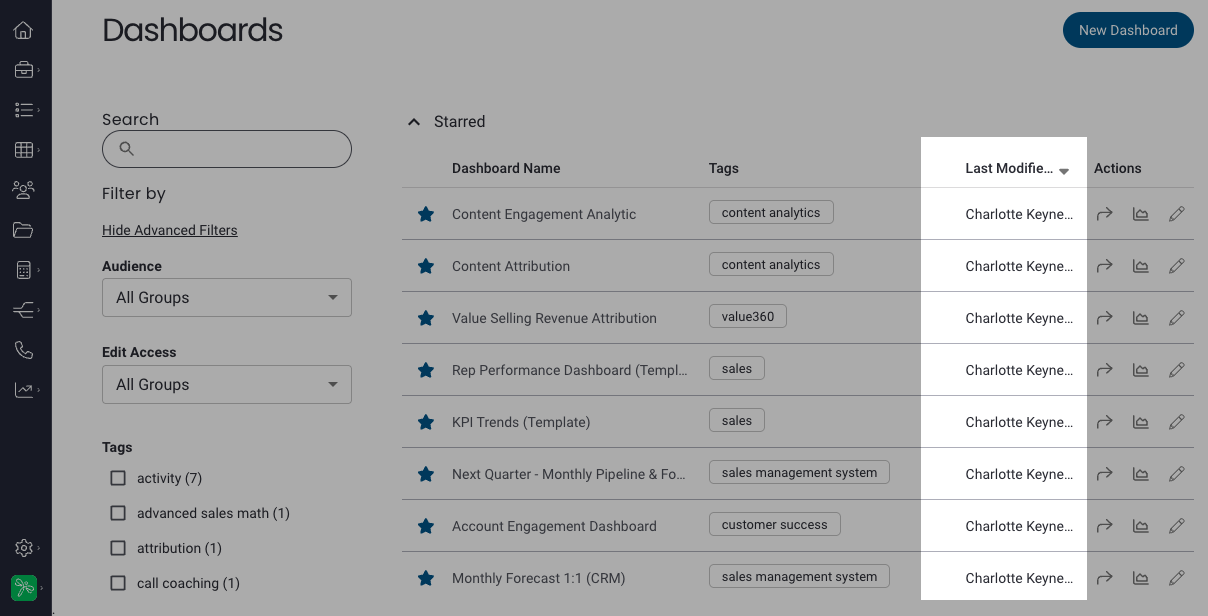
Last Modified By: Under the Last Modified tab you can view who last modified the dashboard and when.
New Dashboard
New Dashboard: Click New Dashboard to open the dashboard creation wizard.
Actions
With the appropriate permissions, you can share & dashboards or view specific reports on a dashboard directly from this page.
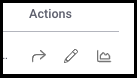
Share: Click on the share (arrow) icon to open the "Share Reports via Email" window where you can configure share options and share the dashboard/its reports via email. (Click here to learn more about sharing reports and dashboards.)
Edit: If you are an admin or have edit permissions on a dashboard, you can click on the edit (pencil) icon to open the board editor to make and save changes to the dashboard. (Click here to learn more about editing dashboards.)
Cards Info: Click on the card icon to populate a list of cards (and their base reports) on that dashboard. Clicking on the card title will open the dashboard with that card highlighted, clicking on the base report will open only the base report. (Click here to learn more about cards vs base reports.)
Replies have been locked on this page!