


You can export your Intelligence data outside of the platform into other familiar formats, like Excel or any CSV reading software, with the click of a button. Admins can add authorization for content export via feature access.
Before you get started, there are a couple of things to keep in mind as you transfer complex data from one place to another:
-
Column titles export in their computer language rather than how they appear in reports. For example, the "Owner Name" column in an Intelligence report will export as "opportunity.ownerName", so typically the difference is easily understood, we just want you to be aware before your first export.
-
Some reports may have hidden filters/columns that will need to be unhidden in order to export along with the rest of your data. (It's common to want certain information filtered in a report that isn't necessary to the visualization, hence the hidden columns.) We recommend unhiding them all before exporting so that you are sure to be comparing apples to apples with your exported data.
Jump to:
- How to Export Intelligence Data via CSV
- How to Unhide Hidden Filters/Columns
- How to add authorization via feature access (Admins Only)
- What if i get an export disabled message?
How to Export Intelligence Data via CSV
-
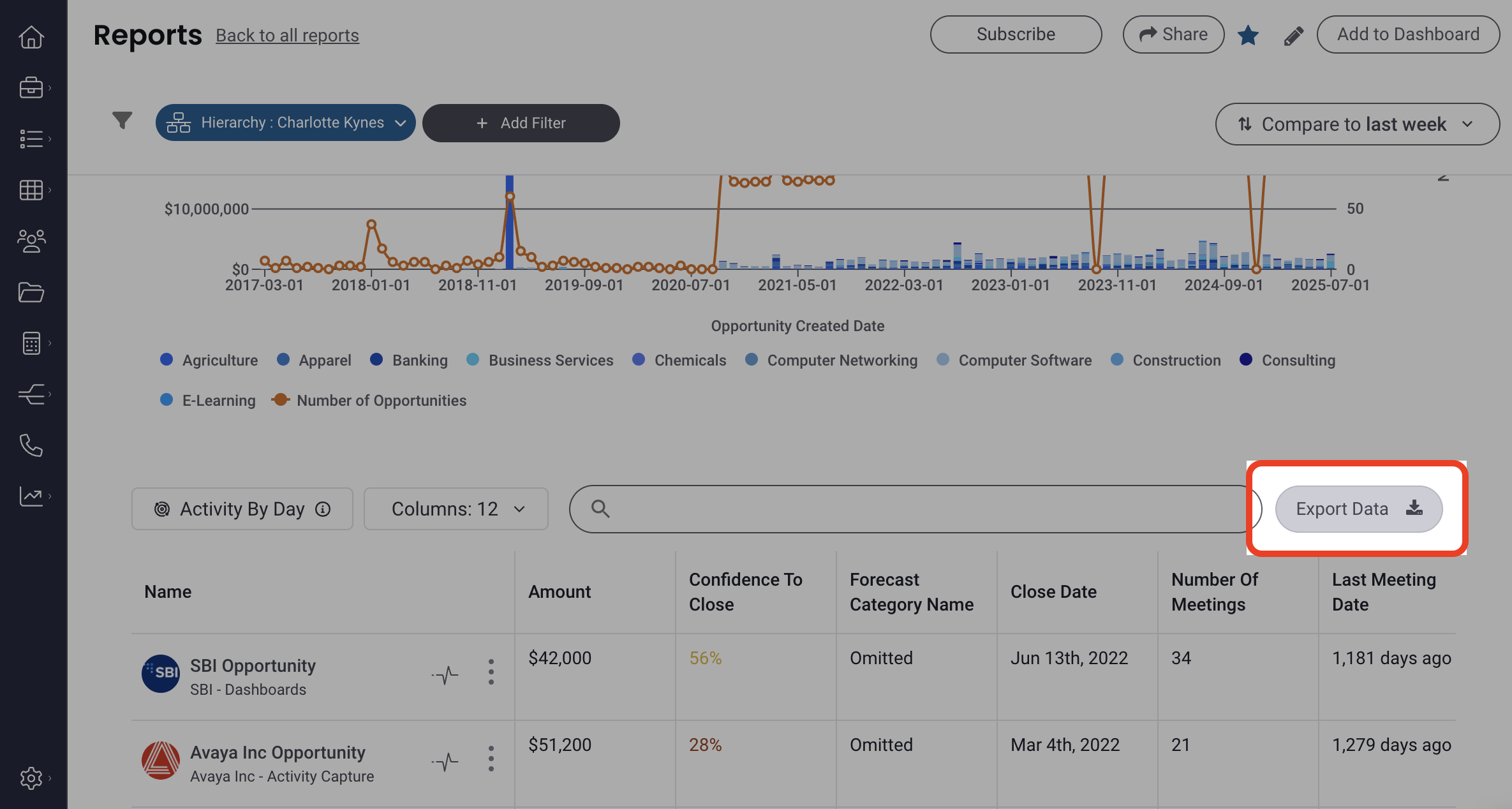
Click Export Data in any report with export capabilities (if the Export Data button is present in a report, it has export capabilities).
-
Depending on the CSV software your device is set to, your data will begin exporting as a CSV download. Once the download is complete, you can open the CSV document and proceed to use this date, in that format, as you please.
How to Unhide Hidden Filters/Columns
How do you know if you have hidden columns?
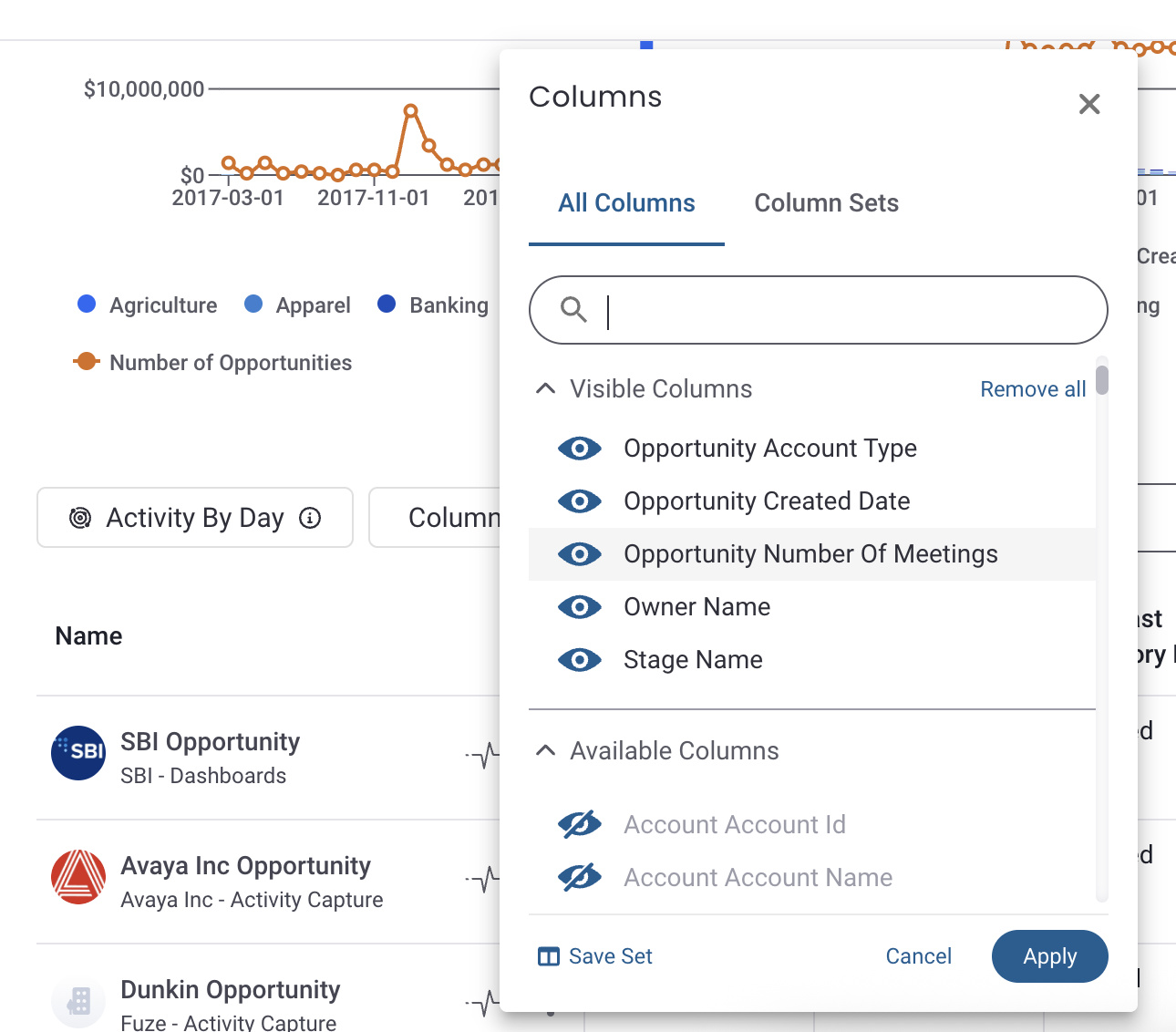
Click "Columns", all columns have an eye icon next to them, hidden columns will have an eye with a slash across it identifying them as hidden.
How do you unhide a column?
Click on the Columns dropdown to see which properties are shown (open eye) or hidden (eye with a slash). Simply click the icon to toggle show/hide.
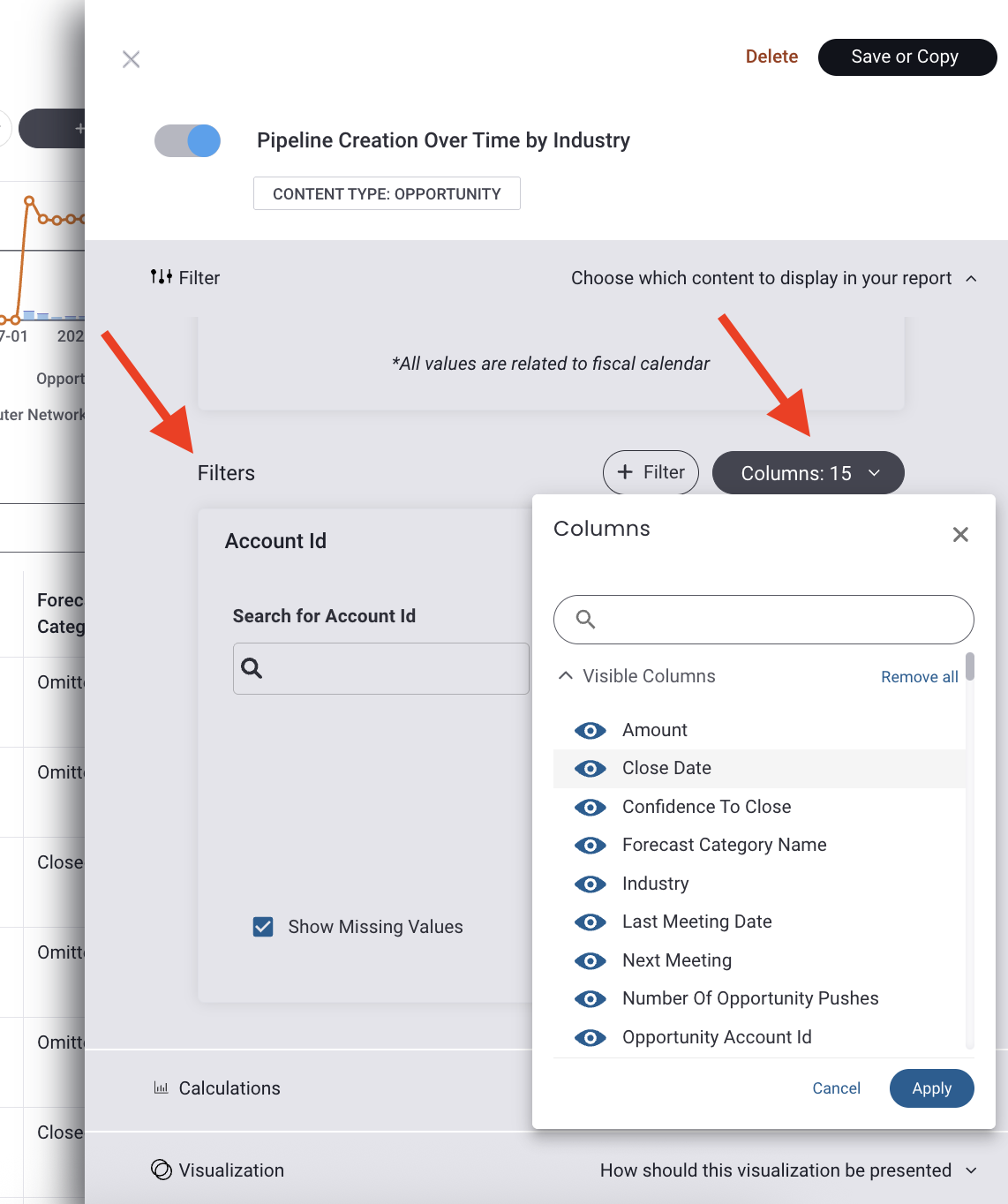
You can also open the report configuration by clicking on the edit (pencil) icon, open the filters section, and open the columns dropdown:
How to add authorization via feature access (Admins Only)
-
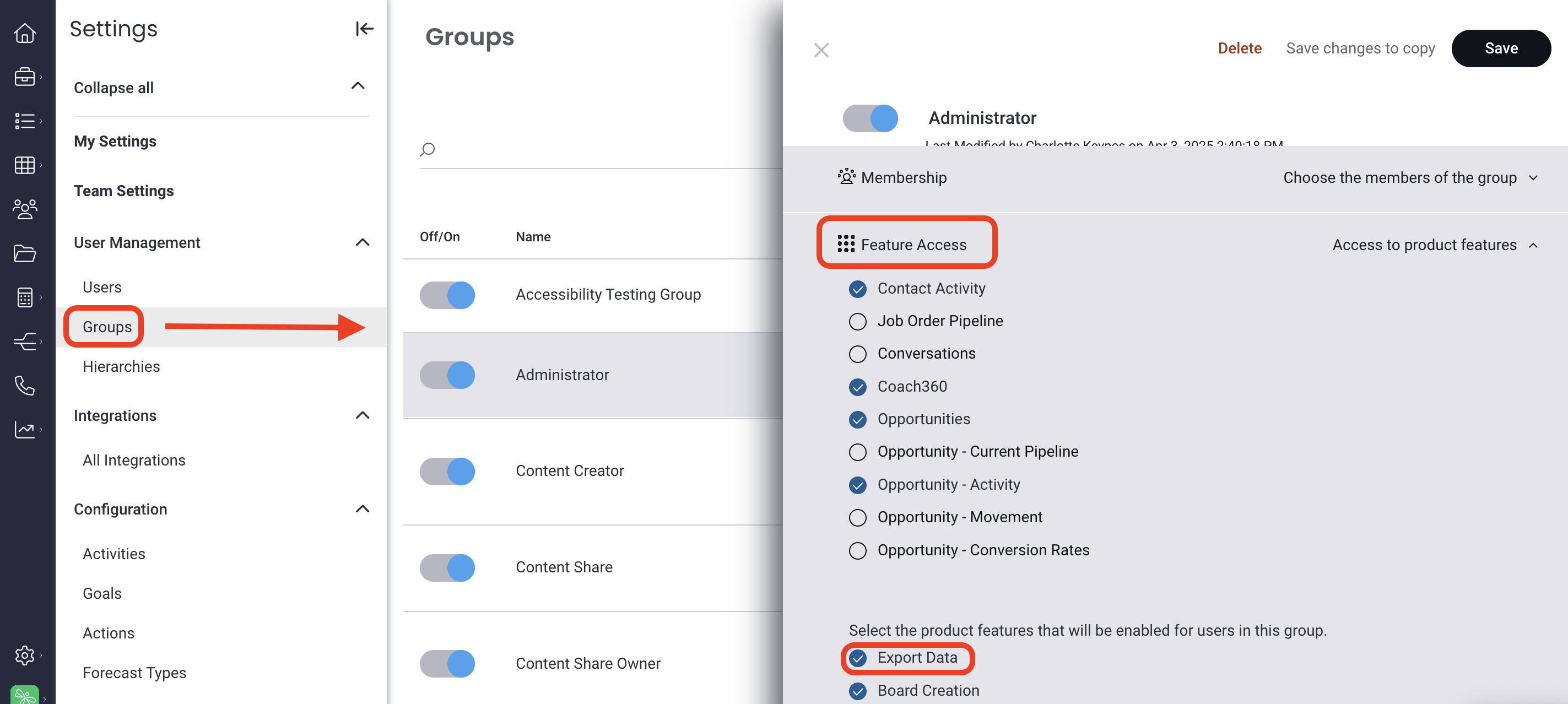
Go to Mediafly Admin Settings > Report Management > Groups
(Go to Settings > Groups if you're an Intelligence only user) -
Select the group to which you want to manage export authorization
- Go to the Feature Access section
-
Select Export Data to give users in this group the ability to export data via CSV
What if I get an export disabled message?
"Export disabled. This report is too complex to export."
If you see this message, the current report is too complex to successfully export. This could mean there are a large quantity of filters and/or there are a lot of values being filtered on (e.g. the number of owner names, account names, campaign names, etc. that were selected for the filter).
This type of failure is bound by the browser and would fail without telling you what happened or why, so this message is a safety measure to ensure you're aware and guide you on next steps.
So, what do I do?
In a word, simplify. Removing some of the filters can help simplify the data and will reenable the export button once the report's level of complexity is below the limit. (Just so you know, the limit is set for when the export url exceeds 6400 characters. We know you won't spend your time counting the characters, just know that when you've reached below the limit, you'll see the export button come back to life.)
Replies have been locked on this page!