


Advanced Search options may be used to help you find the items that you need using search commands rather than key word or simple searches.
Notes:
- This document assumes that the reader has basic knowledge in using search operators such as EQUALS, CONTAIN, ORDERBY, etc.
- To use advanced search, disable AI Search & Sales Content Summaries.
Jump to:
How to make an Advance Search
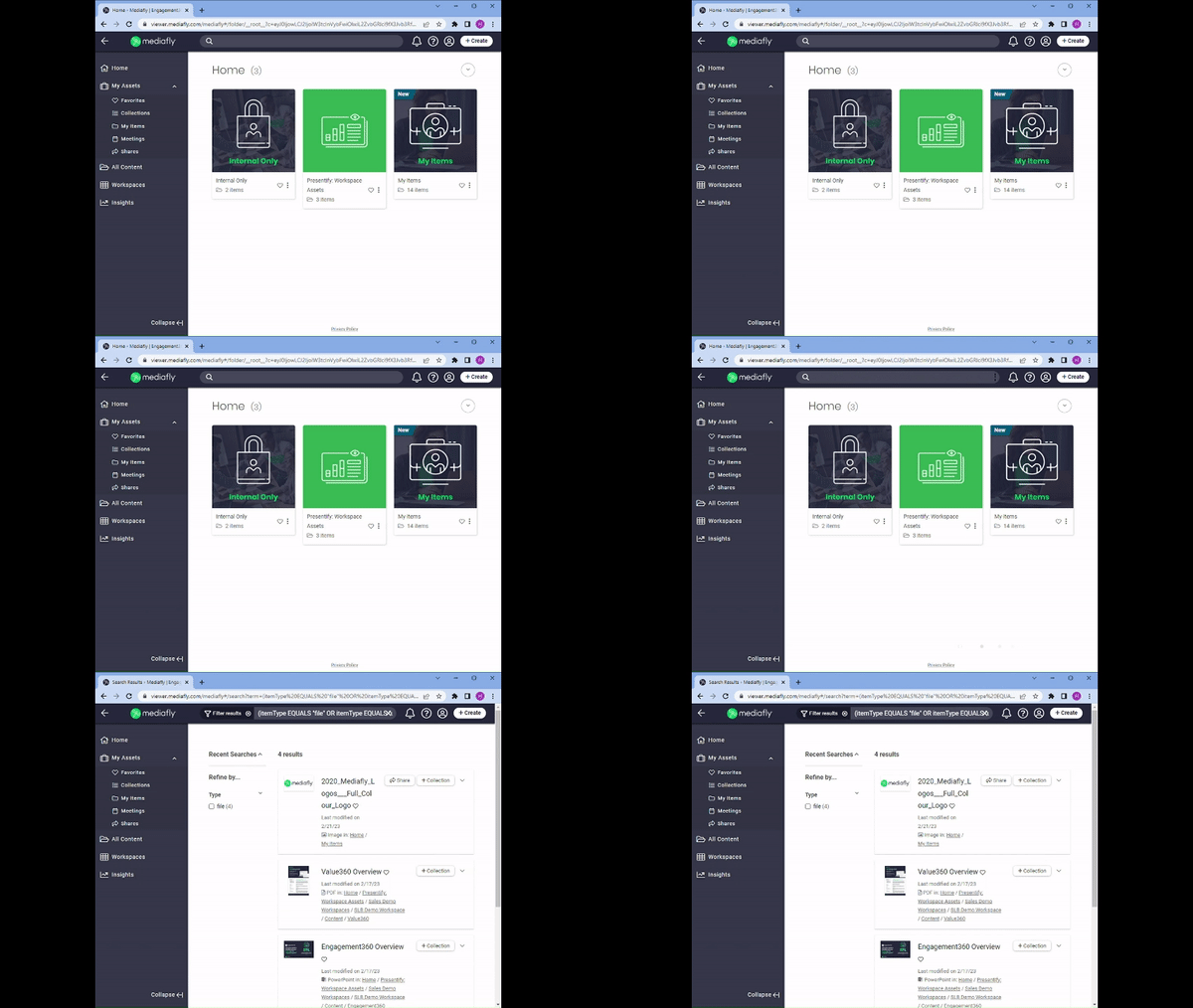
To make an advance search, simply copy the search query (provided later in this article) you want to use and paste it in the search bar of your Engagement environment. In the example below the new content search query is used.
Search Syntax
Below are the search terms and the syntax order:
| Comparator Operators | Logical Operators | Ordering | Keywords / Key Characters |
| CONTAINS | AND | ORDER BY | “ |
| EQUALS | OR | ASC | () |
| DESC | null |
Note: The searchable text that appears after the EQUALS and CONTAINS operators must be surrounded by quotes (" ") and should be keyed in in one word.
Order of Operations
| () | Grouping / Scoping |
| CONTAINS / EQUALS | Facets / Comparators |
| AND | Logical AND |
| OR | Logical OR |
Search Assumptions
Below are the basic rules that are applied when using search operators:
- The search facet statement is made of 3 parts. [Field] [Operator] [Value]
- If query does not contain ORDER BY, the search query is sorted through the order discussed in the How Mediafly Determines Search Results Order documentation.
- When searching using keywords CONTAINS or EQUALS the results will be case insensitive.
- e.g. (name EQUALS “Bob”) would return values of 'Bob, BOB, bob etc...'
- Searching for values with specific field values are case sensitive.
- e.g. (name EQUALS “Bob”) name would only search the metadata field called “name” for specific answers with 'Bob' using the same case sensitive format. Values that do not have the same case sensitivity are not displayed.
- Fields don’t have quotes around them
- e.g. (name CONTAINS “Alice”)
- Values always have quotes, unless you are looking for null
- e.g. (name CONTAINS “Alice”)
- e.g. (name EQUALS null)
Fields that can be searched (Standard)
Below are the groups of fields that can be searched:
All Metadata Fields
Metadata fields are reduced to a list of values that the search field will match against. The following metadata field types can be searched:
-
- For simple string metadata:
To search for such. Just specify the value itself. For example, you want to search a Field title, “name”, with a value: “John Doe”
Sample query:- name EQUALS “John Doe”
- For metadata fields that have several values, the search command may use any of the values available in the field. For example, you want to search a Field: “colors”: with the values: [“red”, “blue”, “green”]
Sample query:
- colors EQUALS “red”
- colors EQUALS “blue”
- colors EQUALS “green”
- For objects, the list is all of the object’s property’s values. For example, in the case where the object 'name' has two values; first name, and last name, the search query can be done with one of the two objects.
Sample query:
- name EQUALS “John”
- name EQUALS “Doe”
- For object arrays which may contain two different field types, the list is all the object property values of the field:
- For example, in the case where the field, 'Language' object array has two different properties:
- “code”: “en-US”,
“name”: “English” - code”: “fr-FR”,
“name”: “French”
Sample query
- languages EQUALS “en-US”
- languages EQUALS “English”
- languages EQUALS “fr-FR”
- languages EQUALS “French”
- For simple string metadata:
All “compoundable” metadata fields
-
-
-
-
- The above examples describes searching metadata 1 level deep for strings. However for object or an array of objects, it is possible do a deep object search using dot notation.
- Examples:
- languages.code // would search array of language objects
- name.first // would look at first attribute of name object
-
-
-
Predetermined Fields
-
- slug- This command returns items that has a slug EQUALS or CONTAINS the indicated value.
- parentSlug- This command returns items whose containing folder slug EQUALS or CONTAINS the indicated value.
- pathSlug- This command returns items whose containing folder or any parent folder slug EQUALS or CONTAINS the indicated value.
-
text - This command searches a wildcard field that matches against several other field’s values.
- Predetermined fields - Matches the values of any of the following predetermined fields: pathSlug, parentSlug, slug.
-
Metadata - Matches the value of all metadata fields (See: All Metadata Fields above for how metadata field values are matched.)
Looking for absence of a field
All metadata, compoundable, and predetermined fields can be queried for a value of null or absence key.
Example:
middleName EQUALS null would return all items that are missing the attribute middleName or have a null value set to the attribute.
Notes:
- Null is a keyword, and therefore is the only value in a facet that doesn’t have quotes.
- Using the keywords text and null together is not valid syntax since text is wildcard. Using itemType and other advanced fields are also incompatible.
- The null keyword must be accompanied by EQUALS operator as CONTAINS null is undefined
Viewer-only terms
These terms work only when searching in Viewer.
- _recommended: true
Use this term to search for items that is considered recommended based on the system's content recommendation engine. - _viewed: true
Use this term to search for items that the user has viewed the item. - _isNew: true
Use this term to search for items that falls into the "new" category (e.g. content is not viewed and was uploaded 14 days ago). - _favorited: true
Use this term to search for items that has been favorited by the user. E.g. _favorited EQUALS "true". - isMirror: true
Use this term to search for items that is a mirror of another item. Use isMirror EQUALS "false" to exclude mirrors from your result. - _isUpdated: true
Use this term to search for items that falls into the "updated" category (e.g. has had more than 1 asset that was uploaded within 14 days and it has not been viewed or viewed before the second asset was uploaded).
Pro tip: _isNewOrUpdated replaces _new as the recommended way to get a combined list of new and updated content. Applications or Workspaces that used _new will continue to work.
A sample query would look like this: _isNew EQUALS "true"
'itemType EQUALS’
Users can also search using itemType and filter the items to a specific item type. This allows you to save time and search for an item with similar naming scheme to other files of different formats.
Example:
itemType EQUALS "File"
There are several itemType in the Engagement environment.
- “File”
- “Link”
- “Audio”
- “Video”
- “Document”
- “Image”
Note: All queries are automatically set to "File". This value is always present in every searches.
The device API returns items as 3 possible values. Channel, Episode and Document. Below is the Item format and the corresponding ItemType:
| Item Format | Matches “type” values of: |
|
Image Document with a docType of “gif”, “png”, etc. |
“file”, “image”, docType |
|
Link Document with a docType of “html” |
“file”, “link”, docType |
|
Document All other Documents |
“file”, “document”, docType |
|
Episode |
“file”, mediaType |
Ordering Search Results
ORDER BY is used to order the search results. Any of the standard fields, including the “modified” field (date field), can be sorted. If no order is provided, the order followed is detailed here in the How Mediafly Determines Search Results Order documentation.
Note: If the query does contains ORDER BY {field} that it must be followed by either ASC or DESC to indicate direction.
Below are the fields that can be ordered in a search.
- Predetermined fields
- slug (string compare)
- parentSlug (string compare)
- modified (date compare)
- created (date compare)
- All Item metadata fields (All the keys in the metadata dictionary)
Viewer-only ordering
By default, searches conducted on our servers (e.g. through Viewer or while online on devices) sort by a combination of sales score and asset score.
You can order by salesscore or assetscore. For example: _isNew EQUALS "true" ORDER BY assetscore DESC will return all new items ordered by assetscore descending.
Sample Search Queries
Below is the list of several helpful Search queries:
Note: Users won't need to specify a special search command within My Items folder or any folders that brings content from My Items. Searching in this section will display a search result that is specific to each users My Items folder.
New Content
This search command will return recently created content that user has not viewed. This search limits new contents that have been created within the last two weeks.
(itemType EQUALS "file" OR itemType EQUALS "url") AND (_viewed EQUALS "false") AND (_isNew EQUALS “true”) ORDER BY created DES
Recommended Content
This search command will return content that’s recommended and has not been viewed by the logged in user.
_recommended EQUALS "true" AND _viewed EQUALS "false"
Favorited Content
This search command will return the logged in users favorited content.
_favorited EQUALS "true
Recently Viewed by User
This search command will return items that has been viewed by the logged in user.
_viewed EQUALS "true
Sales Score, Asset Score
You can add a search command to order any search query results by Sales or Engagement Score (aka Asset Score). Use the following search queries:
- For Sales Score:
append “ORDER BY salesscore DESC” - For Asset Score:
append “ORDER BY assetscore DESC”.
For example, to get all the new content sorted by asset score:
_isNew EQUALS “true” ORDER BY assetscore DESC
Content within a specific Folder or Hierarchy
This search command will return items within a specific folder or hierarchy level. Key in the search command followed by the folder or hierarchy:
pathSlug CONTAINS "75230721d2a1466c85ee39361908c4feproduct862031"
Note: The pathslug is the series of numbers and letters directly after the company code in the Mediafly URL.
For example, on this path with the company code 'mediafly':
https://viewer.mediafly.com/mediafly#/folder/75230721d2a1466c85ee39361908c4feproduct926179?c=eyJ0IjoxLCJ2IjoiZTA4NzMwYzk4YjMwYTJkNjFhNjViOTBiMWVlNDFlNjcifQ%3D%3D
The pathslug that you can use in the search is any portion within the URL: "75230721d2a1466c85ee39361908c4feproduct926179".
This bring up all contents in the specific folder or any other files with similar pathslugs:
pathSlug CONTAINS "75230721d2a1466c85ee39361908c4feproduct926179"
Combining Commands
Other search queries may be used in combination with other simple search commands.
_isNew EQUALS “true”
_viewed EQUALS “false”
_recommended EQUALS “true”
The above commands can be used as follows:
Listing all recommended content that the user haven’t viewed:
_recommended EQUALS “true” AND _viewed EQUALS “false”
Listing all recent recommended content that has been viewed by other users but the logged user has not seen yet:
_recommended EQUALS “true” AND _isNew EQUALS “true”
pathSlug CONTAINS "75230721d2a1466c85ee39361908c4feproduct862031"
Plus you can add in things such as:
AND _isNew EQUALS "true"
Replies have been locked on this page!