


The platform leverages a number of parameters to trigger a Smart Alert. Feedback added to a conversation or a web conference, or a call being processed in Coach will kick off the trigger system to notify you.
Select Create Smart Alert to create a brand new alert. Smart Alerts can be created in the Settings or Inbox tab.
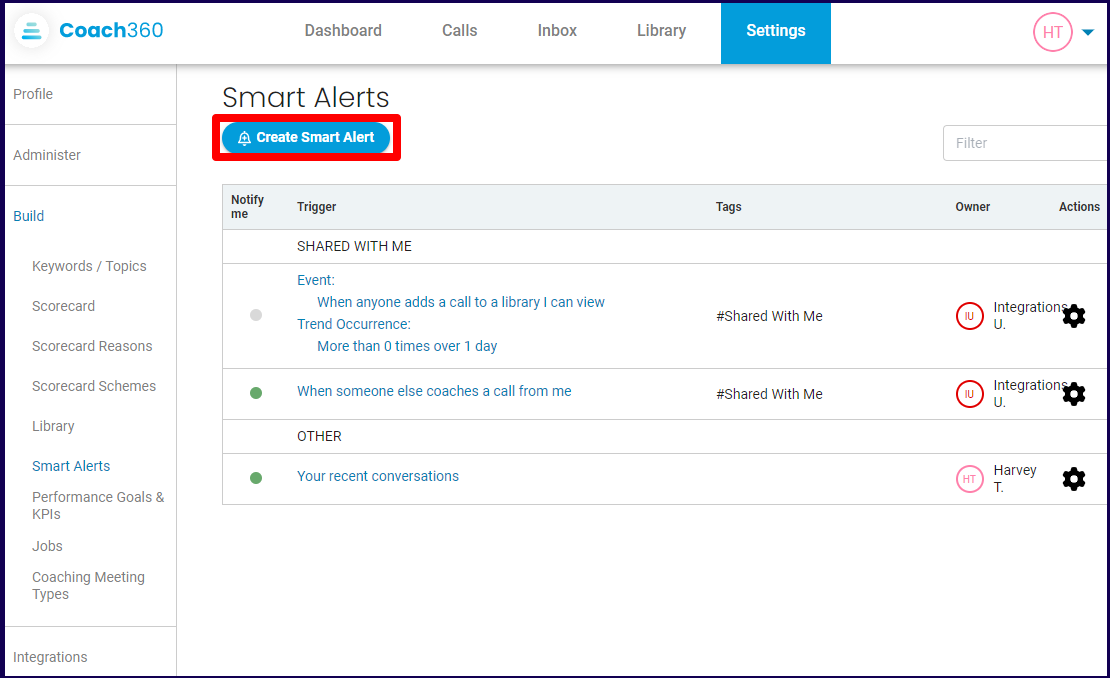
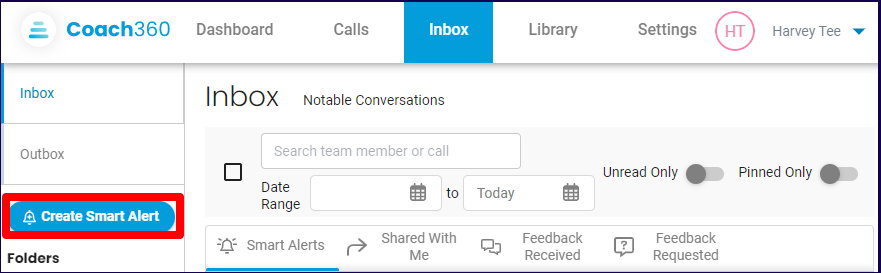
Choose one placeholder from each section (the trigger and the type of alert) below to configure your alert.
What will trigger the alert?
Select Call Activity to track call patterns.
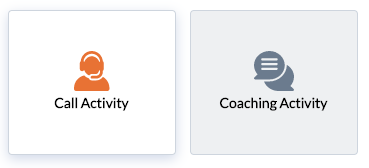
Example: When a call by one of my team lasts for longer than 10 minutes and the contact raises objections throughout the call, including at the end of the call, send the call to the compliance team for review.
Select Coaching Activity to track Coach usage activity.
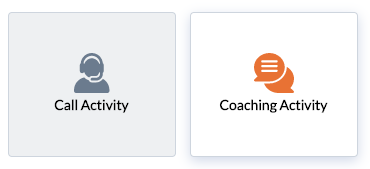
Example: When Steve comments on any call by Georgia, notify me and Georgia’s manager.
Creating a Trigger Rule for Call Activity
Selecting Call Activity will allow you to choose the criteria for the trigger rule. The options include the "who" (eg. has a specific caller) and the "what" (eg. has a matching account / opportunity / contact) generating the trigger.
-
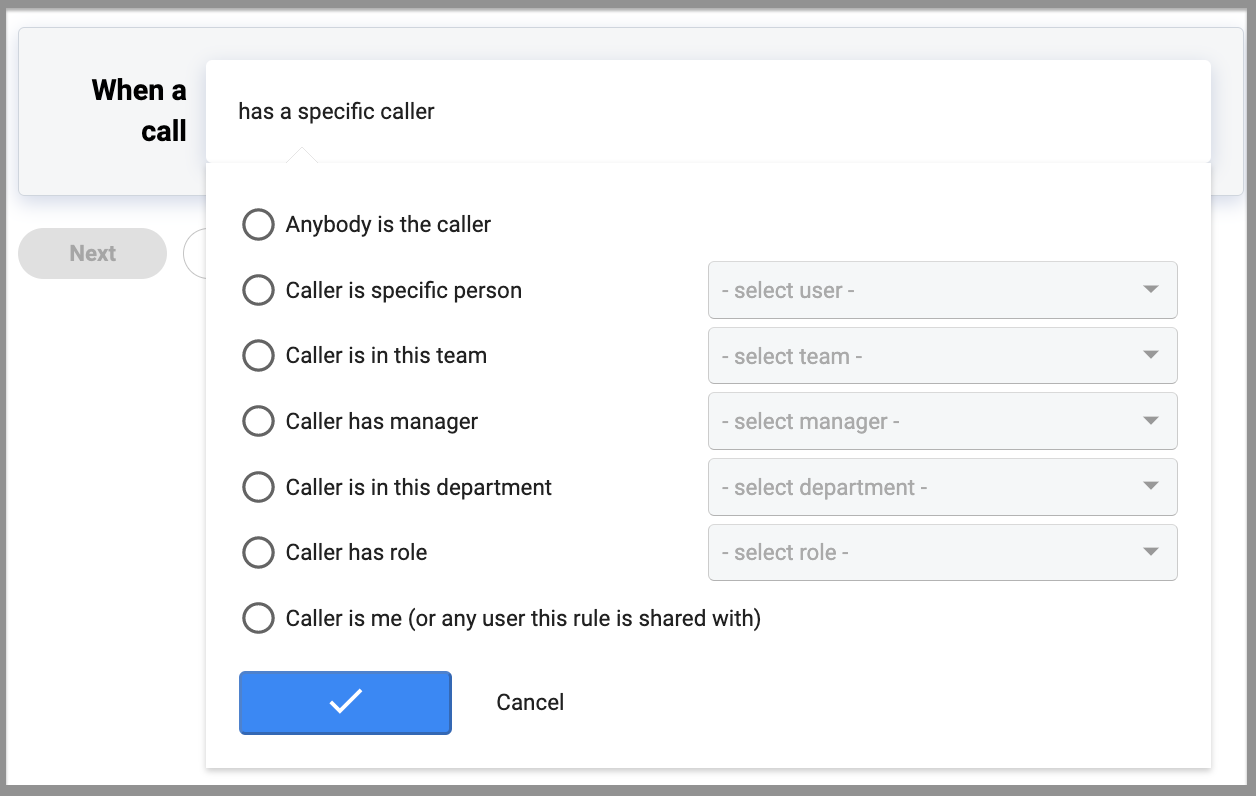
Has a Specific Caller
Selecting "has a specific caller" will give you a list of caller options. Select yourself or callers from a specific user, role, team, department or manager, then specify further in the corresponding dropdown menu.
Example: Caller from the Sales Engineering Team has an account matching with Amazon.
Configuration:
+ has a specific caller > Caller is in this team > Sales Engineering > click the blue check box
+ has a matching account / opportunity / contact > Account > Amazon > click the blue check box
-
Anybody is the Caller
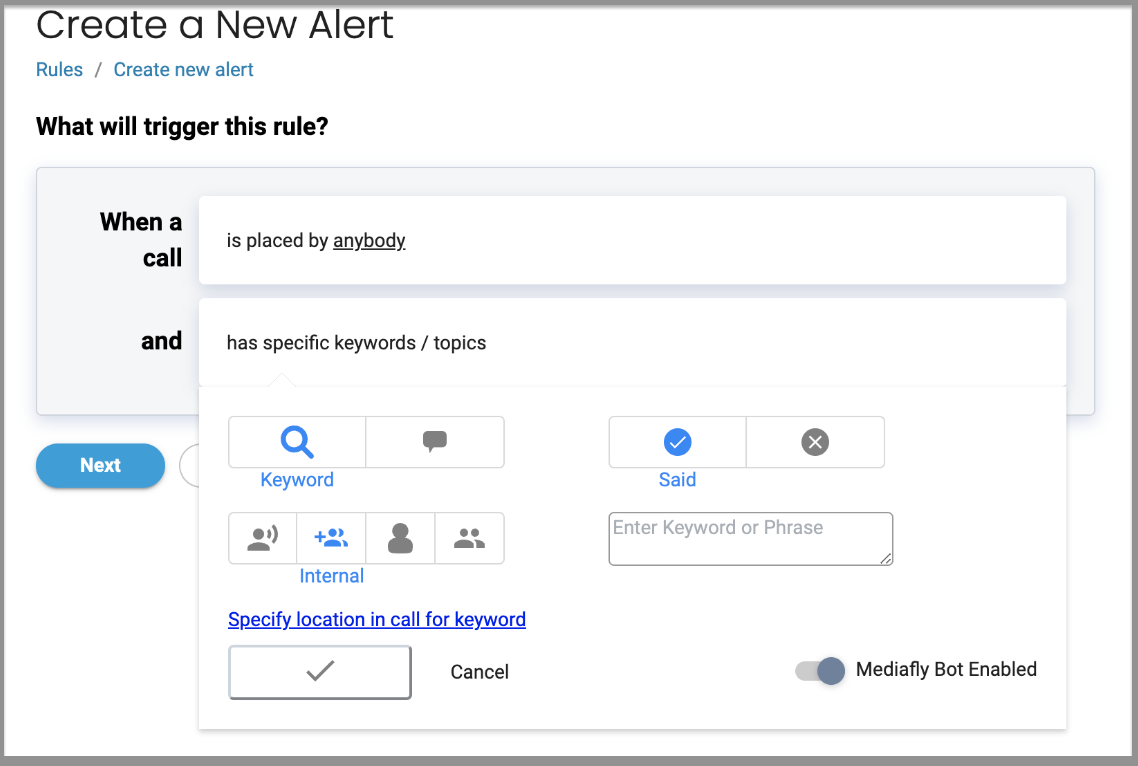
Selecting "Anybody is the caller" will allow you to set up smart alerts against different all types: caller, internal, external, or all speakers. The other selections will prompt you to select a user from the associated dropdown menu.
Example: An external caller mentions a competitor.
Configuration:
+ has a specific caller > anybody is the caller > click the blue check box
+ has specific keywords / topics > select the keyword icon > select said > select the external caller icon > enter the competitor name > click the blue checkbox
Pro tip: you can click on "Specify location in call for keyword" to further narrow the trigger to only occur at a certain place in calls:-
-
-
- Anywhere within call
- Specify range within all
- Phase of a call
-
-
-
Once you've set up your trigger, click next to move on to rules!
Click the blue check box to save your work. Click Cancel to cancel the changes.
Call Activity Options
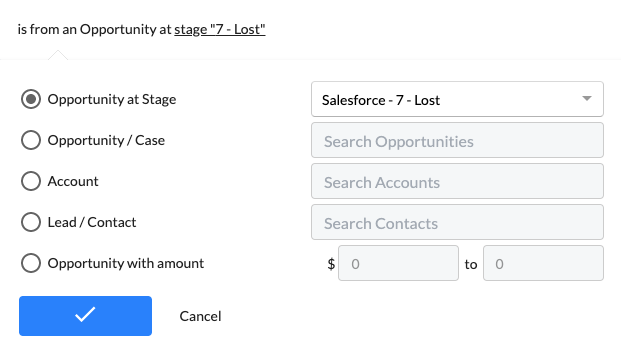
There are 4 call activity metrics that can be generated by a trigger:
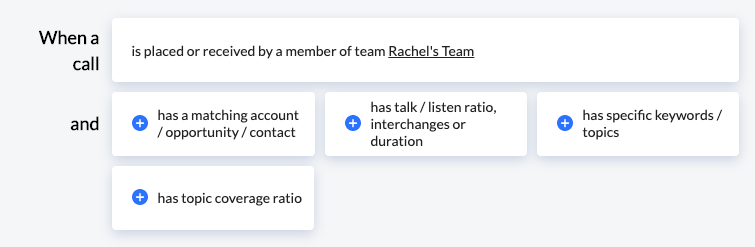
1. has a matching account / opportunity or contact
Track values in CRM fields, like dispositions and opportunity price points.
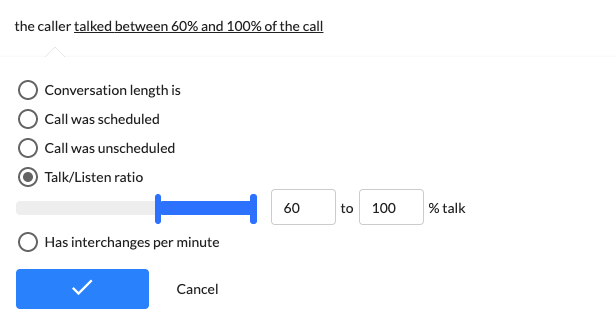
2. has talk / listen ratio, interchanges or duration
Track values in conversation length, percentage of conversation between the rep and buyer, the interchanges count and type of conversation.
3. has specific keywords / topics
Track values that specify keyword and topic occurrence.
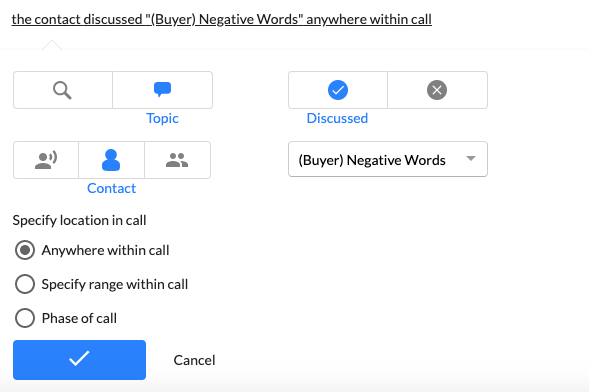
Narrow down your search by selecting:
a. Keyword or Topic
- the topic populates values from the keywords build designed by an Coach admin
b. Whether the word or topic was said or wasn't discussed
c. The caller, contact or both that said this keyword or topic
d. The specific location where the keyword or topic was said. Options include:
- anywhere within call
- specified range within call
- type or toggle the desired percentage
- phase of call
- these selections are pre-populated with default Skills
4. has topic coverage ratio
Track values that specify keyword and topic ratio.
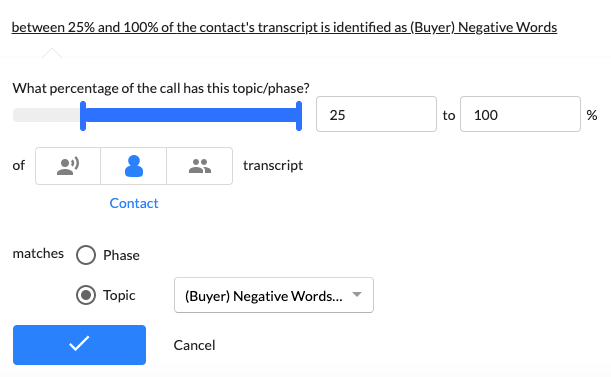
Narrow down your search by selecting:
a. Keyword or Topic
b. The percentage of call that has this keyword or topic
c. The caller, contact or both that said this keyword or topic
d. The phase or topic
- the available phases in the drop-down are the default phases
- the available topics are from the customizable topics and keywords made by an admin
Creating a Trigger Rule for Coaching Activity
Selecting Call Activity will allow you to choose the criteria for the trigger rule. The options include the "who" (anybody reviews a call) and the "what" (the activity within the Coach platform).
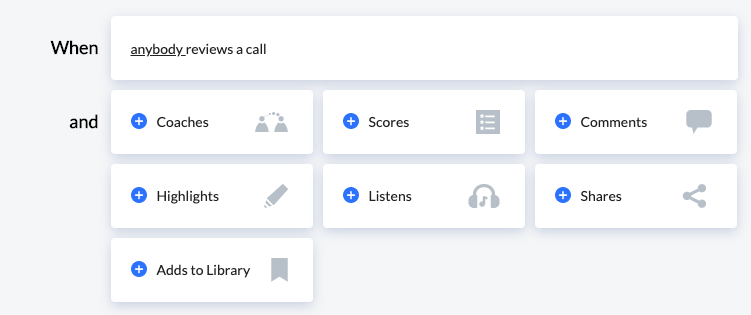
Click on anybody to see a list of caller options. Select yourself or callers from a specific user, role, team, department or manager.
Selecting options 2 through 6 will open up a drop-down list to narrow down your search.
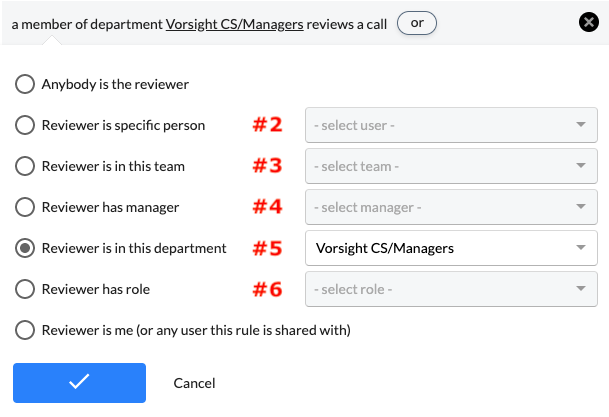
Click the blue check box to save your work. Click Cancel to cancel the changes.
Call Coaching Options
There are 7 call coaching metrics that can be generated by a trigger:
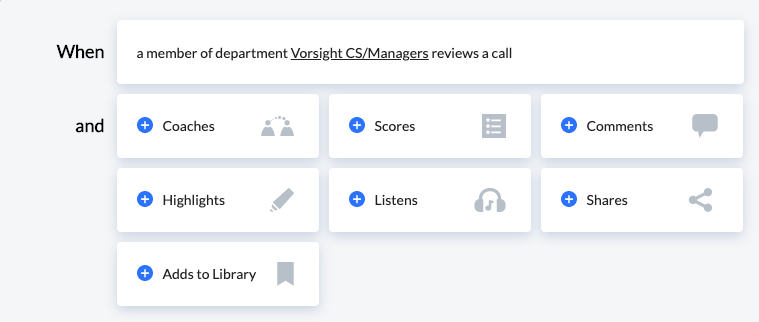
1. Coaches
Track instances someone leaves a comment, highlight or score on a specified caller's calls.
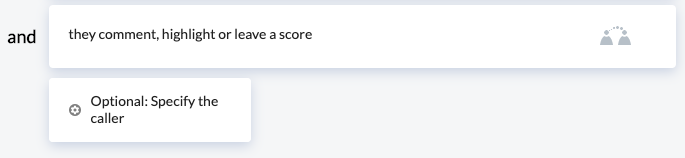
2. Scores
Track instances someone leaves a score with a certain score range for a specified caller's calls.
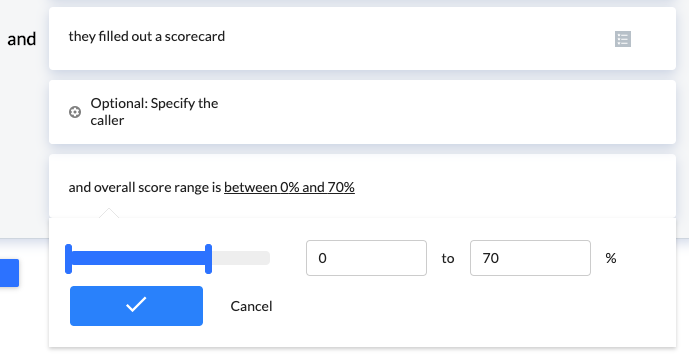
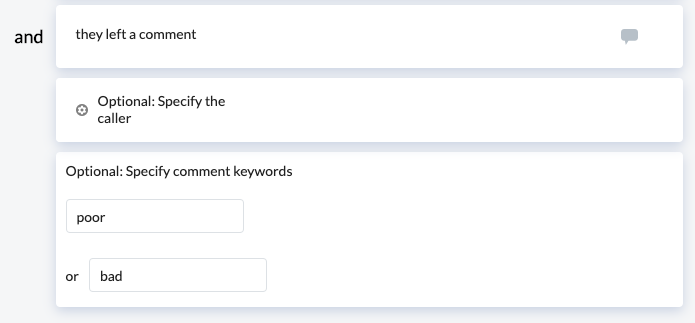
3. Comments
Track instances someone leaves specific word or overall comment on a caller's calls.
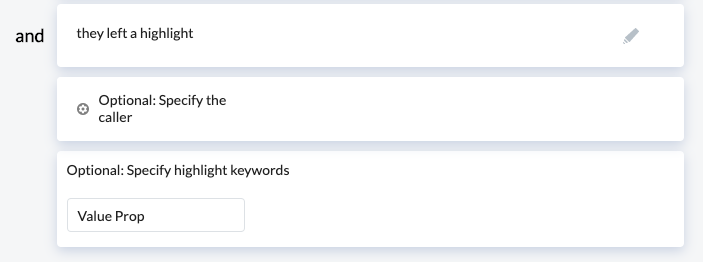
4. Highlights
Track instances someone leaves specific word or overall highlight on a caller's calls.
5. Listens
Track instances someone listens to the whole or a percentage of a caller's call.
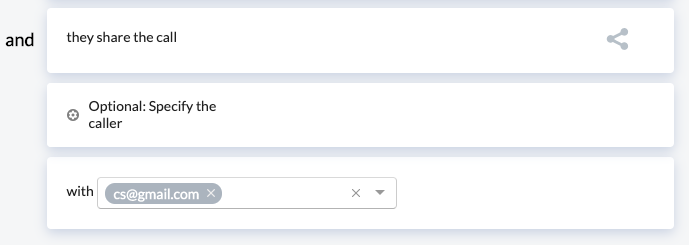
5. Shares
Track instances someone shares a call internally or externally.
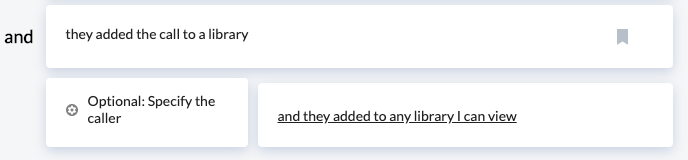
6. Adds to Library
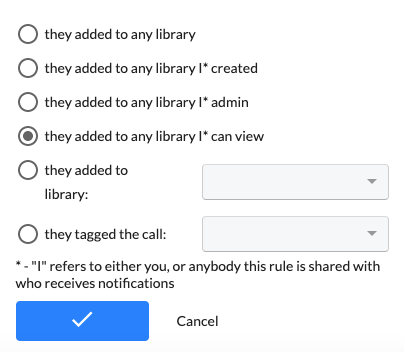
Track instances someone adds a call to specified Library. "I" refers to either you, or anybody this rule is shared with who receives notifications.
Next Steps
Click Next for final verification of the Smart Alert. Select Save at the bottom of the page once Notification or Trend rules are set.

The Trigger will be saved as an Other tag and you will be the owner of the Smart Alert.

See Smart Alerts Overview page for a walkthrough of the Smart Alerts home page in the Settings tab.
Replies have been locked on this page!