


You can save time creating/updating bulk goals using our CSV Goal Import / Export feature.
Exporting Goals
Even if you haven't entered any goals into Intelligence, you will start by using the Export functionality to ensure the format of the CSV is compatible with Intelligence, and it saves you from having to format it yourself. You can also export current goals to make large updates in the CSV before importing them back into Intelligence. (If you are making small changes, you can make them within the Platform's goal settings without exporting/importing.)
-
Go to Administrative Settings > Report Management > Goals
-
Click on the goal you want to export
-
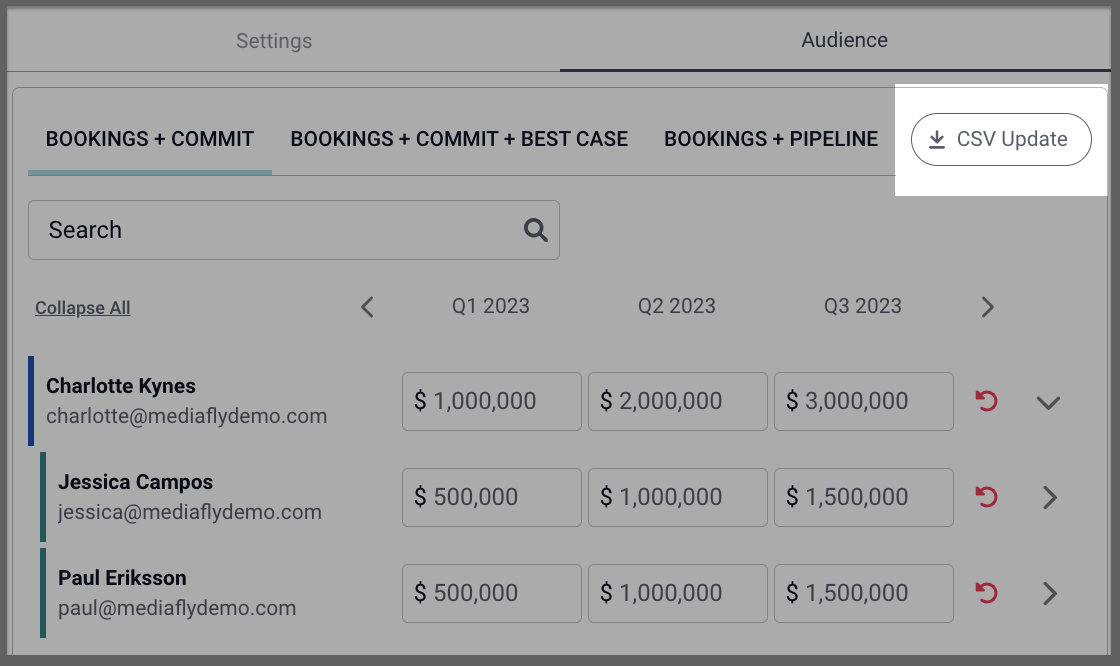
Click the Audience tab
-
Select the segment you want to export
-
Click the CSV Update button
-
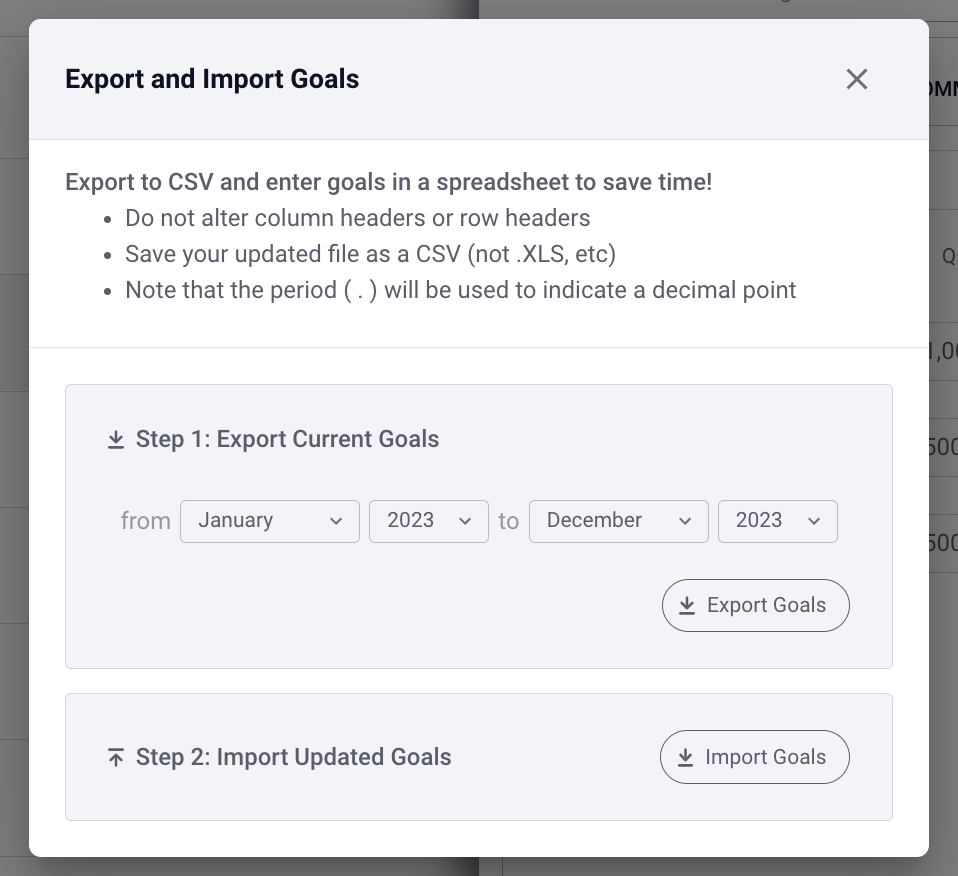
Select the date range you want to export
-
Click Export Goals
-
Open the exported CSV file download. (You will see a green success message when your goals are successfully exported.)
-
Make any changes.
Note: Only make changes to the data that is configurable in the Platform's goal settings, most often this will be the goals themselves. If the date you want to update is not in the CSV then simply re-export the CSV with the proper date range selected
Note: Do not use a decimal in a goal in the CSV, you will get an error when importing.
-
Save the CSV file.
Importing Goals
-
Go to Administrative Settings > Report Management > Goals
-
Open the goal you want to import (update)
-
Click the Audience tab
-
Click the CSV Update button. (You will see a green success message when your goals are successfully imported.)
-
Click Import Goals
-
Select the CSV file you saved earlier to import
-
Your goals will reflect the information entered into the CSV file after closing and reopening the goal editor.
Replies have been locked on this page!