


Monitor the success & progress of all of your products with Recurring Revenue / SaaS goals. Using your SaaS metrics, we can set and track your goals, give you inspection access so you can share success and make improvements where needed.
🚨 Prerequisite 🚨
Before you can set goals for recurring revenue, be sure you've configured a recurring revenue content calculation.
Creating Recurring Revenue / SaaS Goals
-
Click goals (or go to to Settings > Goals)
-
Click + New Goal
-
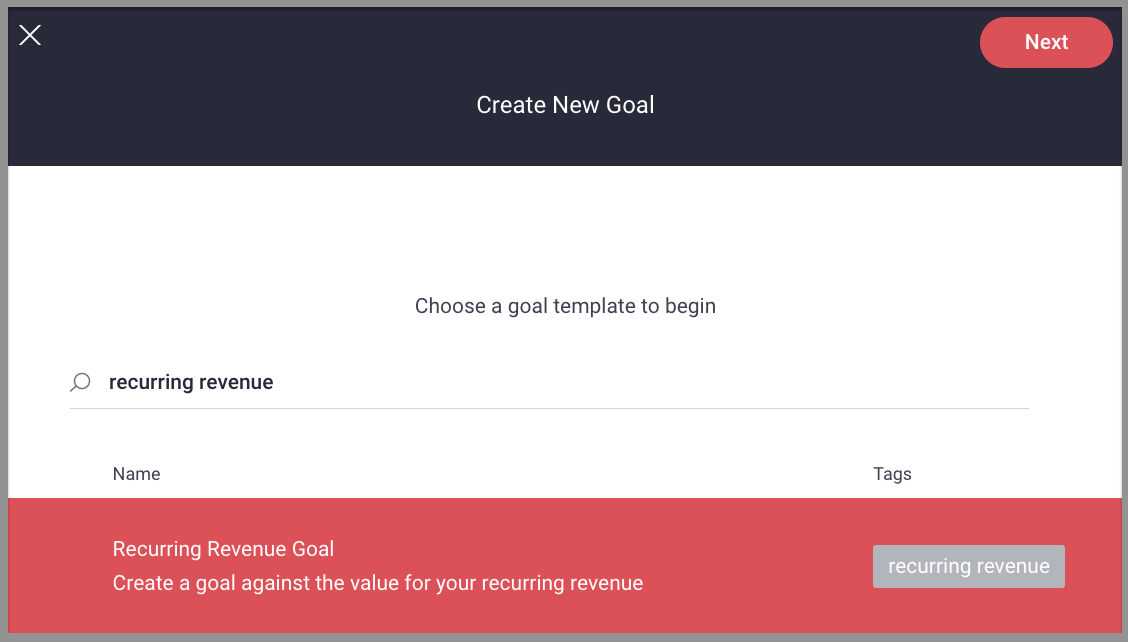
Select the Recurring Revenue Goal template, then click Next
- Enter a name & description, then click Next
-
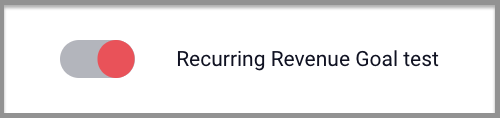
Enable the goal by toggling to ON (orange with a checkmark)
- You can add attainable and attainment filters (optional)
-
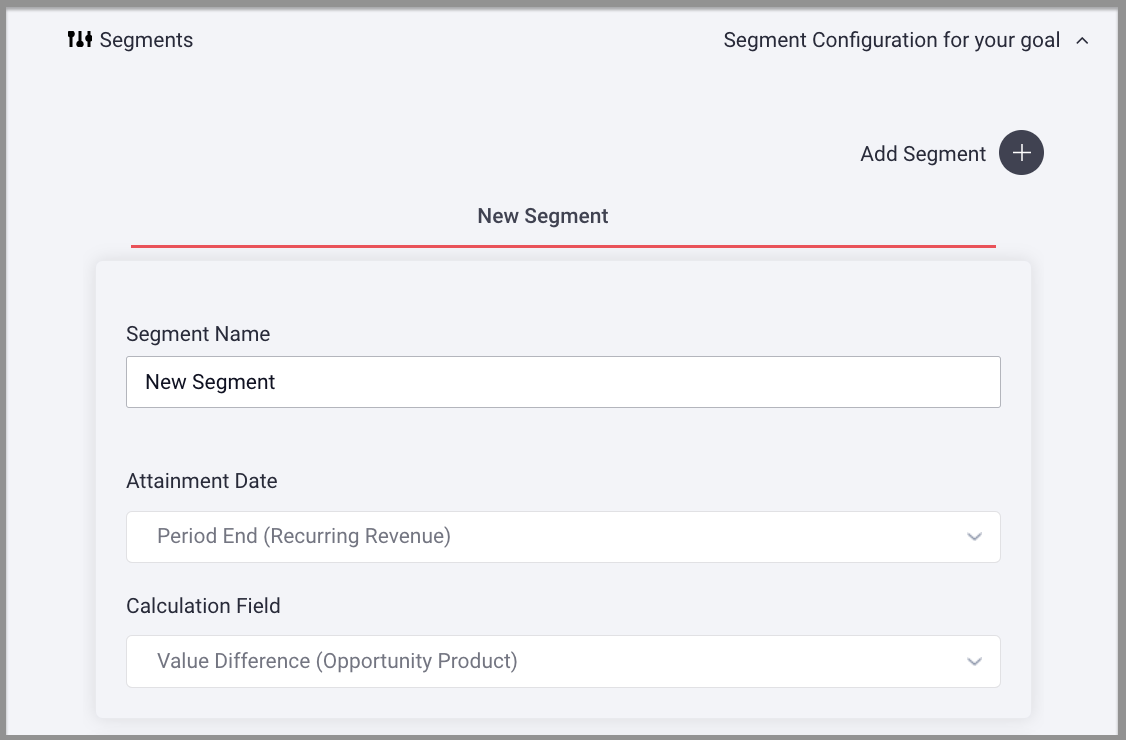
Create segment
-
Enter a Segment Name
-
Select a Recurring Revenue Attainment Date [be sure you're selecting a field that is following by (recurring revenue)]
Note:To include contracts active at the beginning of a period, filter on Period Start, to include contracts active at the end of a period, filter on Period End
-
Select a Recurring Revenue Calculation Field [be sure you're selecting a field that is following by (recurring revenue)]
-
Click the plus symbol + by Add Segment and repeat a-c to add additional segments to this goal
-
-
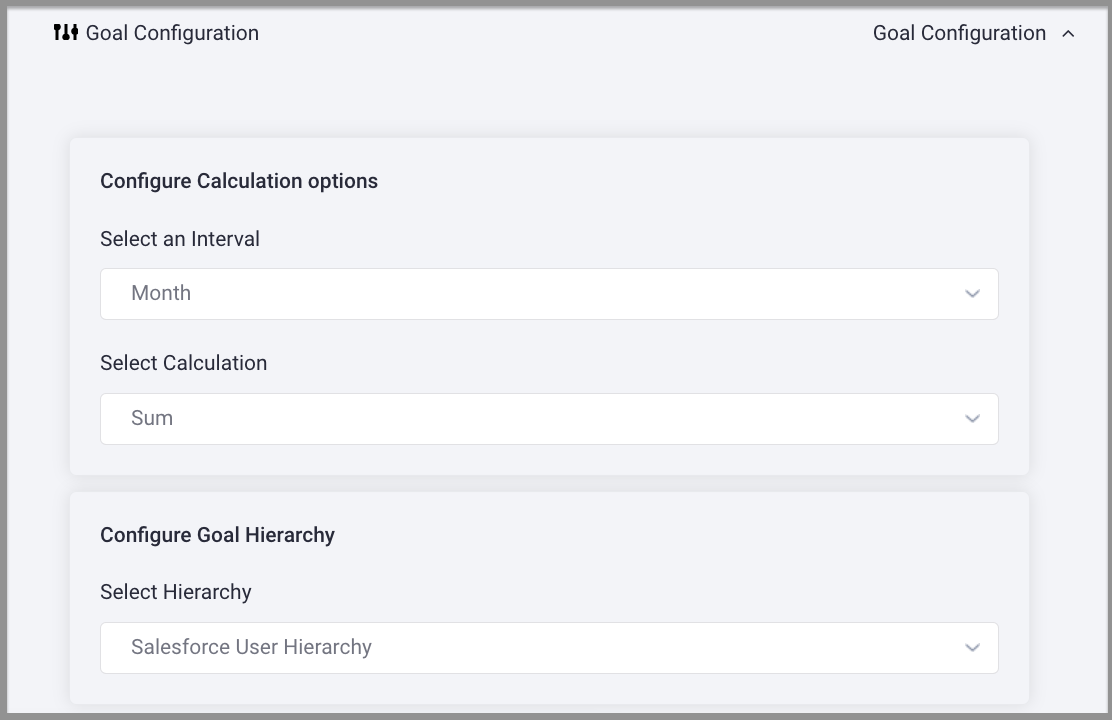
Goal Configuration
-
Configure Calculation options
-
select an interval
-
select a calculation
-
-
Configure Goal Hierarchy
-
select the hierarchy to which you want this goal applied
-
-
-
Click Save
Replies have been locked on this page!