


When it comes to predicting revenue growth and scaling sales execution, setting and tracking against goals is key. That’s why we’ve made it easy. Now you can set Goals for any metric: Accounts, Contacts, Campaign Member, Campaign, Issue, Lead, Opportunity Product, Task, Case, Meeting, Recording, and Opportunity.
Want to look at it by team, rep, or by stage or business segment? As with all of our reports and dashboards, you can filter in real-time to get the views and answers you are looking for. And of course, drill into the detail for every deal, contact, person, and more. Let's get started on Creating, Setting, and Reporting on Goals.
Have you already created goals and are ready to report on them? Click here!
Creating Goals
- Open Goals ( or go to Settings > Goals)
- Click +New Goal to add a new set of goals or open an existing goal.
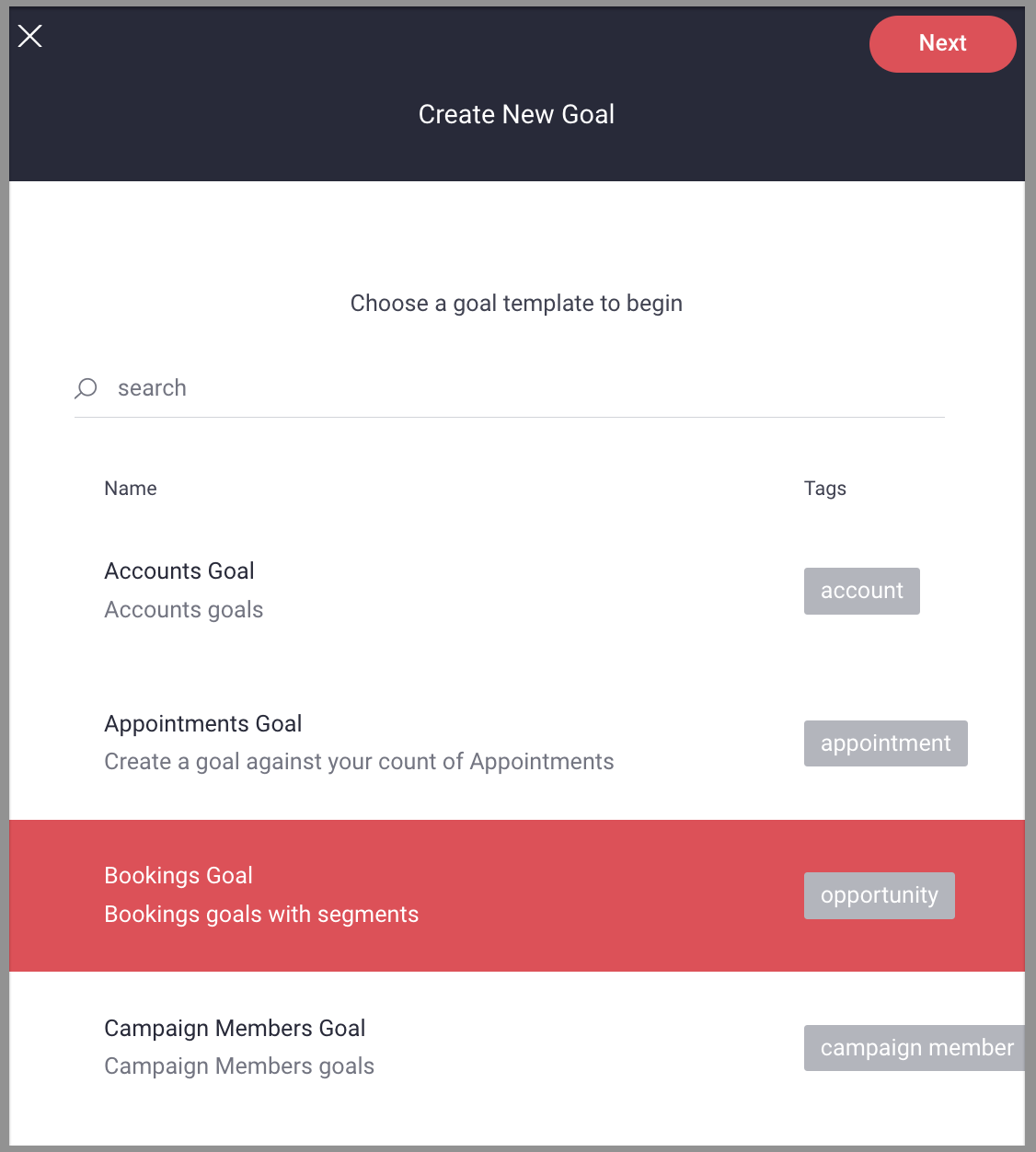
- If adding a new set of goals, select your new goal template. (In this example, we'll be creating a Bookings Goal.) Click next.
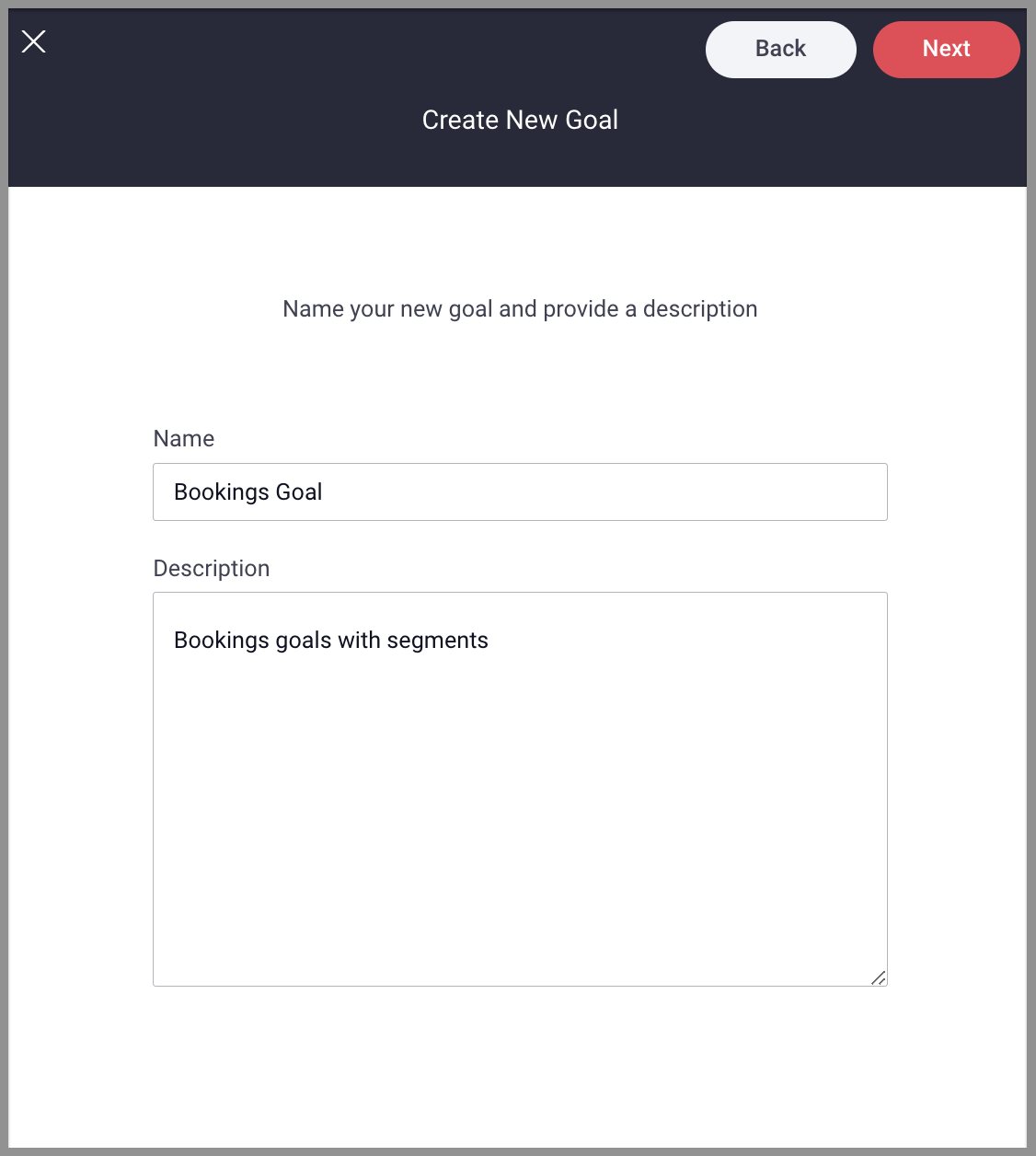
- Enter the new goal Name and Description, click next.
Attainable Filter (optional)
You can add an "Attainable Filter" to a goal that will allow you to show attainable data in goal reports so you can visually track goal trajectory and coverage. (Eg. "Here's where we are/were (attained) and here's where we could be/could have been (attainable).")
If you do not specify a filter, the graph will consider all content attainable (anything that doesn't match the attainment filter.) For example: Opportunities, Attained = Closed Won, so with no attainable filter specified, all "not won opportunities” would be considered attainable. In this case, you'd want the attainable filter set to only consider open opportunities, otherwise it would not account for lost deals. Not all properties have a “lost” concept or something similar, so this doesn't apply to every property.
Note: Property with vs. without history tracking enabled
-
Properties without tracking history enabled: You will not be able to graph this property's data over time.
-
Properties with tracking history enabled: You can graph this property's data over time to show what was attainable in each period.
*Properties with history tracking enabled will show the history icon inline with the property name
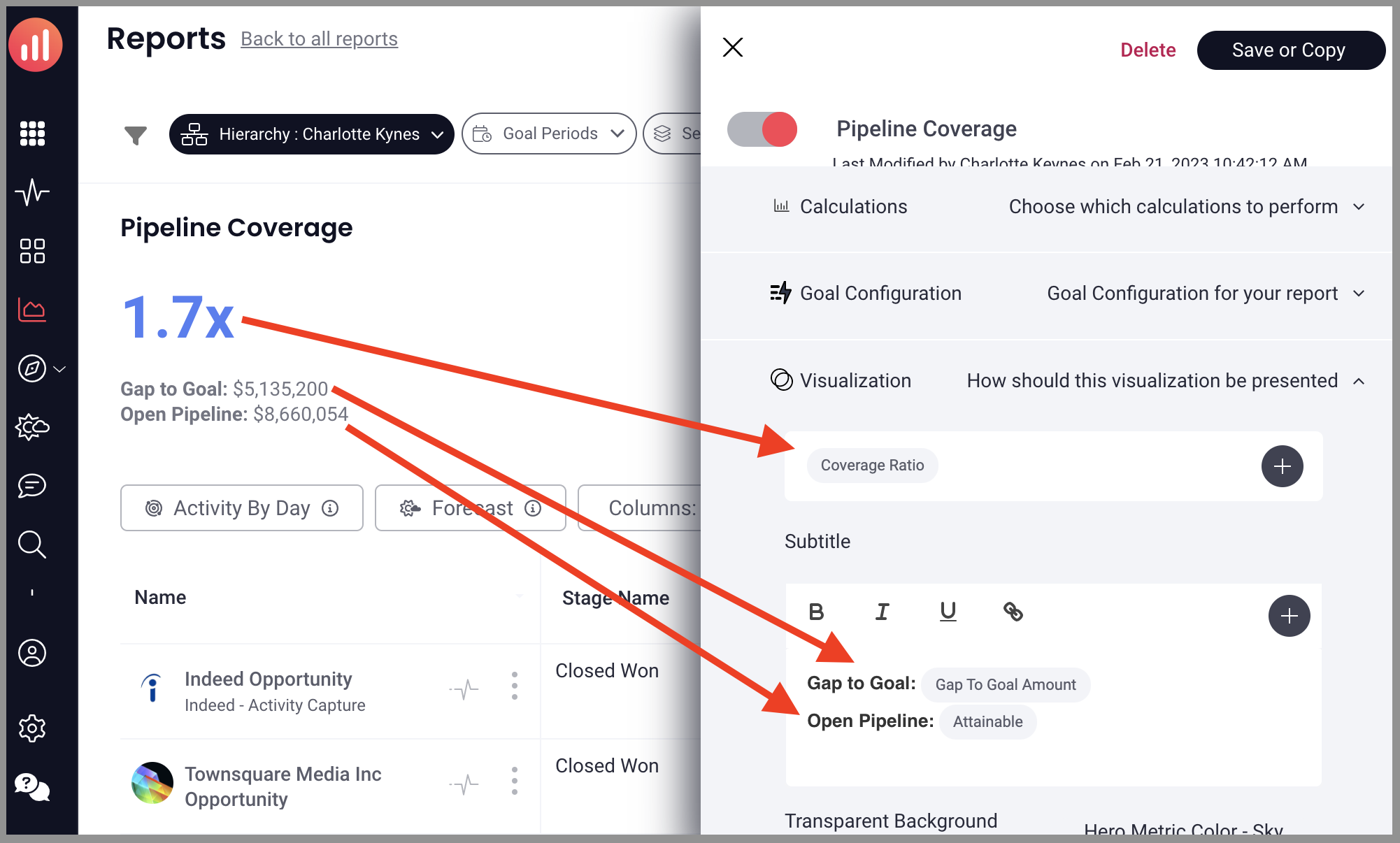
The attainable amount will also be part of the calculation when you want to discover Coverage Ratio, which you can learn more about here. But here's where "attainable" comes in:
Where does the coverage ratio calculation come from?
Coverage ratio is attainable / gap to goal value. You can see all three values in the example below.
Attainable / Gap to Goal = Coverage Ratio
$8,660,054 / $5,135,200 = 1.7
Attainment Filter
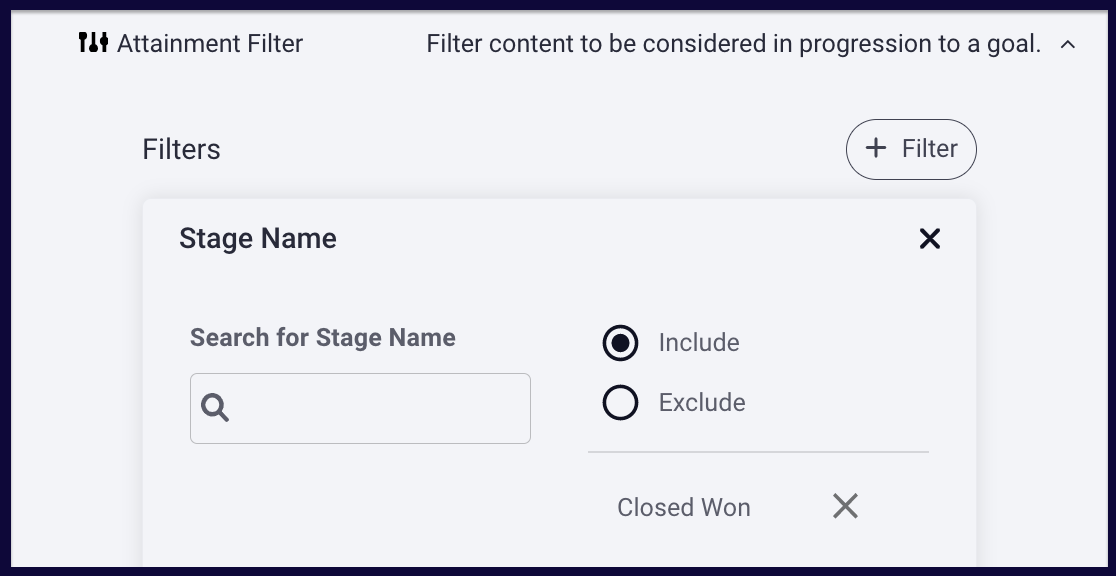
Set the standards of goal attainment by clicking on Attainment Filter, then click the + Add Filter button to customize filters to be considered in progression to a goal. This is the definition of hitting a goal. For example, the goal below will consider opportunities that are Closed Won: Closed (Is Closed = True) Won (Is Won = True).
*Note: If you're creating a Pipeline Coverage goal, be sure you are excluding closed lost opportunities in the attainment filter. Learn more about Pipeline Coverage goals and reports here.
Segments
Configure forecast segments on which to set goals. To add a new segment, click the + Add Segment button, or click on an existing segment name to make changes to an existing segment.
For each segment, enter a Segment Name. Select an Attainment Date, for example, the attainment by Close Date, and select a Calculations Field, for example, the attainment by Amount from the dropdown menus.
You can also add filters per segment. For example, below the Type filter is added to only include New Business, ensuring the "New Business" segment is only tracking New Business opportunities
The segment configuration below would track New Business opportunities by their closed dates, based on the opportunity amount.
Goal Configuration
Configure Calculation options
-
Select an Interval on which your goal will be based
-
Select Calculation for the goal
Configure Goal Hierarchy
-
Select a Hierarchy
Click Save.
Your new goal is now on the goals list!
To enable the new goal
Toggle the Off/On next to the goal to ON. (Below, Bookings Goal - FORECAST is on, Bookings Goal - role hierarchy is off.)

Setting Goals
- Open the new goal from the goals list.
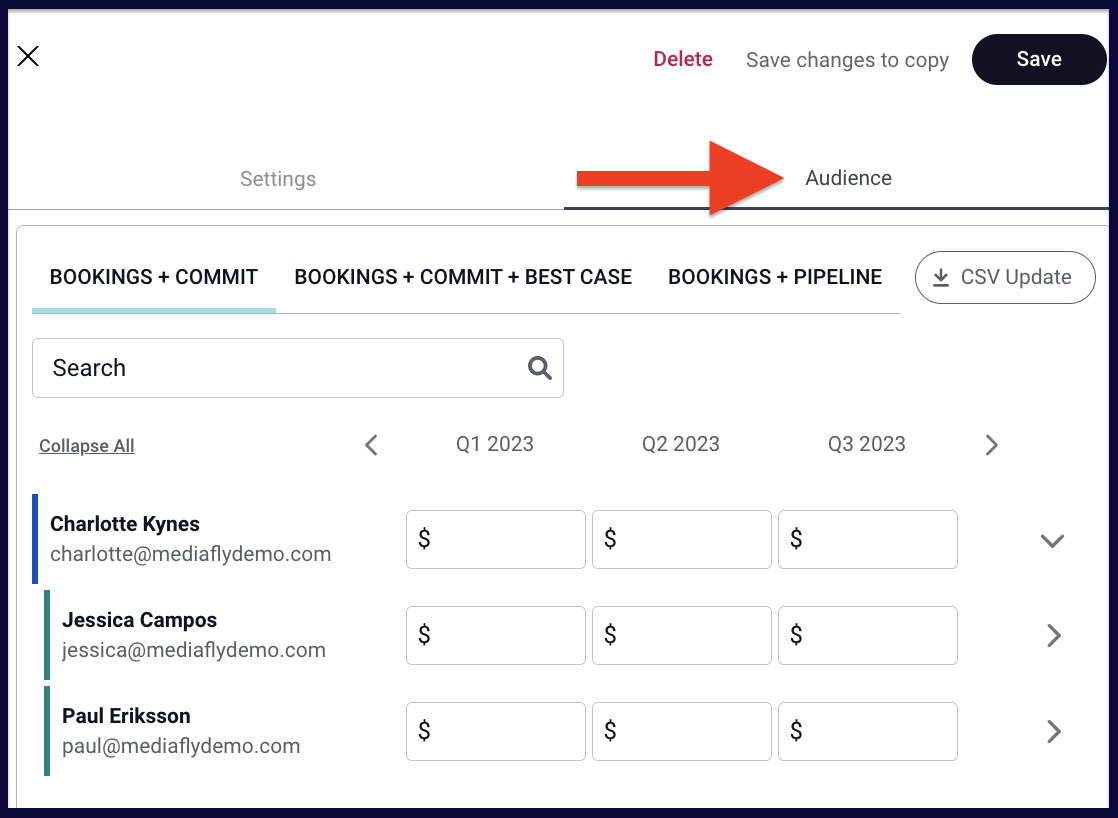
- Open the Audience tab. You will see each segment represented by a tab at the top. In each segment, there will be a horizontal display of time intervals aligned vertically with users/roles in your hierarchy.
- Select one segment tab at a time and follow these steps for each. You can expand and collapse the hierarchy to view the users/roles you want to enter goals for.
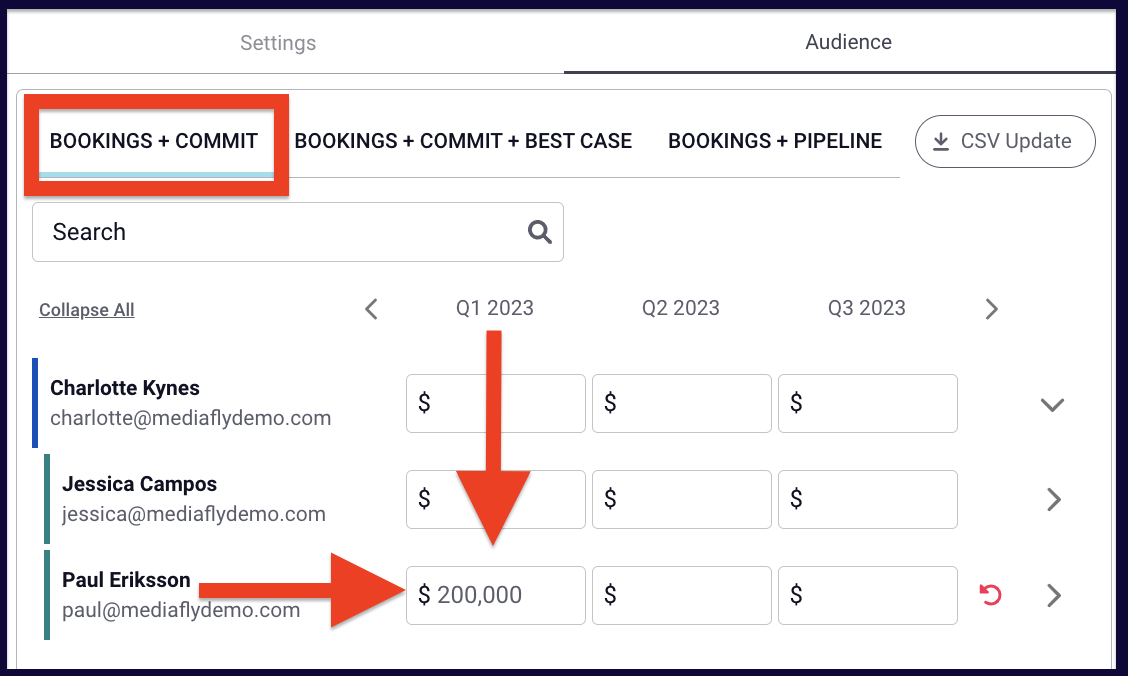
- Select a goal section beneath a time interval that is aligned with a user/role and enter the goal for that individual during that time period. Below we have entered $200,000 as a Bookings + Commit goal for Paul Eriksson in Q1 2023. Repeat for all desired users/roles and time periods for each segment.
- Click Save.
You have now set goals!!
Goal Cards
It's great that you've been able to set some goals, but now let's SEE them!
Replies have been locked on this page!