


You can create and customize content specific dashboards that live in the explore > content type rather than the report dashboards. Have you checked out the opportunity pipeline board? You can create multiple, custom boards for different inspection needs. And it's not just for opportunities, but for any of the content types you have access to in the Explore section in the left nav, including:
Creating a New Content Dashboard
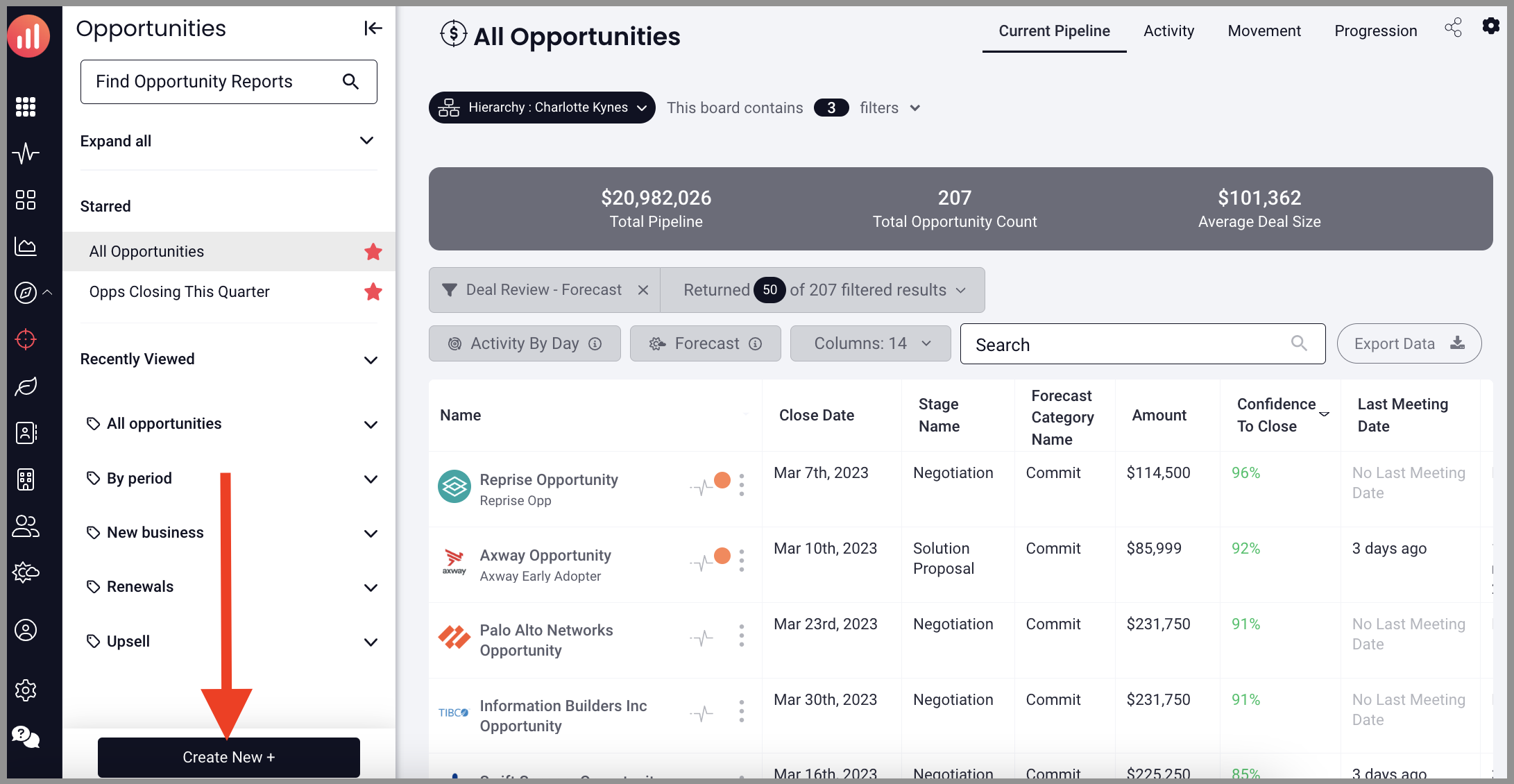
- Click on the desired content type in the Explore dropdown in the left nav
- In the board menu, click Create New +
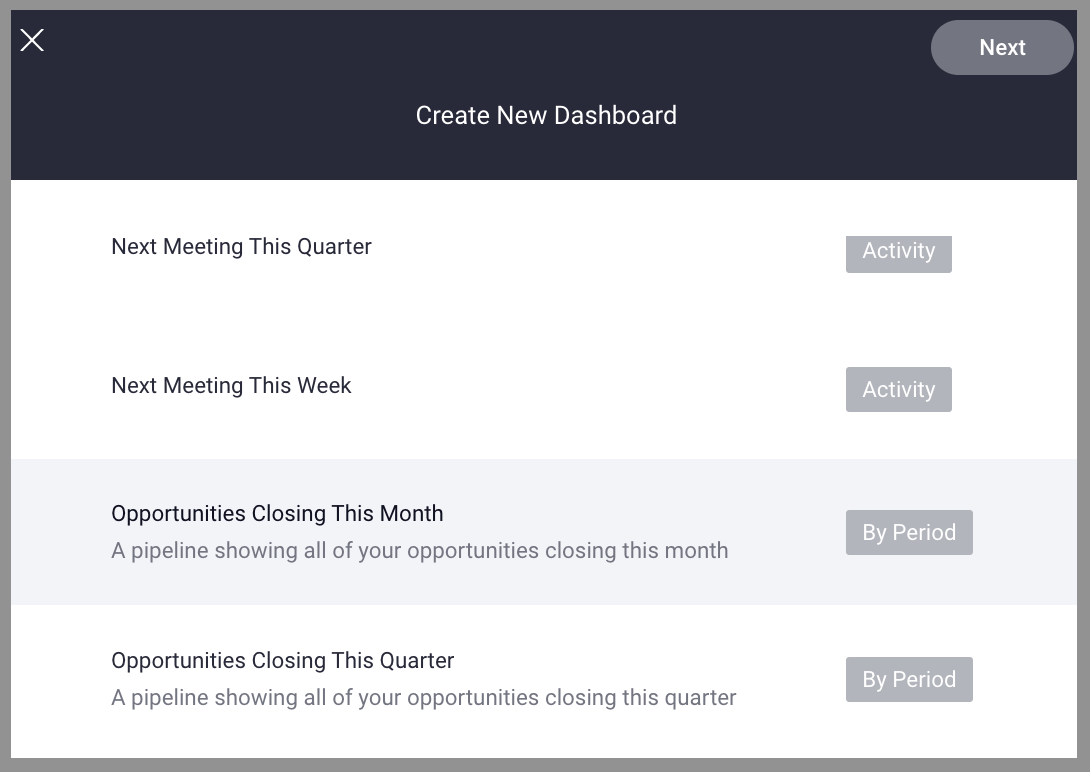
- Select a board template, then click next
-
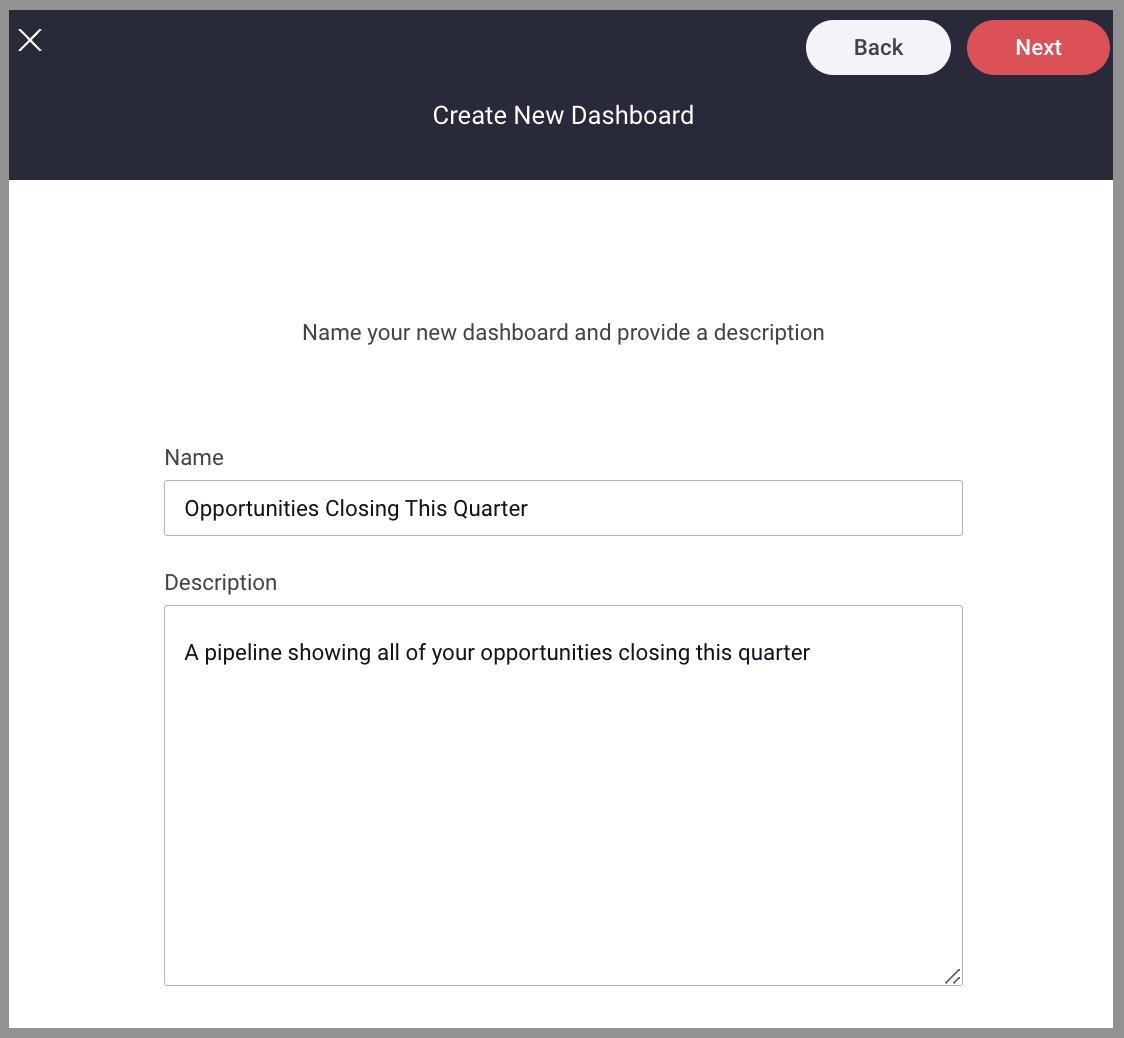
Type in a Name and Description of the board you want to create, then click next.
- Add applicable tags by searching and selecting the tags you want to be associated with this board. Tags are used in the board navigation to organize your various boards.
- Click on Filter to choose the content you want to be displayed on your board by selecting each filter type you want to see, this is how you narrow down the data you want to inspect and differentiate your custom boards.
- Click on Audience and select user groups to define who can view your new board. You can either select by user group or add individuals by email address(es).
- Click Editors and select which user groups can edit and update this board. When you have established your Filter, Audience, and Editors, click Save.
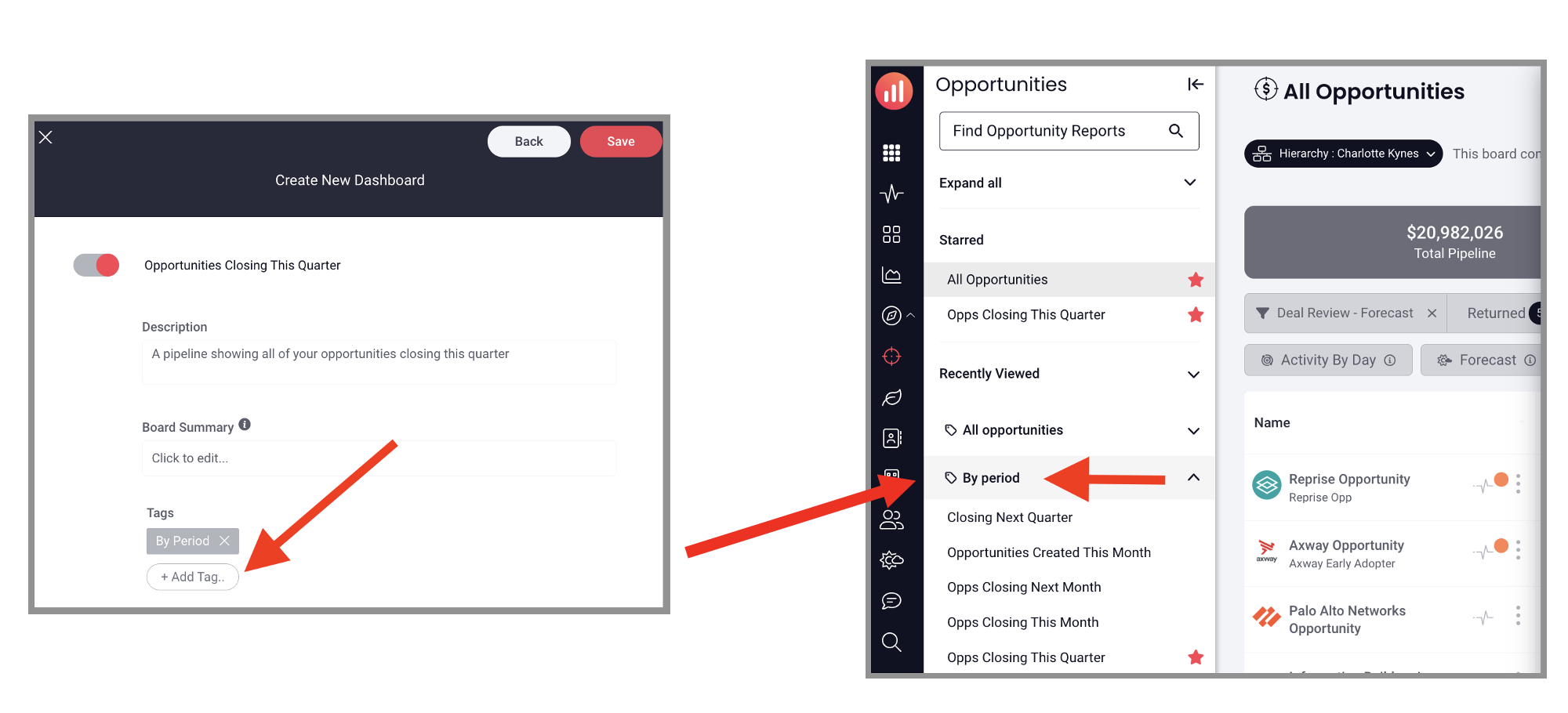
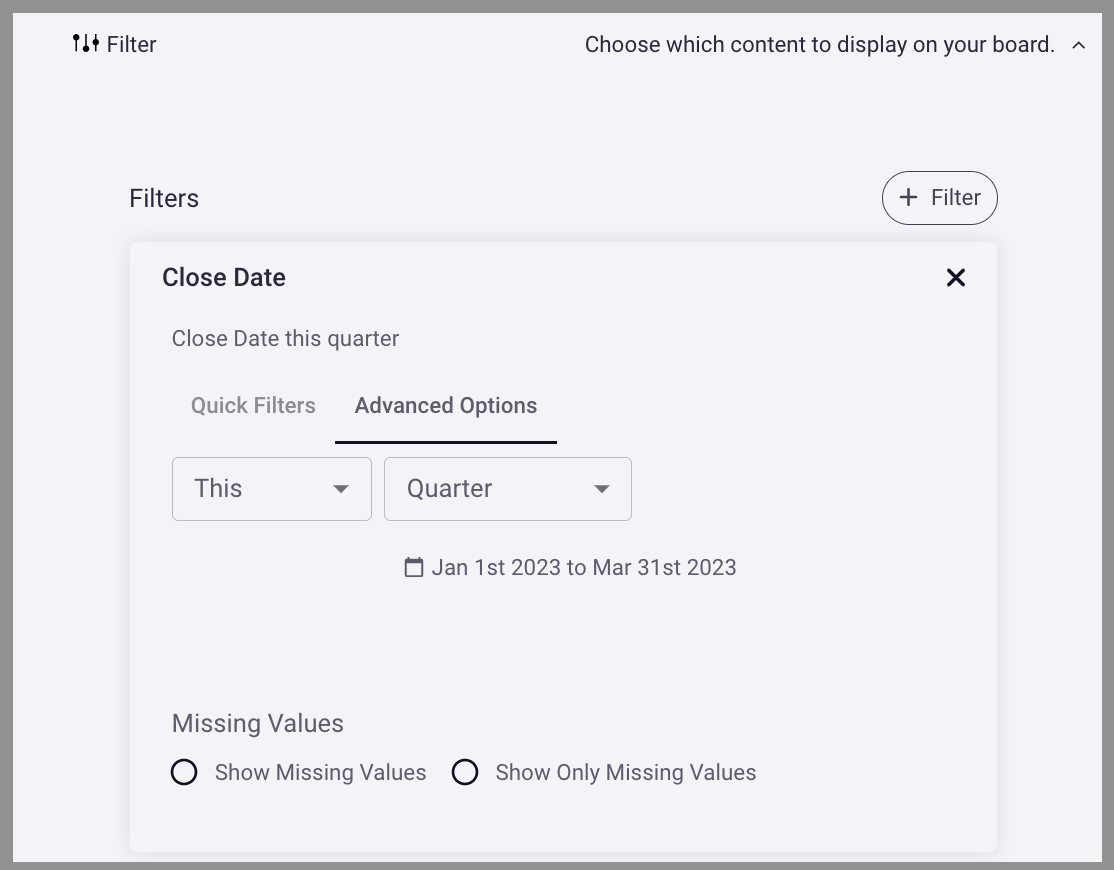
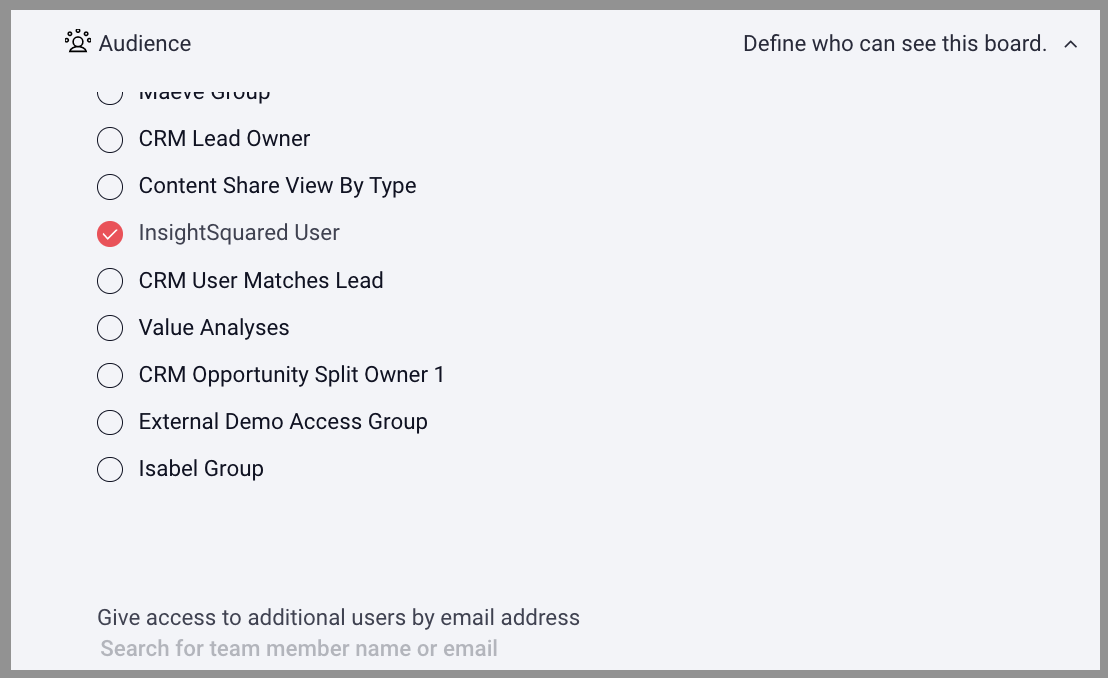
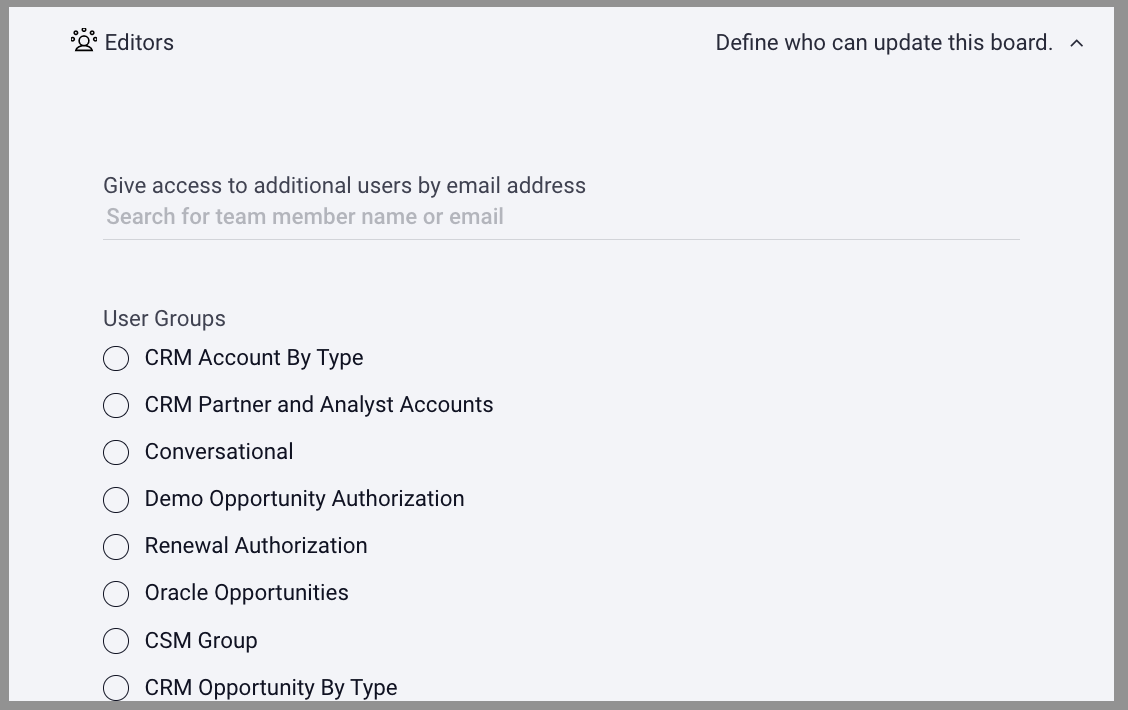
You just created a Content Dashboard! Your new board now displays only the filtered data from the current content type, is only visible to your chosen audience, and can only be updated by your chosen editors. Your new board title is now available in the content dashboard, second level navigation menu and it will be discoverable here to you and your chosen audience.
Editing your New Content Dashboard
To make changes to your board data, click on the settings icon in the top right corner and click Manage Dashboard. From here you can change the information just as it was created above.
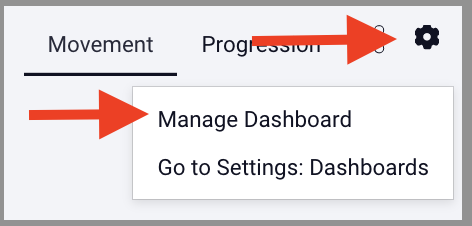
Now you can create multiple boards to quickly assess the data that is sliced and diced to fit your needs.
Replies have been locked on this page!